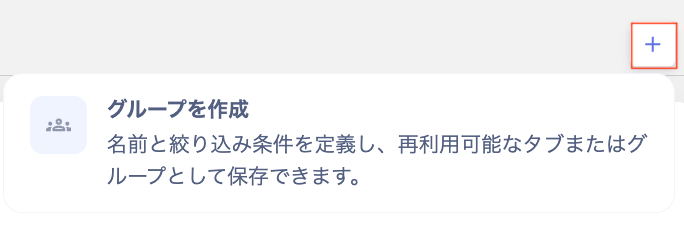
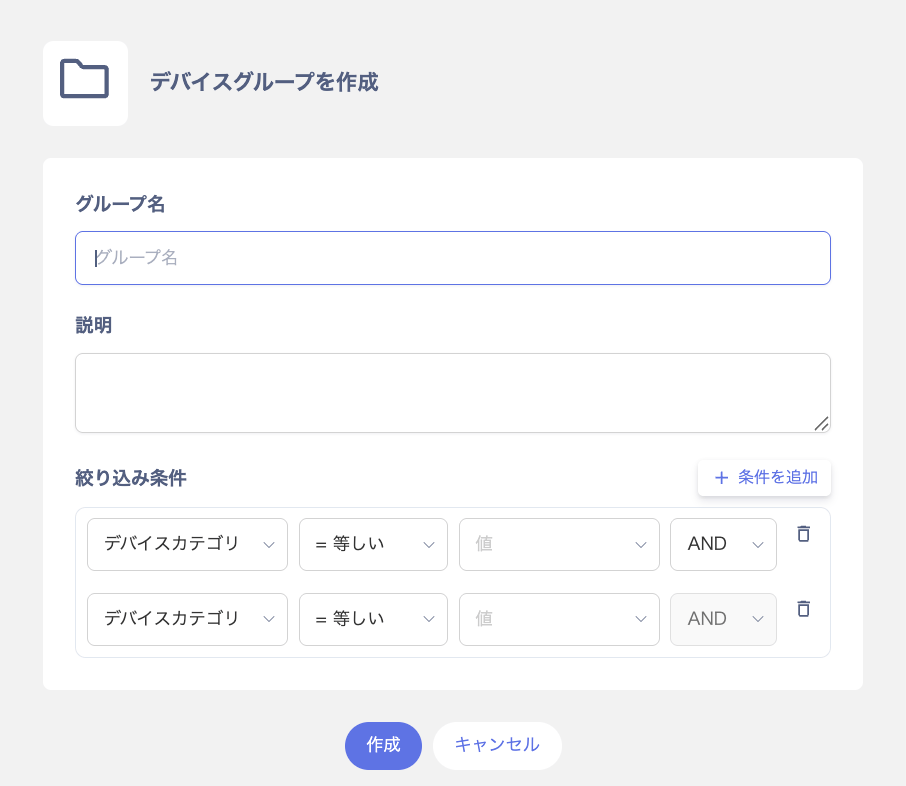
On the “Create device group” screen, enter a group name and description, then set the filter conditions. Click Add condition to add multiple conditions. You can connect conditions with AND or OR.
Group name is required, up to 255 characters.
Description is optional, up to 1,024 characters.
Attributes include device type, model name, OS, and location, plus custom fields and MDM fields.
Operators include: equals / not equals / contains / starts with / after / before / later than / earlier than.
For values, enter text or select from a dropdown or date picker, depending on the attribute type.
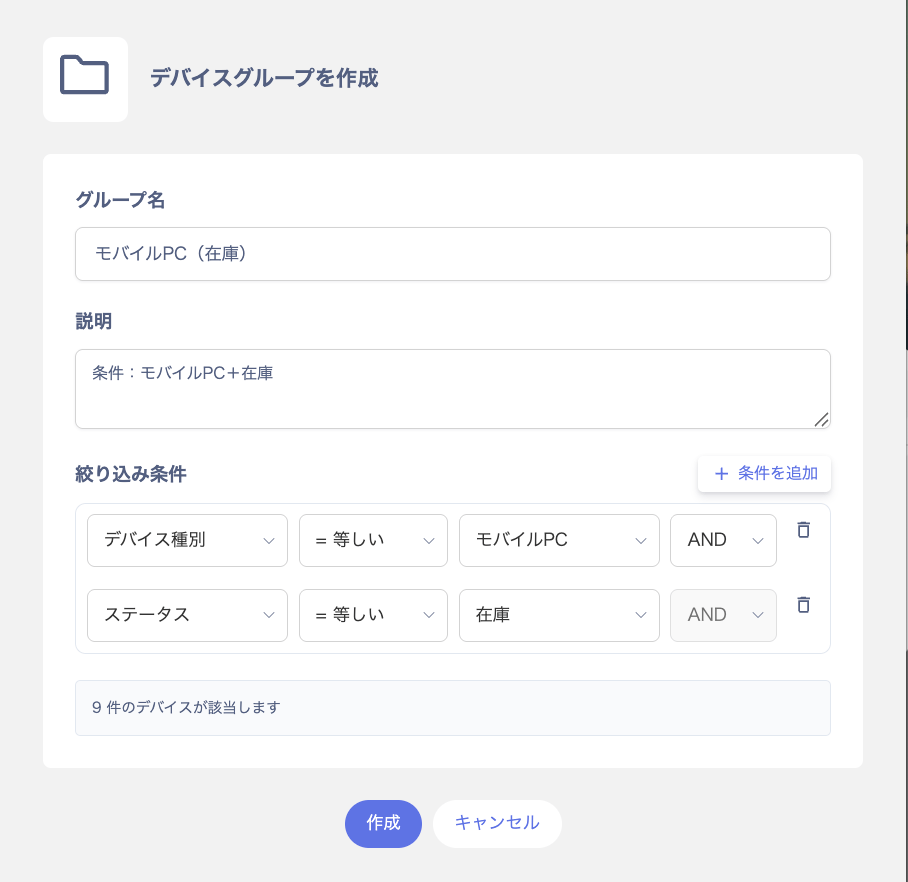
The number of matching devices appears, for example “X devices match.” Check the settings, then click Create.
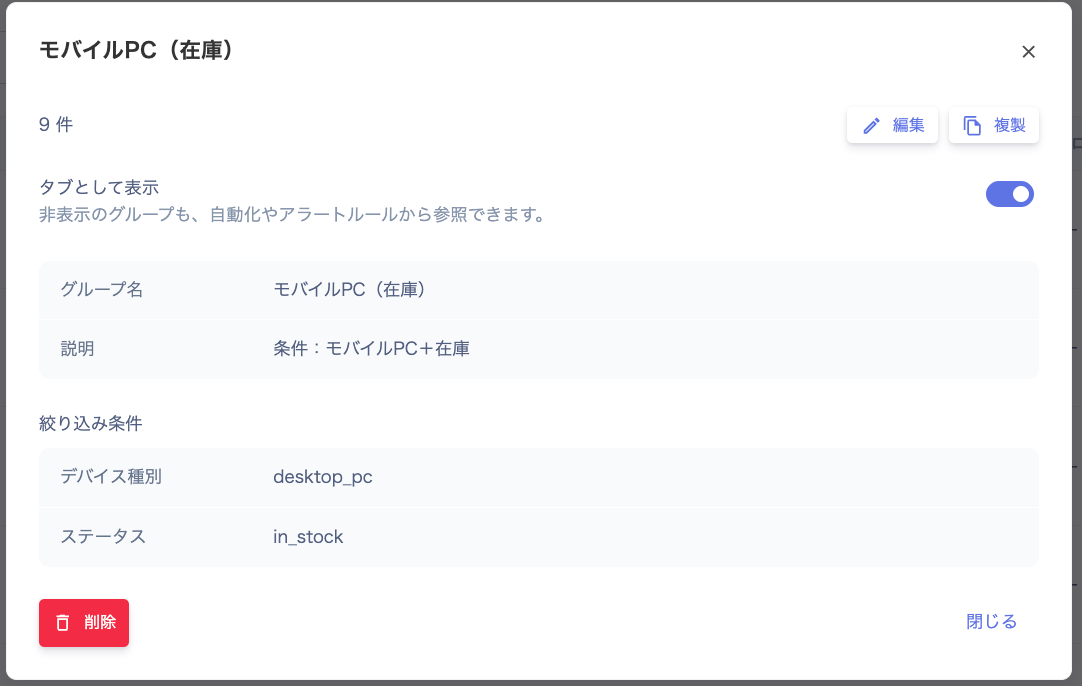
A confirmation screen appears. Check the registered details, then click Close. After creation, a new tab and group appear on the list screen.
You must set at least one filter condition when creating a group.
Conditions can only use fields of the device itself (fields such as device type, custom fields, and MDM fields). You cannot use Directory information, such as the department of the employee the device is assigned to.
To create a group for each department, add a custom field such as “Department” to devices and enter its values. Then use that field as a condition. This field isn’t linked to the department in the Directory, so enter and update the value for each device. To learn how to add a custom field, see Customize device management fields.
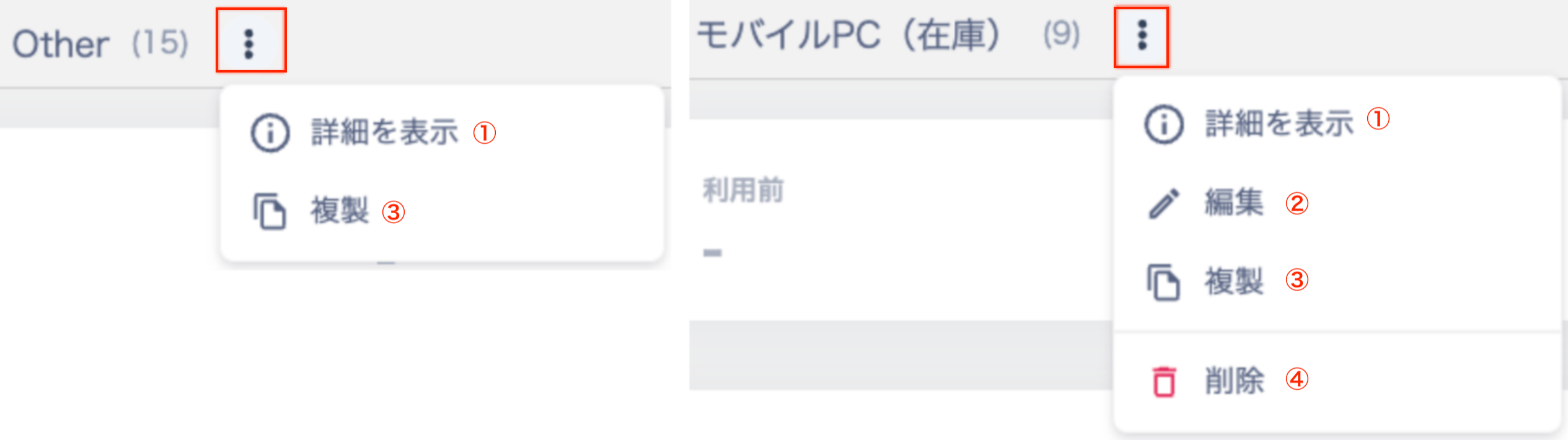
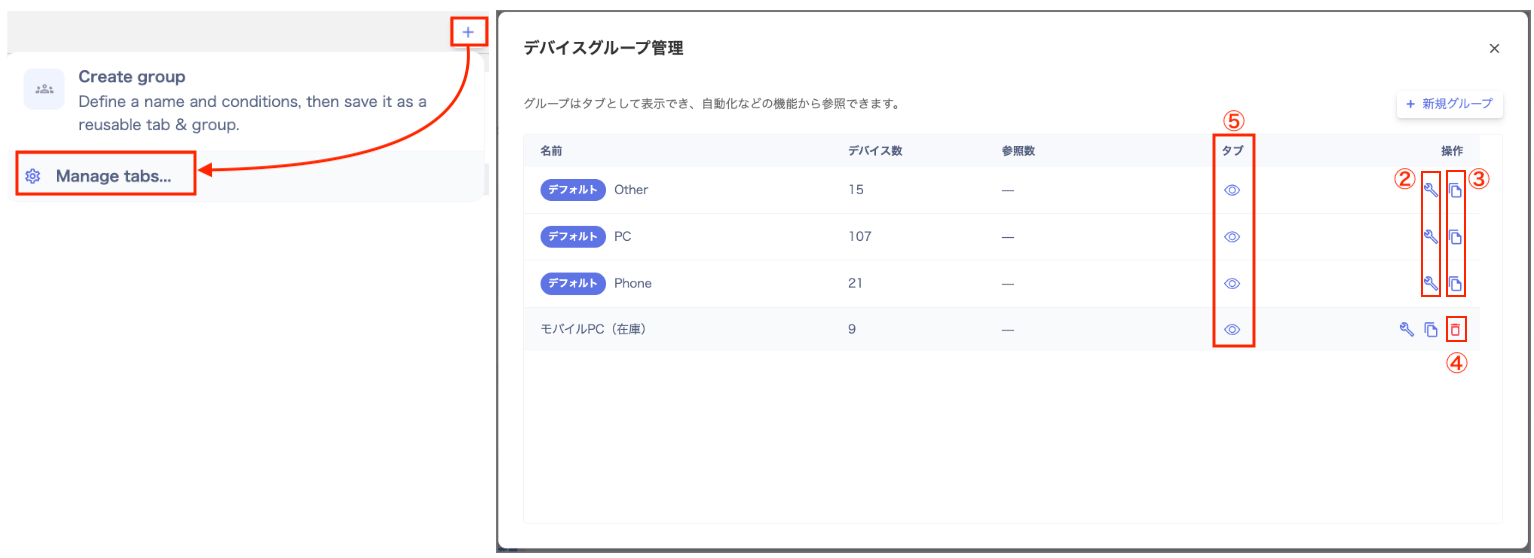
You can perform the following actions from the menu on a created group’s tab. You can also use Device > Device Settings > Device Groups (the device group management screen).
No.
Action
Description
1
View details
Check the group’s registered information and applied conditions.
2
Edit
Change the group name, description, or filter conditions.
3
Duplicate
Copy an existing group’s conditions to efficiently create a new group.
4
Delete
Delete a group you no longer need.
5
Toggle visibility
Toggle whether the tab appears in the tab bar.
You cannot edit or delete the default groups (PC / Phone / Other).
Last modified on October 15, 2026
Was this page helpful?
{"docsConfig":{"theme":"mint","$schema":"https://mintlify.com/docs.json","name":"Admina Help Center","colors":{"primary":"#4361ee","light":"#bcd1ff","dark":"#4361ee"},"logo":{"light":"https://mintcdn.com/moneyforwardi/r7Kl_XskKl0zZU6O/images/logo-light.png?fit=max\u0026auto=format\u0026n=r7Kl_XskKl0zZU6O\u0026q=85\u0026s=34f61220e23b4287c2562d1517958299","dark":"https://mintcdn.com/moneyforwardi/r7Kl_XskKl0zZU6O/images/logo-dark.png?fit=max\u0026auto=format\u0026n=r7Kl_XskKl0zZU6O\u0026q=85\u0026s=5b6db21942c268fab71887726d3cf3f7","href":"/"},"favicon":"https://mintcdn.com/moneyforwardi/sBonQ3jiLBZfmNUI/images/favicon.jpg?fit=max\u0026auto=format\u0026n=sBonQ3jiLBZfmNUI\u0026q=85\u0026s=357aac4e2a753f60c369805a0e93e061","appearance":{"default":"system"},"background":{"color":{"light":"#faf9f7","dark":"#050919"}},"navbar":{"links":[{"href":"https://admina.moneyforward.com/jp","label":"サービス紹介"}],"primary":{"type":"button","label":"ログイン","href":"/goto/service-login"}},"footer":{"socials":{"x":"https://x.com/A_D_M_I_N_A_MFi","github":"https://github.com/moneyforward-i","facebook":"https://www.facebook.com/moneyforwardi"},"links":[{"header":"サービス","items":[{"label":"サービス紹介","href":"https://admina.moneyforward.com/jp"},{"label":"ログイン","href":"/goto/service-login"},{"label":"サービス稼働状況","href":"https://status.i.moneyforward.com/"}]},{"header":"規約","items":[{"label":"利用規約","href":"https://admina.moneyforward.com/jp/terms-of-service"},{"label":"プライバシーポリシー","href":"https://admina.moneyforward.com/jp/privacy"},{"label":"AIサービス特約","href":"https://admina.moneyforward.com/jp/terms-of-service"},{"label":"外部送信ツールに関する公表事項","href":"https://admina.moneyforward.com/jp/external-tools"}]},{"header":"会社情報","items":[{"label":"会社概要","href":"https://admina.moneyforward.com/jp/company"},{"label":"お問い合わせ","href":"https://admina.moneyforward.com/jp/contact"}]}]},"seo":{"metatags":{"google-site-verification":"NQWwJQFaBXylW27NyMRORXsBvXNu-mUz6MDPqC7NzF8","og:site_name":"Admina ヘルプセンター","og:locale":"ja_JP","og:type":"website","twitter:card":"summary_large_image","twitter:site":"@A_D_M_I_N_A_MFi"},"paths":[{"path":"en","metatags":{"og:site_name":"Admina Help Center","og:locale":"en_US"}}],"indexing":"navigable"},"fonts":{"heading":{"family":"Sora","weight":600},"body":{"family":"Nunito Sans","weight":400}},"icons":{"library":"fontawesome"},"integrations":{"clarity":{"projectId":"x8ucua5277"},"gtm":{"tagId":"GTM-PGZJN7LM"},"intercom":{"appId":"wgvy651g"}},"errors":{"404":{"redirect":true}},"contextual":{"options":["copy","view","chatgpt","claude"],"display":"header"},"thumbnails":{"appearance":"light","background":"https://mintcdn.com/moneyforwardi/UrS7Sqkq91cqBl-T/images/thumbnail-bg.svg?fit=max\u0026auto=format\u0026n=UrS7Sqkq91cqBl-T\u0026q=85\u0026s=fd3dfe79cbd33b042fef3356c334195f","fonts":{"family":"Noto Sans JP"}},"metadata":{"timestamp":true},"styling":{"latex":false},"navigation":{"languages":[{"language":"ja","href":""},{"language":"en","href":"en"}]}},"deployment":{"deploymentMetadataValue":{"subdomain":"moneyforwardi","hasAudioNarration":false,"actualSubdomain":"moneyforwardi","customDomains":["support.i.moneyforward.com"],"gitSource":{"type":"github","owner":"moneyforward-i","repo":"admina-support-docs","deployBranch":"main","contentDirectory":"docs","isPrivate":true,"mountPath":"","label":""},"chroma":{"liveDeploymentHistoryId":"6ae3faa4f80dee69c9bd82d2","collectionId":"fd8cc175-9ab9-4c52-b43b-1a64b5676295","schemaVersion":"v3","latestBuiltDeploymentHistoryId":"6ae3faa4f80dee69c9bd82d2"},"feedback":{"agentFeedback":true,"thumbs":true},"entitlements":{"AI_CHAT":{"status":"DISABLED"}},"buildId":"6ae3faa4f80dee69c9bd82d2","clientVersion":"0.0.4043","searchFilterCounts":[{"language":"ja","tag":"インテグレーション","count":488},{"language":"en","tag":"Integration","count":488},{"language":"ja","tag":"連携ガイド","count":480},{"language":"en","tag":"Integration guides","count":480},{"language":"default","tag":"API・MCP","count":200},{"language":"default","tag":"リファレンス","count":200},{"language":"default","tag":"IT Management API","count":175},{"language":"ja","tag":"IT Management","count":161},{"language":"en","tag":"IT Management","count":161},{"language":"en","tag":"0-9 / A-E","count":130},{"language":"ja","tag":"0-9 / A-E","count":124},{"language":"ja","tag":"機能別ガイド","count":119},{"language":"en","tag":"Guides by feature","count":119},{"language":"en","tag":"K-O","count":108},{"language":"en","tag":"P-T","count":102},{"language":"en","tag":"F-J","count":93},{"language":"ja","tag":"P-T","count":92},{"language":"ja","tag":"K-O","count":89},{"language":"ja","tag":"F-J","count":86},{"language":"en","tag":"U-Z","count":47},{"language":"ja","tag":"U-Z","count":46},{"language":"ja","tag":"日本語","count":43},{"language":"en","tag":"Admin settings","count":41},{"language":"default","tag":"Devices","count":40},{"language":"default","tag":"AIヘルプデスク API","count":25},{"language":"default","tag":"Directory","count":20},{"language":"default","tag":"Services","count":16},{"language":"default","tag":"Workspaces","count":13},{"language":"default","tag":"Contracts","count":12},{"language":"default","tag":"Surveys","count":12}],"searchSettings":{"maxResults":10}},"assistantConfig":{"enableAskAiButton":false,"enableStarterQuestions":false,"enableContextualStarterQuestions":false,"enableAskAiSearchBar":true},"basePath":"","hasChatPermissions":false,"hasWebMcpPermissions":false,"toggles":[{"name":"kill-isr","enabled":true,"variant":{"name":"disabled","enabled":false,"feature_enabled":true},"impressionData":false},{"name":"agent-mintlify-slack","enabled":true,"variant":{"name":"disabled","enabled":false,"feature_enabled":true},"impressionData":false},{"name":"agent-integrations-settings","enabled":true,"variant":{"name":"disabled","enabled":false,"feature_enabled":true},"impressionData":false},{"name":"automations-pr-grouping","enabled":true,"variant":{"name":"disabled","enabled":false,"feature_enabled":true},"impressionData":false},{"name":"custom-prefix","enabled":true,"variant":{"name":"disabled","enabled":false,"feature_enabled":true},"impressionData":false},{"name":"analytics-v7","enabled":true,"variant":{"name":"disabled","enabled":false,"feature_enabled":true},"impressionData":false},{"name":"user-flows-analytics","enabled":true,"variant":{"name":"disabled","enabled":false,"feature_enabled":true},"impressionData":false},{"name":"no-publish-flow","enabled":true,"variant":{"name":"disabled","enabled":false,"feature_enabled":true},"impressionData":false},{"name":"workos-onboarding","enabled":true,"variant":{"name":"disabled","enabled":false,"feature_enabled":true},"impressionData":false},{"name":"llms-txt-v2","enabled":true,"variant":{"name":"disabled","enabled":false,"feature_enabled":true},"impressionData":false},{"name":"snapshot-serving-live","enabled":true,"variant":{"name":"disabled","enabled":false,"feature_enabled":true},"impressionData":false},{"name":"stripTemperatureMiddleware","enabled":true,"variant":{"name":"disabled","enabled":false,"feature_enabled":true},"impressionData":false},{"name":"support-platform-pylon-zendesk","enabled":true,"variant":{"name":"disabled","enabled":false,"feature_enabled":true},"impressionData":false},{"name":"snapshot-serving","enabled":true,"variant":{"name":"disabled","enabled":false,"feature_enabled":true},"impressionData":false},{"name":"instant-rollback","enabled":true,"variant":{"name":"disabled","enabled":false,"feature_enabled":true},"impressionData":false},{"name":"granular-notifications-server","enabled":true,"variant":{"name":"disabled","enabled":false,"feature_enabled":true},"impressionData":false},{"name":"granular-notifications","enabled":true,"variant":{"name":"disabled","enabled":false,"feature_enabled":true},"impressionData":false},{"name":"automations-fable","enabled":true,"variant":{"name":"disabled","enabled":false,"feature_enabled":true},"impressionData":false},{"name":"fixed-ai-action-pricing","enabled":true,"variant":{"name":"disabled","enabled":false,"feature_enabled":true},"impressionData":false},{"name":"automation-resolve-merge-conflict","enabled":true,"variant":{"name":"disabled","enabled":false,"feature_enabled":true},"impressionData":false},{"name":"scoped-publishing","enabled":true,"variant":{"name":"disabled","enabled":false,"feature_enabled":true},"impressionData":false},{"name":"mintql","enabled":true,"variant":{"name":"disabled","enabled":false,"feature_enabled":true},"impressionData":false},{"name":"page-level-analytics","enabled":true,"variant":{"name":"disabled","enabled":false,"feature_enabled":true},"impressionData":false},{"name":"editor-version-history-v2","enabled":true,"variant":{"name":"disabled","enabled":false,"feature_enabled":true},"impressionData":false},{"name":"billing-page-v2","enabled":true,"variant":{"name":"disabled","enabled":false,"feature_enabled":true},"impressionData":false},{"name":"full-page-search","enabled":true,"variant":{"name":"disabled","enabled":false,"feature_enabled":true},"impressionData":false},{"name":"workspace-projects","enabled":true,"variant":{"name":"disabled","enabled":false,"feature_enabled":true},"impressionData":false},{"name":"assistant-v5","enabled":true,"variant":{"name":"disabled","enabled":false,"feature_enabled":true},"impressionData":false},{"name":"byok-sep-25","enabled":true,"variant":{"name":"disabled","enabled":false,"feature_enabled":true},"impressionData":false},{"name":"fork-pr-previews","enabled":true,"variant":{"name":"disabled","enabled":false,"feature_enabled":true},"impressionData":false},{"name":"revalidation-jwt","enabled":true,"variant":{"name":"disabled","enabled":false,"feature_enabled":true},"impressionData":false},{"name":"vite-origin","enabled":true,"variant":{"name":"disabled","enabled":false,"feature_enabled":true},"impressionData":false},{"name":"billing-updated-9-15","enabled":true,"variant":{"name":"disabled","enabled":false,"feature_enabled":true},"impressionData":false},{"name":"workos-sso-scim","enabled":true,"variant":{"name":"disabled","enabled":false,"feature_enabled":true},"impressionData":false},{"name":"hobby-abuse-scan","enabled":true,"variant":{"name":"disabled","enabled":false,"feature_enabled":true},"impressionData":false},{"name":"dashboard-inbox","enabled":true,"variant":{"name":"disabled","enabled":false,"feature_enabled":true},"impressionData":false},{"name":"workos-signup","enabled":true,"variant":{"name":"disabled","enabled":false,"feature_enabled":true},"impressionData":false},{"name":"turbopuffer-dual-write","enabled":true,"variant":{"name":"disabled","enabled":false,"feature_enabled":true},"impressionData":false},{"name":"workos-enabled","enabled":true,"variant":{"name":"disabled","enabled":false,"feature_enabled":true},"impressionData":false},{"name":"approve-review-flow","enabled":true,"variant":{"name":"disabled","enabled":false,"feature_enabled":true},"impressionData":false},{"name":"sso-setup-deadline-banner","enabled":true,"variant":{"name":"disabled","enabled":false,"feature_enabled":true},"impressionData":false}],"googleFontsInlined":true},"customCss":[{"filePath":"style.css","content":":is(#sidebar, #mobile-nav) button[aria-expanded] span{font-weight:600}:is(#sidebar, #mobile-nav) .sidebar-group-header{font-size:.75rem;color:rgb(107 114 128)}html.dark :is(#sidebar, #mobile-nav) .sidebar-group-header{color:rgb(156 163 175)}:is(#sidebar, #mobile-nav) button[aria-expanded]+ul{margin-left:1rem;padding-left:.375rem;border-left:1px solid rgb(229 231 235)}html.dark :is(#sidebar, #mobile-nav) button[aria-expanded]+ul{border-left-color:rgb(255 255 255/.1)}:is(#sidebar, #mobile-nav) button[aria-expanded]+ul>li>a{padding-left:.625rem!important}footer div:has(>[data-testid^=mode-switch-]),html[data-page-mode=center]:has(.home) #content-area>.feedback-toolbar,html[data-page-mode=center]:has(.home) #header{display:none}#footer a[href*=\"mintlify.com\"],#footer p~a{color:#4a5565}#footer a[href*=\"mintlify.com\"]:hover,#footer p~a:hover{color:#030712}html.dark #footer p~a{color:#82858c}html.dark #footer p~a:hover{color:#b4b5ba}html.dark #footer a[href*=\"mintlify.com\"]{color:#99a1af}html.dark #footer a[href*=\"mintlify.com\"]:hover{color:#e5e7eb}html.dark{--admina-dark-surface:rgb(21 24 38);--admina-dark-border:rgb(255 255 255 / 0.12)}html.dark .card{background:var(--admina-dark-surface)}html.dark .card,html.dark .home-search{border-color:var(--admina-dark-border)}.blog-author-card{display:flex;gap:1rem;align-items:flex-start;margin-top:2rem;padding:1.25rem;border:1px solid rgb(229 231 235);border-radius:.75rem;background:rgb(249 250 251)}html.dark .blog-author-card{border-color:rgb(55 65 81);background:rgb(31 41 55)}.blog-author-avatar{flex-shrink:0;width:3.5rem;height:3.5rem;border-radius:50%;display:flex;align-items:center;justify-content:center;background:#4361ee;color:#fff;font-weight:600;font-size:1.125rem;overflow:hidden}.blog-author-avatar img{width:100%;height:100%;object-fit:cover}.blog-author-body{min-width:0}.blog-author-name{font-weight:600;color:rgb(17 24 39)}html.dark .blog-author-name{color:rgb(243 244 246)}.blog-author-bio,.blog-author-title{font-size:.875rem;color:rgb(107 114 128);margin-top:.125rem}html.dark .blog-author-links a,html.dark .blog-author-title{color:rgb(156 163 175)}.blog-author-bio{line-height:1.6;color:rgb(75 85 99);margin-top:.5rem}html.dark .blog-author-bio{color:rgb(209 213 219)}.blog-author-links{display:flex;gap:.75rem;margin-top:.75rem}.blog-author-links a{display:inline-flex;color:rgb(107 114 128);text-decoration:none;border-bottom:none}.blog-author-links a:hover{color:#4361ee}.blog-author-brand-icon{display:inline-block;width:18px;height:18px;vertical-align:middle;background-color:currentColor;-webkit-mask-repeat:no-repeat;mask-repeat:no-repeat;-webkit-mask-position:center;mask-position:center;-webkit-mask-size:contain;mask-size:contain}html.dark .blog-author-links a:hover{color:#6d83f2}html[data-page-mode=center]:has(.home) div:has(>#content-container){max-width:none;padding-left:0;padding-right:0}html[data-page-mode=center]:has(.home) div:has(>#content-area){padding-top:calc(4rem + var(--banner-height, 2.5rem))}@media (min-width:1024px){html[data-page-mode=center]:has(.home) div:has(>#content-area){padding-top:0}}html[data-page-mode=center]:has(.home) #content{margin-top:0;margin-bottom:0}html[data-page-mode=center] .home-section-head h2{line-height:1.7}html[data-page-mode=center] .home :is(h1, h2, h3, h4)>.absolute{display:none}html[data-page-mode=center] .home :is(h1, h2, h3, h4)>.cursor-pointer{cursor:auto}html[data-page-mode=center] .home a{border-bottom:none}.home{--home-heading:rgb(17 24 39);--home-border:rgb(229 231 235);--home-muted:rgb(75 85 99);--home-faint:rgb(107 114 128);--home-surface:#ffffff;--home-primary:#4361ee;max-width:64rem;margin:0 auto;padding:0 1.25rem;line-height:1.7;word-break:auto-phrase}html.dark .home{--home-heading:rgb(229 231 235);--home-border:rgb(35 42 69);--home-muted:rgb(175 182 197);--home-faint:rgb(148 156 174);--home-surface:var(--admina-dark-surface);--home-primary:#8fa2f7}html[data-current-path=\"/\"] #search-bar-entry,html[data-current-path=\"/en\"] #search-bar-entry{display:none}.home-hero,.home-search{display:flex;align-items:center}.home-hero{flex-direction:column;gap:.875rem;padding:4rem 0 3rem;text-align:center}.home-hero h1{margin:0;color:var(--home-heading);font-size:2.25rem;font-weight:700;line-height:1.3;letter-spacing:-.02em;text-wrap:balance}.home-hero p{max-width:36rem;margin:0;font-size:1rem;color:var(--home-muted)}.home-search{gap:.7rem;width:min(100%,34rem);height:3.5rem;margin-top:.75rem;padding:0 1.15rem;border:1.5px solid var(--home-border);border-radius:999px;background:var(--home-surface);box-shadow:0 1px 2px rgb(0 0 0/5%),0 8px 24px rgb(0 0 0/4%);font:inherit;color:var(--home-faint);text-align:left;cursor:pointer;transition:border-color .15s,box-shadow .15s}.home-search:hover{border-color:var(--home-primary)}.home-search:focus-visible{outline:2px solid var(--home-primary);outline-offset:2px}html.dark .home-search:hover{border-color:rgb(var(--primary-light))}.home-search-label{flex:1;font-size:1rem}.home-search-kbd{flex:none;padding:.1rem .4rem;border:1px solid var(--home-border);border-radius:.3rem;font-size:.75rem;font-weight:700}.home-section{padding-bottom:2.75rem}.home-section-head{display:flex;align-items:baseline;gap:.75rem;margin-bottom:1rem}.home-section-head h2{margin:0;color:var(--home-heading);font-size:1.375rem;font-weight:600;letter-spacing:-.01em}.home-section-links{display:flex;flex-wrap:wrap;gap:.35rem 1rem;margin-left:auto}.home-section-links a{font-size:.875rem;color:var(--home-muted);text-decoration:none;white-space:nowrap}.home-section-links a:hover,.home-updates-list a:hover .home-updates-title{color:var(--home-primary);text-decoration:underline}.home-badge{display:inline-block;margin-right:.5rem;padding:.05rem .5rem;border:1px solid var(--home-border);border-radius:999px;font-size:.72rem;font-weight:600;color:var(--home-muted);vertical-align:.05em}.home-updates-date{font-size:.875rem;font-weight:600;font-variant-numeric:tabular-nums;color:var(--home-heading)}.home-updates-list{display:grid;grid-template-columns:max-content max-content minmax(0,1fr);column-gap:1rem;margin:1rem 0 0;padding:0;border-top:1px solid var(--home-border);list-style:none}.home-updates-list a,.home-updates-list li{display:grid;grid-column:1/-1;grid-template-columns:subgrid}.home-updates-list li{margin:0;padding:0;border-bottom:1px solid var(--home-border)}.home-updates-list a{align-items:baseline;padding:.6rem .25rem;color:var(--home-heading);text-decoration:none}.home-updates-list .home-badge{justify-self:start;margin-right:0}.home-updates-title{font-size:.9375rem}.home-updates-list a:focus-visible{outline:2px solid var(--home-primary);outline-offset:2px}@media (max-width:640px){.home-hero{padding:4.5rem 0 2rem}.home-hero h1{font-size:1.75rem}.home-updates-list{grid-template-columns:max-content minmax(0,1fr);column-gap:.75rem}.home-updates-title{grid-column:1/-1}}.integration-catalog-controls{display:flex;flex-wrap:wrap;gap:.5rem;margin-bottom:.75rem}.integration-catalog-control{padding:.4rem .6rem;border-radius:.5rem;border:1px solid rgb(156 163 175/.45);background:0 0;color:inherit;font-size:.8125rem}.integration-catalog-search{flex:1 1 9rem;min-width:0;max-width:24rem}.integration-catalog-meta{display:flex;flex-wrap:wrap;justify-content:space-between;align-items:center;gap:.5rem 1rem;margin-bottom:.5rem;font-size:.8125rem}.integration-catalog-count{margin:0;opacity:.7}.integration-catalog-toggle{display:inline-flex;align-items:center;gap:.35rem;cursor:pointer;opacity:.85}.integration-catalog-toggle input{margin:0}.integration-catalog-actions{display:flex;flex-wrap:wrap;align-items:center;gap:.5rem .75rem}.integration-catalog-actions button{cursor:pointer}.integration-catalog-actions button:disabled{cursor:not-allowed;opacity:.5}.integration-catalog-empty{opacity:.45}.integration-catalog-updated{margin:.5rem 0 0;font-size:.75rem;opacity:.6}.integration-catalog-scroll{max-height:33rem;overflow:auto;border:1px solid rgb(156 163 175/.3);border-radius:.5rem}.integration-catalog-scroll>div,.integration-catalog-scroll>div>div{display:block!important;overflow:visible!important;contain:none!important;padding:0!important;margin:0!important}.integration-catalog-scroll table{display:table;overflow:visible;border-collapse:separate;border-spacing:0;table-layout:fixed;width:100%;min-width:99rem;margin:0;font-size:.8125rem}.integration-catalog-scroll td,.integration-catalog-scroll th{padding:.5rem .6rem;border-bottom:1px solid rgb(156 163 175/.25);vertical-align:top;text-align:left;overflow-wrap:anywhere}.integration-catalog-scroll thead th{position:sticky;top:0;z-index:2;font-weight:600;background:rgb(var(--background-light))}.integration-catalog-scroll td:first-child,.integration-catalog-scroll th:first-child{position:sticky;left:0;z-index:1;background:rgb(var(--background-light));border-right:1px solid rgb(156 163 175/.3)}.integration-catalog-scroll thead th:first-child{z-index:3}html.dark .integration-catalog-scroll td:first-child,html.dark .integration-catalog-scroll th:first-child,html.dark .integration-catalog-scroll thead th{background:rgb(var(--background-dark))}.integration-catalog-scroll tbody tr:hover td{background:rgb(156 163 175/.12)}.integration-catalog-scroll tbody tr:hover td:first-child{background:#efefee;background:color-mix(in srgb,rgb(var(--background-light)) 88%,rgb(156 163 175))}html.dark .integration-catalog-scroll tbody tr:hover td:first-child{background:#171b2b;background:color-mix(in srgb,rgb(var(--background-dark)) 88%,rgb(156 163 175))}.integration-catalog-badge{display:inline-block;padding:.1rem .45rem;margin:0 .25rem .25rem 0;border-radius:.625rem;font-size:.75rem;line-height:1.45;white-space:nowrap;color:#1d1f25}.integration-catalog-badge--blue{background:#cfdfff}.integration-catalog-badge--cyan{background:#d0f0fd}.integration-catalog-badge--teal{background:#c2f5e9}.integration-catalog-badge--green{background:#d1f7c4}.integration-catalog-badge--yellow{background:#ffeab6}.integration-catalog-badge--orange{background:#fee2d5}.integration-catalog-badge--red{background:#ffdce5}.integration-catalog-badge--pink{background:#ffdaf6}.integration-catalog-badge--purple{background:#ede2fe}.integration-catalog-badge--gray{background:#e5e7eb}html.dark .integration-catalog-badge{color:#e8eaf2}html.dark .integration-catalog-badge--blue{background:#2a3a63}html.dark .integration-catalog-badge--cyan{background:#1f3f52}html.dark .integration-catalog-badge--teal{background:#1c4340}html.dark .integration-catalog-badge--green{background:#26432a}html.dark .integration-catalog-badge--yellow{background:#4a3c1c}html.dark .integration-catalog-badge--orange{background:#4d3126}html.dark .integration-catalog-badge--red{background:#4d2632}html.dark .integration-catalog-badge--pink{background:#472541}html.dark .integration-catalog-badge--purple{background:#372a55}html.dark .integration-catalog-badge--gray{background:#2b3040}.integration-catalog-row--suspended td{color:rgb(156 163 175)}.integration-catalog-row--suspended a{color:inherit}.integration-catalog-row--suspended .integration-catalog-badge{opacity:.5}.integration-catalog-suspended{display:block;font-size:.75rem}.integration-catalog-scroll col.integration-catalog-col-name{width:13rem}.integration-catalog-scroll col.integration-catalog-col-mode{width:8rem}.integration-catalog-scroll col.integration-catalog-col-plan{width:10rem}.integration-catalog-scroll col.integration-catalog-col-automation,.integration-catalog-scroll col.integration-catalog-col-lifecycle{width:12rem}.integration-catalog-scroll col.integration-catalog-col-fetch{width:17rem}.integration-catalog-scroll col.integration-catalog-col-capabilities{width:13rem}.integration-catalog-scroll col.integration-catalog-col-memo{width:14rem}.integration-catalog:fullscreen{padding:3.25rem 1.25rem 1rem;overflow:auto;background:rgb(var(--background-light, 250 249 247))}.integration-catalog:fullscreen::backdrop{background:rgb(250 249 247)}html.dark .integration-catalog:fullscreen{background:rgb(var(--background-dark, 5 9 25))}html.dark .integration-catalog:fullscreen::backdrop{background:rgb(5 9 25)}.integration-catalog:fullscreen .integration-catalog-scroll{max-height:calc(100vh - 9.75rem)}.integration-catalog-control[aria-pressed=true]{border-color:rgb(var(--primary));color:rgb(var(--primary))}.integration-catalog:fullscreen .integration-catalog-scroll>div,.integration-catalog:fullscreen .integration-catalog-scroll>div>div{width:100%;max-width:100%}.integration-catalog:fullscreen .integration-catalog-scroll table{min-width:0;width:100%}.integration-catalog:fullscreen col.integration-catalog-col-name{width:15%}.integration-catalog:fullscreen col.integration-catalog-col-mode{width:8%}.integration-catalog:fullscreen col.integration-catalog-col-plan{width:10%}.integration-catalog:fullscreen col.integration-catalog-col-lifecycle{width:14%}.integration-catalog:fullscreen col.integration-catalog-col-automation{width:13%}.integration-catalog:fullscreen col.integration-catalog-col-fetch{width:15%}.integration-catalog:fullscreen col.integration-catalog-col-capabilities{width:12%}.integration-catalog:fullscreen col.integration-catalog-col-memo{width:13%}.nav-tag-pill-text[data-nav-tag=Suspended],.nav-tag-pill-text[data-nav-tag=連携停止中]{color:#854d0e;background:#fef9c3}html.dark .nav-tag-pill-text[data-nav-tag=Suspended],html.dark .nav-tag-pill-text[data-nav-tag=連携停止中]{color:#fde047;background:#342913}.integration-capabilities{margin:0 0 1.5rem;border:1px solid rgb(156 163 175/.3);border-radius:.5rem;overflow:hidden}.integration-capabilities-list{margin:0}.integration-capabilities-row{display:grid;grid-template-columns:12rem 1fr;gap:0 1rem;padding:.6rem .9rem;border-bottom:1px solid rgb(156 163 175/.2)}.integration-capabilities-row:last-child{border-bottom:none}.integration-capabilities-row dt{margin:0;font-size:.8125rem;font-weight:600;opacity:.75}.integration-capabilities-row dd{margin:0;font-size:.8125rem}.integration-capabilities-empty{opacity:.45}.integration-capabilities-note{display:block;margin-top:.25rem;font-size:.8125rem;opacity:.65}@media (max-width:40rem){.integration-capabilities-row{grid-template-columns:1fr;gap:.25rem}}.mdx-content img[src*=\"/images/\"]:not(:is(.card, .blog-author-avatar) *){height:auto;max-height:500px;object-fit:contain;object-position:left top}.mdx-content picture>img[src*=\"/images/\"]:not(:is(.card, .blog-author-avatar, .frame) *){margin-top:2em;margin-bottom:2em}.mdx-content ol{padding-left:1.625em}.mdx-content ol>li{padding-left:.375em}.a11y-limitations{margin:1.25rem 0;border:1px solid rgb(156 163 175/.3);border-radius:.5rem;overflow:hidden}.a11y-limitations>div{display:grid;grid-template-columns:minmax(9rem,30%) 1fr}.a11y-limitations>div+div{border-top:1px solid rgb(156 163 175/.2)}.a11y-limitations>div>p{margin:0;padding:.75rem 1rem}.a11y-limitations>div>p:first-child{font-weight:600;background:rgb(156 163 175/.12)}@media (max-width:40rem){.a11y-limitations>div{grid-template-columns:1fr}}"}],"page":{"pagePath":"en/it-management/device/tfkxibk4gi-device-group","slug":"/en/it-management/device/tfkxibk4gi-device-group","pageMetadata":{"title":"Create and manage device groups","description":"Learn how to dynamically aggregate and group devices that match a specified filter.","href":"/en/it-management/device/tfkxibk4gi-device-group"},"description":{"compiledSource":"\"use strict\";\nconst {jsx: _jsx} = arguments[0];\nconst {useMDXComponents: _provideComponents} = arguments[0];\nfunction _createMdxContent(props) {\n const _components = {\n p: \"p\",\n ..._provideComponents(),\n ...props.components\n };\n return _jsx(_components.p, {\n children: \"Learn how to dynamically aggregate and group devices that match a specified filter.\"\n });\n}\nfunction MDXContent(props = {}) {\n const {wrapper: MDXLayout} = {\n ..._provideComponents(),\n ...props.components\n };\n return MDXLayout ? _jsx(MDXLayout, {\n ...props,\n children: _jsx(_createMdxContent, {\n ...props\n })\n }) : _createMdxContent(props);\n}\nreturn {\n default: MDXContent\n};\n","frontmatter":{},"scope":{}},"pageType":"default","mdx":{"mdxSource":{"compiledSource":"\"use strict\";const{Fragment:_Fragment,jsx:_jsx,jsxs:_jsxs}=arguments[0];const{useMDXComponents:_provideComponents}=arguments[0];function _createMdxContent(props){const _components={a:`a`,li:`li`,ol:`ol`,p:`p`,strong:`strong`,tbody:`tbody`,td:`td`,th:`th`,thead:`thead`,tr:`tr`,ul:`ul`,..._provideComponents(),...props.components},{Heading,Info,OptimizedImage,Table}=_components;if(!Heading)_missingMdxReference(`Heading`,true);if(!Info)_missingMdxReference(`Info`,true);if(!OptimizedImage)_missingMdxReference(`OptimizedImage`,true);if(!Table)_missingMdxReference(`Table`,true);return _jsxs(_Fragment,{children:[_jsx(_components.p,{children:`This feature dynamically aggregates and groups devices that match a specified filter (attribute, operator, and value).`}),`\n`,_jsx(Heading,{level:`2`,id:`steps-to-create-a-device-group`,children:`Steps to Create a Device Group`}),`\n`,_jsxs(_components.ol,{children:[`\n`,_jsxs(_components.li,{children:[`\n`,_jsxs(_components.p,{children:[`Click `,_jsx(_components.strong,{children:`+`}),` at the top of the Devices screen.`]}),`\n`,_jsx(OptimizedImage,{src:`https://mintcdn.com/moneyforwardi/DBSo4lQR6JJNvuZQ/images/it-management/tfkxibk4gi/device-list-add-button.png?fit=max\u0026auto=format\u0026n=DBSo4lQR6JJNvuZQ\u0026q=85\u0026s=e7ce4e7f2f6e4a80c260ac23619792c3`,alt:`The + button at the top of the device list screen`,\"data-og-width\":`2426`,width:`2426`,\"data-og-height\":`206`,height:`206`,\"data-path\":`images/it-management/tfkxibk4gi/device-list-add-button.png`,\"data-optimize\":`true`,\"data-opv\":`3`,srcset:`https://mintcdn.com/moneyforwardi/DBSo4lQR6JJNvuZQ/images/it-management/tfkxibk4gi/device-list-add-button.png?w=280\u0026fit=max\u0026auto=format\u0026n=DBSo4lQR6JJNvuZQ\u0026q=85\u0026s=1338c09c5a8f676d51db08609d293555 280w, https://mintcdn.com/moneyforwardi/DBSo4lQR6JJNvuZQ/images/it-management/tfkxibk4gi/device-list-add-button.png?w=560\u0026fit=max\u0026auto=format\u0026n=DBSo4lQR6JJNvuZQ\u0026q=85\u0026s=833b2090c6d73eeafa76ccec2b3817c8 560w, https://mintcdn.com/moneyforwardi/DBSo4lQR6JJNvuZQ/images/it-management/tfkxibk4gi/device-list-add-button.png?w=840\u0026fit=max\u0026auto=format\u0026n=DBSo4lQR6JJNvuZQ\u0026q=85\u0026s=ddb39eff0a7fb5d9a3b100c85091aa59 840w, https://mintcdn.com/moneyforwardi/DBSo4lQR6JJNvuZQ/images/it-management/tfkxibk4gi/device-list-add-button.png?w=1100\u0026fit=max\u0026auto=format\u0026n=DBSo4lQR6JJNvuZQ\u0026q=85\u0026s=70e73e5b18b313330bd3093f1b1c51e4 1100w, https://mintcdn.com/moneyforwardi/DBSo4lQR6JJNvuZQ/images/it-management/tfkxibk4gi/device-list-add-button.png?w=1650\u0026fit=max\u0026auto=format\u0026n=DBSo4lQR6JJNvuZQ\u0026q=85\u0026s=3437844a71907f325cd0c71b0449d8fa 1650w, https://mintcdn.com/moneyforwardi/DBSo4lQR6JJNvuZQ/images/it-management/tfkxibk4gi/device-list-add-button.png?w=2500\u0026fit=max\u0026auto=format\u0026n=DBSo4lQR6JJNvuZQ\u0026q=85\u0026s=52eddad4c1c5eaddfbcbae7541f3bd8d 2500w`}),`\n`]}),`\n`,_jsxs(_components.li,{children:[`\n`,_jsxs(_components.p,{children:[`Select `,_jsx(_components.strong,{children:`Create group`}),`.`]}),`\n`,_jsx(OptimizedImage,{src:`https://mintcdn.com/moneyforwardi/4yuGHAkhGyeWyQ7v/images/it-management/tfkxibk4gi/create-group-menu.png?fit=max\u0026auto=format\u0026n=4yuGHAkhGyeWyQ7v\u0026q=85\u0026s=51ec9e316fe7b252351b539f9332eb3f`,alt:`The Create group menu`,\"data-og-width\":`684`,width:`684`,\"data-og-height\":`228`,height:`228`,\"data-path\":`images/it-management/tfkxibk4gi/create-group-menu.png`,\"data-optimize\":`true`,\"data-opv\":`3`,srcset:`https://mintcdn.com/moneyforwardi/4yuGHAkhGyeWyQ7v/images/it-management/tfkxibk4gi/create-group-menu.png?w=280\u0026fit=max\u0026auto=format\u0026n=4yuGHAkhGyeWyQ7v\u0026q=85\u0026s=877ac21afdc8be04de2f47a18ae6b153 280w, https://mintcdn.com/moneyforwardi/4yuGHAkhGyeWyQ7v/images/it-management/tfkxibk4gi/create-group-menu.png?w=560\u0026fit=max\u0026auto=format\u0026n=4yuGHAkhGyeWyQ7v\u0026q=85\u0026s=10b32b3292389a57f1e5a0281e004d34 560w, https://mintcdn.com/moneyforwardi/4yuGHAkhGyeWyQ7v/images/it-management/tfkxibk4gi/create-group-menu.png?w=840\u0026fit=max\u0026auto=format\u0026n=4yuGHAkhGyeWyQ7v\u0026q=85\u0026s=1782c4e200b92cedf225c46143b5934e 840w, https://mintcdn.com/moneyforwardi/4yuGHAkhGyeWyQ7v/images/it-management/tfkxibk4gi/create-group-menu.png?w=1100\u0026fit=max\u0026auto=format\u0026n=4yuGHAkhGyeWyQ7v\u0026q=85\u0026s=515dde7919356d469bc00ca46ce828a7 1100w, https://mintcdn.com/moneyforwardi/4yuGHAkhGyeWyQ7v/images/it-management/tfkxibk4gi/create-group-menu.png?w=1650\u0026fit=max\u0026auto=format\u0026n=4yuGHAkhGyeWyQ7v\u0026q=85\u0026s=43e19cc933e6715d12b0ff8074fe8198 1650w, https://mintcdn.com/moneyforwardi/4yuGHAkhGyeWyQ7v/images/it-management/tfkxibk4gi/create-group-menu.png?w=2500\u0026fit=max\u0026auto=format\u0026n=4yuGHAkhGyeWyQ7v\u0026q=85\u0026s=aa637b85ba7d4a49a59160be16fec11c 2500w`}),`\n`]}),`\n`,_jsxs(_components.li,{children:[`\n`,_jsxs(_components.p,{children:[`On the “Create device group” screen, enter a group name and description, then set the filter conditions. Click `,_jsx(_components.strong,{children:`Add condition`}),` to add multiple conditions. You can connect conditions with `,_jsx(_components.strong,{children:`AND`}),` or `,_jsx(_components.strong,{children:`OR`}),`.`]}),`\n`,_jsxs(_components.ul,{children:[`\n`,_jsx(_components.li,{children:`Group name is required, up to 255 characters.`}),`\n`,_jsx(_components.li,{children:`Description is optional, up to 1,024 characters.`}),`\n`,_jsx(_components.li,{children:`Attributes include device type, model name, OS, and location, plus custom fields and MDM fields.`}),`\n`,_jsx(_components.li,{children:`Operators include: equals / not equals / contains / starts with / after / before / later than / earlier than.`}),`\n`,_jsx(_components.li,{children:`For values, enter text or select from a dropdown or date picker, depending on the attribute type.`}),`\n`]}),`\n`,_jsx(OptimizedImage,{src:`https://mintcdn.com/moneyforwardi/PwKlQYUYlmGmb9bg/images/it-management/tfkxibk4gi/create-group-form.png?fit=max\u0026auto=format\u0026n=PwKlQYUYlmGmb9bg\u0026q=85\u0026s=301dce54145bb05c8abe6ab35aea6559`,alt:`The Create device group screen`,\"data-og-width\":`906`,width:`906`,\"data-og-height\":`786`,height:`786`,\"data-path\":`images/it-management/tfkxibk4gi/create-group-form.png`,\"data-optimize\":`true`,\"data-opv\":`3`,srcset:`https://mintcdn.com/moneyforwardi/PwKlQYUYlmGmb9bg/images/it-management/tfkxibk4gi/create-group-form.png?w=280\u0026fit=max\u0026auto=format\u0026n=PwKlQYUYlmGmb9bg\u0026q=85\u0026s=1b739fecae6b8ac6f1f619f4913cc501 280w, https://mintcdn.com/moneyforwardi/PwKlQYUYlmGmb9bg/images/it-management/tfkxibk4gi/create-group-form.png?w=560\u0026fit=max\u0026auto=format\u0026n=PwKlQYUYlmGmb9bg\u0026q=85\u0026s=d4d6862a66455003c8fc3ada2169207d 560w, https://mintcdn.com/moneyforwardi/PwKlQYUYlmGmb9bg/images/it-management/tfkxibk4gi/create-group-form.png?w=840\u0026fit=max\u0026auto=format\u0026n=PwKlQYUYlmGmb9bg\u0026q=85\u0026s=605b65fe7504a35ff79af33cbf0326a7 840w, https://mintcdn.com/moneyforwardi/PwKlQYUYlmGmb9bg/images/it-management/tfkxibk4gi/create-group-form.png?w=1100\u0026fit=max\u0026auto=format\u0026n=PwKlQYUYlmGmb9bg\u0026q=85\u0026s=d3747ada2daaa8734c888ae6a0e94472 1100w, https://mintcdn.com/moneyforwardi/PwKlQYUYlmGmb9bg/images/it-management/tfkxibk4gi/create-group-form.png?w=1650\u0026fit=max\u0026auto=format\u0026n=PwKlQYUYlmGmb9bg\u0026q=85\u0026s=1d0c835c8d47b626516c8b7b4bba3854 1650w, https://mintcdn.com/moneyforwardi/PwKlQYUYlmGmb9bg/images/it-management/tfkxibk4gi/create-group-form.png?w=2500\u0026fit=max\u0026auto=format\u0026n=PwKlQYUYlmGmb9bg\u0026q=85\u0026s=b3b619efb5ea4295719bdb6d46182fc3 2500w`}),`\n`]}),`\n`,_jsxs(_components.li,{children:[`\n`,_jsxs(_components.p,{children:[`The number of matching devices appears, for example “X devices match.” Check the settings, then click `,_jsx(_components.strong,{children:`Create`}),`.`]}),`\n`,_jsx(OptimizedImage,{src:`https://mintcdn.com/moneyforwardi/PwKlQYUYlmGmb9bg/images/it-management/tfkxibk4gi/create-group-count.png?fit=max\u0026auto=format\u0026n=PwKlQYUYlmGmb9bg\u0026q=85\u0026s=8389409cdefea2374a891952404db0c0`,alt:`The screen showing the number of matching devices`,\"data-og-width\":`908`,width:`908`,\"data-og-height\":`882`,height:`882`,\"data-path\":`images/it-management/tfkxibk4gi/create-group-count.png`,\"data-optimize\":`true`,\"data-opv\":`3`,srcset:`https://mintcdn.com/moneyforwardi/PwKlQYUYlmGmb9bg/images/it-management/tfkxibk4gi/create-group-count.png?w=280\u0026fit=max\u0026auto=format\u0026n=PwKlQYUYlmGmb9bg\u0026q=85\u0026s=7e2c2cc1700be70fbe4b01cf6d0ab354 280w, https://mintcdn.com/moneyforwardi/PwKlQYUYlmGmb9bg/images/it-management/tfkxibk4gi/create-group-count.png?w=560\u0026fit=max\u0026auto=format\u0026n=PwKlQYUYlmGmb9bg\u0026q=85\u0026s=8bc04c7b8b5654ba26aa8666914c0ec0 560w, https://mintcdn.com/moneyforwardi/PwKlQYUYlmGmb9bg/images/it-management/tfkxibk4gi/create-group-count.png?w=840\u0026fit=max\u0026auto=format\u0026n=PwKlQYUYlmGmb9bg\u0026q=85\u0026s=b012139a7b6929db964a7d7eab2d5429 840w, https://mintcdn.com/moneyforwardi/PwKlQYUYlmGmb9bg/images/it-management/tfkxibk4gi/create-group-count.png?w=1100\u0026fit=max\u0026auto=format\u0026n=PwKlQYUYlmGmb9bg\u0026q=85\u0026s=48b7b4f205adf7aac8f87b931d8d3028 1100w, https://mintcdn.com/moneyforwardi/PwKlQYUYlmGmb9bg/images/it-management/tfkxibk4gi/create-group-count.png?w=1650\u0026fit=max\u0026auto=format\u0026n=PwKlQYUYlmGmb9bg\u0026q=85\u0026s=c5d43f236ca3ce813f5e6db15c8d4c4a 1650w, https://mintcdn.com/moneyforwardi/PwKlQYUYlmGmb9bg/images/it-management/tfkxibk4gi/create-group-count.png?w=2500\u0026fit=max\u0026auto=format\u0026n=PwKlQYUYlmGmb9bg\u0026q=85\u0026s=90999d3d76f3d95a4cb8132a29db553f 2500w`}),`\n`]}),`\n`,_jsxs(_components.li,{children:[`\n`,_jsxs(_components.p,{children:[`A confirmation screen appears. Check the registered details, then click `,_jsx(_components.strong,{children:`Close`}),`. After creation, a new tab and group appear on the list screen.`]}),`\n`,_jsx(OptimizedImage,{src:`https://mintcdn.com/moneyforwardi/DBSo4lQR6JJNvuZQ/images/it-management/tfkxibk4gi/group-detail.png?fit=max\u0026auto=format\u0026n=DBSo4lQR6JJNvuZQ\u0026q=85\u0026s=95ab3182264fdd6c24ea808eb95f08e7`,alt:`The confirmation screen after creating a group`,\"data-og-width\":`1082`,width:`1082`,\"data-og-height\":`686`,height:`686`,\"data-path\":`images/it-management/tfkxibk4gi/group-detail.png`,\"data-optimize\":`true`,\"data-opv\":`3`,srcset:`https://mintcdn.com/moneyforwardi/DBSo4lQR6JJNvuZQ/images/it-management/tfkxibk4gi/group-detail.png?w=280\u0026fit=max\u0026auto=format\u0026n=DBSo4lQR6JJNvuZQ\u0026q=85\u0026s=92862175416ad33d49efba55a72cb9d8 280w, https://mintcdn.com/moneyforwardi/DBSo4lQR6JJNvuZQ/images/it-management/tfkxibk4gi/group-detail.png?w=560\u0026fit=max\u0026auto=format\u0026n=DBSo4lQR6JJNvuZQ\u0026q=85\u0026s=4b482fdf320b841897aba6d63c89ec00 560w, https://mintcdn.com/moneyforwardi/DBSo4lQR6JJNvuZQ/images/it-management/tfkxibk4gi/group-detail.png?w=840\u0026fit=max\u0026auto=format\u0026n=DBSo4lQR6JJNvuZQ\u0026q=85\u0026s=a80fe1010eaadb89cff80de194ee1b99 840w, https://mintcdn.com/moneyforwardi/DBSo4lQR6JJNvuZQ/images/it-management/tfkxibk4gi/group-detail.png?w=1100\u0026fit=max\u0026auto=format\u0026n=DBSo4lQR6JJNvuZQ\u0026q=85\u0026s=90b217ac87b75f32a3580386889e4e1a 1100w, https://mintcdn.com/moneyforwardi/DBSo4lQR6JJNvuZQ/images/it-management/tfkxibk4gi/group-detail.png?w=1650\u0026fit=max\u0026auto=format\u0026n=DBSo4lQR6JJNvuZQ\u0026q=85\u0026s=1c2869cc2e2a3b7cca64a8ec2c28cd83 1650w, https://mintcdn.com/moneyforwardi/DBSo4lQR6JJNvuZQ/images/it-management/tfkxibk4gi/group-detail.png?w=2500\u0026fit=max\u0026auto=format\u0026n=DBSo4lQR6JJNvuZQ\u0026q=85\u0026s=98aa328228a728b3e741da56c37afdfc 2500w`}),`\n`]}),`\n`]}),`\n`,_jsx(Info,{children:_jsxs(_components.ul,{children:[`\n`,_jsx(_components.li,{children:`You must set at least one filter condition when creating a group.`}),`\n`,_jsx(_components.li,{children:`Conditions can only use fields of the device itself (fields such as device type, custom fields, and MDM fields). You cannot use Directory information, such as the department of the employee the device is assigned to.`}),`\n`,_jsxs(_components.li,{children:[`To create a group for each department, add a custom field such as “Department” to devices and enter its values. Then use that field as a condition. This field isn’t linked to the department in the Directory, so enter and update the value for each device. To learn how to add a custom field, see `,_jsx(_components.a,{href:`/en/it-management/device/2gdbiob664-device-itme`,children:`Customize device management fields`}),`.`]}),`\n`]})}),`\n`,_jsx(Heading,{level:`2`,id:`manage-groups`,children:`Manage Groups`}),`\n`,_jsx(_components.p,{children:`You can perform the following actions from the menu on a created group’s tab. You can also use Device > Device Settings > Device Groups (the device group management screen).`}),`\n`,_jsx(OptimizedImage,{src:`https://mintcdn.com/moneyforwardi/DBSo4lQR6JJNvuZQ/images/it-management/tfkxibk4gi/group-menu-compare.png?fit=max\u0026auto=format\u0026n=DBSo4lQR6JJNvuZQ\u0026q=85\u0026s=baa7ba747e53a8b4802b7bab2b14a15a`,alt:`Comparison of the menu for default groups and custom groups`,\"data-og-width\":`2530`,width:`2530`,\"data-og-height\":`710`,height:`710`,\"data-path\":`images/it-management/tfkxibk4gi/group-menu-compare.png`,\"data-optimize\":`true`,\"data-opv\":`3`,srcset:`https://mintcdn.com/moneyforwardi/DBSo4lQR6JJNvuZQ/images/it-management/tfkxibk4gi/group-menu-compare.png?w=280\u0026fit=max\u0026auto=format\u0026n=DBSo4lQR6JJNvuZQ\u0026q=85\u0026s=28b9c3c1b06dc3d4a600faa280ae8d55 280w, https://mintcdn.com/moneyforwardi/DBSo4lQR6JJNvuZQ/images/it-management/tfkxibk4gi/group-menu-compare.png?w=560\u0026fit=max\u0026auto=format\u0026n=DBSo4lQR6JJNvuZQ\u0026q=85\u0026s=e245d767c9feb47943a370718373d61f 560w, https://mintcdn.com/moneyforwardi/DBSo4lQR6JJNvuZQ/images/it-management/tfkxibk4gi/group-menu-compare.png?w=840\u0026fit=max\u0026auto=format\u0026n=DBSo4lQR6JJNvuZQ\u0026q=85\u0026s=2b0babdb90e61ca9d806cf6cb23b0386 840w, https://mintcdn.com/moneyforwardi/DBSo4lQR6JJNvuZQ/images/it-management/tfkxibk4gi/group-menu-compare.png?w=1100\u0026fit=max\u0026auto=format\u0026n=DBSo4lQR6JJNvuZQ\u0026q=85\u0026s=62d15142830071b96c02841ea1e57cf3 1100w, https://mintcdn.com/moneyforwardi/DBSo4lQR6JJNvuZQ/images/it-management/tfkxibk4gi/group-menu-compare.png?w=1650\u0026fit=max\u0026auto=format\u0026n=DBSo4lQR6JJNvuZQ\u0026q=85\u0026s=b5caa9559d90edd6f822cabc5645f82e 1650w, https://mintcdn.com/moneyforwardi/DBSo4lQR6JJNvuZQ/images/it-management/tfkxibk4gi/group-menu-compare.png?w=2500\u0026fit=max\u0026auto=format\u0026n=DBSo4lQR6JJNvuZQ\u0026q=85\u0026s=ccddb18d7ba3c107456eb65f8cbe4ba2 2500w`}),`\n`,_jsxs(Table,{children:[_jsx(_components.thead,{children:_jsxs(_components.tr,{children:[_jsx(_components.th,{children:`No.`}),_jsx(_components.th,{children:`Action`}),_jsx(_components.th,{children:`Description`})]})}),_jsxs(_components.tbody,{children:[_jsxs(_components.tr,{children:[_jsx(_components.td,{\"data-numeric\":`true`,children:`1`}),_jsx(_components.td,{children:`View details`}),_jsx(_components.td,{children:`Check the group’s registered information and applied conditions.`})]}),_jsxs(_components.tr,{children:[_jsx(_components.td,{\"data-numeric\":`true`,children:`2`}),_jsx(_components.td,{children:`Edit`}),_jsx(_components.td,{children:`Change the group name, description, or filter conditions.`})]}),_jsxs(_components.tr,{children:[_jsx(_components.td,{\"data-numeric\":`true`,children:`3`}),_jsx(_components.td,{children:`Duplicate`}),_jsx(_components.td,{children:`Copy an existing group’s conditions to efficiently create a new group.`})]}),_jsxs(_components.tr,{children:[_jsx(_components.td,{\"data-numeric\":`true`,children:`4`}),_jsx(_components.td,{children:`Delete`}),_jsx(_components.td,{children:`Delete a group you no longer need.`})]}),_jsxs(_components.tr,{children:[_jsx(_components.td,{\"data-numeric\":`true`,children:`5`}),_jsx(_components.td,{children:`Toggle visibility`}),_jsx(_components.td,{children:`Toggle whether the tab appears in the tab bar.`})]})]})]}),`\n`,_jsx(OptimizedImage,{src:`https://mintcdn.com/moneyforwardi/DBSo4lQR6JJNvuZQ/images/it-management/tfkxibk4gi/manage-groups.png?fit=max\u0026auto=format\u0026n=DBSo4lQR6JJNvuZQ\u0026q=85\u0026s=b8846988e96c8349432b6bcde0fad777`,alt:`The device group management screen`,\"data-og-width\":`1534`,width:`1534`,\"data-og-height\":`558`,height:`558`,\"data-path\":`images/it-management/tfkxibk4gi/manage-groups.png`,\"data-optimize\":`true`,\"data-opv\":`3`,srcset:`https://mintcdn.com/moneyforwardi/DBSo4lQR6JJNvuZQ/images/it-management/tfkxibk4gi/manage-groups.png?w=280\u0026fit=max\u0026auto=format\u0026n=DBSo4lQR6JJNvuZQ\u0026q=85\u0026s=b6245523986866fd698c0b762fb72103 280w, https://mintcdn.com/moneyforwardi/DBSo4lQR6JJNvuZQ/images/it-management/tfkxibk4gi/manage-groups.png?w=560\u0026fit=max\u0026auto=format\u0026n=DBSo4lQR6JJNvuZQ\u0026q=85\u0026s=5708c0e39092b476bf55b57ebd37f336 560w, https://mintcdn.com/moneyforwardi/DBSo4lQR6JJNvuZQ/images/it-management/tfkxibk4gi/manage-groups.png?w=840\u0026fit=max\u0026auto=format\u0026n=DBSo4lQR6JJNvuZQ\u0026q=85\u0026s=c58eabf9ea27433fba1b2ab0f6fa8e42 840w, https://mintcdn.com/moneyforwardi/DBSo4lQR6JJNvuZQ/images/it-management/tfkxibk4gi/manage-groups.png?w=1100\u0026fit=max\u0026auto=format\u0026n=DBSo4lQR6JJNvuZQ\u0026q=85\u0026s=8b66758ef27199af893690dc56b86000 1100w, https://mintcdn.com/moneyforwardi/DBSo4lQR6JJNvuZQ/images/it-management/tfkxibk4gi/manage-groups.png?w=1650\u0026fit=max\u0026auto=format\u0026n=DBSo4lQR6JJNvuZQ\u0026q=85\u0026s=adb809cf725c939ef680c6eb159994b5 1650w, https://mintcdn.com/moneyforwardi/DBSo4lQR6JJNvuZQ/images/it-management/tfkxibk4gi/manage-groups.png?w=2500\u0026fit=max\u0026auto=format\u0026n=DBSo4lQR6JJNvuZQ\u0026q=85\u0026s=e6aa69b9127d82d2b04e535d19db66b7 2500w`}),`\n`,_jsx(Info,{children:_jsxs(_components.ul,{children:[`\n`,_jsx(_components.li,{children:`You cannot edit or delete the default groups (PC / Phone / Other).`}),`\n`]})})]})}function MDXContent(props={}){const{wrapper:MDXLayout}={..._provideComponents(),...props.components};return MDXLayout?_jsx(MDXLayout,{...props,children:_jsx(_createMdxContent,{...props})}):_createMdxContent(props)}return{default:MDXContent};function _missingMdxReference(id,component){throw new Error(`Expected `+(component?`component`:`object`)+\" `\"+id+\"` to be defined: you likely forgot to import, pass, or provide it.\")}","frontmatter":{},"scope":{"config":{},"pageMetadata":{"title":"Create and manage device groups","description":"Learn how to dynamically aggregate and group devices that match a specified filter.","href":"/en/it-management/device/tfkxibk4gi-device-group"}}},"mdxSourceWithNoJs":null},"mdxExtracts":{"tableOfContents":[{"title":"Steps to Create a Device Group","slug":"steps-to-create-a-device-group","depth":2,"children":[]},{"title":"Manage Groups","slug":"manage-groups","depth":2,"children":[]}],"codeExamples":{}},"jsLinks":["/_mintlify/custom/moneyforwardi/abbf0b4838830c9e/search-trigger.js","/_mintlify/custom/moneyforwardi/5c486283aa17f605/blog-author-jsonld.js"],"subdomain":"moneyforwardi","siteName":"Admina Help Center","title":"Create and manage device groups - Admina Help Center","navMaps":{"firstHrefInVersion":{},"firstHrefInLanguage":{"ja":{"href":"/it-management/device/tfkxibk4gi-device-group","matchLevel":1},"en":{"href":"/en/it-management/device/tfkxibk4gi-device-group","matchLevel":0}}},"lastModified":"2026-10-15T05:05:44.637Z","gitLastModified":"2026-10-15T05:05:05.000Z","originalFileLocation":"en/it-management/device/tfkxibk4gi-device-group.mdx","locale":"en"},"headHtml":"\u003cscript data-mint-head>(function(){var d=document.documentElement,p=null;if(!p){try{p=localStorage.getItem(\"isDarkMode\")}catch(e){}if(p==='true')p='dark';else if(p==='false')p='light';if(p!=='light'\u0026\u0026p!=='dark'\u0026\u0026p!=='system')p=\"system\"}var r=p==='system'?(matchMedia(\"(prefers-color-scheme: dark)\").matches?'dark':'light'):p;d.classList.remove(r==='dark'?'light':'dark');d.classList.add(r);d.setAttribute(\"data-theme-preference\",p)})();\u003c/script>\u003cmeta data-mint-head name=\"description\" content=\"Learn how to dynamically aggregate and group devices that match a specified filter.\">\u003cmeta data-mint-head name=\"application-name\" content=\"Admina Help Center\">\u003cmeta data-mint-head name=\"generator\" content=\"Mintlify\">\u003clink data-mint-head rel=\"icon\" type=\"image/png\" sizes=\"192x192\" href=\"/mintlify-assets/_mintlify/favicons/moneyforwardi/mqyv-j-ER3Q2YTmV/_generated/favicon/android-chrome-192x192.png\" media=\"(prefers-color-scheme: light)\">\u003clink data-mint-head rel=\"apple-touch-icon\" type=\"image/png\" sizes=\"180x180\" href=\"/mintlify-assets/_mintlify/favicons/moneyforwardi/mqyv-j-ER3Q2YTmV/_generated/favicon/apple-touch-icon.png\">\u003clink data-mint-head rel=\"icon\" type=\"image/png\" sizes=\"16x16\" href=\"/mintlify-assets/_mintlify/favicons/moneyforwardi/mqyv-j-ER3Q2YTmV/_generated/favicon/favicon-16x16.png\" media=\"(prefers-color-scheme: light)\">\u003clink data-mint-head rel=\"icon\" type=\"image/png\" sizes=\"32x32\" href=\"/mintlify-assets/_mintlify/favicons/moneyforwardi/mqyv-j-ER3Q2YTmV/_generated/favicon/favicon-32x32.png\" media=\"(prefers-color-scheme: light)\">\u003clink data-mint-head rel=\"shortcut icon\" type=\"image/x-icon\" href=\"/mintlify-assets/_mintlify/favicons/moneyforwardi/mqyv-j-ER3Q2YTmV/_generated/favicon/favicon.ico\" media=\"(prefers-color-scheme: light)\">\u003clink data-mint-head rel=\"icon\" type=\"image/png\" sizes=\"192x192\" href=\"/mintlify-assets/_mintlify/favicons/moneyforwardi/mqyv-j-ER3Q2YTmV/_generated/favicon-dark/android-chrome-192x192.png\" media=\"(prefers-color-scheme: dark)\">\u003clink data-mint-head rel=\"icon\" type=\"image/png\" sizes=\"16x16\" href=\"/mintlify-assets/_mintlify/favicons/moneyforwardi/mqyv-j-ER3Q2YTmV/_generated/favicon-dark/favicon-16x16.png\" media=\"(prefers-color-scheme: dark)\">\u003clink data-mint-head rel=\"icon\" type=\"image/png\" sizes=\"32x32\" href=\"/mintlify-assets/_mintlify/favicons/moneyforwardi/mqyv-j-ER3Q2YTmV/_generated/favicon-dark/favicon-32x32.png\" media=\"(prefers-color-scheme: dark)\">\u003clink data-mint-head rel=\"shortcut icon\" type=\"image/x-icon\" href=\"/mintlify-assets/_mintlify/favicons/moneyforwardi/mqyv-j-ER3Q2YTmV/_generated/favicon-dark/favicon.ico\" media=\"(prefers-color-scheme: dark)\">\u003cmeta data-mint-head property=\"og:title\" content=\"Create and manage device groups - Admina Help Center\">\u003cmeta data-mint-head property=\"og:description\" content=\"Learn how to dynamically aggregate and group devices that match a specified filter.\">\u003cmeta data-mint-head property=\"og:site_name\" content=\"Admina Help Center\">\u003cmeta data-mint-head property=\"og:url\" content=\"https://support.i.moneyforward.com/en/it-management/device/tfkxibk4gi-device-group\">\u003cmeta data-mint-head property=\"og:type\" content=\"website\">\u003cmeta data-mint-head property=\"og:image\" content=\"https://moneyforwardi.mintlify.app/_mintlify/api/og/v2?division=Device+management\u0026amp;title=Create+and+manage+device+groups\u0026amp;description=Learn+how+to+dynamically+aggregate+and+group+devices+that+match+a+specified+filter.\u0026amp;theme=8b5fba73138797ee11e51993\u0026amp;signature=0265fc9022560f78166abe45b9e2797bbbb46ab1e80701a698249642d5384036\">\u003cmeta data-mint-head property=\"og:image:width\" content=\"1200\">\u003cmeta data-mint-head property=\"og:image:height\" content=\"630\">\u003cmeta data-mint-head name=\"twitter:card\" content=\"summary_large_image\">\u003cmeta data-mint-head name=\"twitter:title\" content=\"Create and manage device groups - Admina Help Center\">\u003cmeta data-mint-head name=\"twitter:description\" content=\"Learn how to dynamically aggregate and group devices that match a specified filter.\">\u003cmeta data-mint-head name=\"twitter:image\" content=\"https://moneyforwardi.mintlify.app/_mintlify/api/og/v2?division=Device+management\u0026amp;title=Create+and+manage+device+groups\u0026amp;description=Learn+how+to+dynamically+aggregate+and+group+devices+that+match+a+specified+filter.\u0026amp;theme=8b5fba73138797ee11e51993\u0026amp;signature=0265fc9022560f78166abe45b9e2797bbbb46ab1e80701a698249642d5384036\">\u003cmeta data-mint-head name=\"twitter:image:width\" content=\"1200\">\u003cmeta data-mint-head name=\"twitter:image:height\" content=\"630\">\u003cmeta data-mint-head name=\"msapplication-config\" content=\"/mintlify-assets/_mintlify/favicons/moneyforwardi/mqyv-j-ER3Q2YTmV/_generated/favicon/browserconfig.xml\">\u003cmeta data-mint-head name=\"apple-mobile-web-app-title\" content=\"Admina Help Center\">\u003cmeta data-mint-head name=\"msapplication-TileColor\" content=\"#4361ee\">\u003cmeta data-mint-head name=\"og:locale\" content=\"en_US\">\u003cmeta data-mint-head name=\"google-site-verification\" content=\"NQWwJQFaBXylW27NyMRORXsBvXNu-mUz6MDPqC7NzF8\">\u003clink data-mint-head rel=\"canonical\" href=\"https://support.i.moneyforward.com/en/it-management/device/tfkxibk4gi-device-group\">\u003clink data-mint-head rel=\"alternate\" type=\"application/xml\" href=\"/sitemap.xml\">\u003clink data-mint-head rel=\"alternate\" type=\"text/markdown\" href=\"/en/it-management/device/tfkxibk4gi-device-group.md\">\u003clink data-mint-head rel=\"alternate\" hreflang=\"en\" href=\"https://support.i.moneyforward.com/en/it-management/device/tfkxibk4gi-device-group\">\u003clink data-mint-head rel=\"alternate\" hreflang=\"ja\" href=\"https://support.i.moneyforward.com/it-management/device/tfkxibk4gi-device-group\">\u003clink data-mint-head rel=\"alternate\" hreflang=\"x-default\" href=\"https://support.i.moneyforward.com/it-management/device/tfkxibk4gi-device-group\">\u003cscript data-mint-head type=\"application/ld+json\">{\"@context\":\"https://schema.org\",\"@graph\":[{\"@type\":\"Organization\",\"@id\":\"https://support.i.moneyforward.com/#organization\",\"name\":\"Admina Help Center\",\"url\":\"https://support.i.moneyforward.com\",\"logo\":{\"@type\":\"ImageObject\",\"url\":\"https://mintcdn.com/moneyforwardi/r7Kl_XskKl0zZU6O/images/logo-light.png?fit=max\u0026auto=format\u0026n=r7Kl_XskKl0zZU6O\u0026q=85\u0026s=34f61220e23b4287c2562d1517958299\"}},{\"@type\":\"WebSite\",\"@id\":\"https://support.i.moneyforward.com#website\",\"name\":\"Admina Help Center\",\"url\":\"https://support.i.moneyforward.com\",\"publisher\":{\"@id\":\"https://support.i.moneyforward.com/#organization\"}},{\"@type\":\"WebPage\",\"@id\":\"https://support.i.moneyforward.com/en/it-management/device/tfkxibk4gi-device-group#webpage\",\"url\":\"https://support.i.moneyforward.com/en/it-management/device/tfkxibk4gi-device-group\",\"name\":\"Create and manage device groups\",\"description\":\"Learn how to dynamically aggregate and group devices that match a specified filter.\",\"dateModified\":\"2026-10-15T05:05:05.000Z\",\"isPartOf\":{\"@id\":\"https://support.i.moneyforward.com#website\"},\"breadcrumb\":{\"@id\":\"https://support.i.moneyforward.com/en/it-management/device/tfkxibk4gi-device-group#breadcrumb\"}},{\"@type\":\"BreadcrumbList\",\"@id\":\"https://support.i.moneyforward.com/en/it-management/device/tfkxibk4gi-device-group#breadcrumb\",\"itemListElement\":[{\"@type\":\"ListItem\",\"position\":1,\"name\":\"Guides by feature\",\"item\":\"https://support.i.moneyforward.com/en/it-management/saas-management/e153853h0b-saa-s\"},{\"@type\":\"ListItem\",\"position\":2,\"name\":\"Device management\",\"item\":\"https://support.i.moneyforward.com/en/it-management/device/auo46821y9-0\"},{\"@type\":\"ListItem\",\"position\":3,\"name\":\"Create and manage device groups\",\"item\":\"https://support.i.moneyforward.com/en/it-management/device/tfkxibk4gi-device-group\"}]},{\"@type\":[\"Article\",\"TechArticle\"],\"@id\":\"https://support.i.moneyforward.com/en/it-management/device/tfkxibk4gi-device-group#article\",\"headline\":\"Create and manage device groups\",\"name\":\"Create and manage device groups\",\"description\":\"Learn how to dynamically aggregate and group devices that match a specified filter.\",\"url\":\"https://support.i.moneyforward.com/en/it-management/device/tfkxibk4gi-device-group\",\"mainEntityOfPage\":{\"@id\":\"https://support.i.moneyforward.com/en/it-management/device/tfkxibk4gi-device-group#webpage\"},\"dateModified\":\"2026-10-15T05:05:05.000Z\",\"publisher\":{\"@id\":\"https://support.i.moneyforward.com/#organization\"},\"isPartOf\":{\"@id\":\"https://support.i.moneyforward.com#website\"}}]}\u003c/script>\u003cscript data-mint-head type=\"application/ld+json\">{\"@context\":\"https://schema.org\",\"@type\":\"WebSite\",\"name\":\"Admina Help Center\",\"creator\":{\"@type\":\"Organization\",\"name\":\"Mintlify\",\"url\":\"https://mintlify.com\"}}\u003c/script>","siteName":"Admina Help Center","nav":{"global":null,"languages":[{"language":"ja","pages":[{"title":"ja","href":"/it-management/device/tfkxibk4gi-device-group"}]},{"language":"en","tabs":[{"tab":"Home","pages":[{"title":"Home","href":"/en"}]},{"tab":"IT Management","groups":[{"group":"Introduction","pages":[{"title":"About IT Management","href":"/en/it-management"},{"title":"IT Management release notes","href":"/en/it-management/changelog"},{"group":"Tutorials","expanded":false,"pages":[{"title":"0. Getting started","href":"/en/it-management/tutorial/t4h0tsq6jo-start-flow"},{"title":"1. Create an account and complete initial setup","href":"/en/it-management/tutorial/yvd9n2qzh1-new"},{"title":"2. Set up the employee master and domains","href":"/en/it-management/tutorial/ikf8odm6ti-2"},{"title":"3. Connect your SaaS","href":"/en/it-management/tutorial/tdxtlisu9v-4"},{"title":"4. Register your credit card","href":"/en/it-management/tutorial/z0lxs3jc9p-5"},{"title":"5. Connect the cost master","href":"/en/it-management/tutorial/qk18kbsiv1-cost-master"},{"title":"6. Invite users","href":"/en/it-management/tutorial/93a9bikaqq-user"}]}]},{"group":"Guides by use case","pages":[{"title":"Clean up retired accounts","href":"/en/it-management/retired/alcptx3rdr-offboarding"},{"title":"Check for remaining retired accounts","href":"/en/it-management/retired/49ob8gvkxn-retiree-account-check"},{"title":"Onboarding and offboarding automation flow","href":"/en/it-management/workflows/n2msl3q9um-admina-automation"},{"title":"Service management and data export for IT audits","href":"/en/it-management/saas-management/nqtcb7uc41-it-services"},{"title":"Find unused SaaS accounts with surveys","href":"/en/it-management/survey/rsmrty4gss-2-5-saa-s"}]},{"group":"Guides by feature","pages":[{"group":"Services","expanded":false,"pages":[{"title":"Manage SaaS on the Services screen","href":"/en/it-management/saas-management/e153853h0b-saa-s"},{"title":"Services screen overview","href":"/en/it-management/saas-management/dcqgfmkgaq-services"},{"title":"Check SaaS license status","href":"/en/it-management/saas-management/fp5bwx22y8-licenses"},{"title":"Check the Last Activity date","href":"/en/it-management/saas-management/lewx96sin2-last-activity"},{"title":"Export the account list","href":"/en/it-management/saas-management/bvfxjlx09m-export-account"},{"title":"Add a SaaS account (provisioning)","href":"/en/it-management/saas-management/f9i1kx9ylf-provisioning"},{"title":"Delete or deactivate a SaaS account","href":"/en/it-management/retired/zw9trbb1wm-deprovisioning"},{"title":"Data loss risks when deleting SaaS accounts","href":"/en/it-management/retired/6ybtuo9yl2-caution-delete"},{"title":"Manually merge SaaS accounts","href":"/en/it-management/saas-management/d97dy5z2l7-merge"},{"title":"Automatically merge accounts without email addresses","href":"/en/it-management/saas-management/6ax6mziqu2-merge-identity-with-addressless-entities"},{"title":"Transfer Google Workspace data","href":"/en/it-management/saas-management/n5wzdnei6r-google-workspace"}]},{"group":"File management","expanded":false,"pages":[{"title":"Externally shared content management overview","href":"/en/it-management/file-management/aakpi1r7gq-file-management"},{"title":"Manage public forms on Google Drive","href":"/en/it-management/file-management/3dcsdrnc1a-google-form"},{"title":"Set Google Drive detection conditions","href":"/en/it-management/file-management/8ltduljmjc-drive-filterling"},{"title":"Exclude detected files with the safelist","href":"/en/it-management/file-management/b77md9ed8m-safelist"},{"title":"Resolve false positives in public file detection","href":"/en/it-management/file-management/vapqjrn1u9-failed-detection-public-file"}]},{"group":"Alerts","expanded":false,"pages":[{"title":"Alert types","href":"/en/it-management/saas-management/q6jgukpnvh-alert"},{"title":"Send alert notifications to Slack","href":"/en/it-management/retired/76lzcncxyx-slack-notification"},{"title":"Mute alert notifications","href":"/en/it-management/retired/j61yplowpw-mute"}]},{"group":"Directory","expanded":false,"pages":[{"title":"Manage employee information in the Directory","href":"/en/it-management/directory/nqxa0so8wh-admina-directory"},{"title":"Add, edit, and delete employees","href":"/en/it-management/directory/xzgyim8kpj-admina-directory-rdy-ruu"},{"title":"Search and filter the Directory","href":"/en/it-management/directory/m6uehl3rzi-admina-directory-rdy"},{"title":"Create a Directory CSV for import","href":"/en/it-management/directory/1xtq0cxipa-directory-csv-import"},{"title":"Customize Directory fields","href":"/en/it-management/directory/gqqdb2621q-edit-uid"},{"title":"Employee status conditions","href":"/en/it-management/directory/dcrxyhzb39-user-type"},{"title":"Configure Link/UnLink","href":"/en/it-management/faq/yuadk3w8gg-link-unlink"}]},{"group":"Device management","expanded":false,"pages":[{"title":"Getting started with device management","href":"/en/it-management/device/auo46821y9-0"},{"title":"Devices screen overview","href":"/en/it-management/device/erfxlknd5e-1-devices"},{"title":"Search and filter devices","href":"/en/it-management/device/mt70ejcvcx-id"},{"title":"Device management overview","href":"/en/it-management/device/tmkn2wxi35-manage-device"},{"title":"Customize device management fields","href":"/en/it-management/device/2gdbiob664-device-itme"},{"title":"Device management field reference","href":"/en/it-management/device/qlla5169py-devicetype"},{"title":"Auto-number device asset numbers","href":"/en/it-management/device/q9mrjyd4r7-asset-number"},{"title":"Add and edit device types","description":"On the Device Type Management screen, you can add and edit device types used to classify devices.","href":"/en/it-management/device/5vqd5lbjjw-device-type"},{"title":"Create and manage device groups","href":"/en/it-management/device/tfkxibk4gi-device-group"},{"title":"Create a device ledger CSV for import","description":"Import your device ledger into the service using a CSV file.","href":"/en/it-management/device/dwrsgbckjp-device-csv"},{"title":"Sync devices with MDM-compatible SaaS","href":"/en/it-management/device/k1u975zc6h-mdm"},{"title":"Security measures with MDM integration","href":"/en/it-management/device/axw9ezvkgc-mdm-security"},{"title":"Device management FAQ","href":"/en/it-management/device/utfxmtlwrk-device-faq"}]},{"group":"Cost management","expanded":false,"pages":[{"title":"Cost management overview","href":"/en/it-management/cost-management/9jwuc1p3y9-cost-management"},{"title":"Check SaaS payment status","href":"/en/it-management/cost-management/pawv3ttutu-spending"},{"title":"Manage SaaS invoices and receipts","href":"/en/it-management/cost-management/m77x6j9ug9-receipt"},{"title":"Manage SaaS contracts","href":"/en/it-management/cost-management/lcmgkjglyo-contract-management"},{"title":"Import cost data from CSV","href":"/en/it-management/cost-management/pkjmixl49n-cost-csv"},{"title":"Cost management FAQ","href":"/en/it-management/cost-management/8206vnjyfw-cost-faq"}]},{"group":"SaaS integrations","expanded":false,"pages":[{"title":"Connect a SaaS","href":"/en/it-management/saas-management/7ueugu6ubg-saa-s"},{"title":"SaaS integration patterns (integration methods)","href":"/en/it-management/saas-management/8iscw8ce8k-saa-s"},{"title":"Connect a SaaS with two-factor authentication (2FA) enabled","href":"/en/it-management/faq/fp0cb3c8pc-2-fa"},{"title":"Manage multiple workspaces (tenants)","href":"/en/it-management/saas-management/g6zipm1ez7-multi-workspace"},{"title":"Connect SaaS managed by another department","href":"/en/it-management/saas-management/n6jtb0mv5r-saa-s (4)"},{"title":"View integration logs","href":"/en/it-management/saas-management/5025na7fpb-integration-log"},{"title":"Troubleshoot SaaS integration errors","href":"/en/it-management/saas-management/93nahw45is-trouble"},{"title":"Disconnect a SaaS integration","href":"/en/it-management/saas-management/i0gvqajtjd-disassociation"},{"title":"Register a custom app manually","href":"/en/it-management/saas-management/jbzpcipgo5-custome-app"},{"title":"Connect a custom app via Google Sheets","href":"/en/it-management/saas-management/iwb7akg6zp-saa-s-spreadsheet"},{"title":"Register licenses and roles in a custom app","href":"/en/it-management/faq/5g96svlu6w-untitled-article-kyb-c1s"},{"title":"Edit a custom app icon","href":"/en/it-management/saas-management/custom-app-edit-icon"},{"title":"Request a new SaaS integration","href":"/en/it-management/saas-management/1vhprfkxcq-request"}]},{"group":"Identity provider integration","expanded":false,"pages":[{"title":"Assign and unassign apps with Entra ID","href":"/en/it-management/idp-account-management/entraid-app-assignment"},{"title":"Disable and delete Entra ID users","href":"/en/it-management/idp-account-management/entraid-id-lifecycle"},{"title":"Check Entra ID assignment status and errors","href":"/en/it-management/idp-account-management/entraid-assignment-status"}]},{"group":"Shadow IT","expanded":false,"pages":[{"title":"Getting started with Shadow IT detection","href":"/en/it-management/shadow-it/w4xowrirdb-it"},{"title":"Detect Shadow IT","href":"/en/it-management/shadow-it/pz89ebygib-discovery"},{"title":"How Shadow IT detection works with Google Workspace","href":"/en/it-management/shadow-it/8nwq5urwh5-shadow-it"},{"title":"Mute Shadow IT services","href":"/en/it-management/shadow-it/shadow-it-mute"},{"title":"Check usage in the event log","href":"/en/it-management/shadow-it/oepl0j5y5g-eventlog"},{"title":"Use the Shadow IT management ledger","href":"/en/it-management/shadow-it/fazgtahebn-shadow-it-management"},{"title":"Shadow IT FAQ","href":"/en/it-management/shadow-it/c1ggjsk29j-9-it-faq"},{"title":"\"Shadow IT detection has been stopped in some workspaces\" appears","href":"/en/it-management/shadow-it/bt2dst16s9-it (2)"}]},{"group":"Admina Extension","expanded":false,"pages":[{"title":"About Admina Extension","href":"/en/it-management/admina-extension/what-is-admina-extension"},{"title":"Distribute and install the browser extension","href":"/en/it-management/shadow-it/7q1wryx3dk-extension"},{"title":"Set up the browser extension (Windows manual)","href":"/en/it-management/admina-extension/windows-solo-setup"},{"title":"Set up the browser extension (Windows GPO)","href":"/en/it-management/admina-extension/qegqblx598-windows-gpo"},{"title":"Set up the browser extension (Windows Intune)","href":"/en/it-management/admina-extension/windows-intune"},{"title":"Distribute the browser extension (Mac and MDM)","href":"/en/it-management/admina-extension/udu2t8mwne-mac-plist"},{"title":"Distribute the browser extension (Google Workspace)","href":"/en/it-management/admina-extension/bbb2v722bm-extension-bdv"},{"title":"Browser extension policy conflicts and workarounds","href":"/en/it-management/admina-extension/policy-conflicts"},{"title":"Get Diag data for the browser extension","href":"/en/it-management/admina-extension/344geptwee-diag"}]},{"group":"Admina Tracker","expanded":false,"pages":[{"title":"About Admina Tracker","href":"/en/it-management/admina-tracker/index"},{"title":"Admina Tracker (macOS)","href":"/en/it-management/admina-tracker/install-mac"},{"title":"Install Admina Tracker (macOS manual)","href":"/en/it-management/admina-tracker/install-mac-solo"},{"title":"Admina Tracker (Windows)","href":"/en/it-management/admina-tracker/install-windows"},{"title":"Install Admina Tracker (Windows manual)","href":"/en/it-management/admina-tracker/install-windows-solo"},{"title":"Deploy Admina Tracker (Microsoft Intune)","href":"/en/it-management/admina-tracker/install-windows-intune"},{"title":"Admina Tracker CLI command reference","href":"/en/it-management/admina-tracker/cli-command-reference"}]},{"group":"Automation","expanded":false,"pages":[{"title":"Getting started with automations","href":"/en/it-management/workflows/90k8f1lee0-workflows"},{"title":"Automations screen overview","href":"/en/it-management/workflows/zkgzzy8dso-workflows-2"},{"title":"Configure automation mapping","href":"/en/it-management/workflows/ms4wo45v27-admina-automation-wic"},{"title":"Configure an onboarding workflow","href":"/en/it-management/workflows/ygzni03g1c-admina-automation-wic-ggx"},{"title":"Configure an offboarding workflow","href":"/en/it-management/workflows/clsb6alwrc-admina-automation-rtp"},{"title":"Create a workflow from scratch","href":"/en/it-management/workflows/tge7rgoibt-workflow"},{"title":"Configure a schedule ID update workflow","href":"/en/it-management/workflows/a3dha0rbfa-schedule-id"},{"title":"Configure device workflows","href":"/en/it-management/workflows/lrui518kt0-device-alert"},{"title":"Configure webhook workflows","href":"/en/it-management/workflows/ptlpl2j0za-webhook"},{"title":"Dry-run a workflow","href":"/en/it-management/workflows/cmeu7hzi90-workflow-cww"},{"title":"Run a workflow manually","href":"/en/it-management/workflows/1m4dk48wa6-automation"},{"title":"Use custom fields in workflows","href":"/en/it-management/workflows/rdeflerejh-automation-custom"},{"title":"Read automation logs","href":"/en/it-management/workflows/s3ecxu08jy-admina-automation-ubo"},{"title":"Automation FAQ","href":"/en/it-management/workflows/8dzb80sc1v-7-workflows-faq"}]},{"group":"Surveys","expanded":false,"pages":[{"title":"Getting started with surveys","href":"/en/it-management/survey/juswdothub-0-survey"},{"title":"Surveys screen overview","href":"/en/it-management/survey/f0f1hd50lx-1"},{"title":"Create a survey","href":"/en/it-management/survey/as4mbd7pzr-2-survey"},{"title":"Set the survey target type","href":"/en/it-management/survey/ouobmg3dsc-5"},{"title":"Configure Slack delivery for surveys","href":"/en/it-management/survey/trtnrbqpql-slack"},{"title":"Survey templates","href":"/en/it-management/survey/cx52fc8kov-2-4"},{"title":"Set up survey branding","href":"/en/it-management/survey/survey-branding"},{"title":"Set up survey types","href":"/en/it-management/survey/survey-types"},{"title":"Respond to a survey","href":"/en/it-management/survey/tn6l6eo3jx-survey"},{"title":"Review survey results and take inventory","href":"/en/it-management/survey/duof745x7d-4-survey"}]}]},{"group":"Admin settings","pages":[{"group":"Login and authentication","expanded":false,"pages":[{"title":"Require multi-factor authentication (MFA)","href":"/en/it-management/settings/lqb4m5d1tj-login-method-2fa"},{"title":"Configure single sign-on with SAML","href":"/en/it-management/settings/sni7chcawy-saml"},{"title":"Configure provisioning with SCIM","href":"/en/it-management/settings/msu9u84kyh-scim"},{"title":"Configure SAML and SCIM with Okta (OIN)","href":"/en/it-management/settings/wllb3ml0pq-oin"},{"title":"Provision users from Google Workspace","href":"/en/it-management/faq/7agjjd0e1g-gws-admina"},{"title":"Required IP addresses, URLs, and ports","href":"/en/it-management/faq/nmglgrm1ik-restrict-ip"},{"title":"Change your Money Forward ID login credentials","href":"/en/it-management/faq/rxbj8qxpro-password"}]},{"group":"Login users and roles","expanded":false,"pages":[{"title":"Configure login users and roles","href":"/en/it-management/settings/yne7fl2lcy-role-new"},{"title":"Invite operators","href":"/en/it-management/faq/f5oerz1czj-operator"}]},{"group":"Billing and contracts","expanded":false,"pages":[{"title":"Check payment settings","href":"/en/it-management/settings/ukg7sc4beq-payment-data"},{"title":"Change the billing address","href":"/en/it-management/settings/382woc2bh6-it"},{"title":"How pricing is calculated","href":"/en/it-management/faq/ghm83nwmvs-price"},{"title":"Use the free trial","href":"/en/it-management/faq/uzbi1mlxtx-trial"},{"title":"Enter a promotion code","href":"/en/it-management/faq/57sglku86y-promotion-code"},{"title":"Cancel your subscription","href":"/en/it-management/faq/5e54m41vcv-churn"},{"title":"Receipt or invoice emails don't arrive","href":"/en/it-management/faq/z3em4xmx6f-not-invoice"}]},{"group":"Display and notifications","expanded":false,"pages":[{"title":"Change display settings (organization and language)","href":"/en/it-management/settings/8cwhhfp1x5-admina"},{"title":"Notifications and menus overview","href":"/en/it-management/settings/jgipdrrbb7-admina"},{"title":"Subscribe to and unsubscribe from emails","href":"/en/it-management/faq/1cjy0uzyf5-untitled-article-ki5-fnw"},{"title":"Check audit logs","href":"/en/it-management/faq/3kr059fq2z-auditlog"}]},{"group":"API","expanded":false,"pages":[{"title":"Use the Public API","href":"/en/it-management/faq/cw1ivgng0g-admina-api"},{"title":"Export Google Drive files with the API","href":"/en/it-management/faq/6yb06ewr4f-api-google-drive"}]}]},{"group":"FAQ and troubleshooting","pages":[{"group":"Login","expanded":false,"pages":[{"title":"Cannot log in","href":"/en/it-management/faq/lu65gvh5xj-login"},{"title":"Log in with two-factor authentication","href":"/en/it-management/faq/hl8a9vau11-2-falogin"},{"title":"Change the login email address","href":"/en/it-management/faq/vld3br7vrp-change-mail"}]},{"group":"SaaS integration errors","expanded":false,"pages":[{"title":"Cannot connect with an external authentication account (Google, SSO)","href":"/en/it-management/faq/7gbneu0vz5-auth-error"},{"title":"Two-factor authentication for Money Forward Cloud integrations","href":"/en/it-management/faq/aiyruh6jsp-untitled-article-j0f-k5q"},{"title":"\"This app isn't verified by Google\" appears","href":"/en/it-management/faq/dqpoevdgwg-google-error"},{"title":"An error appears during Google OAuth integration","href":"/en/it-management/faq/x6sms6m4ja-google-oauth"},{"title":"Security notification emails arrive after SaaS integration","href":"/en/it-management/faq/psrydx1nxb-mfid"},{"title":"When the integration owner leaves or settings change","href":"/en/it-management/faq/yjfdvvhglz-saa-s"},{"title":"Get accounts from Atlassian services","href":"/en/it-management/faq/w2k92cqw8b-jira-confluence-trello"}]},{"group":"Data and display","expanded":false,"pages":[{"title":"Deleted Google Analytics users remain","href":"/en/it-management/faq/9sqhrb0c4w-ga-remain"},{"title":"Deleted Atlassian users remain as retired","href":"/en/it-management/faq/t0tm1jbjml-atlassian-id"},{"title":"A retirement label is assigned to an active account","href":"/en/it-management/faq/vbsrvjzr5k-non-retirement"},{"title":"Username retrieval criteria","href":"/en/it-management/faq/c9echuiphu-username"},{"title":"Manage employees with multiple email addresses (Microsoft 365)","href":"/en/it-management/faq/xry0dgfdv7-multi-account"},{"title":"The screen does not display correctly or cannot be clicked","href":"/en/it-management/faq/5hta8gc6l7-troubleshooting-browser"}]}]}]},{"tab":"AI Helpdesk","pages":[{"title":"AI Helpdesk","href":"/en/ai-helpdesk"}]},{"tab":"Integration","pages":[{"title":"Integration","href":"/en/integrations"}]},{"tab":"API \u0026 MCP","menu":[{"item":"IT Management API","icon":"server","pages":[{"title":"IT Management API","href":"/en/api-reference/it-management"}]},{"item":"AI Helpdesk API","icon":"message-bot","pages":[{"title":"AI Helpdesk API","href":"/en/api-reference/ai-helpdesk"}]},{"item":"Remote MCP","icon":"diagram-project","pages":[{"title":"Remote MCP","href":"/en/remote-mcp/it-management"}]}],"pages":[{"title":"API \u0026 MCP","href":"/en/api-reference/it-management"}]},{"tab":"Blog","pages":[{"title":"Blog","href":"/blog"}]}]}]},"basePath":"","title":"Create and manage device groups - Admina Help Center","buildId":"dpl_G9nrg4qeJSZtah1Ziwbc2n6WkLch","deploymentId":"dpl_G9nrg4qeJSZtah1Ziwbc2n6WkLch","dynamics":["a74be98ba7"],"chunks":["zoom-image-lightbox-DL4wrF0w.js","lightbox-handle-r17bVUz3.js"]}