

The Device Management feature requires a Device plan (paid subscription). To request a trial, contact us via “Ask a support representative directly” in the chat.
Device Screen Overview

| # | Item | Description |
|---|---|---|
| 1 | Filter by status | Filter by status: “All / In Use / Pre-Use / In Stock / Awaiting Delivery / Unknown Location / Broken / Disposed/Cancelled”. |
| 2 | All | Use the dropdown to select fields such as “Email address / Display name / Asset number / Serial number (IMEI) / Location 1 / Location 2 / Manufacturer…” or “Custom fields (data type: text)”. Example: select “All” = Email address, then enter an email address as the free-text search term. |
| 3 | Search by free text | Search the device list using free text. |
| 4 | Type | Filter the device list by type: “PC (Desktop PC / Laptop PC / Tablet PC), Phone (Smart Phone), Other (Monitor / Other / Peripheral Device / Server)“. |
| 5 | Additional filters | Filter the device list by “User status / Device age / Purchase date / Keyboard layout / Procurement method / Purchase price / Fixed asset / Start date / End date / Return due date / Disposal/cancellation date / Status / Last used (MDM) / Custom fields (data type: selection)“. |
| 6 | Save search | Save search conditions and reuse them to filter the list. |
Filter by “All” Fields and Free Text
You can filter the device list using the “All” field selector and free text. The “All” option includes the following fields, plus any custom attributes you have added:- Email address / Display name / Asset number / Serial number (IMEI)
- Location 1 / Location 2 / Manufacturer / Model number
- CPU / Memory / HDD/SSD / OS / Version / Size
- Hostname / Purchased from / Warranty period / Model name / Notes

Clear Filters
To clear a filter, click the (×) button on the right side of the filter.
Save Search Conditions
You can save search conditions and reuse them to filter the list.-
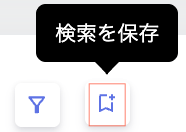
After searching or filtering with the conditions you want to save, click [Save search].
-
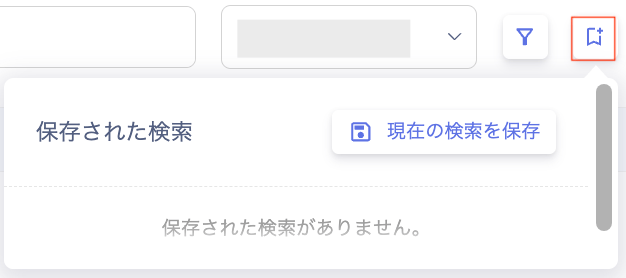
Click [Save current search].
-
On the “Save current search” screen, enter a “Search name”, then click [Save search].
Item Description Search name Enter a name for the search. Description Enter a description of the search conditions. Share within organization Set the visibility: Share within organization (default) or Save for myself only (shown with a lock icon). Every saved search still appears in the “Share within organization” list.
Who can view and manage each search:
Member role: shared searches, plus their own private searches
Admin role: all searches, including private ones (can change, delete, or change visibility)Search query Shows the search query. 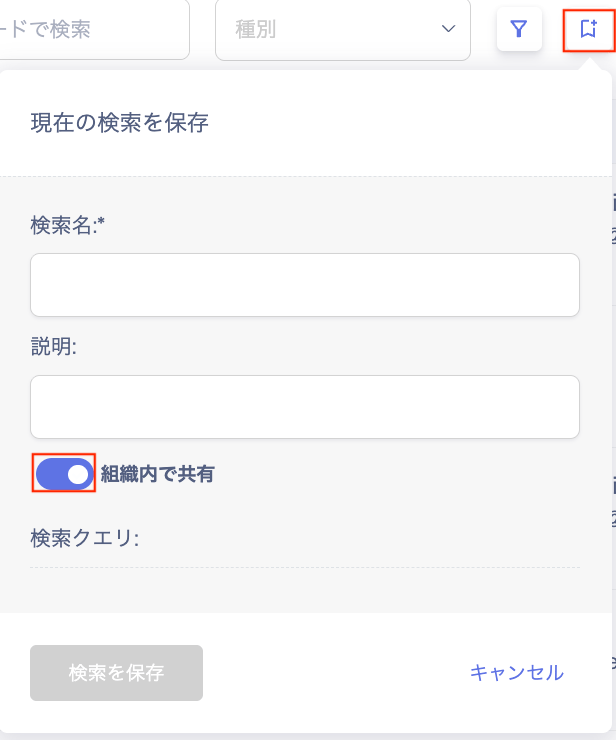
Saved Searches
Saved search conditions appear in a list. You can run, reorder, review, or delete saved searches.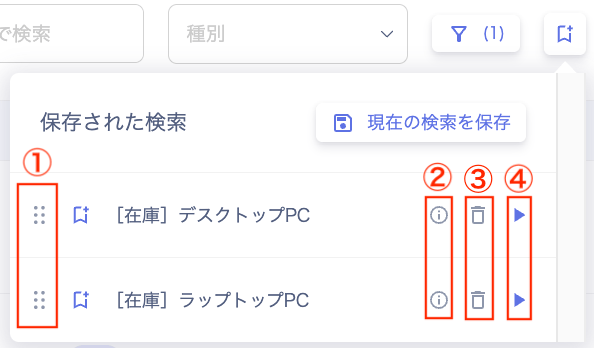
| # | Item | Description |
|---|---|---|
| 1 | Reorder | Reorder saved search conditions by hovering and dragging up or down. |
| 2 | Search conditions | Review the saved search conditions. |
| 3 | Delete | Delete a saved search condition. |
| 4 | Run search | Run a search from the saved search list. |