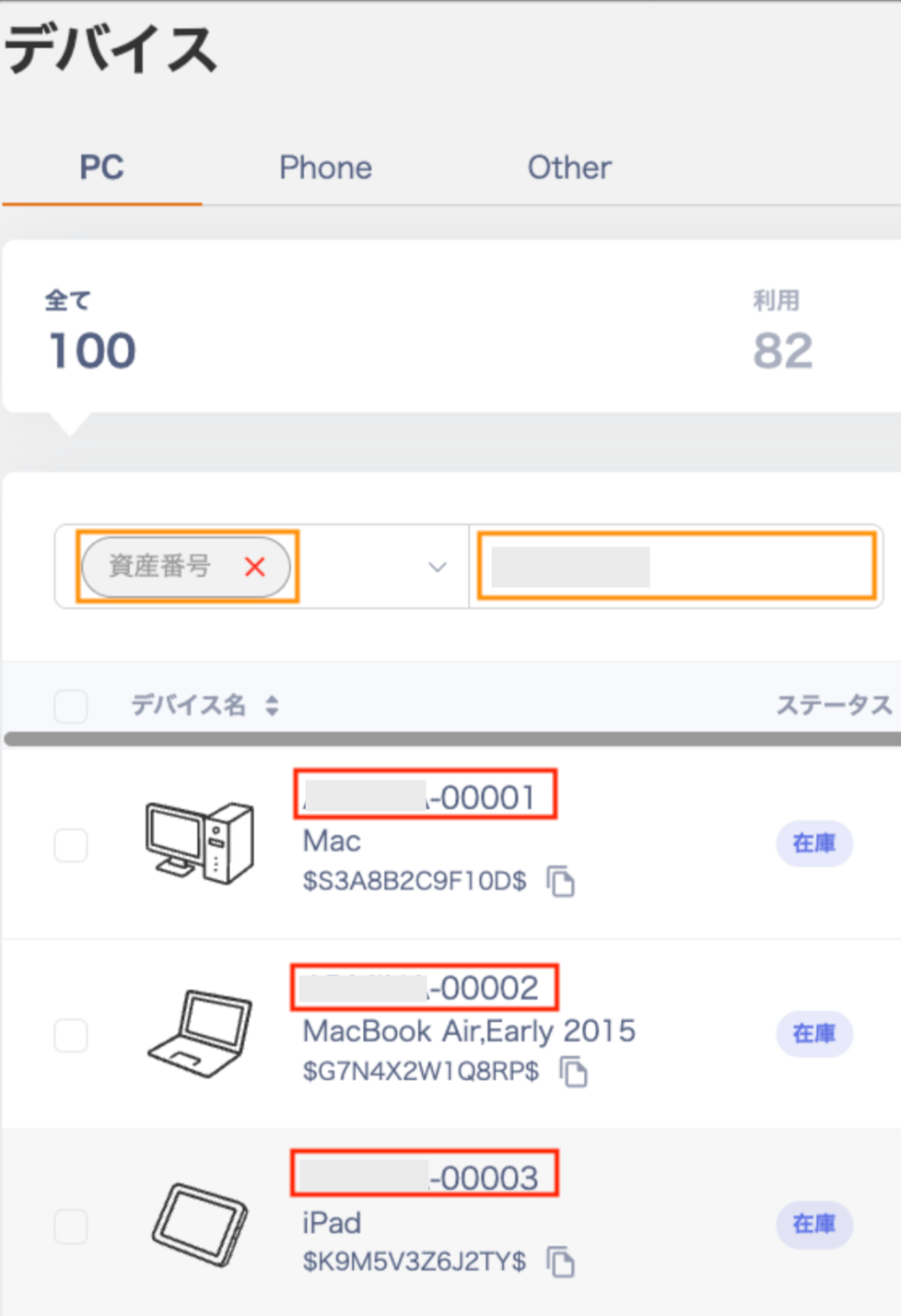
What is auto-numbering?
Asset numbers are issued in the formatfixed string (prefix)-number (suffix). (Examples: LAPTOP-101, Monitor-1001)
The system internally tracks the last issued number for each configured fixed string (prefix).
Each time a new device is registered, the system automatically assigns that number plus one.
Choose an assignment method
You can choose between two assignment methods — Shared or By device type — depending on your workflow.Branching based on OS type (Windows/Mac, etc.) and automatic date insertion are not currently supported. A hyphen (-) is inserted between the fixed string and the number to improve readability.
Configure the assignment method
-
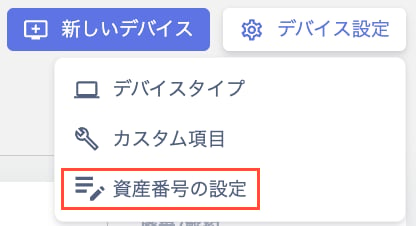
Go to Device > Device Settings > Asset Number Settings.
-
On the “Asset Number Policy Settings” screen, configure the numbering rule for your organization.
Click Apply to save the settings.
-
Setting the assignment method: Shared
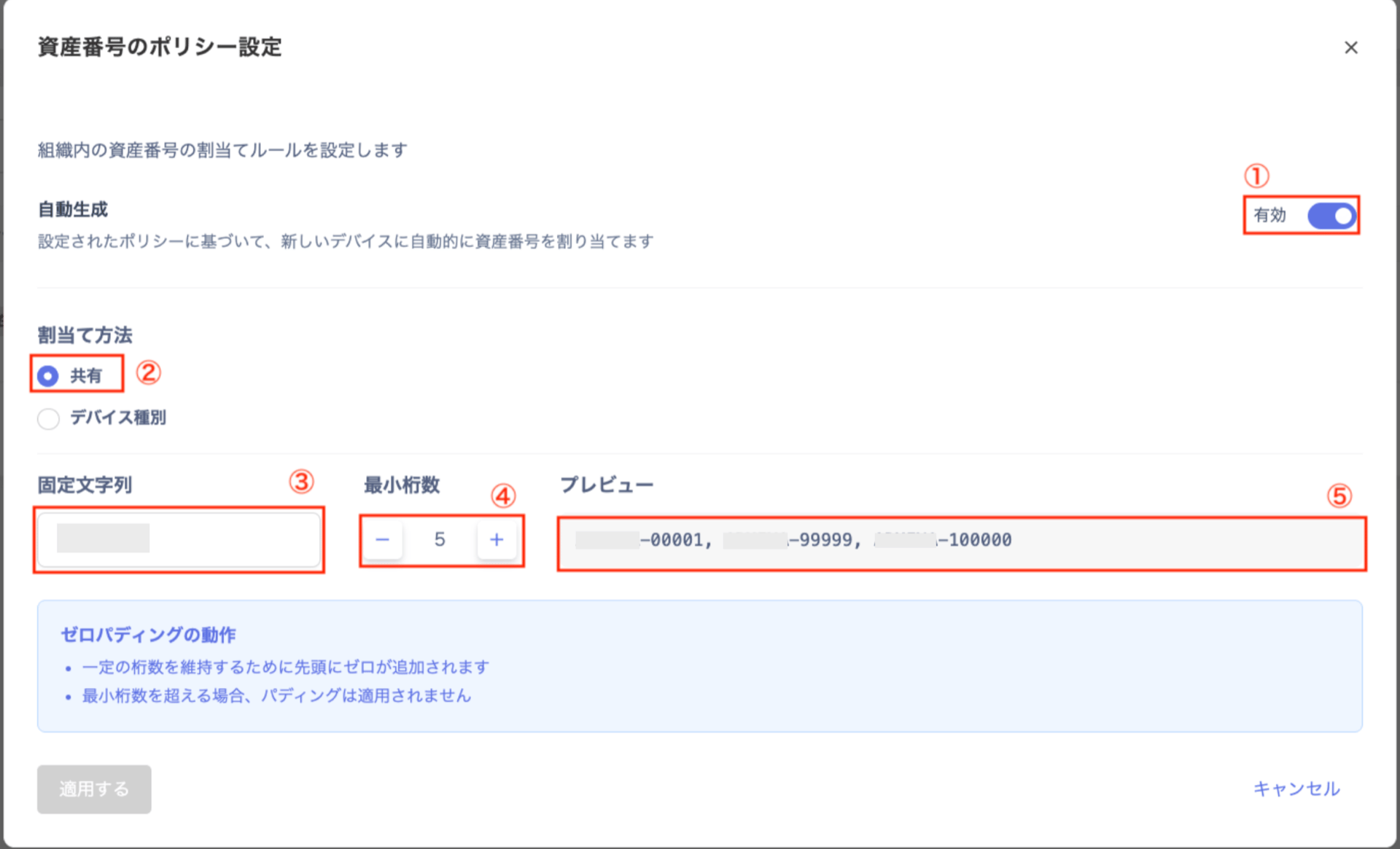
# Field Description 1 Auto-generate Automatically assigns asset numbers to new devices based on the configured policy. Toggle to the right to enable, left to disable. 2 Assignment method Select Shared. 3 Fixed string Enter the string to prepend to each number. (Example: Device) 4 Minimum digits Specify the number of digits for the numeric portion. (Example: setting 5 produces 00001.) If the number has fewer digits than specified, the system automatically pads it with zeros.5 Preview Check a sample to see how numbers will be issued under the configured rule. -
Setting the assignment method: By device type
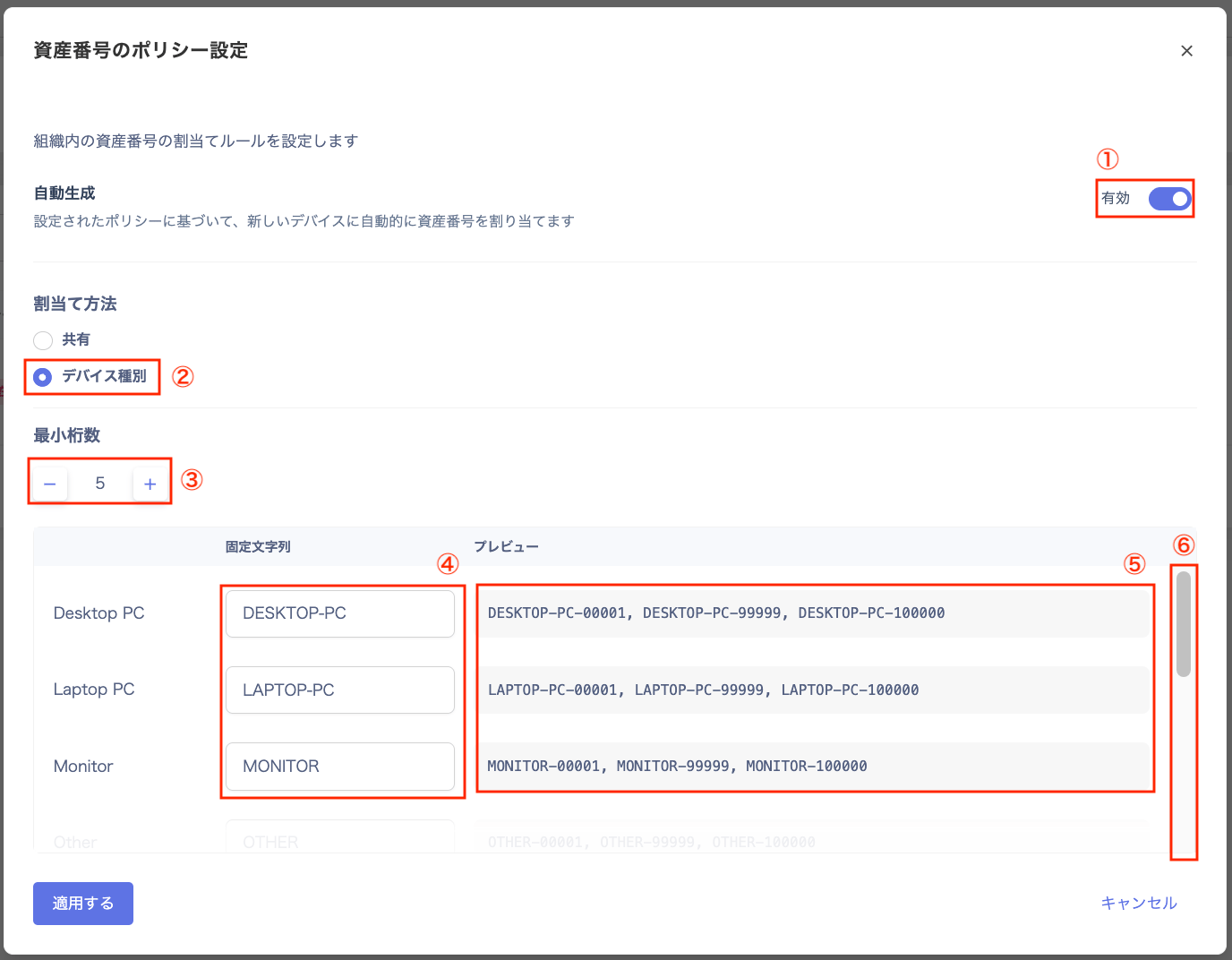
# Field Description 1 Auto-generate Automatically assigns asset numbers to new devices based on the configured policy. Toggle to the right to enable, left to disable. 2 Assignment method Select By device type. 3 Fixed string Enter the identifier to prepend to numbers for each device type. You can change the default value (e.g., DESKTOP-PC). 4 Minimum digits Specify the number of digits for the numeric portion. (Example: setting 5 produces 00001.) If the number has fewer digits than specified, the system automatically pads it with zeros.5 Preview Check a sample to see how numbers will be issued under the configured rule. 6 Scroll bar Use the scroll bar to view and edit all fixed string values.
-
Setting the assignment method: Shared
Check auto-assigned asset numbers
Check on the device registration screen
Device management overview-
Go to Devices and click New Device.

-
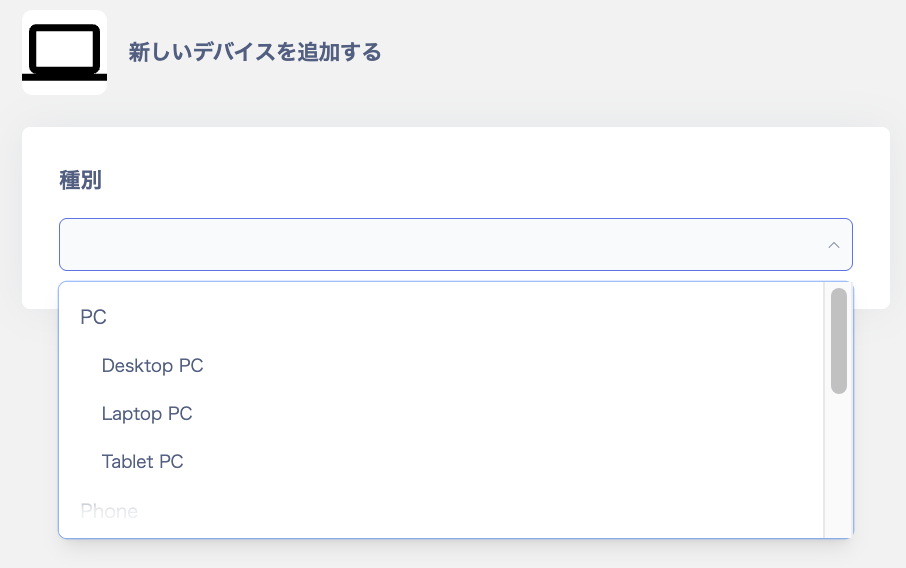
On the “Add New Device” screen, select a device type.
Choose from PC, Phone, or Other.
PC options include Desktop PC, Laptop PC, and Tablet PC.
Phone means Smart Phone.
Other includes Monitor, Peripheral Device, and Server.
-
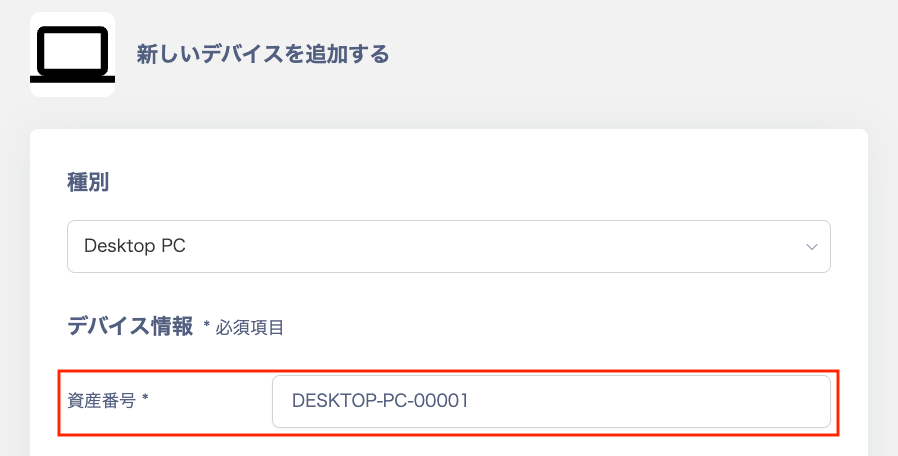
Verify the asset number. A number is automatically entered in the Asset Number field according to the configured policy. You can also change the auto-assigned asset number manually.
Once you apply the policy settings, auto-numbering becomes active on the Add New Device screen.
Example: Selecting Desktop PC as the type automatically sets DESKTOP-PC-00001.
Check in the device list
Select Asset Number in the filter on the Devices screen. Enter a fixed string in the search field to find auto-assigned asset numbers.