Let’s connect your SaaS! Connecting a SaaS lets you retrieve a list of accounts.
Start by deciding which SaaS to connect first, then set up the integration.Connecting a SaaS lets you retrieve a list of accounts.The integration applies account aggregation technology, so you can connect services safely without affecting them.
A Create New Integration panel appears on the right. Fill in the required fields and click Connect. Refer to the Integration Guide for details on each field. The connection method varies by SaaS. Check the following for details: - SaaS Integration Guide - SaaS Connection Patterns
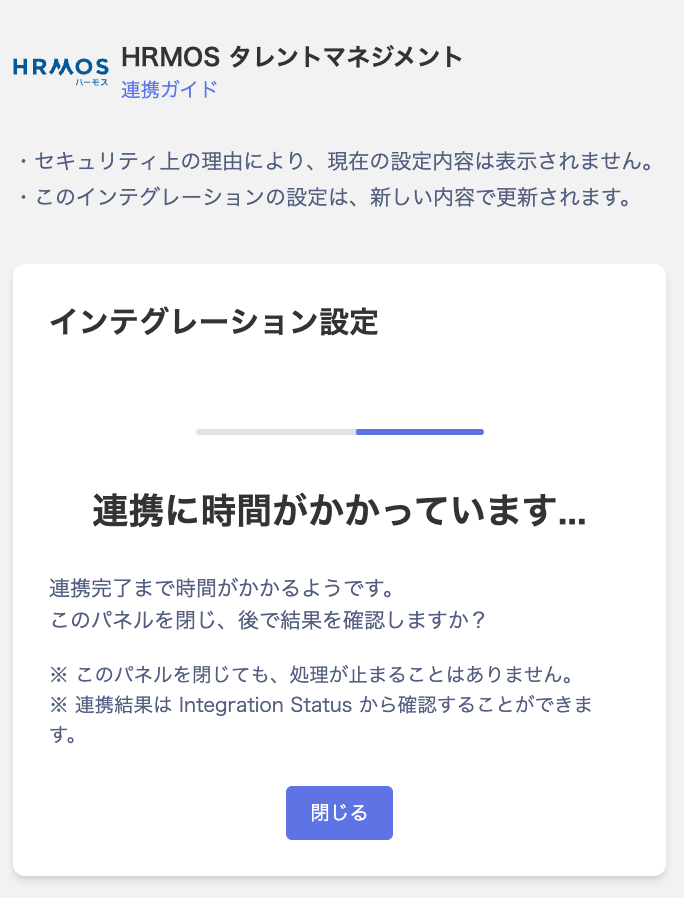
The time to complete the connection depends on the type: API and OAuth — a few seconds; ID/Password — 1 to 5 minutes.
*For ID/Password integrations, connection is not possible in two situations. The first is when the SaaS enforces login via a third-party service (e.g., Google Login) or Single Sign-On (SSO). The second is when your security policy does not allow connecting employee accounts. In these cases, create a dedicated system account on the SaaS side and use that for the integration.
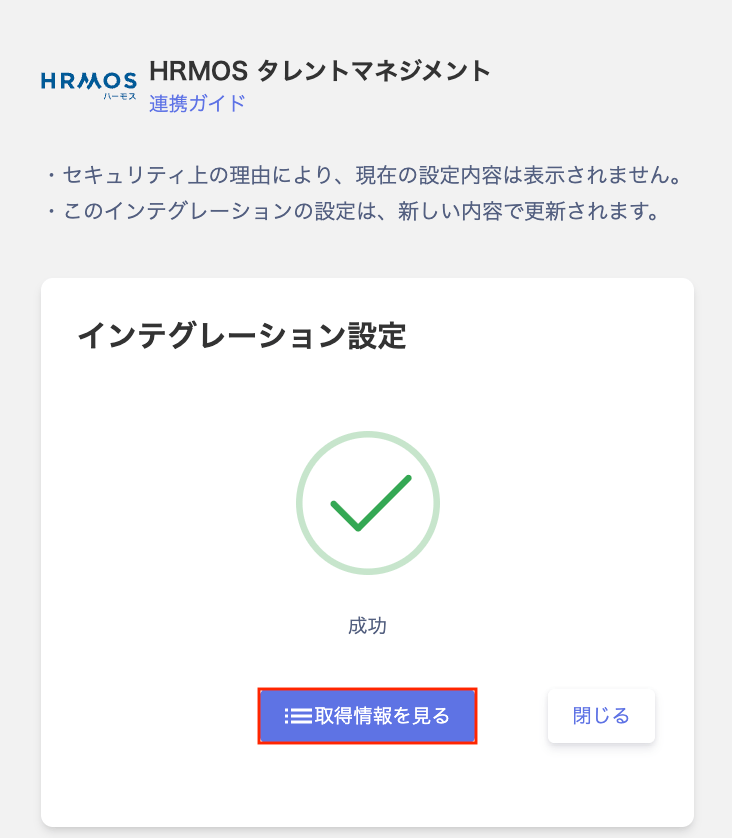
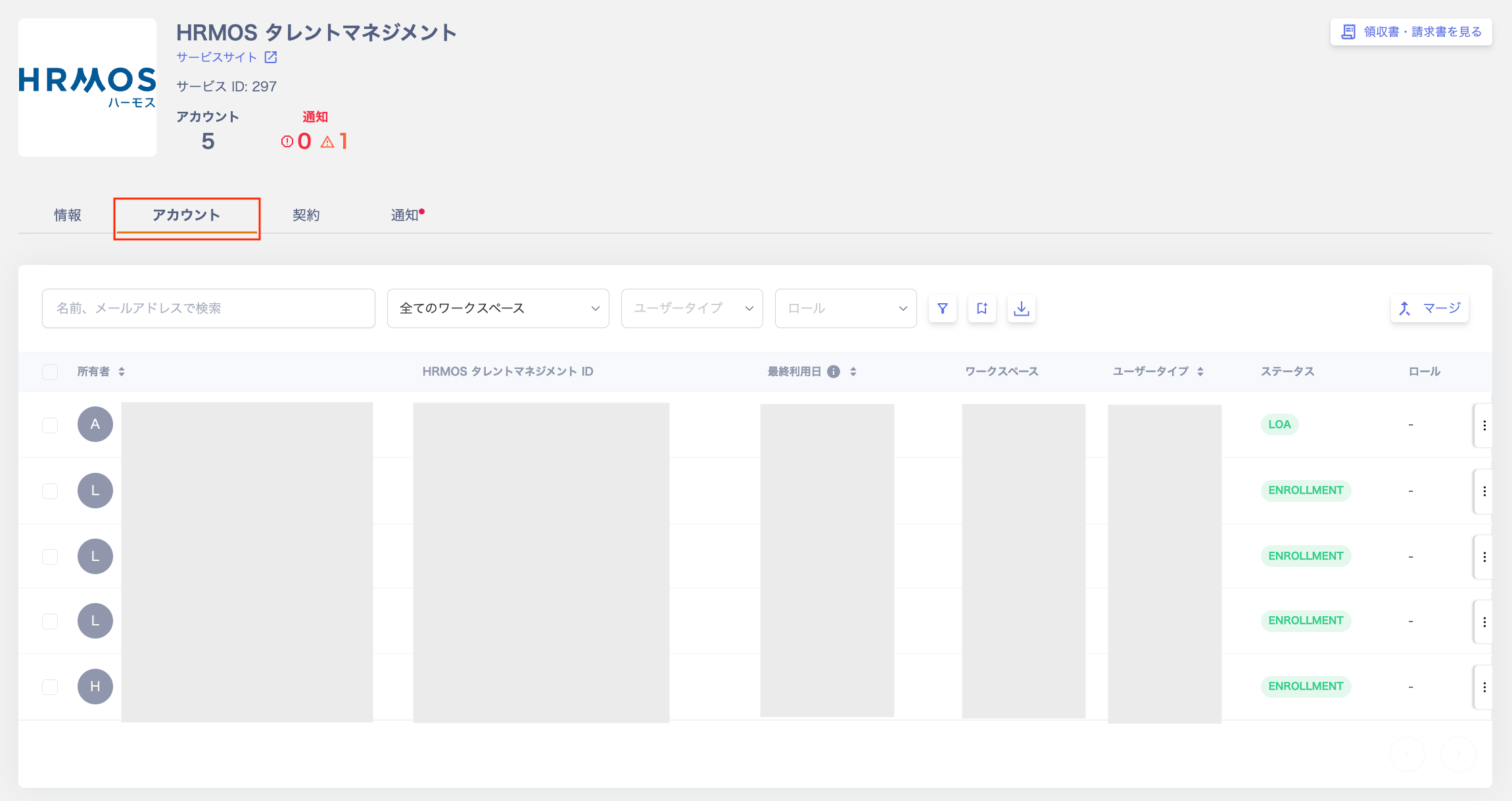
The integration starts. Wait a moment for it to complete.When the integration succeeds, Integration Settings shows a success status.You can view the connected SaaS by clicking View Retrieved Information or from the service screen.If the integration fails, refer to Troubleshoot SaaS integration errors.
After a successful connection, the connected SaaS and accounts appear under Services and Directory in the left menu.Services: Services screen overview
Select a connected SaaS from the service list and check its accounts under Accounts.Directory: Search and filter the Directory
Filter by Service in the Directory to view accounts for a connected SaaS.* Connected SaaS data syncs automatically on a daily basis (overnight) to keep information up to date.
Keep connecting more SaaS services to expand your integrations.Connecting around 20 services is a good milestone to start seeing clear value.Once you have more connected services, check whether any accounts remain for former employees.When you are ready to start using this service in earnest, register a credit card.For billing details, see How pricing is calculated. For trial usage, see Use the free trial.


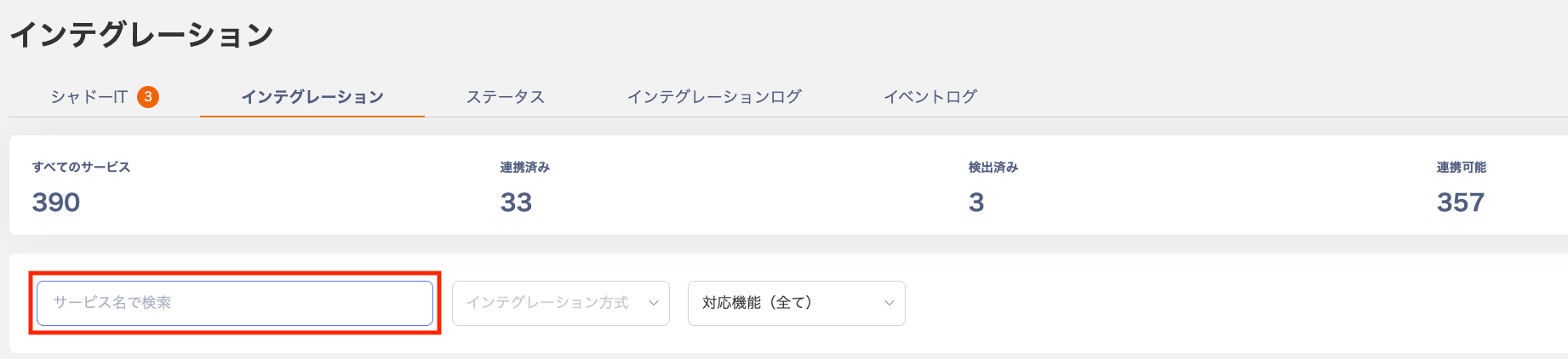
 The connection method varies by SaaS. Check the following for details: - SaaS Integration Guide - SaaS Connection Patterns