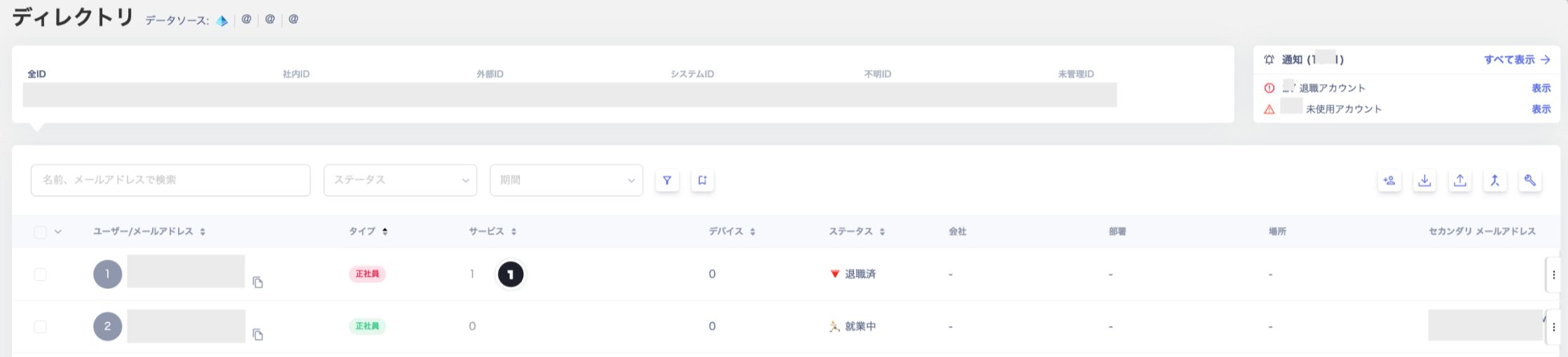
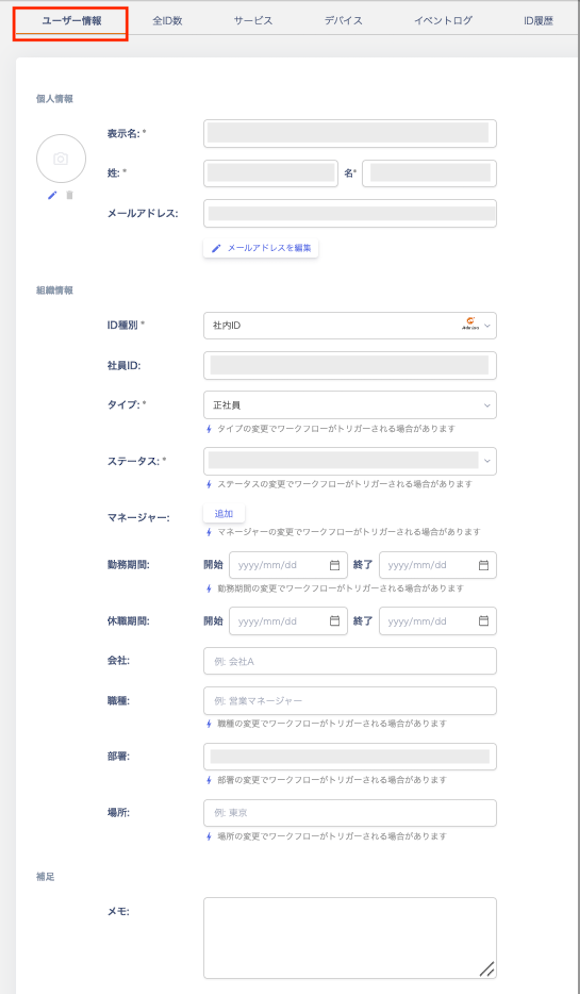
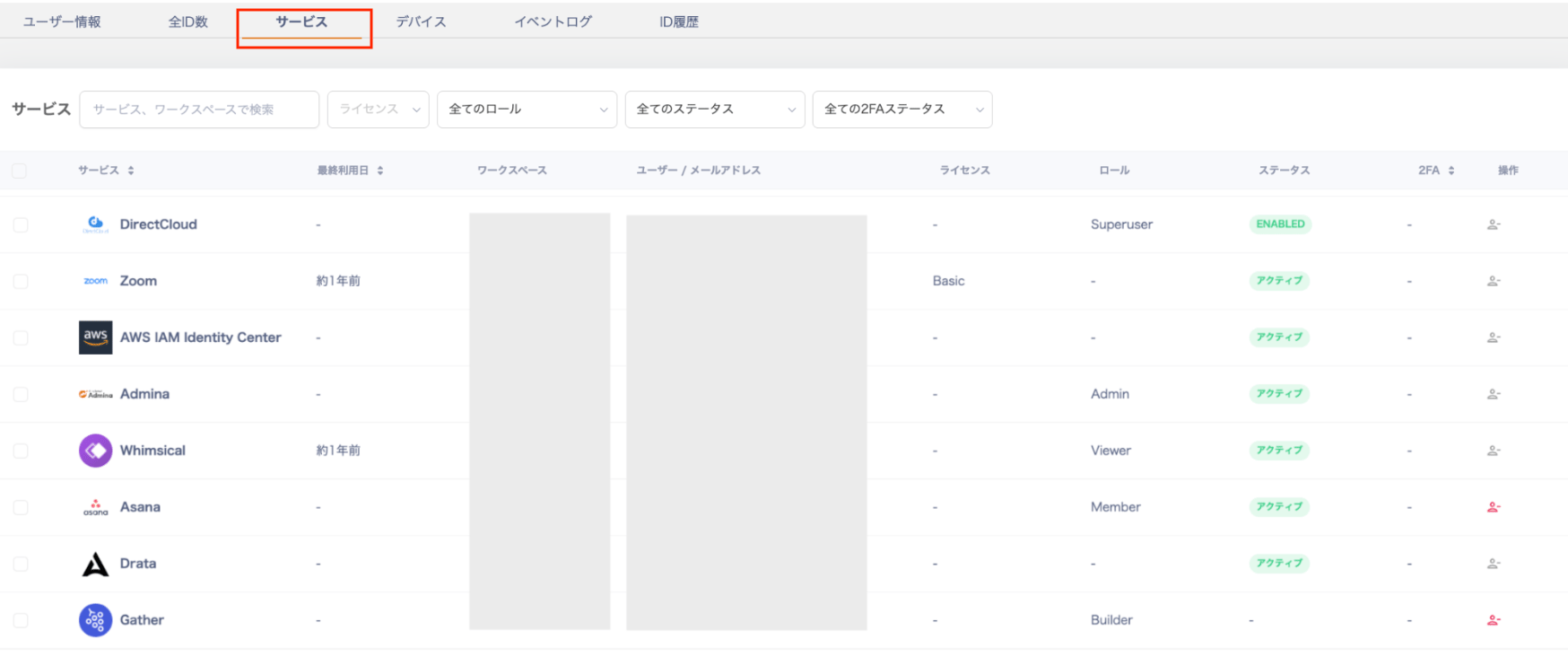
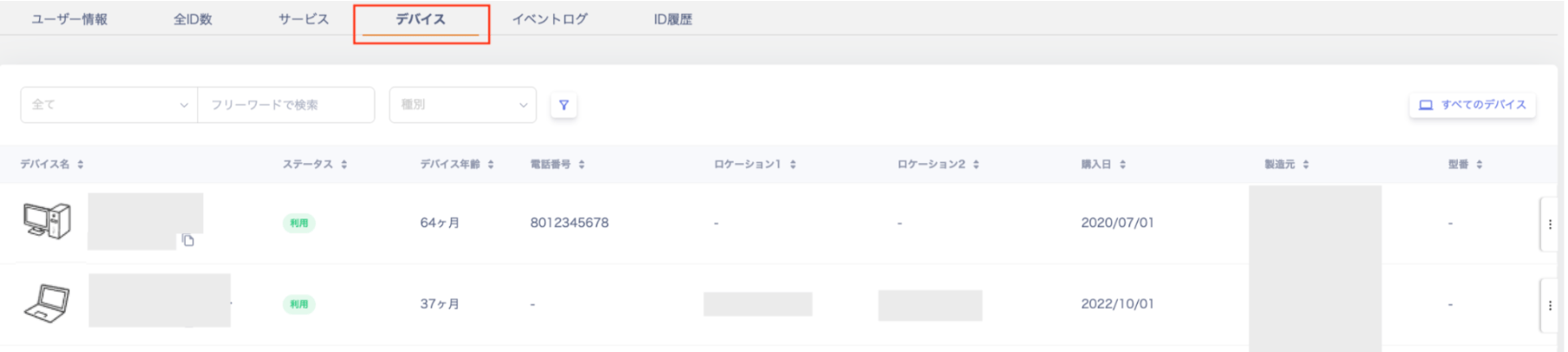
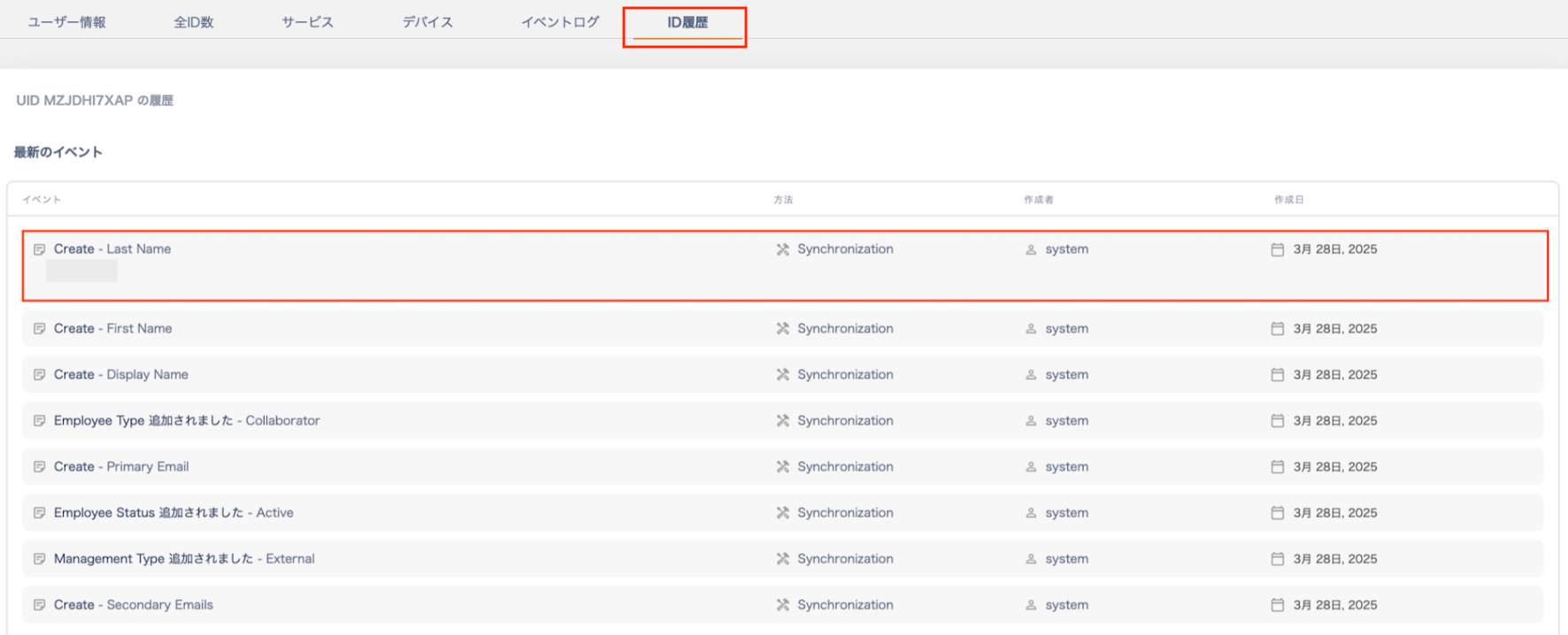
Click a People entry to add or edit each field. The default fields are listed in the table below.
Field
Description
Display name (required)
Enter the display name. (Example: Taro Kimura)
Last name
Enter the last name. (Example: Kimura)
First name
Enter the first name. (Example: Taro)
Primary email address (required)
Enter the primary email address.
Secondary email address
Enter the secondary email address.
ID type (required)
The following ID types are available: Internal ID / External ID / System ID / Unknown ID / Unmanaged ID.
Employee ID
Enter the employee number.
Type (required)
Select a type such as full-time employee or contractor. The available options depend on the email address domain.
Status (required)
Select from the following statuses: Draft / Pre-hire / Active / On leave / Terminated / Archived / Unmonitored (Type: Unmanaged ID only).
Manager
Select the person’s manager from the directory list.
Employment period
Enter the start and end dates of employment.
Leave period
Enter the dates of the leave of absence.
Company
Enter the company name. You can also manage affiliations with group companies.
Job title
Enter the job title or role. (Example: Sales Manager)
Department
Enter the department name. (Example: Sales Department)
Location
Enter the location. (Example: Tokyo HQ, Osaka Branch)
Notes
Enter any additional information not covered by the fields above.
Employee IDs must be unique within your organization. If another ID has the same employee ID, you cannot save changes to this ID. This applies even when you change only fields other than the employee ID, such as the ID type or type. To save your changes, change the employee ID to a unique value or leave it blank. Blank employee IDs are not checked for duplicates.The data source for the employee ID may be set to the employee master, with the employee master icon shown. In this case, you cannot change the employee ID in the directory. Correct the employee ID in the employee master and sync. Alternatively, change the data source to this service, and then edit the employee ID. If you set the data source back to the employee master, the next sync overwrites the value.
The ID type is determined by the organization’s registered domain and the email address of the user information.Example: If the People’s primary email address uses your company’s domain, some external ID types are unavailable. This includes types such as Collaborator.ID Type List
ID Type
Description
Internal ID
IDs that match your company’s domain (the Organization domain information setting under Settings). You can change Internal IDs to System IDs or Unmanaged IDs.
External ID
IDs from outside your company, such as guests or collaborators. You can change External IDs to System IDs or Unmanaged IDs.
System ID
IDs tied to a system, such as group email addresses. You can change System IDs to Unmanaged IDs or Internal IDs.
Unknown ID
IDs that have no email address and do not match any category. You can change Unknown IDs to System IDs or Unmanaged IDs.
Unmanaged ID
IDs discovered through cloud service integrations that are not registered in the employee master. You can change Unmanaged IDs to System IDs or Internal IDs. When an account is added to the employee master, it is automatically registered as an Internal ID. Set the status to “Unmonitored” for IDs you do not need to manage.
Example: Cases where a System ID is registeredWhen integrating with Google WorkspaceThe directory finds group email addresses (mailing lists) in Google Workspace and registers them as System IDs. Even IDs registered as Internal IDs are automatically changed to System IDs.When integrating with Microsoft Entra IDThe directory registers group email addresses and meeting rooms from Microsoft Entra ID as System IDs. Similar email addresses are also registered this way. (Email addresses without a mailbox are registered as System IDs.)
The available type combinations for each ID type are shown in the table below.
Type / ID Type
Internal ID
External ID
System ID
Unknown ID
Unmanaged ID
Executive
◯
-
-
-
-
Full-time employee
◯ (default)
-
-
-
-
Contract employee
◯
-
-
-
-
Temporary employee
◯
-
-
-
-
Part-time employee
◯
◯
-
-
-
Seconded employee
◯
-
-
-
-
Contracted worker
◯
◯
-
-
-
Collaborator
-
◯ (default)
-
-
-
Group address
-
-
◯ (default)
-
-
Shared address
◯
-
◯
-
-
Test address
◯
-
◯
-
-
Other
◯
◯
◯
-
-
Unknown
-
-
-
◯ (default)
-
Unmanaged
-
-
-
-
◯ (default)
In the table, ◯ means the type is available, and - means it is not available.Type is not synced from connected SaaS or the employee master. Syncing sets only the default type for the ID type (marked “default” in the table). To use a different type, edit it in the directory or change it in bulk with CSV import. A type you change in the directory is not overwritten by syncing unless the ID type changes. If syncing changes the ID type, the type may change to the default for the new ID type.
The “Terminated” and “On leave” statuses update automatically based on conditions configured in the employee master.If the employee master shows “Terminated” or “On leave,” synchronization updates the directory status to match.Example: Deleted in Google Workspace → Synced → Directory status automatically updated from “Active” to “Terminated”Even if you manually change the status to “Terminated” in the directory, synchronization can revert this. If the employee master shows “Active,” the status updates back to “Active”.
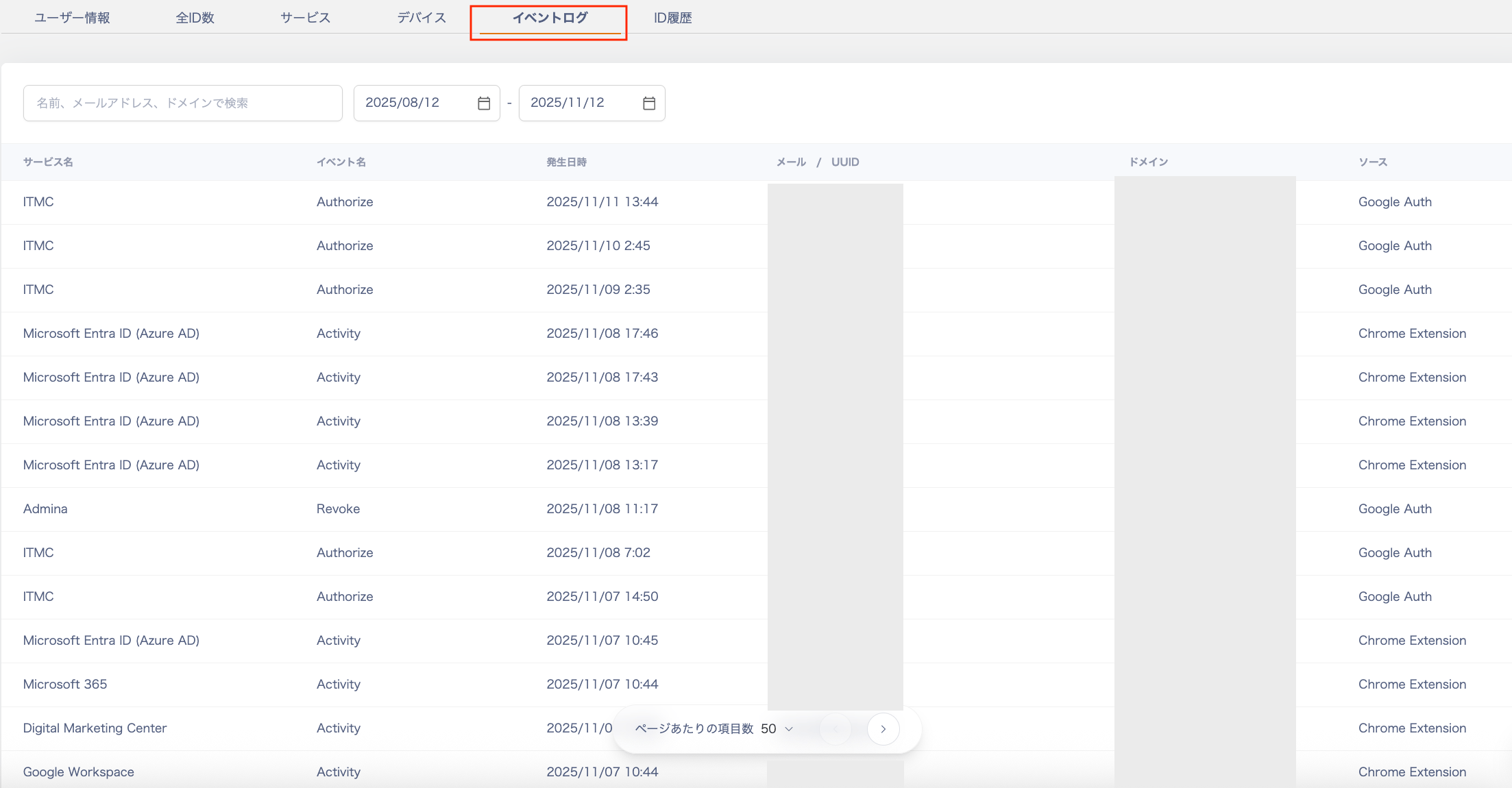
You can view the event log (activity log) for each People entry.For event logs, also see Check SaaS Usage with Event Logs.You can search the event log by name, email address, domain, or service name.