Cannot connect with an external authentication account (Google, SSO)
If you log in using Google authentication or SSO, you cannot connect to SaaS services that require ID/password-based integration. This article explains available workarounds.
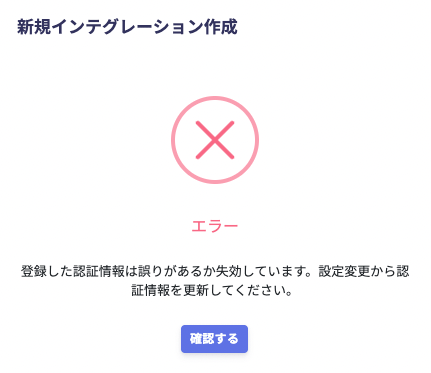
Even with the correct ID and password, an authentication error can occur and the integration can fail.If you see an authentication error, check whether your situation matches any of the cases below.
Integration fails if any condition below applies and this service requires ID/password authentication for that SaaS.
Situation
Description
SSO enforced
Login via Single Sign-On (SSO) using SAML or similar is enforced for the cloud service.
External IdP enforced
Login via an external identity provider such as Google Login is enforced.
SSO / External IdP enforced
Either pattern above applies, and the service connects to this service using ID/Password. Example: The service you want to integrate is Figma, and you log in using Azure AD with Single Sign-On.
Even when SSO or an external IdP is enforced, integration may still be possible with the steps below.Prepare an administrator account that can log in with an email address and password.
Set a password for the account on the cloud service side.
If you cannot set a password for the account, create a dedicated “system integration account” on the cloud service side. Use that account to set up the integration.