

Setup Summary (Fastest Path)
With a single GPO, configure the following three locations. See Chapter 3 for details.| # | GPO path | Configuration |
|---|---|---|
| 1 | Computer Configuration → Preferences → Windows Settings → Registry | Register each Chrome / Edge ExtensionSettings (force_installed + update_url) in HKLM |
| 2 | User Configuration → Preferences → Windows Settings → Registry | Register each Chrome / Edge 3rdparty/policy (ApiKey, OrganizationID, etc. + UserEmail=%USEREMAIL%) in HKCU |
| 3 | User Configuration → Policies → Windows Settings → Scripts → Logon | Register Set-UserEmailEnv.bat from SYSVOL (for the USEREMAIL environment variable) |
- Link the GPO to the target OU →
gpupdate /forceor sign in again - Run
check_extension_registry.bat(HKLM=ExtensionSettings / HKCU=policy show [OK]) - Reload
chrome://policy/edge://policyin the browser → check the values on the extension options page (refresh with ↻ if not reflected)
Chapter 1: Overview
Purpose
This document is a setup guide for mass-distributing the browser extension via Active Directory GPO (Group Policy). It focuses on distribution using GPMC Registry Preferences and a logon script.Intended Audience
IT administrators (Active Directory administrators) and information systems staff.Prerequisites
| Item | Details |
|---|---|
| OS | Windows 10 or later |
| Browser | Google Chrome or Microsoft Edge installed |
| Domain | Active Directory domain environment |
| Permissions | Permission to create/edit GPOs and place scripts in SYSVOL |
| Destination | Port | Purpose |
|---|---|---|
| clients2.google.com | 443 (HTTPS) | Download / update Chrome extensions |
| edge.microsoft.com | 443 (HTTPS) | Download / update Edge extensions |
| api.itmc.i.moneyforward.com | 443 (HTTPS) | Data transmission / API access |
| itmc.i.moneyforward.com | 443 (HTTPS) | Web access |
Extension ID
| Browser | Environment | Extension ID |
|---|---|---|
| Google Chrome | PROD | bdeanmdeckegmfjpbnngomallcedjold |
| Microsoft Edge | PROD | flggmhlpipcopffjfkpgkoljghfkmfcg |
Bundled Files
| File | Purpose |
|---|---|
| Set-UserEmailEnv.bat | Logon script. Sets the USEREMAIL environment variable |
| edge_chrome_extension.bat | Alternative: startup script method (see 3.7) |
| edge_chrome_extension_uninstall.bat | Complete removal of registry keys and environment variables (Chapter 7) |
| check_extension_registry.bat | Registry check (read-only) |
Chapter 2: Overall Configuration
The setup consists of two layers: the registry (GPO Preferences) and a user environment variable (logon script).| Layer | GPO placement | Registry | Contents |
|---|---|---|---|
| Forced install | Computer Configuration | HKLM | ExtensionSettings (installation_mode, update_url) |
| Extension parameters | User Configuration | HKCU | 3rdparty/extensions/<ID>/policy |
| Email address | User Configuration | — | Logon Script → USEREMAIL environment variable |
Chapter 3: GPO Setup Steps
GPO Editor Terminology (English UI / Japanese UI)
This document uses the English (Japanese) format. Follow the corresponding item based on your GPMC display language.| English (GPMC English UI) | Japanese (GPMC Japanese UI) |
|---|---|
| Computer Configuration | コンピューターの構成 |
| User Configuration | ユーザーの構成 |
| Preferences | 基本設定 |
| Policies | ポリシー |
| Windows Settings | Windows の設定 |
| Registry | レジストリ |
| Scripts (Logon/Logoff) | スクリプト(ログオン/ログオフ) |
| Logon | ログオン |
| Startup | スタートアップ |
| Action | 操作 |
| Update | 更新 |
| Delete | 削除 |
3.1 Obtaining Values from the Admin Console
Sign in, open Settings > Organization > Browser Extension > Extension Policy, and note the three values ApiKey, CreatedDate, and OrganizationID (fixed values common to all devices).3.2 Creating the GPO
- Open GPMC and create a new GPO linked to the target OU (for example,
Admina Extension). - Link it to a verification OU first, then roll it out to the production OU once confirmed.
3.3 Computer Configuration — ExtensionSettings (HKLM)
GPO path: Computer Configuration → Preferences → Windows Settings → Registry Common settings: Hive = HKEY_LOCAL_MACHINE, Action = Update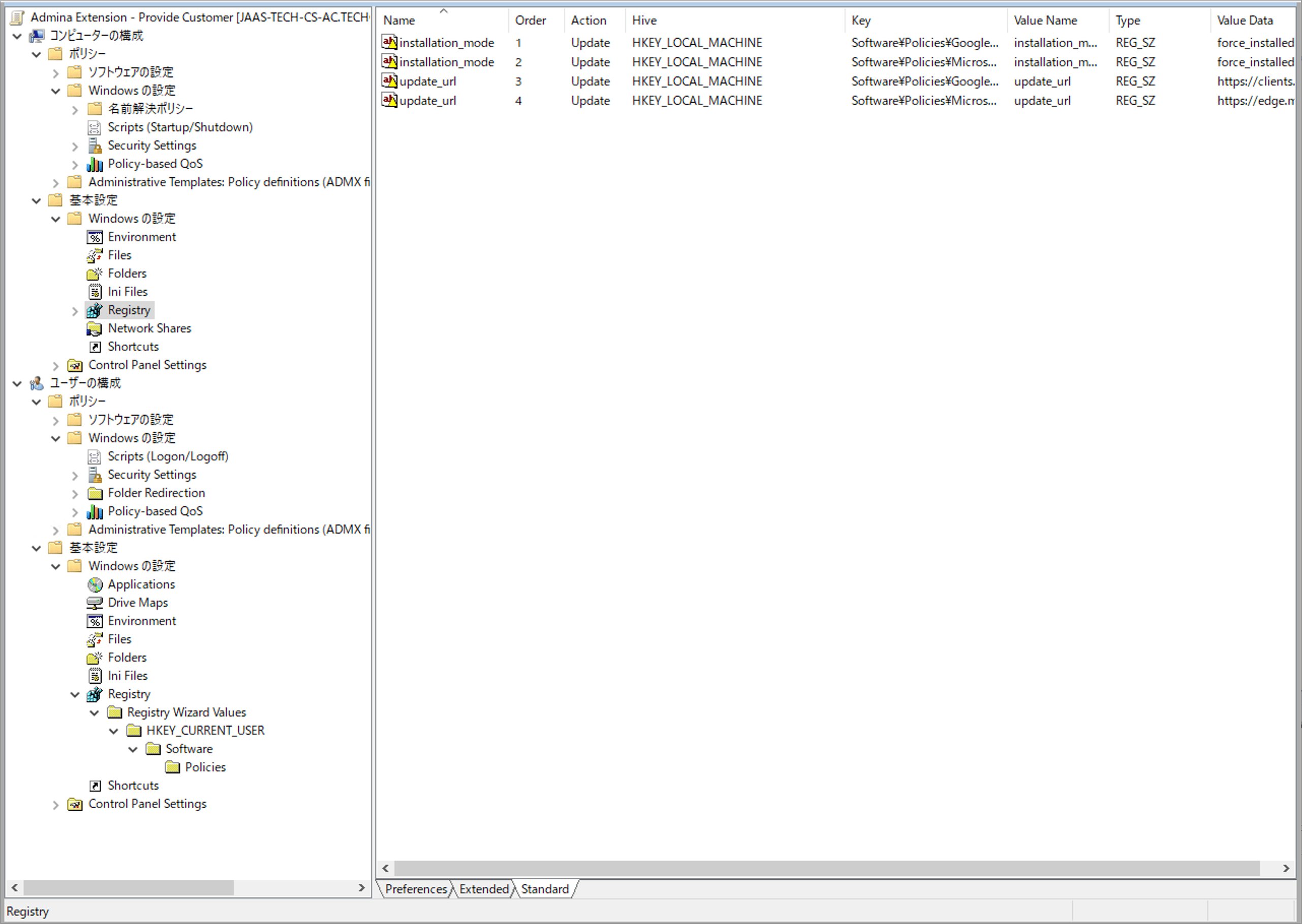
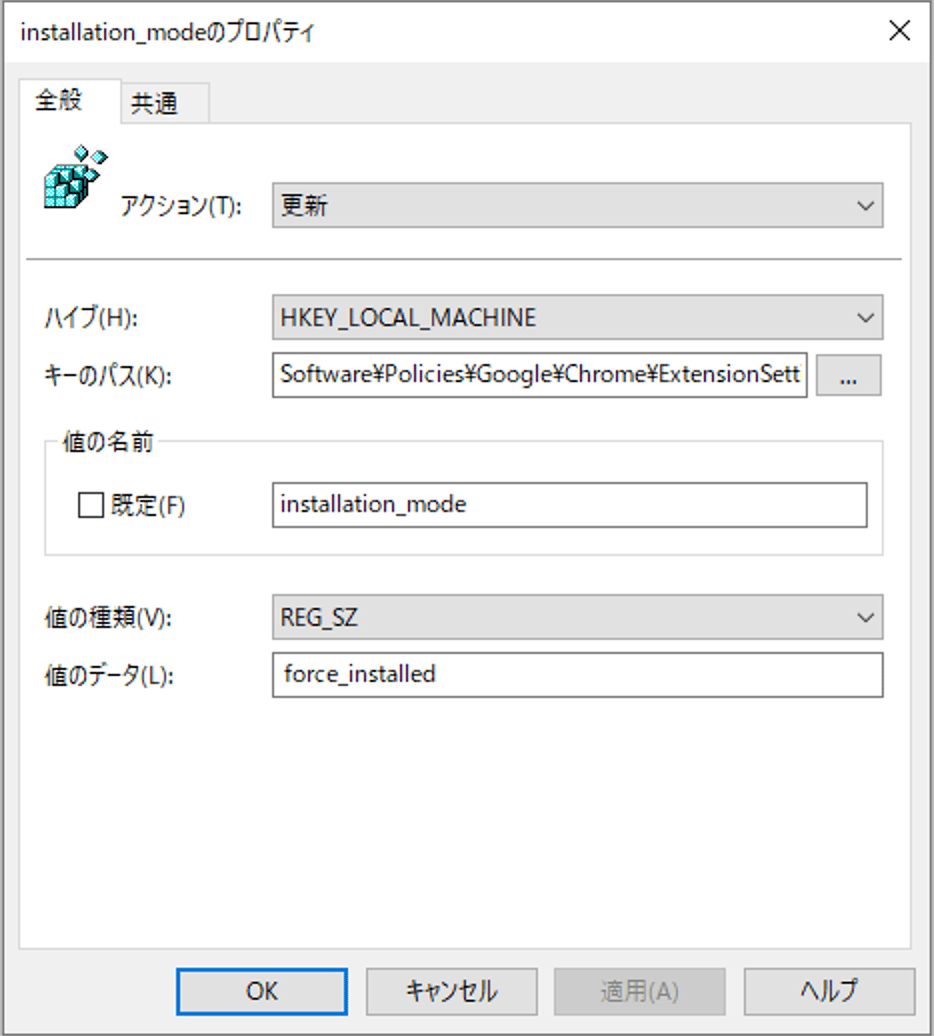
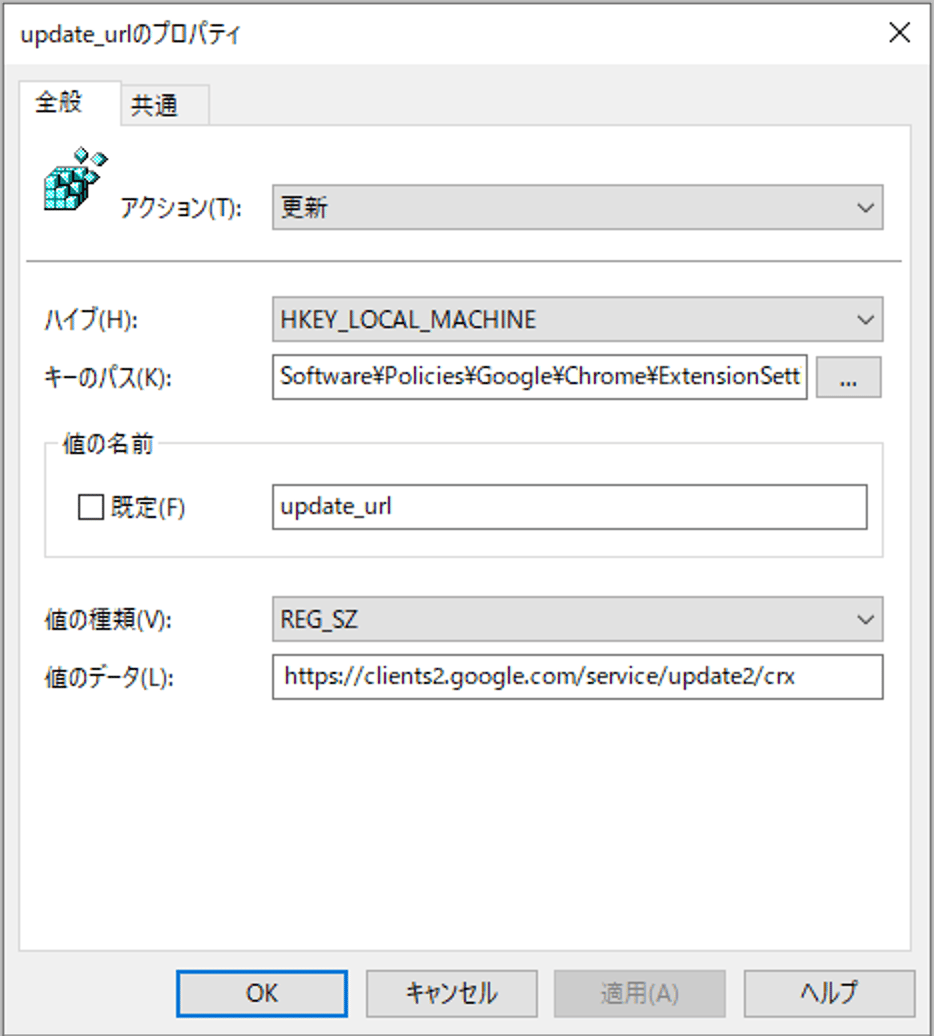
3.3.1 Chrome — ExtensionSettings
Key Path:Software\Policies\Google\Chrome\ExtensionSettings\bdeanmdeckegmfjpbnngomallcedjold
| Value name | Value type | Value data |
|---|---|---|
| installation_mode | REG_SZ | force_installed |
| update_url | REG_SZ | https://clients2.google.com/service/update2/crx |
3.3.2 Edge — ExtensionSettings
Key Path:Software\Policies\Microsoft\Edge\ExtensionSettings\flggmhlpipcopffjfkpgkoljghfkmfcg
| Value name | Value type | Value data |
|---|---|---|
| installation_mode | REG_SZ | force_installed |
| update_url | REG_SZ | https://edge.microsoft.com/extensionwebstorebase/v1/crx |
3.4 User Configuration — 3rdparty/policy (HKCU)
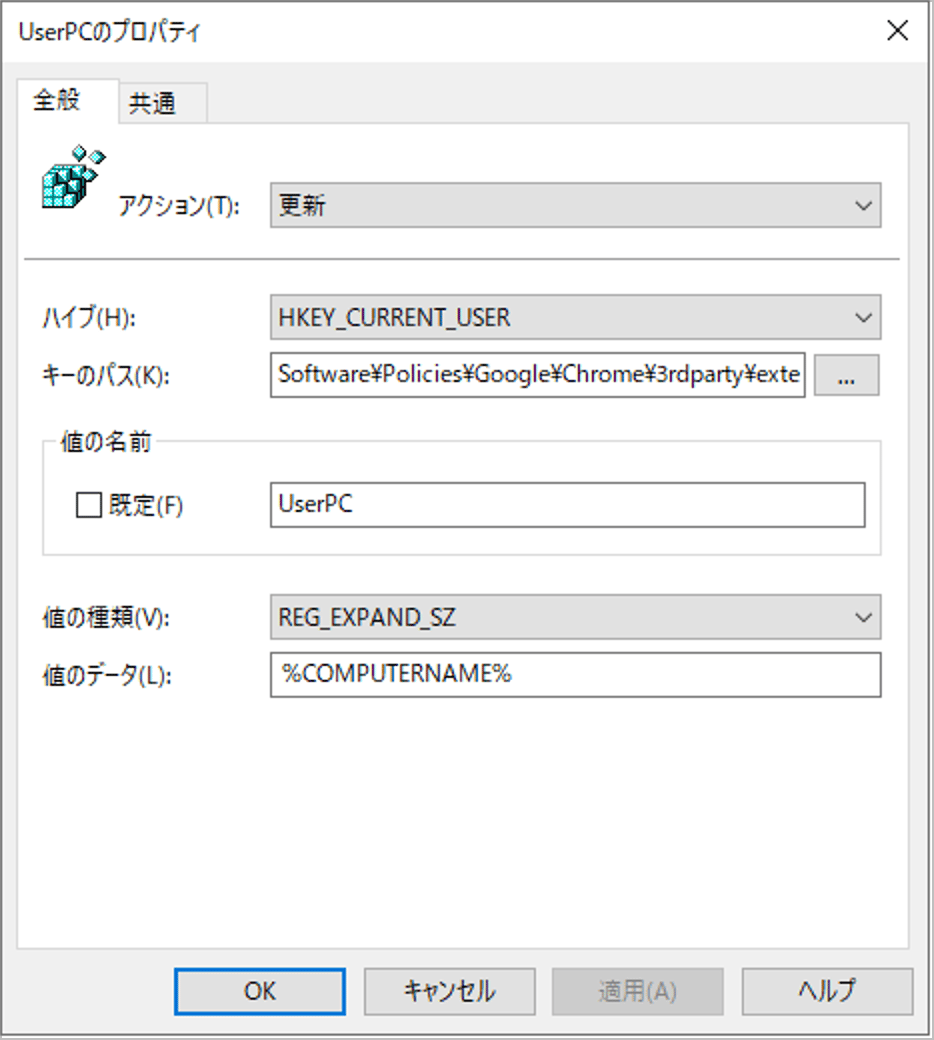
GPO path: User Configuration → Preferences → Windows Settings → Registry Common settings: Hive = HKEY_CURRENT_USER, Action = Update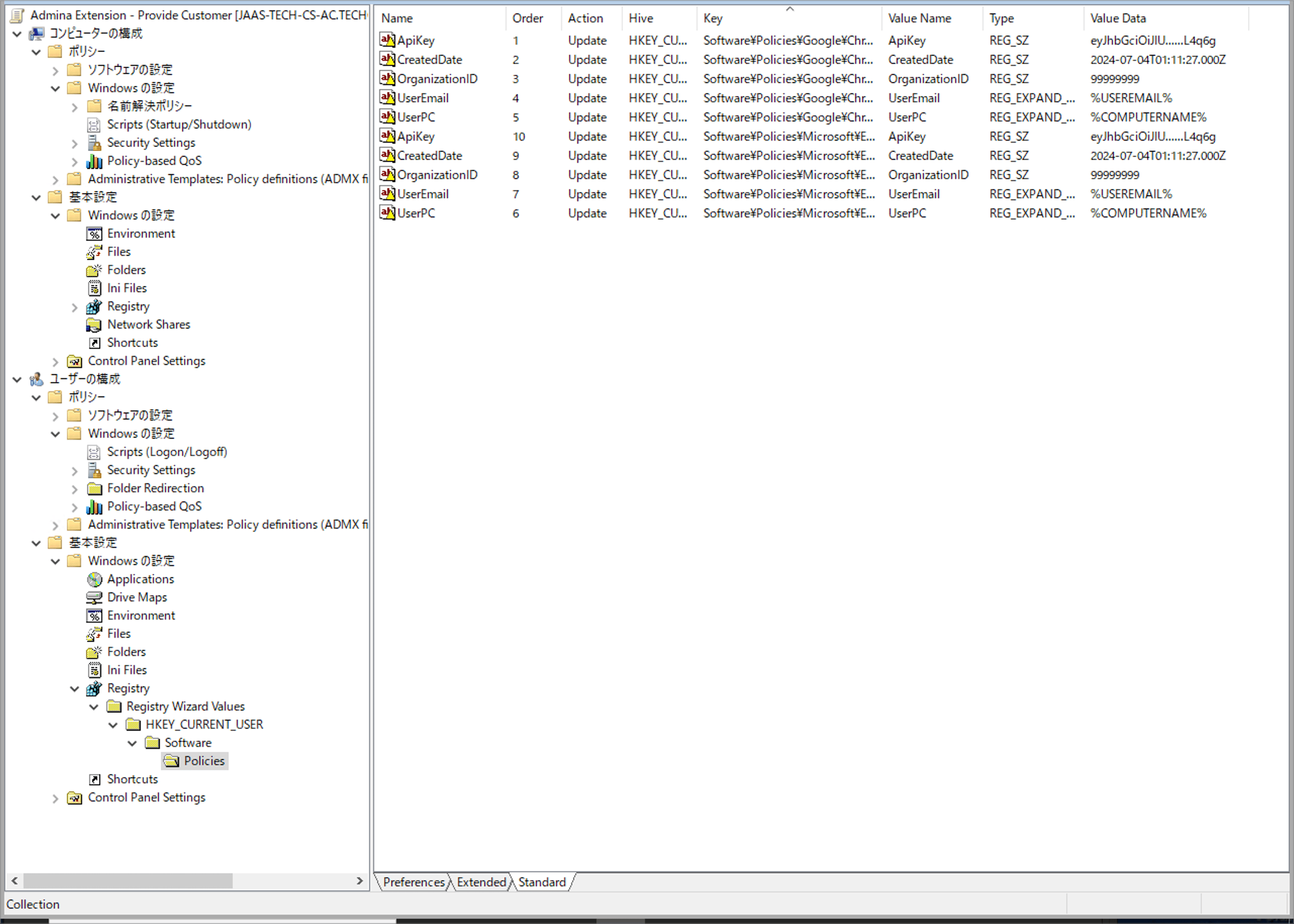
3.4.1 Chrome — 3rdparty/policy
Key Path:Software\Policies\Google\Chrome\3rdparty\extensions\bdeanmdeckegmfjpbnngomallcedjold\policy
| Value name | Value type | Value data |
|---|---|---|
| ApiKey | REG_SZ | Value obtained from the admin console |
| CreatedDate | REG_SZ | Value obtained from the admin console (e.g., 2024-07-04T01:11:27.000Z) |
| OrganizationID | REG_SZ | Value obtained from the admin console |
| UserEmail | REG_EXPAND_SZ | %USEREMAIL% |
| UserPC | REG_EXPAND_SZ | %COMPUTERNAME% |
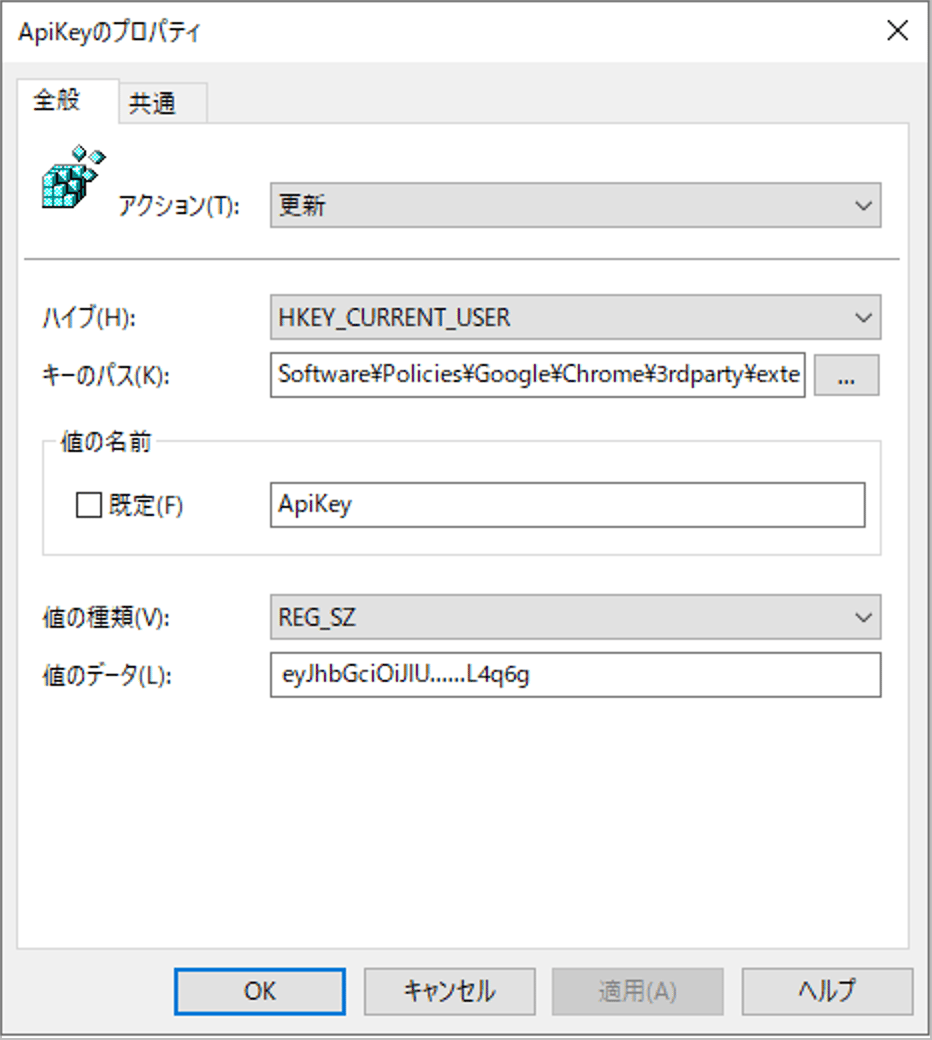
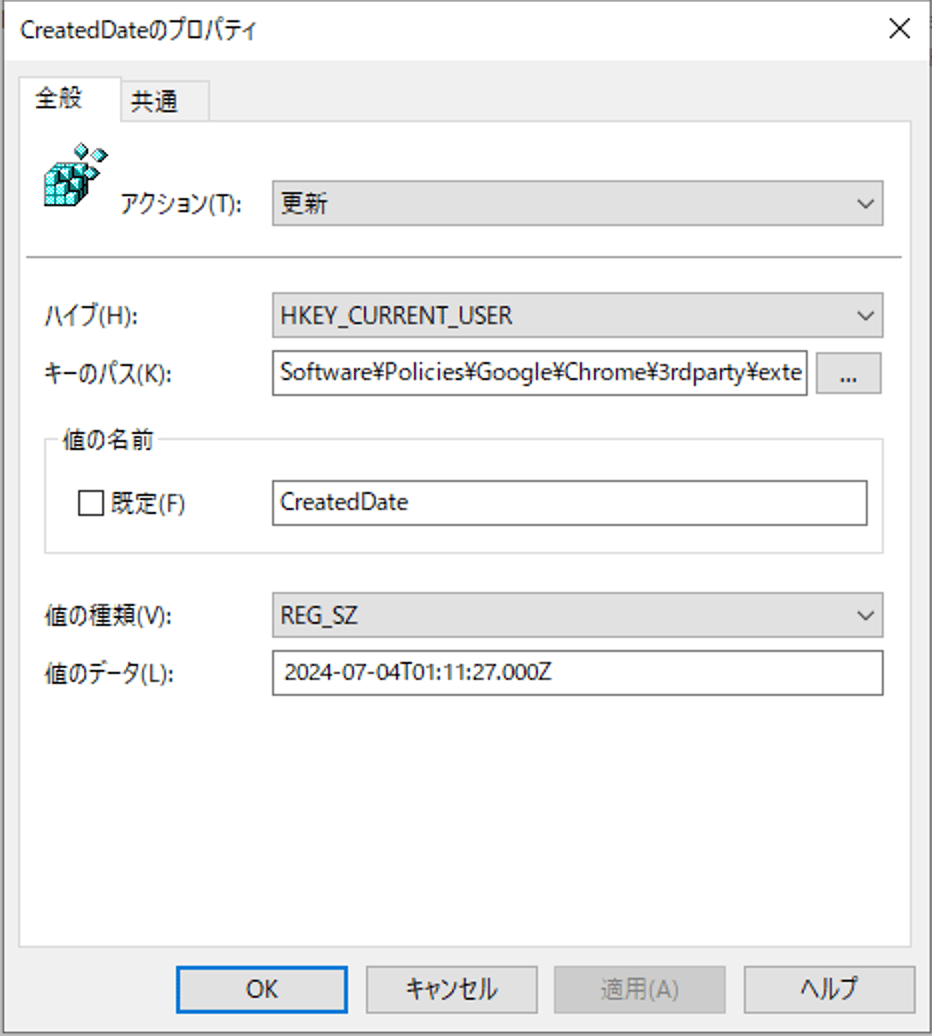
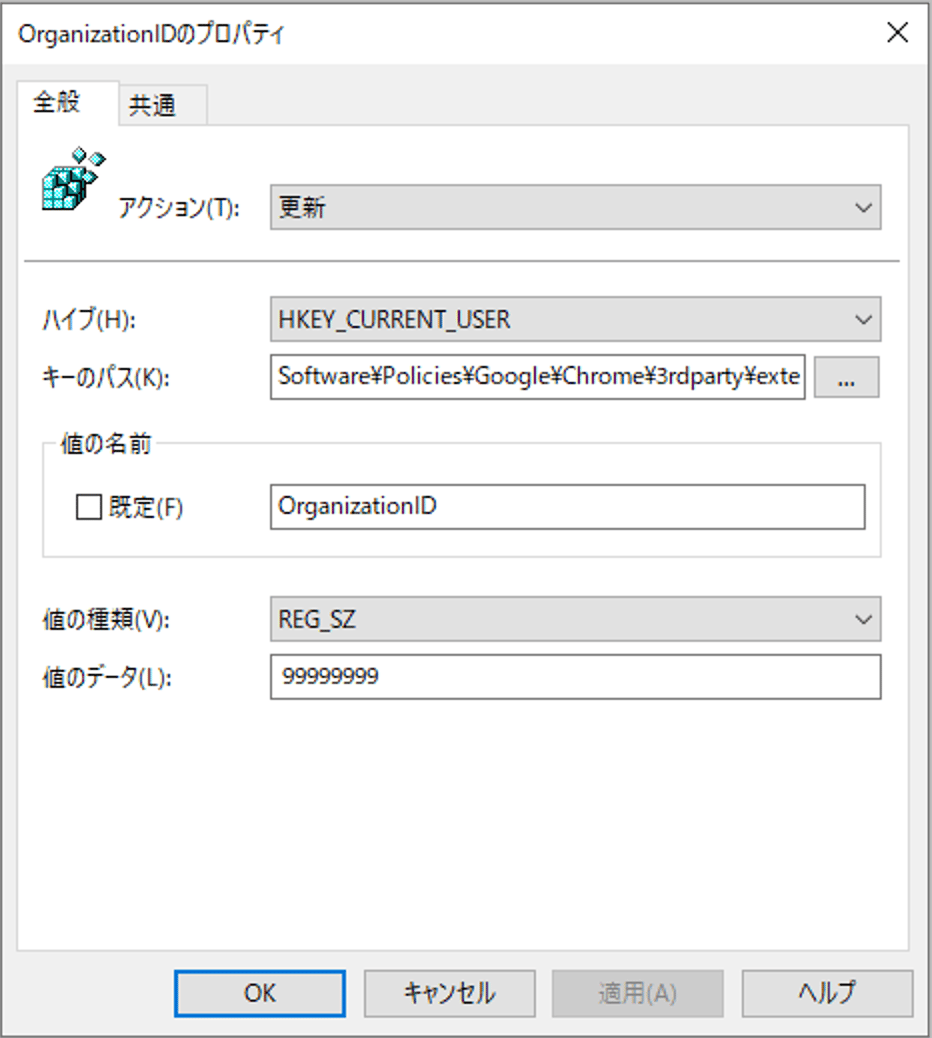
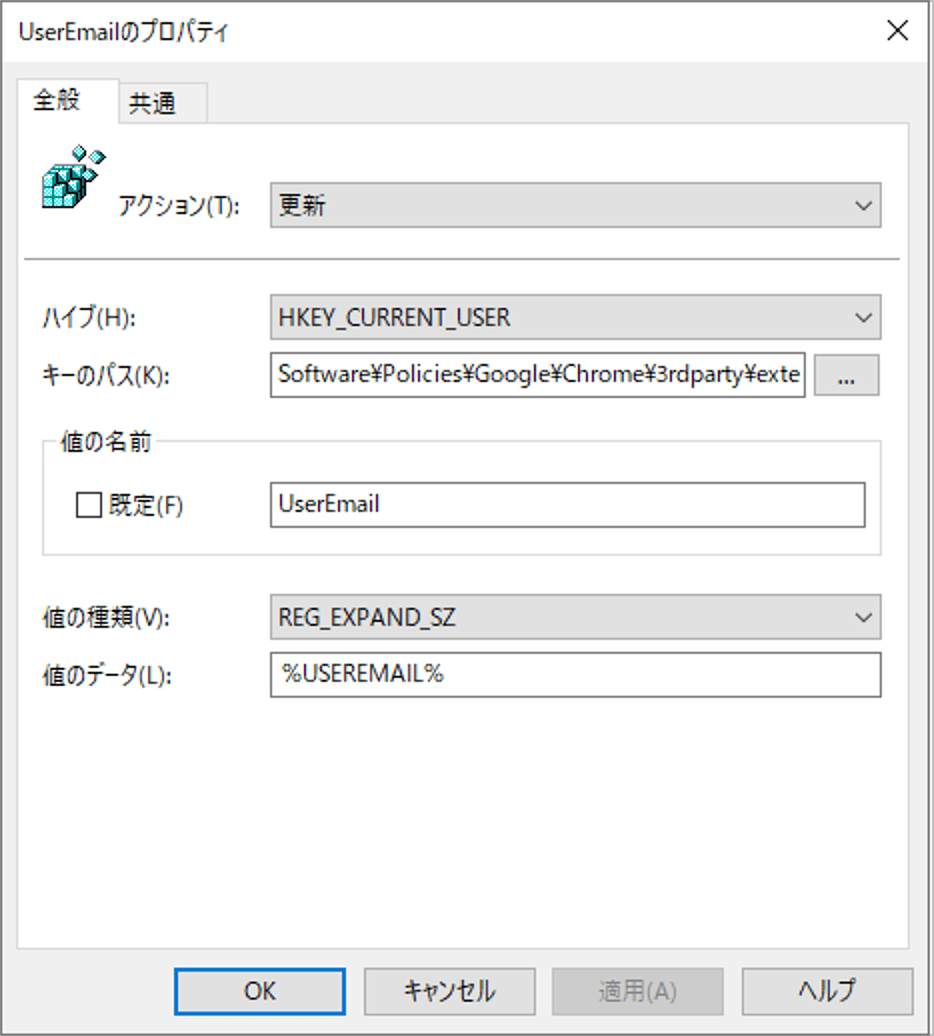
3.4.2 Edge — 3rdparty/policy
Key Path:Software\Policies\Microsoft\Edge\3rdparty\extensions\flggmhlpipcopffjfkpgkoljghfkmfcg\policy
Create the same five items as Chrome (Value name / Value type / Value data are identical) under the Edge Key Path. Do not also write 3rdparty/policy under Computer Configuration (HKLM) (see Note 4).
3.5 Logon Script — USEREMAIL Environment Variable
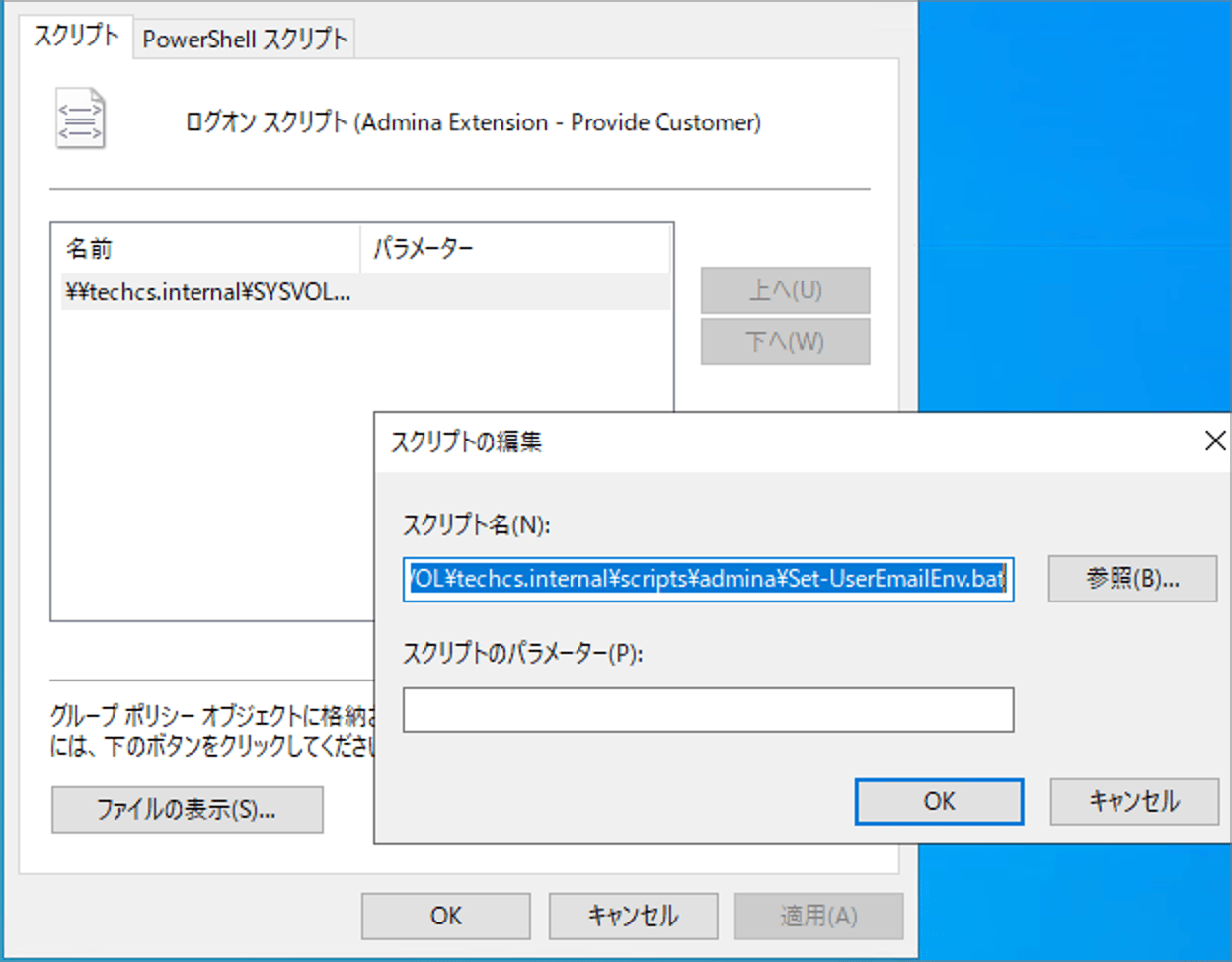
If you distribute UserEmail as a %USEREMAIL% reference, you need a logon script that sets the USEREMAIL environment variable at each user’s logon (see Note 5). GPO path: User Configuration → Policies → Windows Settings → Scripts (Logon/Logoff) → Logon| Item | Value |
|---|---|
| Script | \\<DOMAIN>\SYSVOL\<DOMAIN>\scripts\admina\Set-UserEmailEnv.bat |
| Parameters | (empty) |
- Edit the DomainPart in Set-UserEmailEnv.bat to your company domain (e.g.,
example.com). - Place it in
scripts\admina\under SYSVOL. - Register it as a Logon script using the GPO path above.
3.6 Applying the GPO
- Link the GPO to the target OU.
- Run
gpupdate /forceon a verification device, or sign in again. - Run
check_extension_registry.batusing the steps in Chapter 4.
3.7 Alternative: Startup Script Method
Instead of Registry Preferences, you can place edge_chrome_extension.bat in SYSVOL and register it as a Startup script using the following GPO path. Computer Configuration → Policies → Windows Settings → Scripts → Startup Edit the constants in the bat file.| Variable | Recommended value |
|---|---|
| ApiKey / CreatedDate / OrganizationID | Obtained from the admin console |
| ExtSettingsRoot | HKLM |
| PolicyRoot | HKCU |
| UserEmailMode | ENV_REF |
Chapter 4: Verifying Operation
4.1 Verification via the Check Script
Runcheck_extension_registry.bat as the target user (read-only).
Criteria for a normal result:
| Check item | Expected result |
|---|---|
| User Environment | USEREMAIL: defined, with the user’s email address as the value |
| HKCU — ExtensionSettings | All [—] NOT SET (intentionally not placed) |
| HKCU — 3rdparty Policy | All five items [OK] |
| HKLM — ExtensionSettings | Two items (installation_mode, update_url) are [OK] |
| HKLM — 3rdparty Policy | All [—] NOT SET (intentionally not placed) |
4.2 Verifying Installation in the Browser
Even if the registry settings are correct, there is a delay before they are reflected in the browser.| Timing | Details |
|---|---|
| Extension download | After the GPO is applied, it may take time to fetch the extension itself from the store |
| Policy loading | There is a delay before the browser re-fetches the policy in the background |
- Explicitly reload the policy page (4.2.1)
- Open the extension options page and press refresh (↻) if not reflected (4.2.2)
4.2.1 Explicitly Reloading the Policy
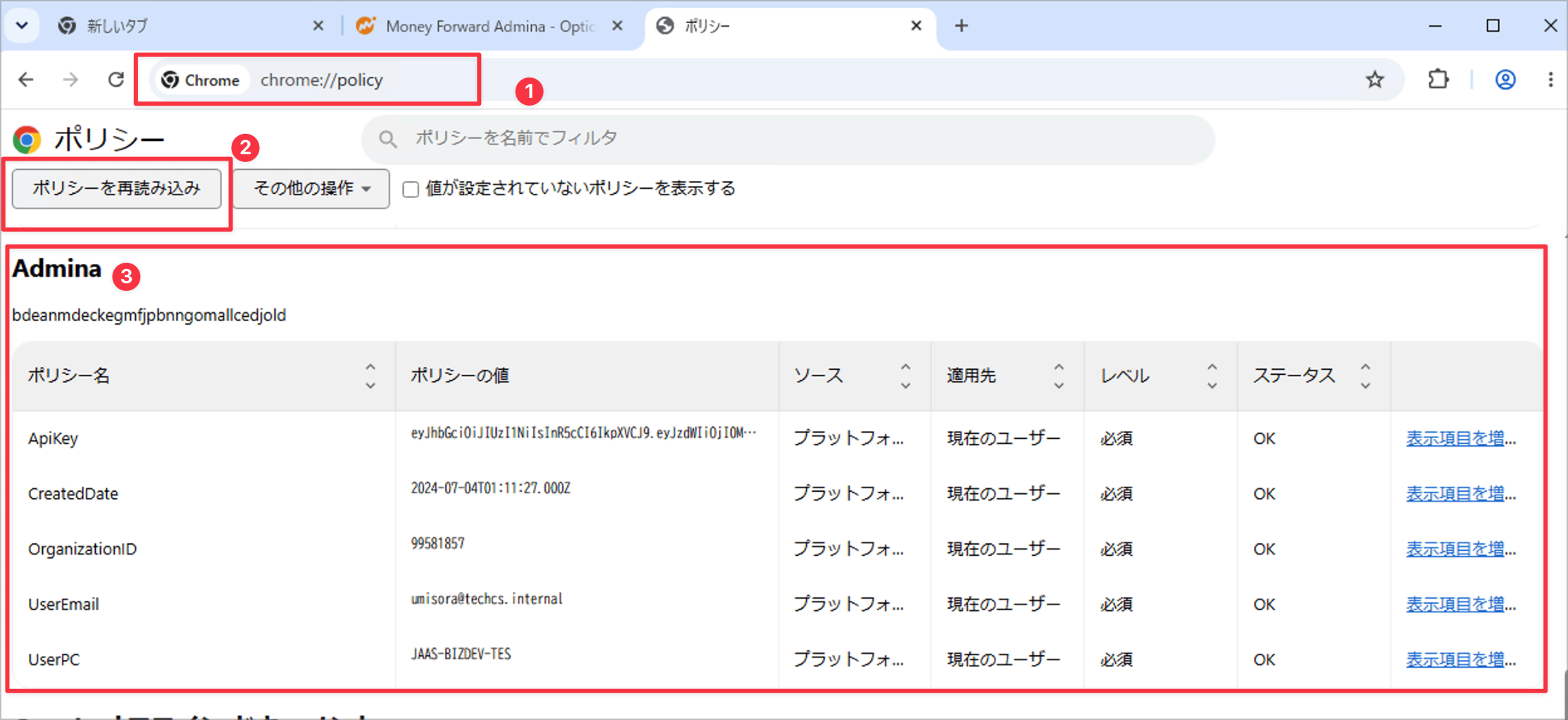
Chrome- Enter
chrome://policyin the address bar and open it. - Click Reload policies.
- Confirm that each value (ApiKey, OrganizationID, UserEmail, etc.) appears with OK under Extension policies at the bottom.
- Enter
edge://policyin the address bar and open it. - Click Reload policies.
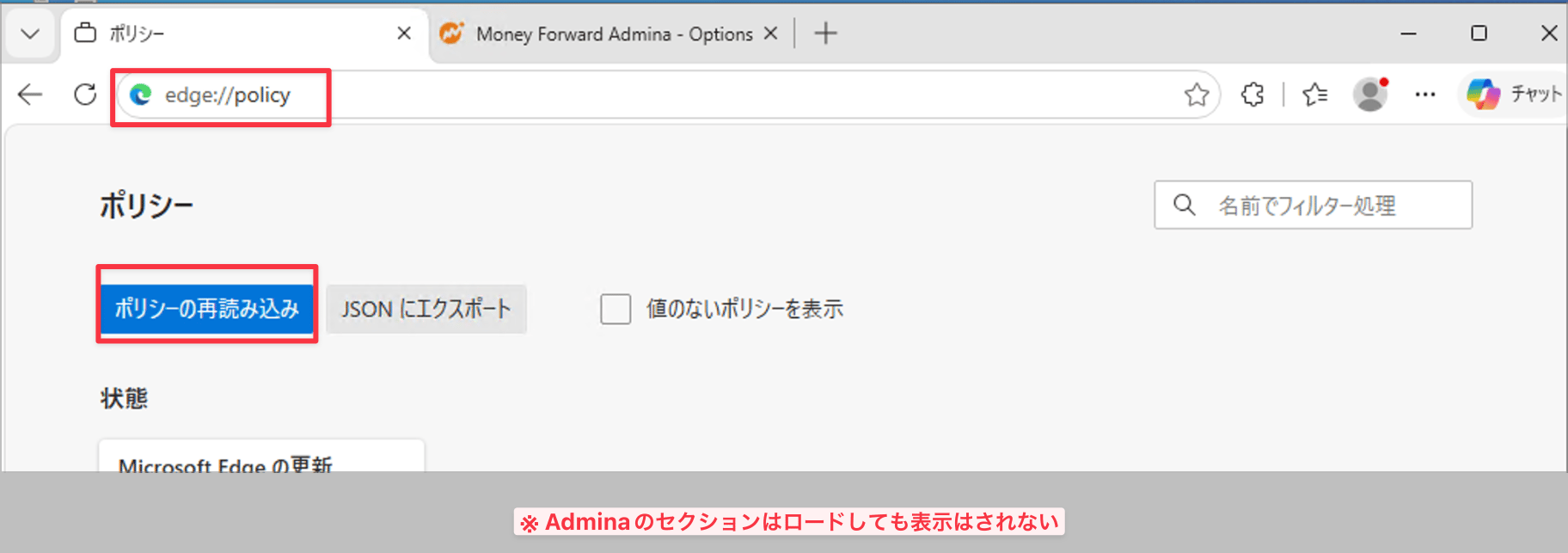
edge://policy (known behavior). Reload the policy anyway, and verify the values on the options page in 4.2.2 (see Note 7).
4.2.2 Verifying on the Extension Options Page
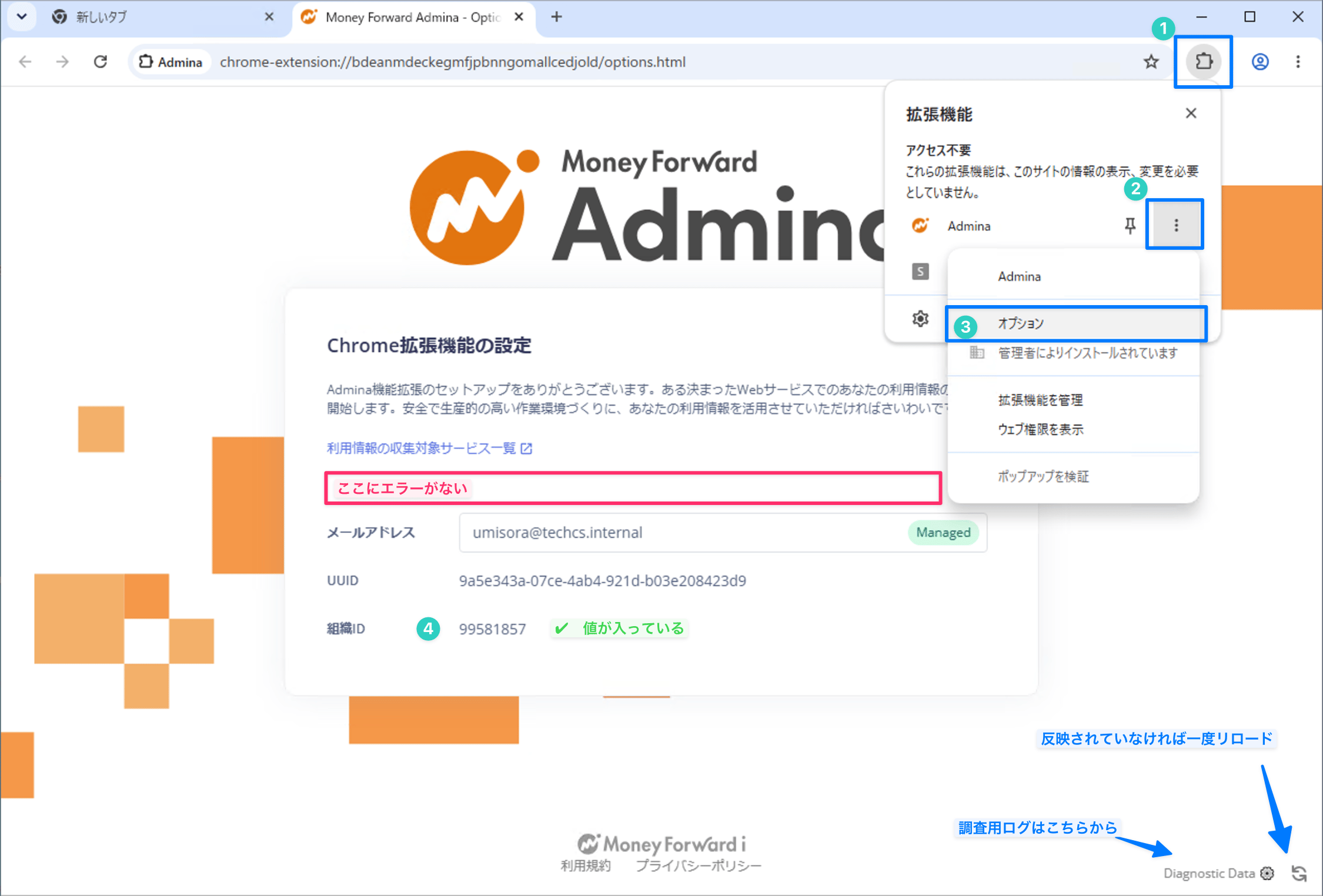
Chrome- Toolbar extension icon → the extension’s ︙ (More) → open Options.
- Confirm that “Installed by your administrator” appears in the extension menu.
- On the options page, confirm the following.
- The email address has a Managed tag and a value
- The organization ID has the value from the admin console
- No error appears at the top of the screen
- If a value is still empty, press refresh (↻) once at the bottom right of the page.
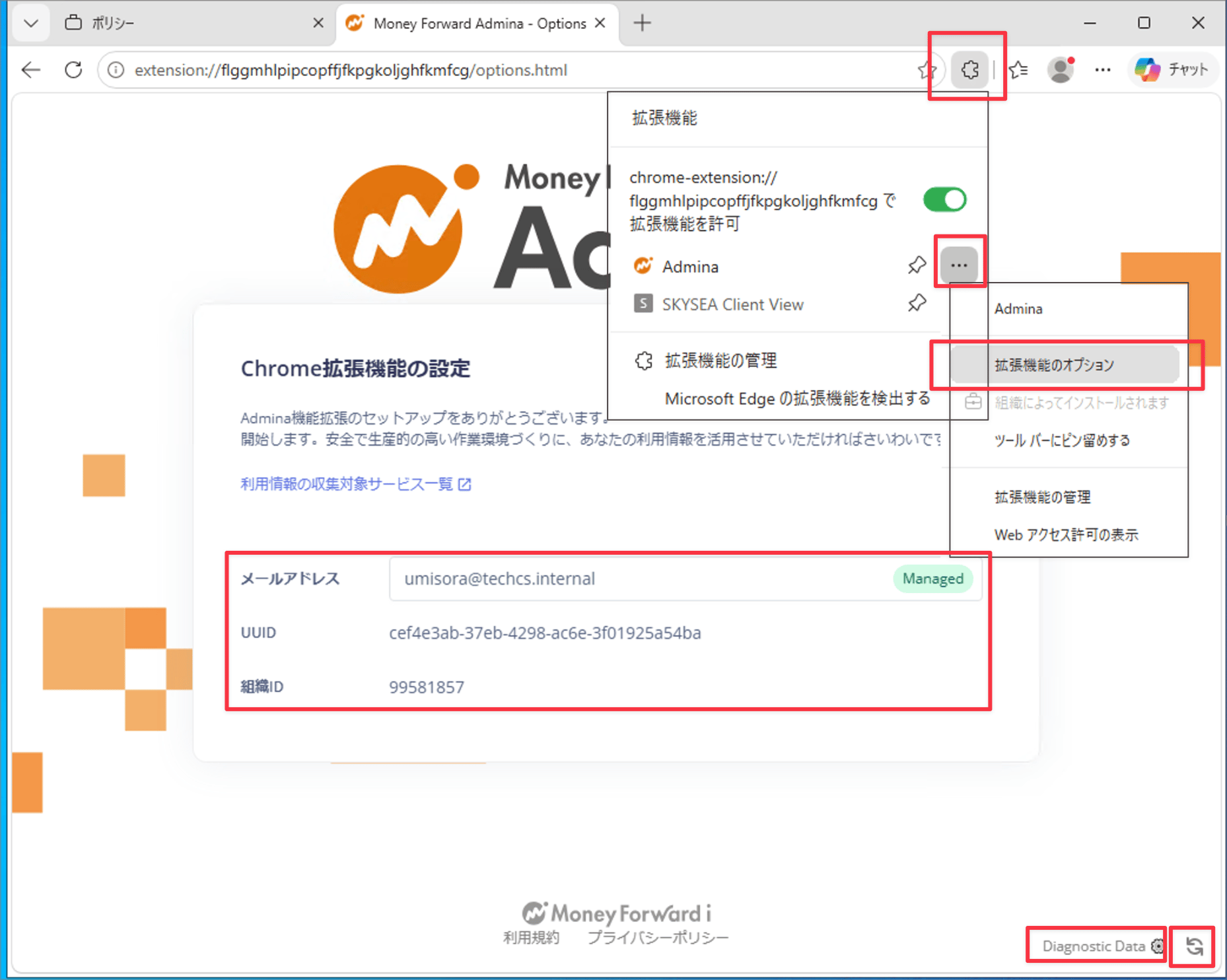
- Toolbar extension icon → the extension’s ︙ (More) → open Extension options.
- As with Chrome, confirm the email address (Managed), organization ID, and no errors.
- If not reflected, press refresh (↻) once at the bottom right of the page.
4.2.3 Verifying in the Extensions List (Reference)
- Chrome:
chrome://extensions - Edge:
edge://extensions
4.3 Diag Data (For Investigation)
You can obtain investigation logs from Diagnostic Data at the bottom right of the options page. If there is no connectivity, see Chapter 5.Chapter 5: Connectivity and Data Verification
5.1 Data Arrival Verification
Within about 30 minutes, entries from the Chrome / Edge source appear under “Integrations > Event Log”.5.2 When There Is No Connectivity
Check for warnings via the extension icon → Settings (⚙️). For details, see How to review Diag data.5.3 Network Verification
Chapter 6: Technical Notes
Note 1: ExtensionSettings = HKLM, 3rdparty/policy = HKCU
ExtensionSettings is a per-machine setting. Because the UserEmail in 3rdparty/policy differs per user, it is placed in User Configuration (HKCU).Note 2: Action = Update
Creates the entry if it does not exist and overwrites it if it does. Replace re-creates the entire key and has side effects.Note 3: ExtensionSettings HKLM/HKCU Conflict
If it exists in both HKLM and HKCU, only the HKLM side is used.Note 4: 3rdparty/policy HKLM/HKCU Conflict
If the same value name exists in both, HKLM takes precedence.Note 5: Why UserEmail Uses an Environment Variable Reference
When Computer Configuration is applied, USEREMAIL is not expanded because it runs in the SYSTEM context. The combination of User Configuration and a logon script is required.Note 6: Permissions for HKCU\Software\Policies
Only GPO Preferences (User Configuration) can write to HKCU\Software\Policies. A logon script can only set the USEREMAIL environment variable.Note 7: 3rdparty/policy Not Shown on edge://policy
The values themselves reach the extension. See Appendix A.2.Chapter 7: Uninstalling
Removing items from the GPO alone leaves the registry values on the device (the GPP “tattoo” effect).7.1 Method A: GPO Delete Action (Recommended)
| Placement | Hive | Key Path | Action |
|---|---|---|---|
| Computer Configuration | HKEY_LOCAL_MACHINE | Software\Policies\Google\Chrome\ExtensionSettings\bdeanmdeckegmfjpbnngomallcedjold | Delete |
| Computer Configuration | HKEY_LOCAL_MACHINE | Software\Policies\Microsoft\Edge\ExtensionSettings\flggmhlpipcopffjfkpgkoljghfkmfcg | Delete |
| User Configuration | HKEY_CURRENT_USER | Software\Policies\Google\Chrome\3rdparty\extensions\bdeanmdeckegmfjpbnngomallcedjold | Delete |
| User Configuration | HKEY_CURRENT_USER | Software\Policies\Microsoft\Edge\3rdparty\extensions\flggmhlpipcopffjfkpgkoljghfkmfcg | Delete |
7.2 Method B: Uninstall bat
Run edge_chrome_extension_uninstall.bat with administrator privileges. It removes both the HKLM / HKCU keys and the USEREMAIL environment variable. After running it, reload the policy atchrome://policy / edge://policy.
Appendix A: Verifying Policies in the Browser
For detailed steps and screenshots, see Section 4.2.A.1 Chrome: chrome://policy
After “Reload policies”, you can check the Scope (Machine / User) and each value’s Status (OK) in the Extension policies section.A.2 Edge: Verifying 3rdparty/policy
3rdparty/policy is not shown onedge://policy. Verify it on the options page in 4.2.2, or as follows.
- Method 1: Check the HKCU values with
check_extension_registry.bat. - Method 2: In the Service Worker console (
edge://extensions→ Developer mode → Inspect Service Worker), runchrome.storage.managed.get(null, (data) => console.log(data)).