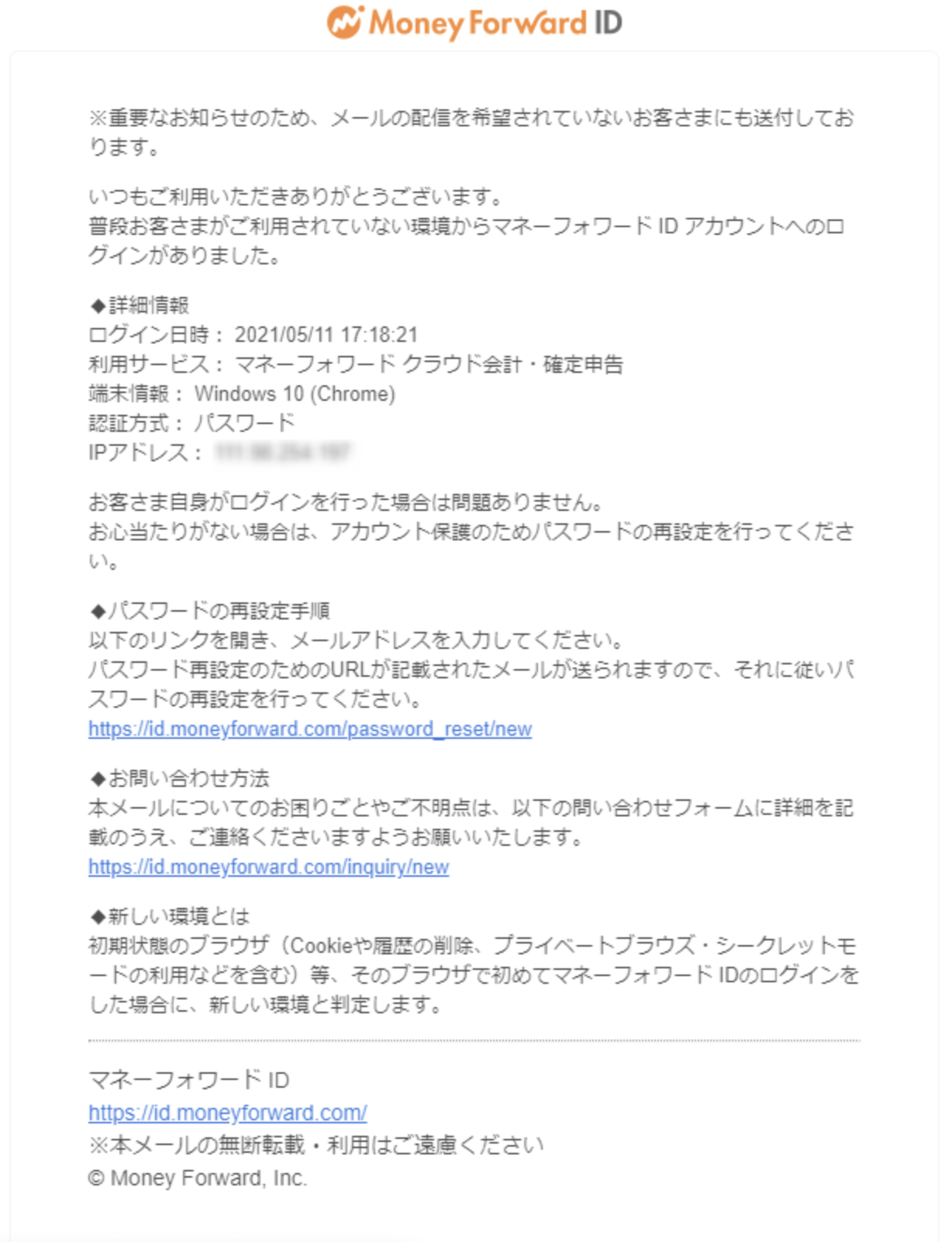
When a login is detected from a new environment (one not used previously), a login notification email is sent.After integrating a SaaS with this service, notification emails are sent to users when automatic sync runs overnight.
These emails are sent automatically and cannot be disabled.To exclude specific notifications, set up an email filter using the Recommended settings below.
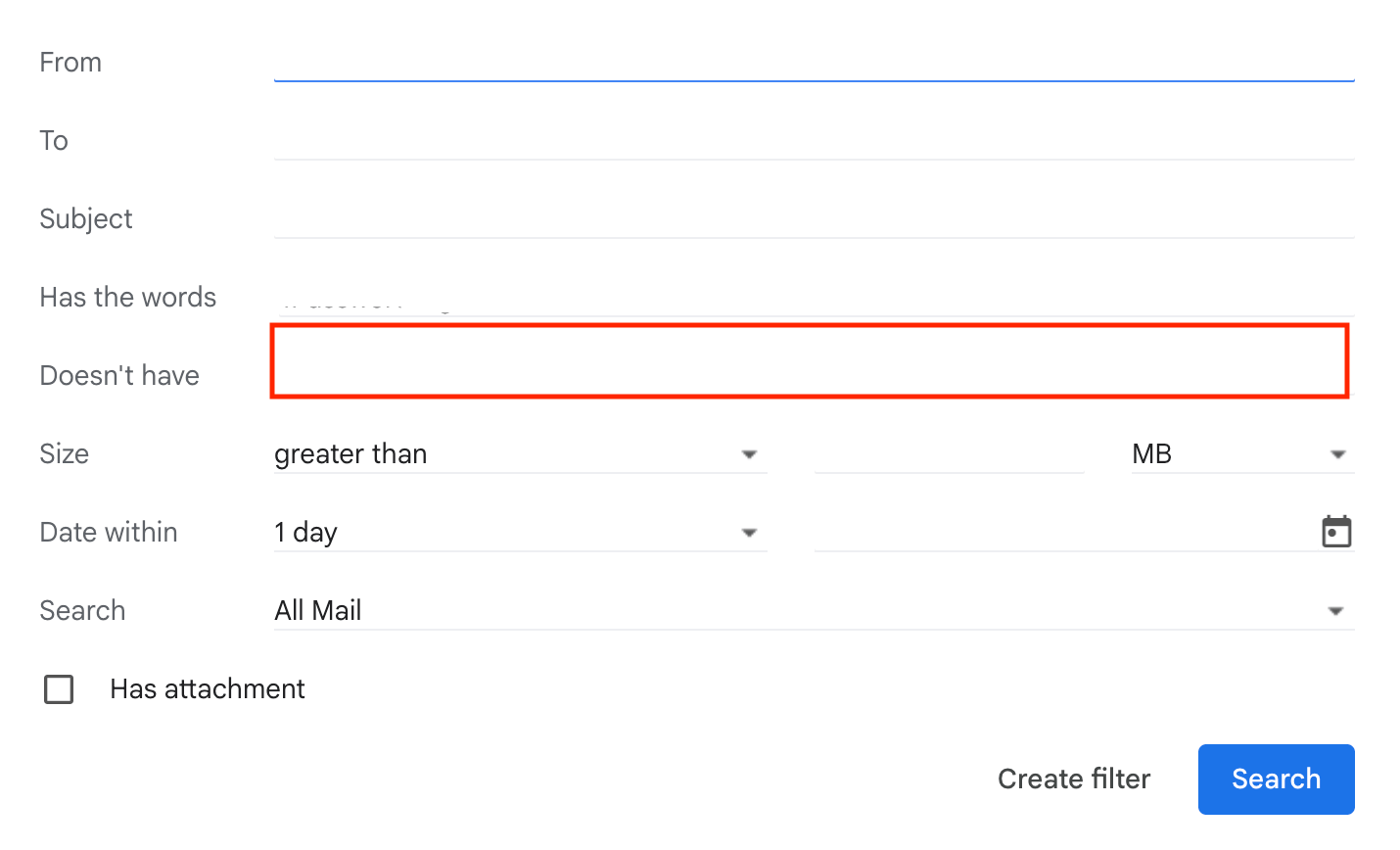
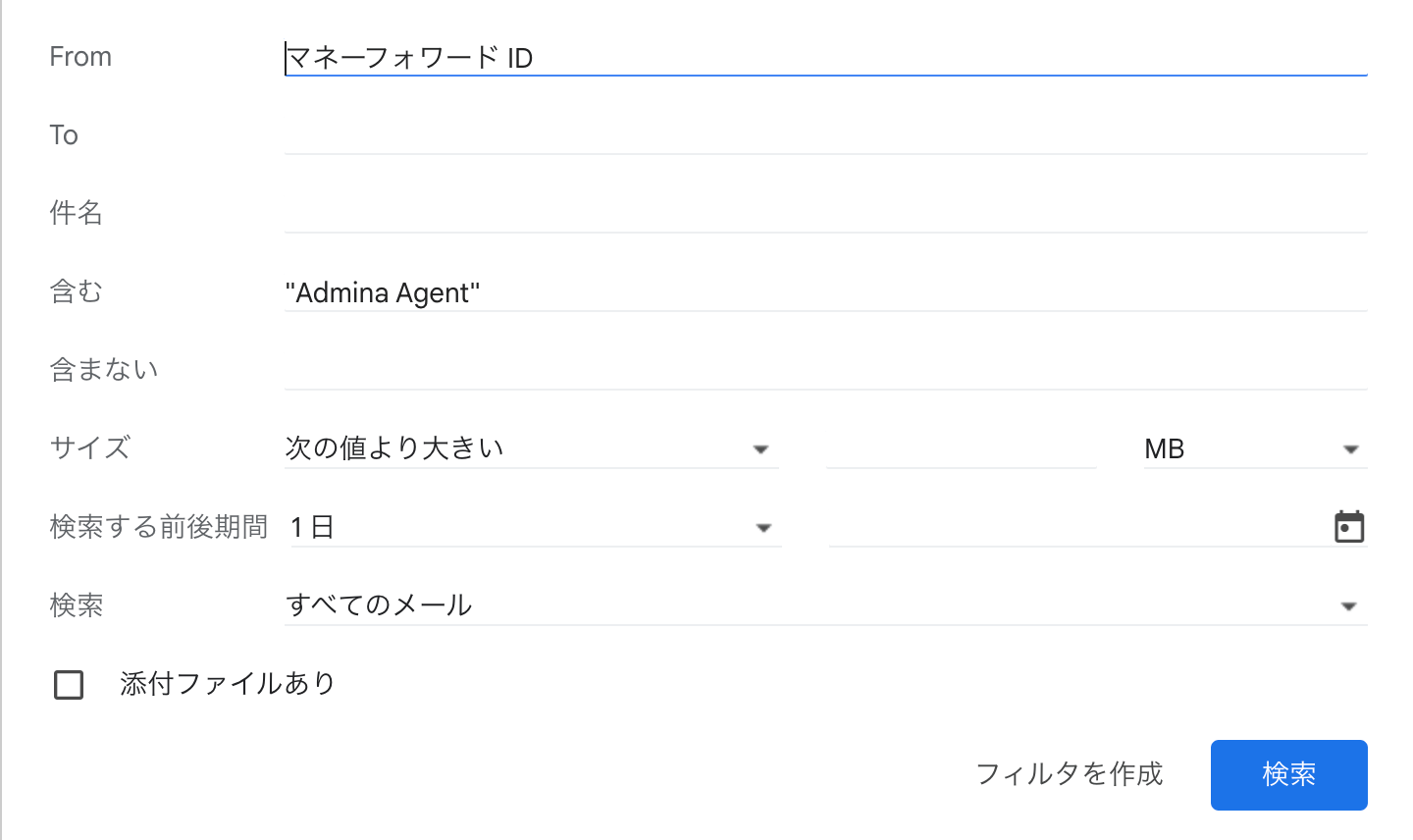
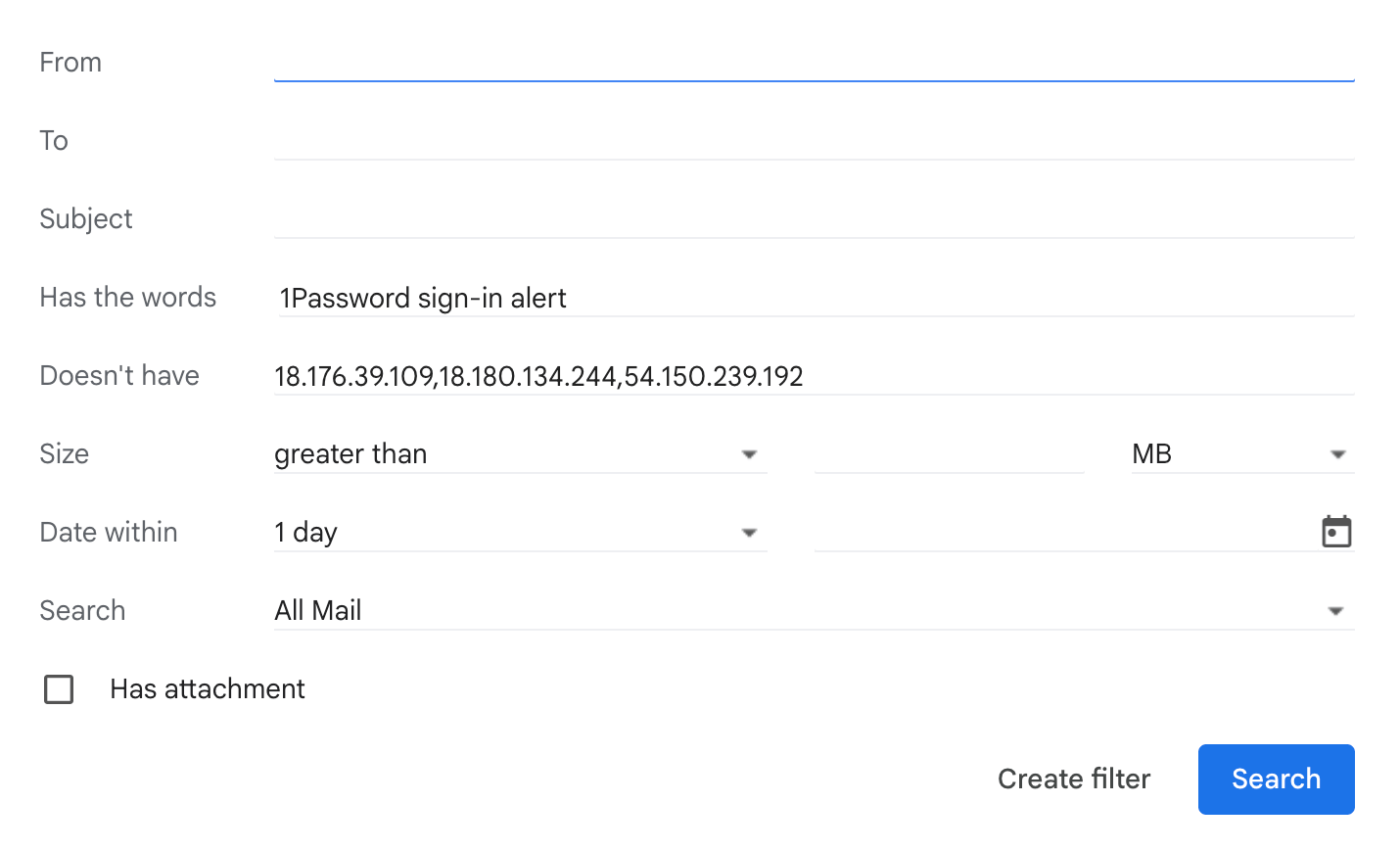
To exclude only notifications from this service’s logins, create an email filter with the following conditions.Regular login notifications are delivered as usual, while this service’s notifications go to a separate folder.To filter by IP address, enter the IP address in the highlighted field shown below.To check this service’s IP addresses, see Source IP addresses.Q. After integrating with MoneyForward Cloud, I receive security notifications at night. What are these?A. These are login notifications for your MoneyForward ID account.For details, see MoneyForward Cloud login and Login notifications due to enhanced security.For MoneyForward Cloud, the following email is sent.Q. How do I exclude only the security notifications from MoneyForward Cloud?A. To exclude only notifications from this service’s logins, create an email filter with the following condition.from:(マネーフォワード ID) "<service name> Agent"Q. How do I exclude only the security notifications from 1Password after SaaS integration?A. To exclude only notifications from this service’s logins, create an email filter with the following condition.