

Steps to Retrieve Diag Data
The following steps describe how to retrieve Diag data from the extension icon in Chrome.For Chrome or Edge, open the following HTML page directly and follow step 3 onward in these steps.Chrome:
chrome-extension://bdeanmdeckegmfjpbnngomallcedjold/options.htmlEdge (latest): chrome-extension://flggmhlpipcopffjfkpgkoljghfkmfcg/options.html-
Click the extension icon in the upper-right corner of your browser.

-
Click the gear icon in the upper-right corner of the extension screen.

-
Click Diagnostic Data in the lower-right corner of the extension.
-
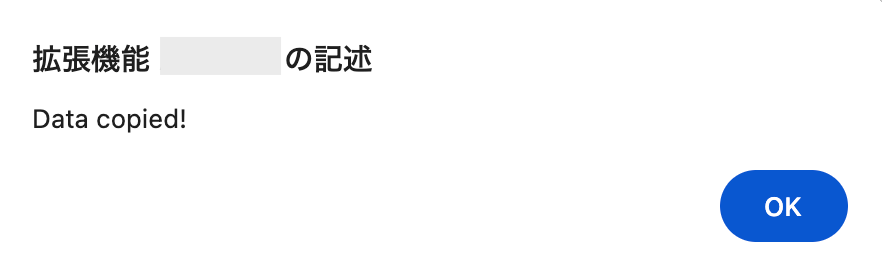
Click OK, then paste the copied data into a text editor and save it.
How to Interpret Diag Data
Reviewing Diag data lets you quickly determine whether data is being sent correctly. It also helps you identify where a configuration issue may exist.-
Check the four required fields
All four of the following fields must be present for data to be sent successfully. If any are missing, proceed to step 2 and beyond.
Field Description What to check Email Email address of the target user Confirm the value is not null. apiKey Authentication key Confirm a valid string is present. OrganizationID Organization ID Confirm organizationIdis not null.isActive Connection status Confirm the value is "isActive": true. -
Required parameter details (Email priority order)
The
emailproperty displays the email address currently in use, based on the following priority. If an unexpected address appears, check whether a value exists in the higher-priority fields.- manualEmail: Manually entered (highest priority)
- managedEmail: Retrieved from the OS or MDM (mobile device management)
- profileEmail: Retrieved from the browser login information
- If apiKey, OrganizationID, or CreatedDate are not visible Go to Settings > Organization > Browser Extension and copy the value from Extension Policy. Then set the value found within the extension policy.
-
Verify the distribution status of the extension: Confirm that the extension is installed.
Open the policy page in your browser (for example,
chrome://policy) and verify that the settings have been applied. If no values appear in the policy, check the registry or configuration settings on the OS side. If they are also absent there, check the settings in the distribution source (such as MDM). - Review the FAQ below and follow the steps on each help page, then recheck the values in the Diag data.
- If the issue persists after following the steps above, include the retrieved Diag data and contact the support desk.
FAQ
Q. What should I watch out for when configuring the registry?
A. The registry path differs between Chrome and Edge. (Reference: Register Parameters for the Extension in the Registry) If you configured the wrong path, remove the extension from the browser’s management console and reinstall it.- Chrome path:
Software\Policies\Google\Chrome\3rdparty\extensions\bdeanmdeckegmfjpbnngomallcedjold\policy - Edge path:
SOFTWARE\Policies\Microsoft\Edge\3rdparty\extensions\flggmhlpipcopffjfkpgkoljghfkmfcg\policy
Q. Can I use a configuration profile without MDM?
A. This is not currently supported. Due to Chrome extension security restrictions, a manually created plist loads in the browser. However, the extension cannot read it.Q. Do I need to set a different EMAIL for each user?
A. We recommend doing so. The extension sends the email address to the server as the identifier of the operator. In principle, any value in email address format works. For example, you can use the PC name as the local part (e.g.,HOSTNAME@example.com).
The sent email address appears on the web console as-is. However, it does not link to an actual user account. As a result, it may be difficult to use for data such as last-used dates. (It is sufficient for Shadow IT purposes.)