

Feature Overview
This feature retrieves the sharing status of files in external storage services. It collects information on externally shared files and sends alerts to help you address unintended sharing.The
Admin role is required to view the Files tab. For details on roles, see Managing Admin Users and Roles.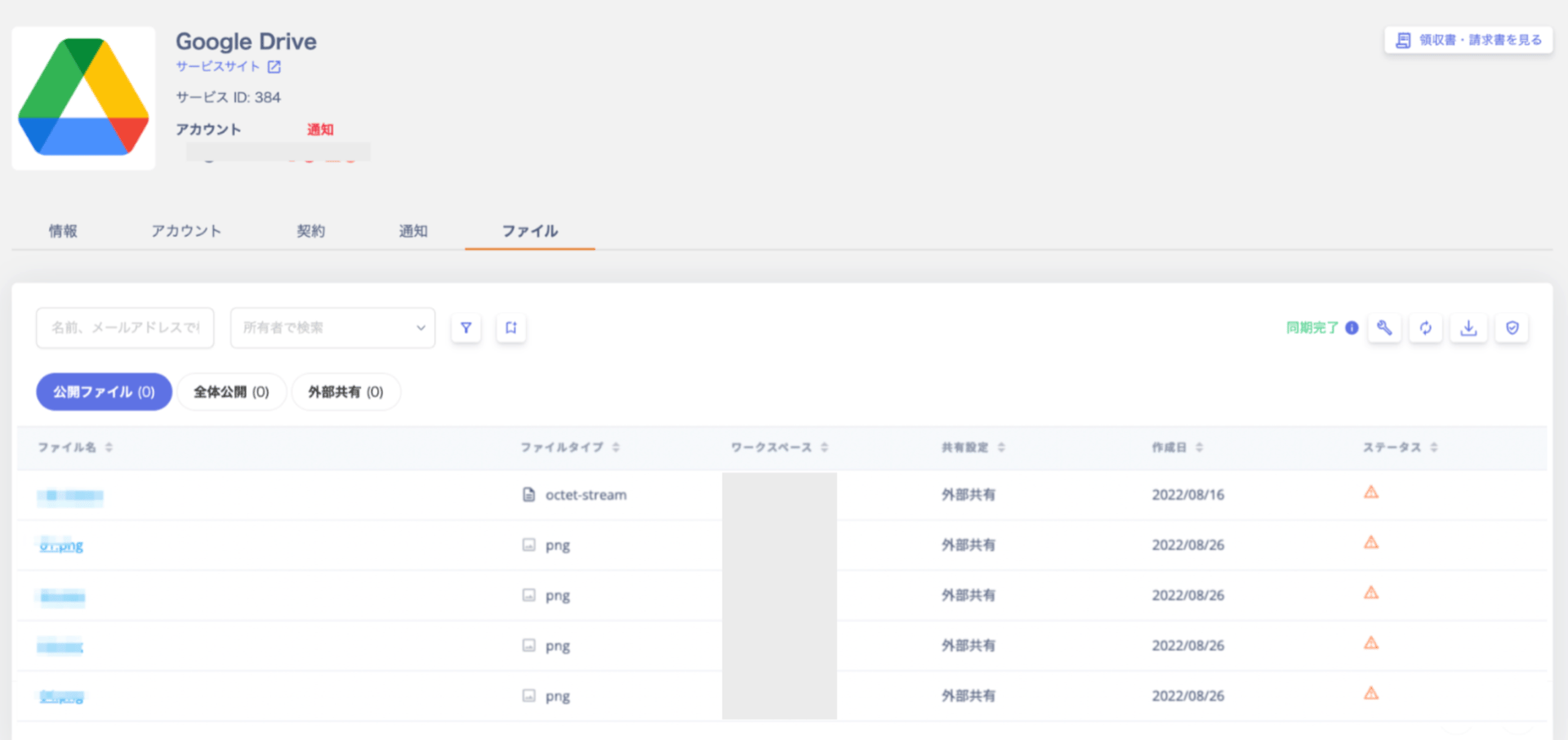
Supported SaaS
Integrate the following SaaS services to retrieve the sharing status of files. Follow the link for each service to view the integration steps.About Notion IntegrationDue to Notion’s FileList API limitations, time lags and data gaps may occur when retrieving files. Notion does not rebuild indexes in real time, and the API does not guarantee all files are returned. (As of March 2025)
About Google Drive IntegrationThe file list shows each file’s location under its name. For files in a shared drive, it is the shared drive name followed by “(Shared Drive)”. For files in My Drive, it is “My Drive”. The list does not show the folder hierarchy inside the shared drive or My Drive. The CSV export contains the same value.
Alert Detection
Files that match the following conditions are detected as externally shared and treated as alerts. You can dismiss alerts by fixing the original settings or by using Exclude detected files with the safelist.Sync Execution
Automatic Sync
Automatic sync runs approximately once a week. Syncing may take multiple hours with large numbers of files.Manual Sync
You can trigger a manual sync using the [Sync] button on the Files tab.Note that clicking the workspace sync button does not sync file information.

Stopping Sharing
-
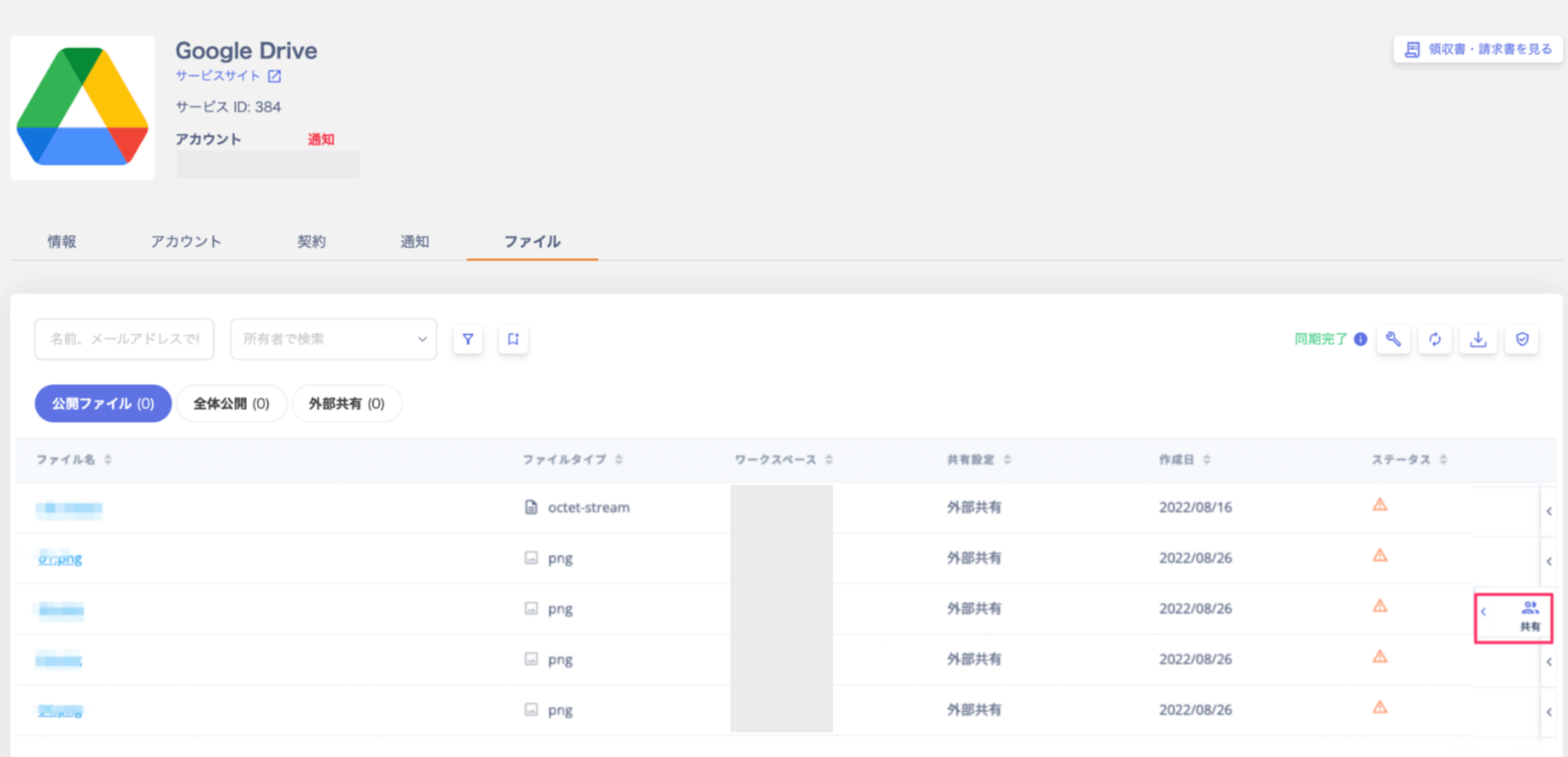
Review the status of retrieved shared files and stop sharing as needed. Click the three-dot menu [︙] on the right end, then click [Share].
-
Select the users, groups, or links you want to stop sharing with, then click [Apply].
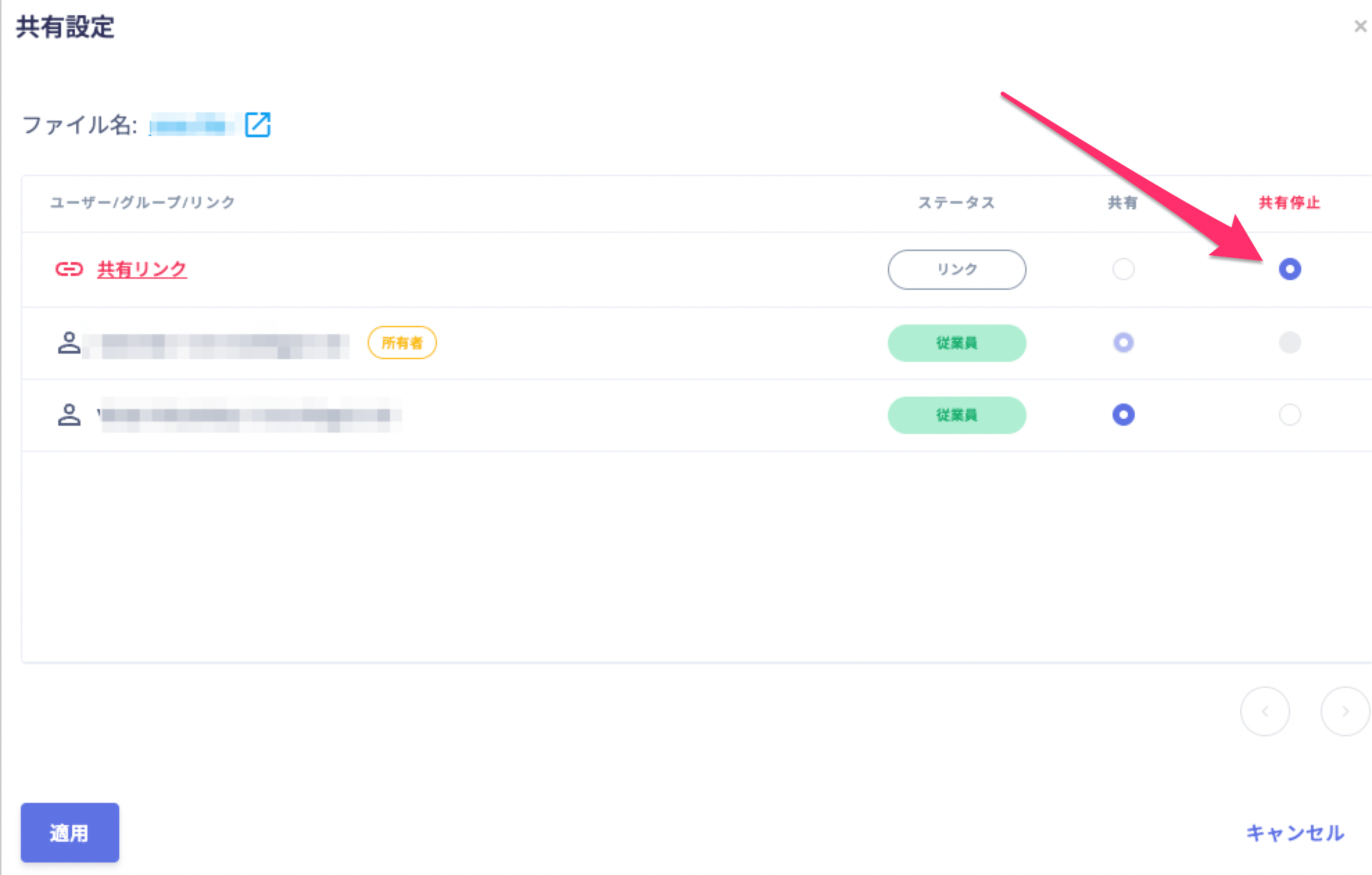
You cannot stop sharing with a specific email address across multiple files at once. For each file, follow the steps above and select the user or group to stop sharing with.In Google Drive, stopping sharing removes the sharing permissions of the selected users, groups, or links from the file. If you select “Published to web” or “Published to web (organization only),” Admina stops publishing the file to the web. You cannot stop sharing that is inherited from a parent folder on the file itself. The users and groups can still access the file, so change the sharing settings of the parent folder in Google Drive.You can restrict externally shared Google Drive files to your organization in bulk from Google Drive. See Resolve false positives in public file detection.
Exporting Files
You can export detected files as a CSV file. Click [Export] in the upper right to download the CSV. The maximum export limit is20,000 records. To export more than 20,000 records, see Export Google Drive files with the API.

Limitations
To optimize data storage and retrieval costs, the following limits apply to file retrieval.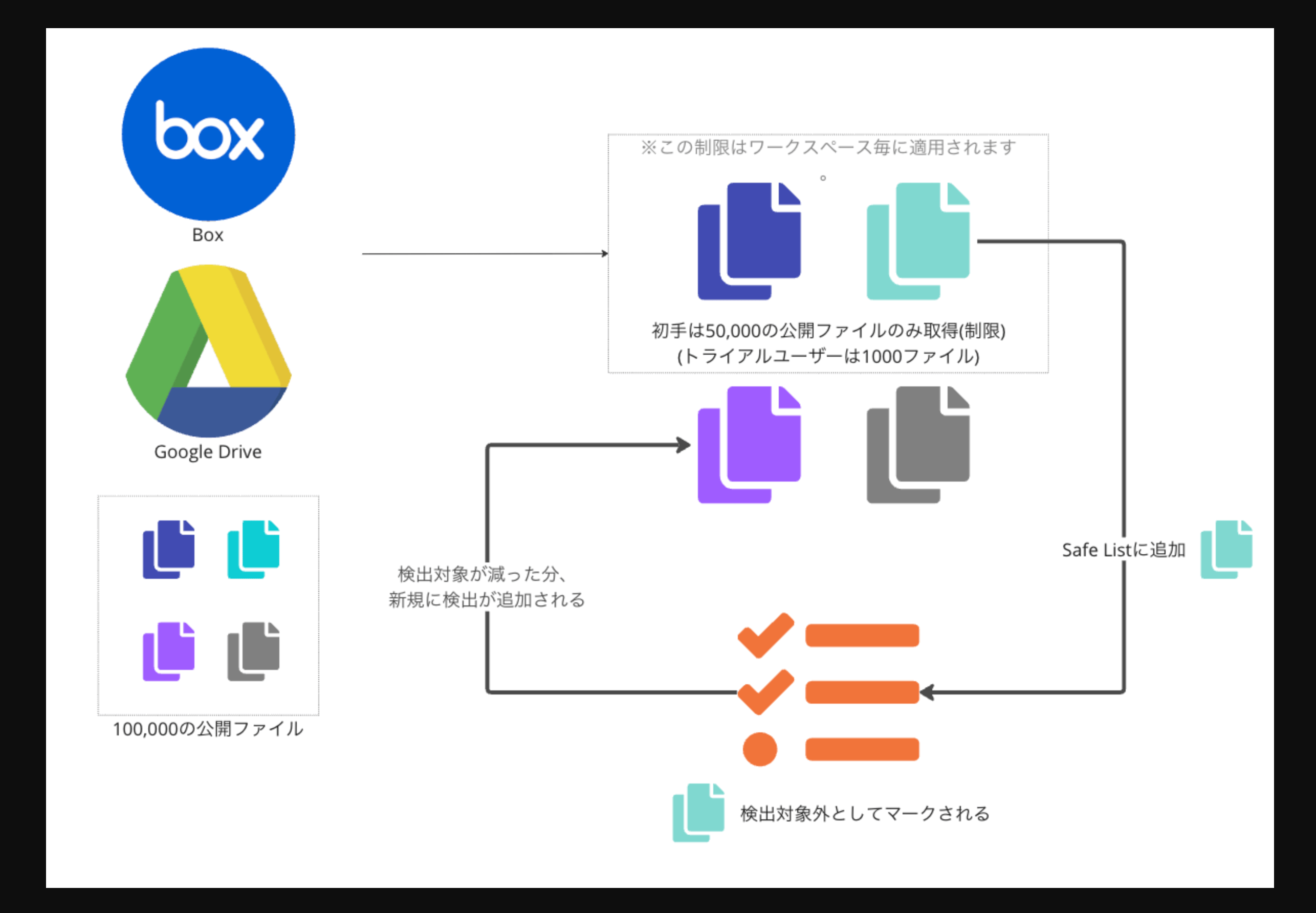
FAQ
What does each file sharing status mean? External sharing “Externally shared” means the file is shared with addresses outside your organization’s registered domains. Box, OneDrive, and Google Drive only. For a Google Drive file shared with a Google group (group address), the status depends on the group members’ addresses. If any member has an address outside your organization’s registered domains, the file counts as “externally shared”.- Members whose domain you specify as a trusted domain in the Google Drive integration settings count as internal.
- A group that does not exist in the integrated Google Workspace has no members to retrieve. Sharing with such a group also counts as “externally shared”.
- Files or pages shared via a link accessible to anyone on the web — for example, “Anyone with the link”
-
(Google Docs, Slides, Sheets, and similar files only) Files published to the web
