

What you can do with this feature
You can detect files and folders in Google Drive that match specified conditions (filtering).Setup steps
-
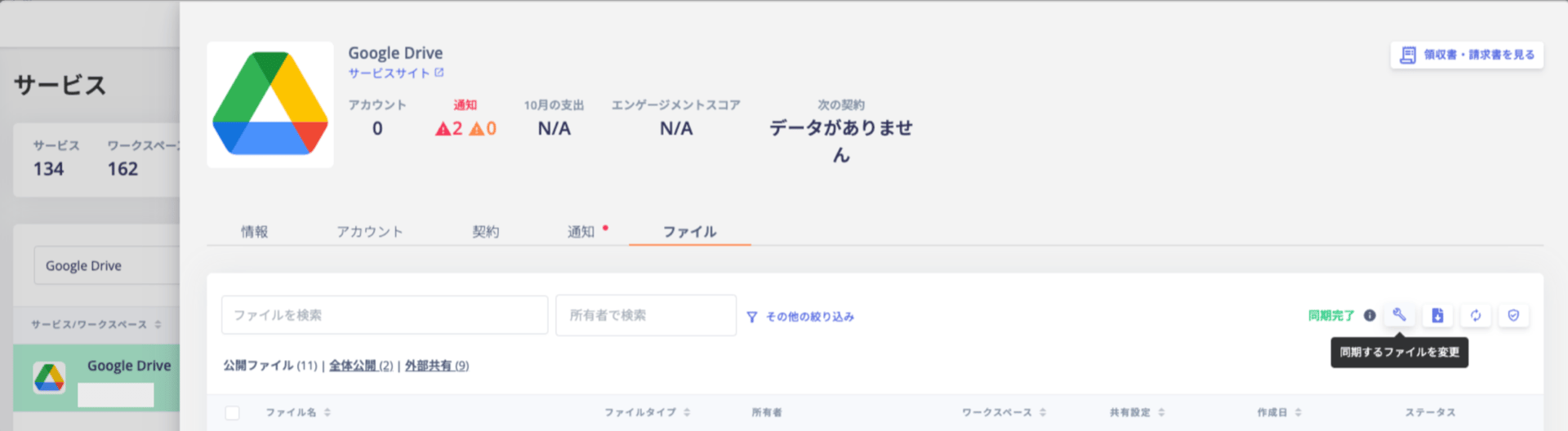
Go to Services > Google Drive > Files tab, then click 🔧 [Settings (Change files to sync)].
-
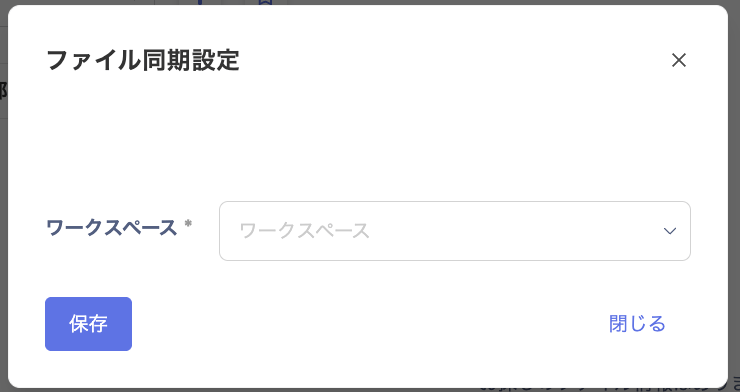
On the “File Sync Settings” screen, select a workspace and click [Save].
-
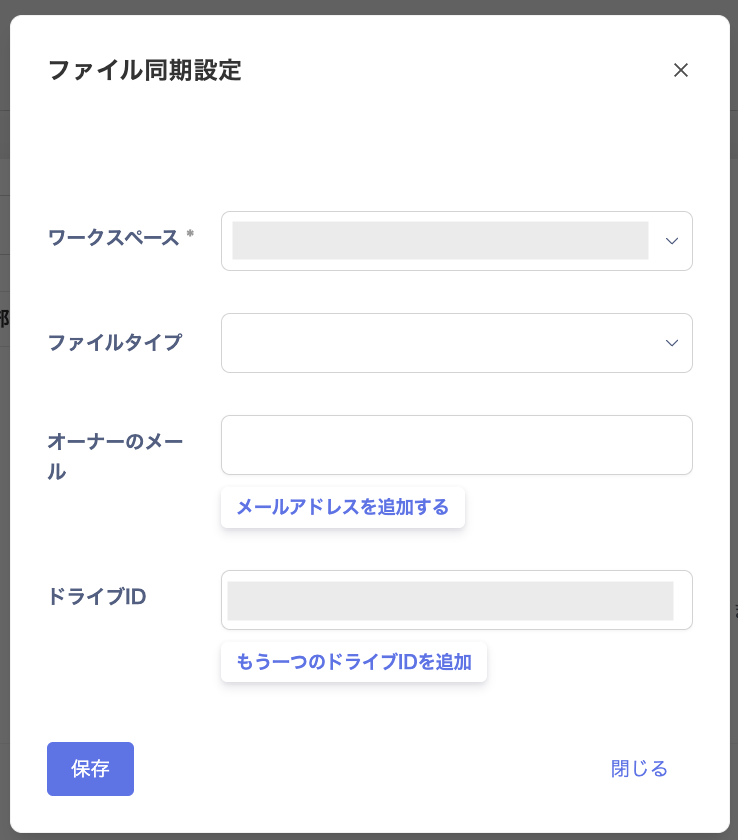
Configure the conditions and click [Save].
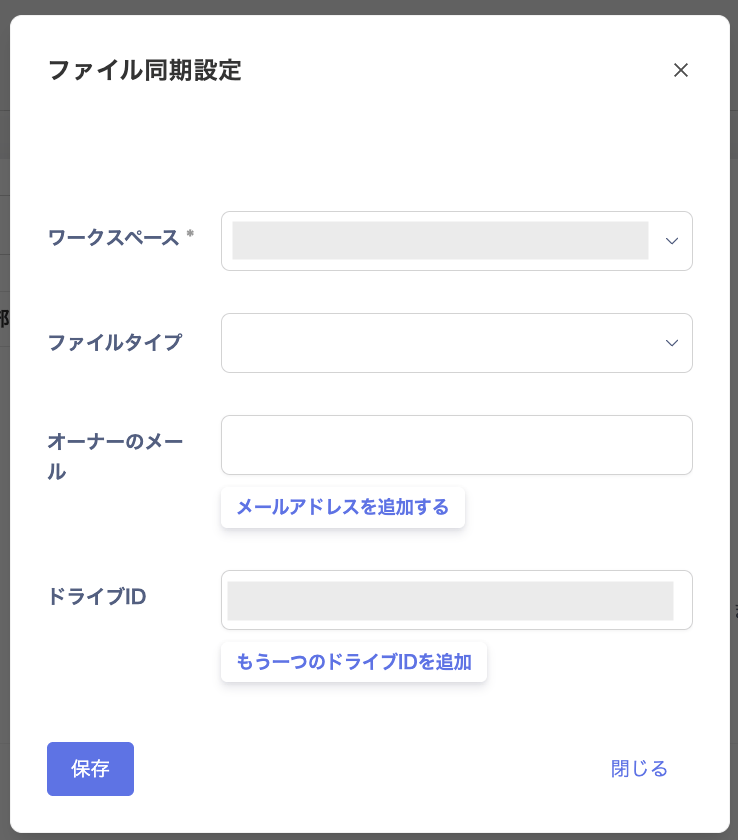
When owner email is specified: Only My Drives are targeted; shared drives are skipped.
When Drive ID is specified: Only shared drives are targeted; My Drives are skipped.
When neither is specified: All My Drives and shared drives are targeted.
Specifying file types
You can select specific file types (MIME types). The available file types follow the Google Workspace and Google Drive specification. MIME types supported by Google Workspace and Google DriveSpecifying file owners
You can detect files and folders of a specified owner by entering the owner’s email address. Multiple addresses can be configured. Up to 50 email addresses can be set.Specifying shared drives
You can detect files and folders in a specified shared drive by specifying the Drive ID. The Drive ID can be found in the folder URL. Only top-level shared drives are supported; you cannot specify folder IDs.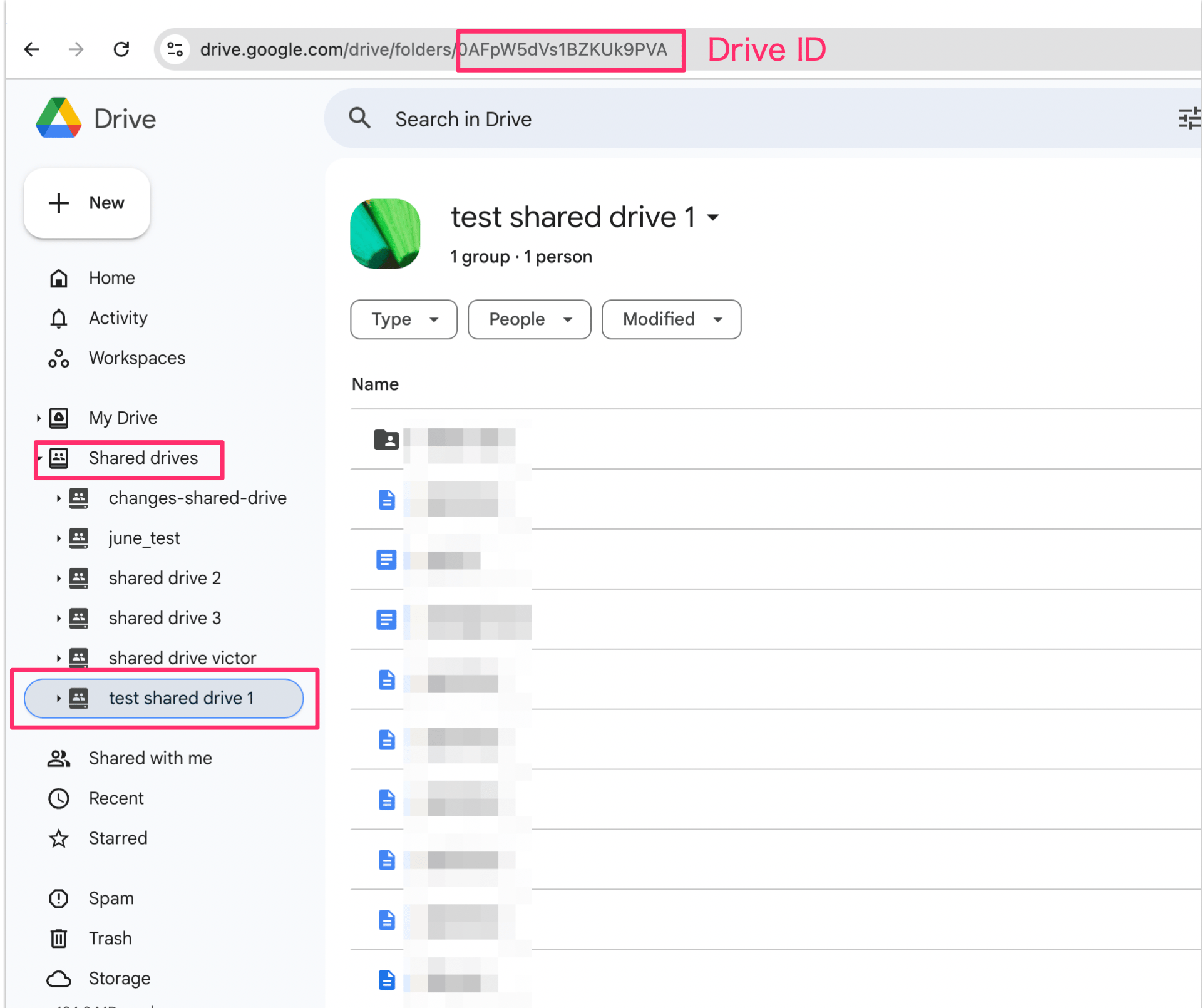
You cannot specify a folder ID. Only top-level shared drives are supported.
Running a sync
After saving, the filter settings apply at the next scheduled sync. Manual execution is also possible.Frequently asked questions
Q. Can I exclude specific Drive IDs? A. The Google API does not support exclusion, so this is not possible by design. Instead, specify only the Drive IDs you want to detect. Example: Drive IDs to exclude:driveA, driveB
Drive IDs to detect: driveC, driveD
Drive ID list to configure: ["driveC", "driveD"]