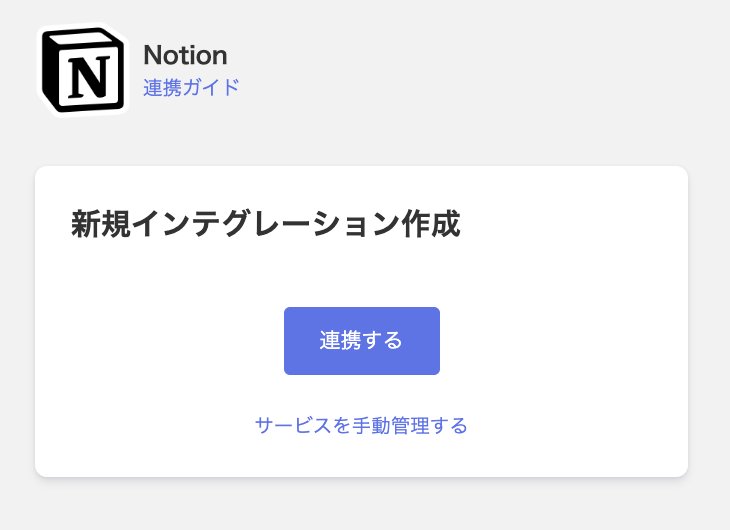
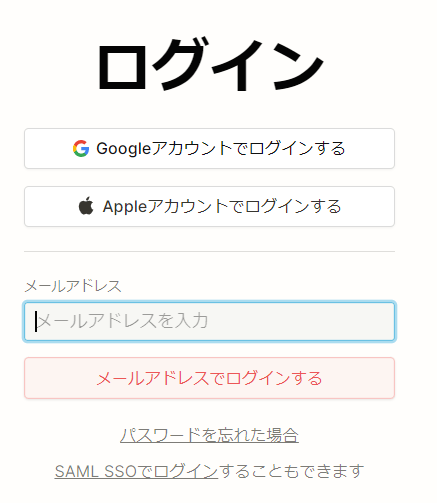
You will be taken to the Notion login screen. Log in using your preferred login method.
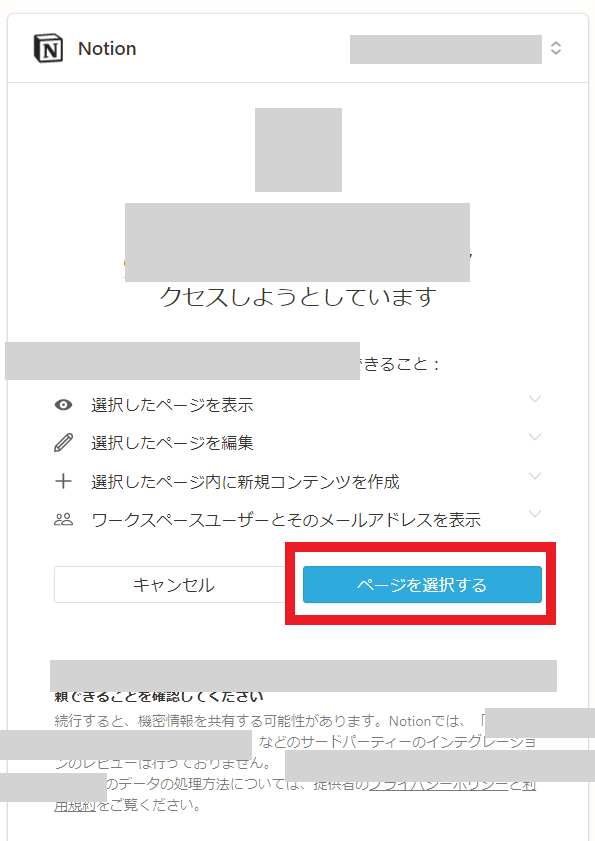
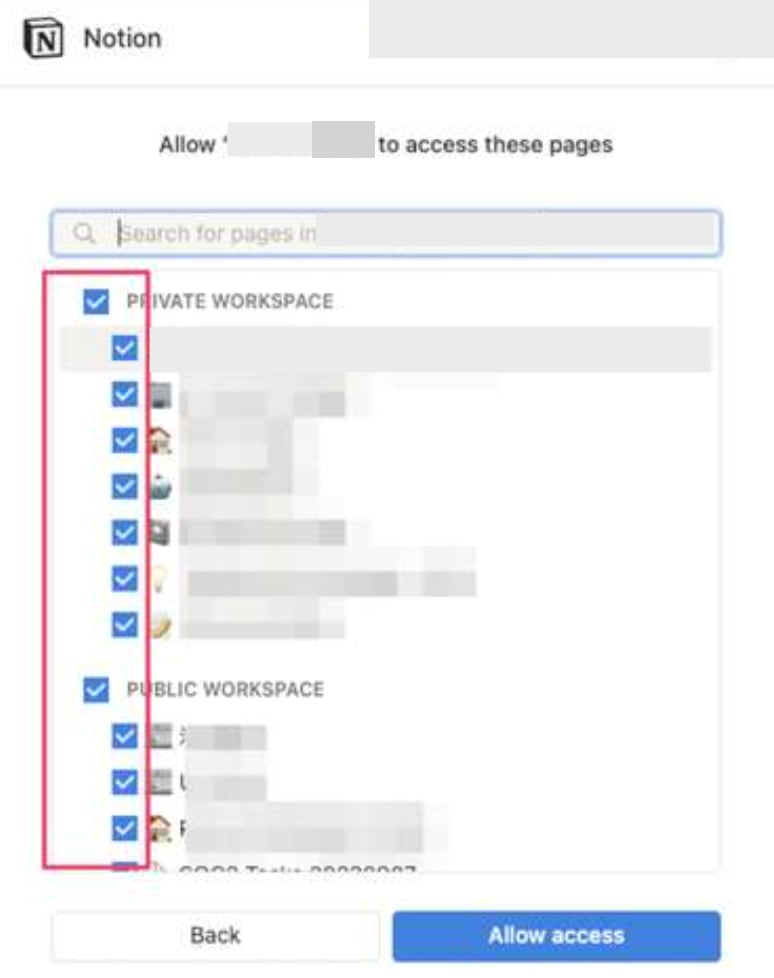
After logging in to Notion, a permission screen like the one below will appear. Confirm the workspace name to connect and click Select pages.
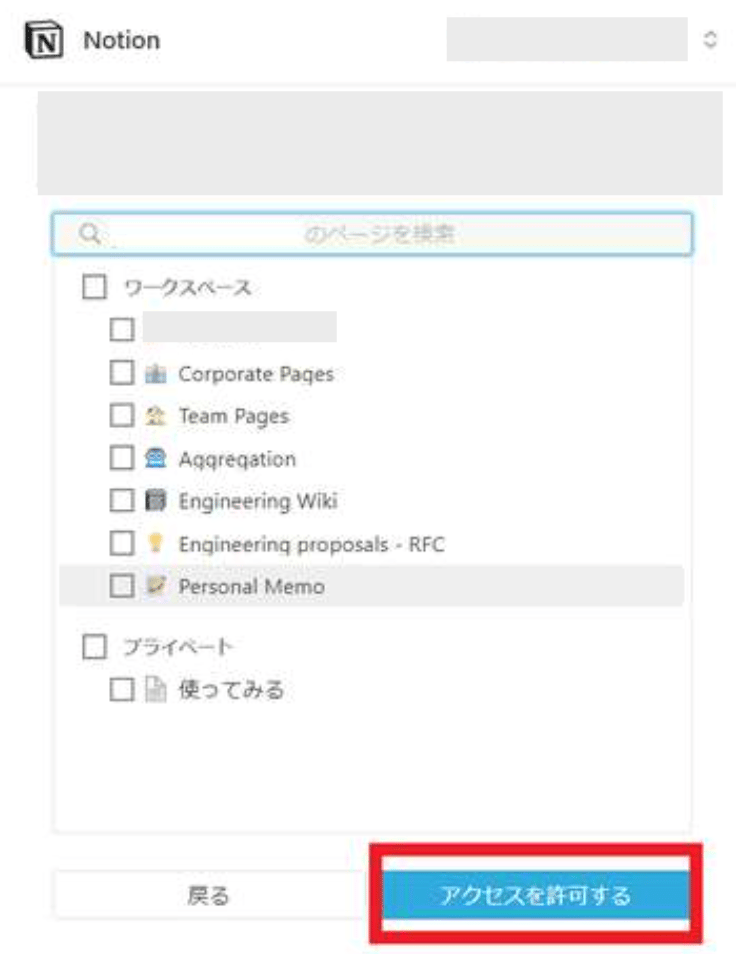
The following screen will appear. Click Allow access.
By selecting pages on the screen above, you can use the external shared content management feature. For details, see the external shared content management feature described below.
Once the integration with Notion is successful, registered user information will appear in the account list.
If the integration does not complete successfully. Go to the Status tab on the integrations screen, click Edit, and try connecting again.
If some Notion pages are not detected, please refer to here. If the issue persists, please contact us via chat.
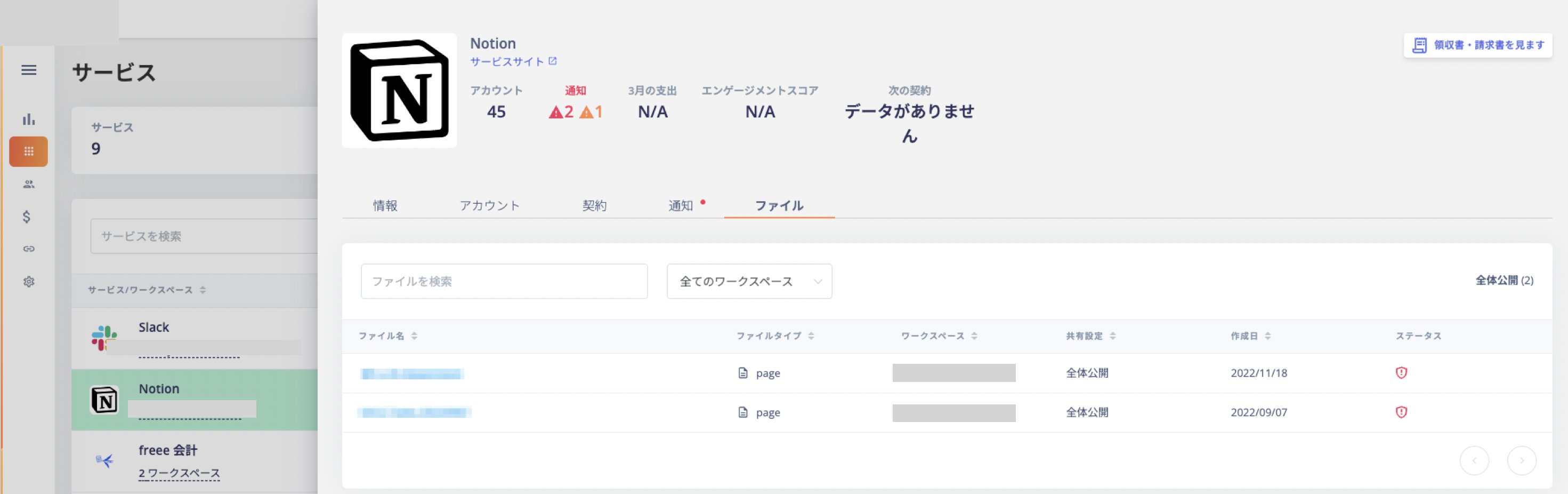
By selecting Notion pages during integration, you can retrieve the sharing status of those pages. You’ll also receive alerts if any files are publicly published on the web. (About the External Shared Content Management Feature)
Pages with the Publish to web setting enabled in Notion’s page sharing settings are retrieved. They are displayed in the file tab and notification tab.
A. If some Notion pages are not detected, the following causes (1) or (2) may apply. Please review the corresponding solutions.
Cause
Description
1. Notion API indexing delay
The main cause is that the Notion API is not returning information for the relevant page. There can be delays in page indexing within Notion, and in some cases, indexing may not complete for extended periods.
Notion is aware of this issue, but as of now, there is no immediate solution available.
Note: Notion’s internal search API and the external API are different.
Solution: Please check with Notion to confirm whether the page has been indexed.
2. Permission propagation issues to subpages
Even if a parent page is connected, permissions may not propagate to subpages underneath it, making them unretrievable. According to Notion, “permissions propagate by default unless manually removed,” but a series of operations including toggling the connection on and off may temporarily cause an abnormal state.
Solution: Check whether connection permissions have been granted on the target page. Note that connection permissions cannot be confirmed from the list view. On each Notion page, go to … (three-dot menu) → Connections to confirm whether the connection with this service is active.