How to integrate Livestorm with Admina using an API key. Admina retrieves data such as user names, email addresses, and roles and supports account creation and deletion.
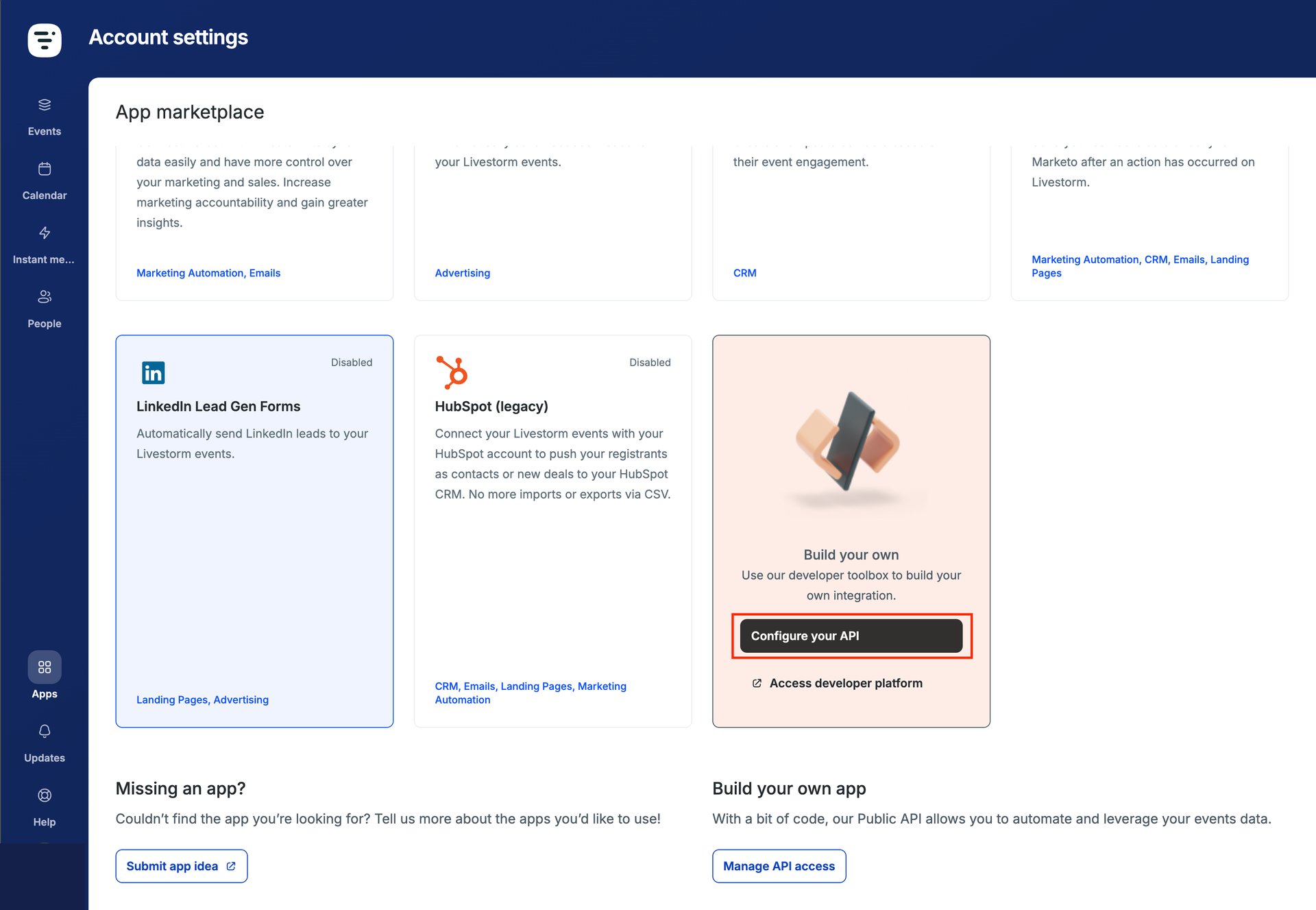
After logging in to Livestorm with an admin account, select Apps from the left navigation menu.
At the bottom of the page, under Build your own, click Configure your API.Your account must be on the Team or Enterprise plan to use the API. If it isn’t, contact Livestorm support (help@livestorm.co) to enable the API for your workspace.
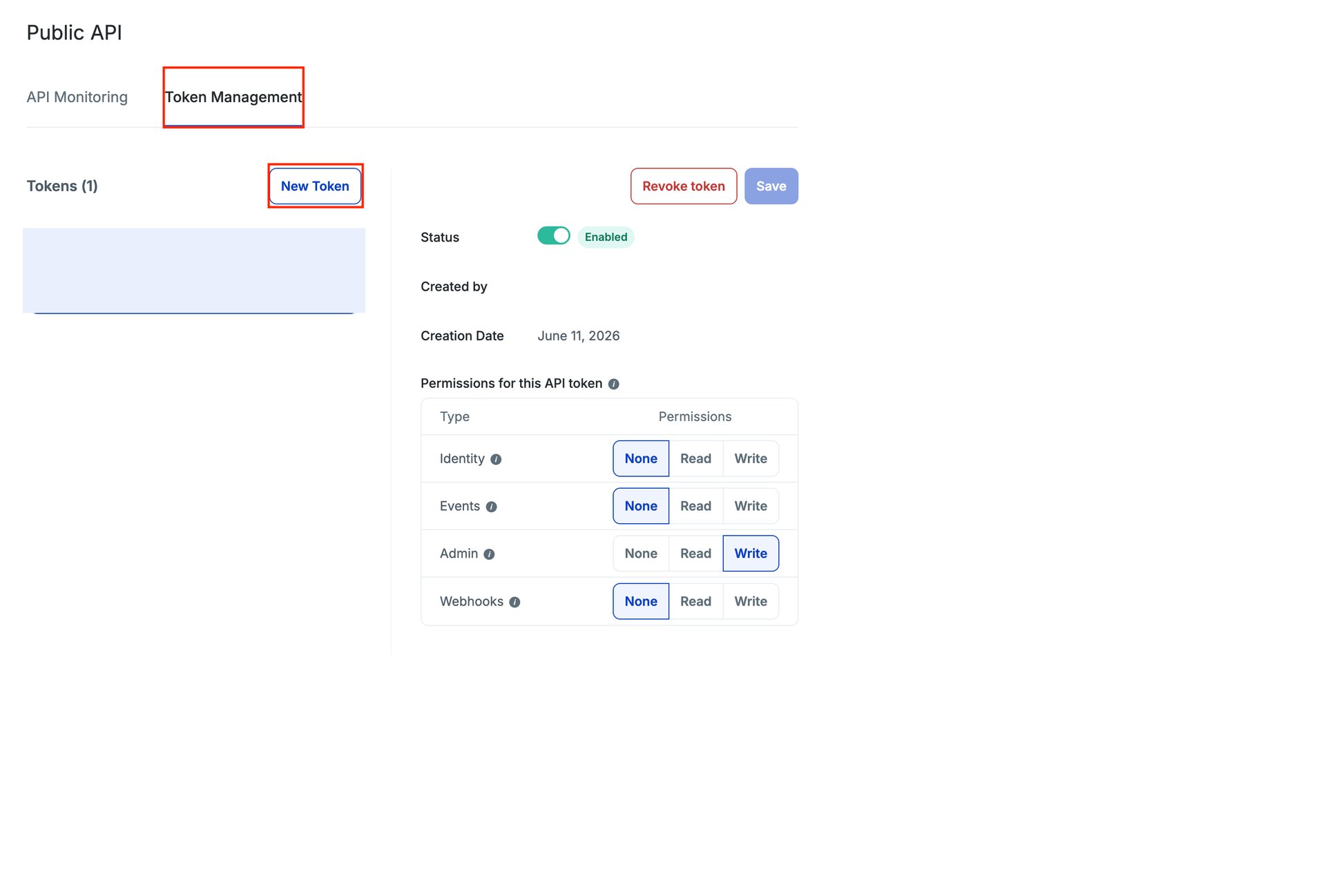
Open the Token management tab and click New token. Enter any token name, and set Admin permission to Write; all other permissions can stay None. Choose a clear token name, since it matters if you ever need to revoke and re-set up the integration.
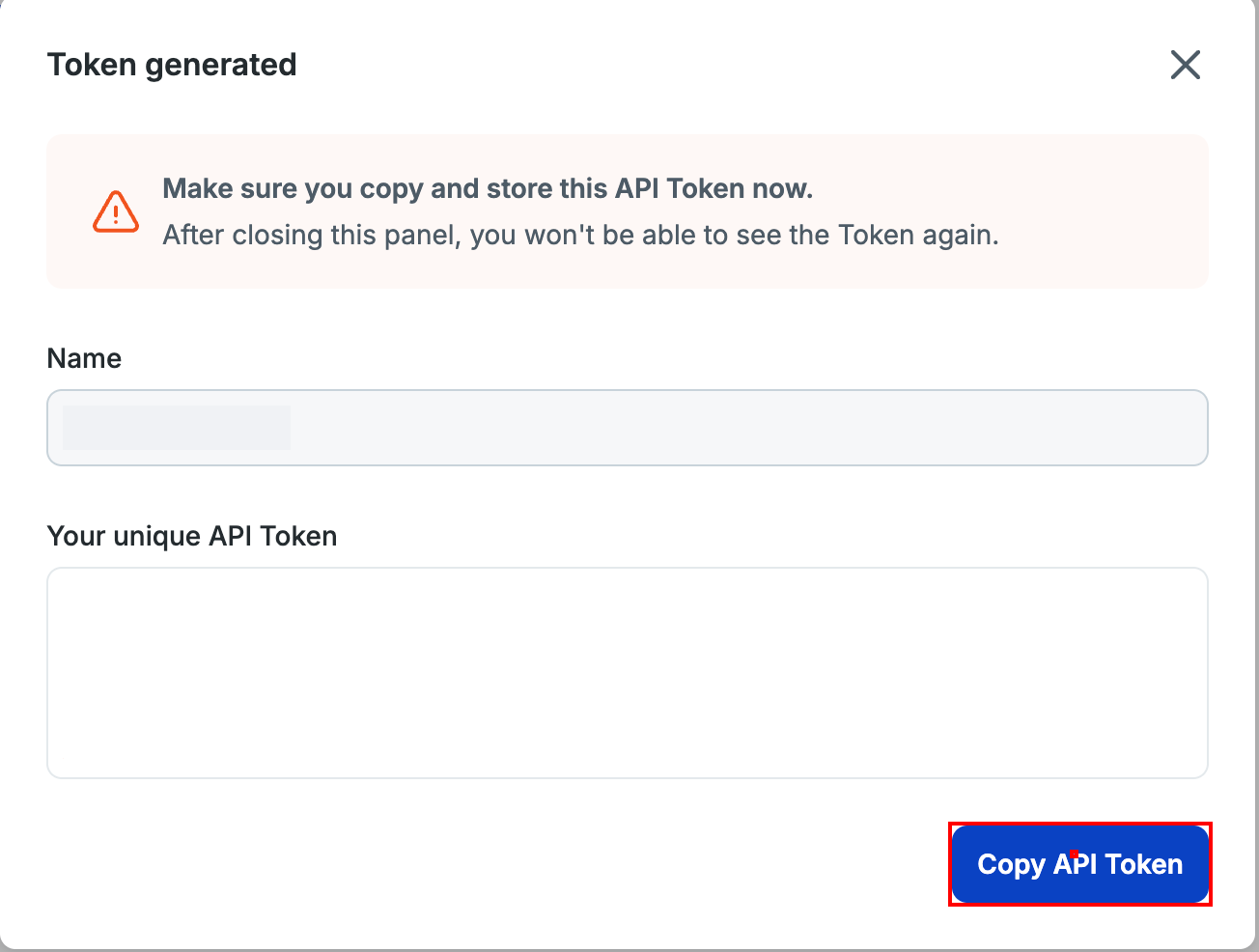
Click Save to display the API token. Be sure to copy it now using Copy API Token, since it is shown only on this screen.
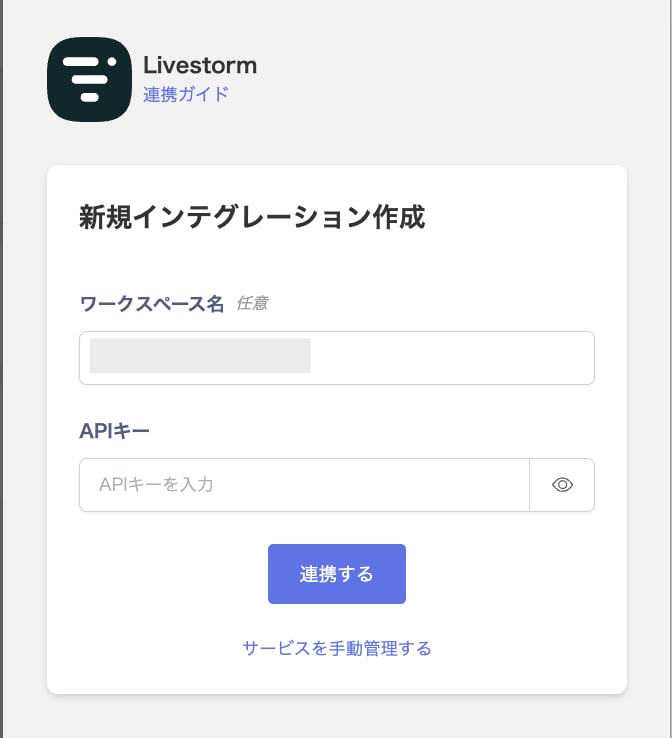
Enter the API key from the previous step, then click Connect.
Once the integration with Livestorm succeeds, registered user information appears in the account list. If it doesn’t complete successfully, first try the steps in Troubleshoot SaaS integration errors. If that doesn’t resolve it, check Information to provide and contact support.