

Integration Specifications
Prerequisites
How to Log In to Mailtrap
Go to the Mailtrap login page. Log in using your preferred login method or by entering your email address and password.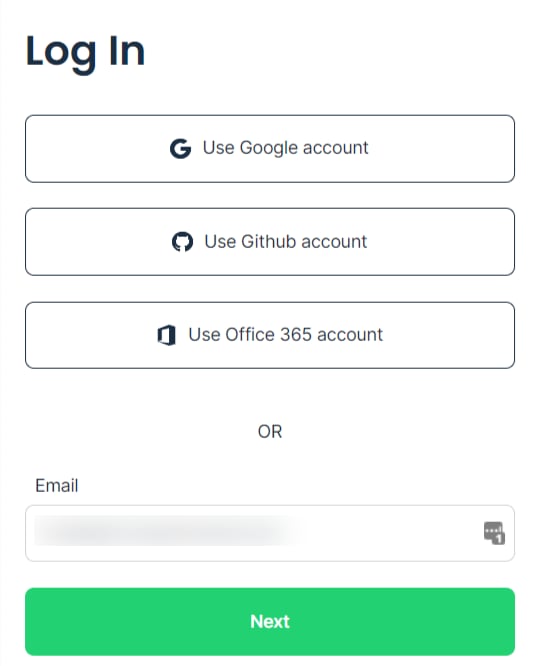
How to Obtain an Access Key
-
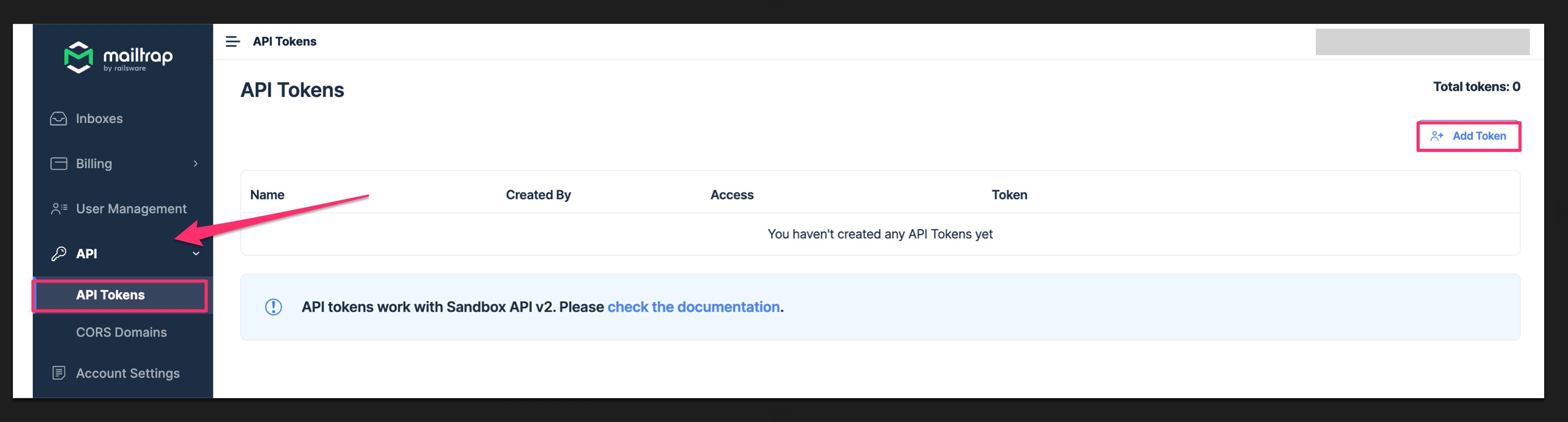
From the left menu, select API > API Token, then click Add Token in the upper right.
-
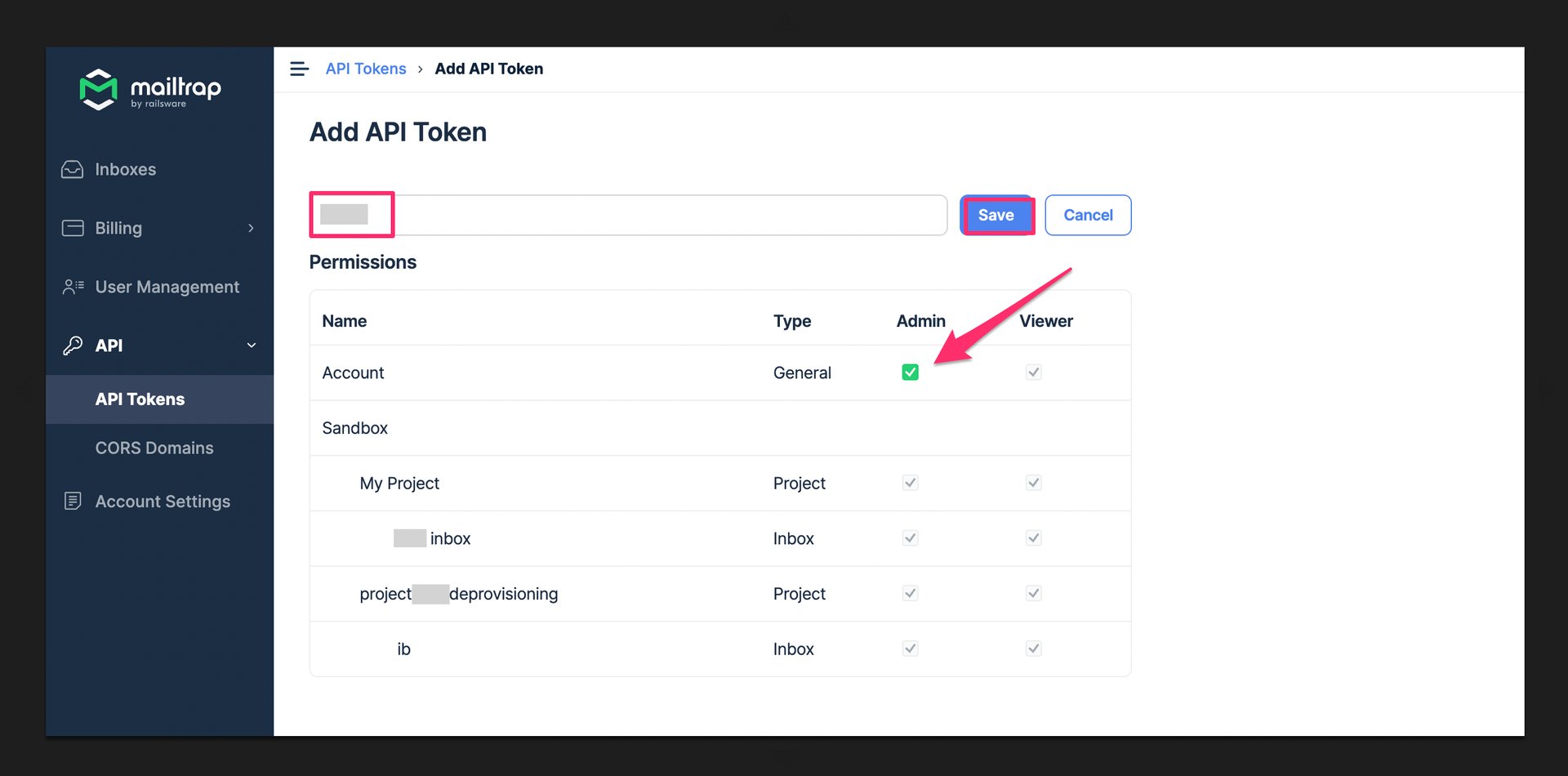
Enter any name for the token, check Admin under Account, and click Save.
-
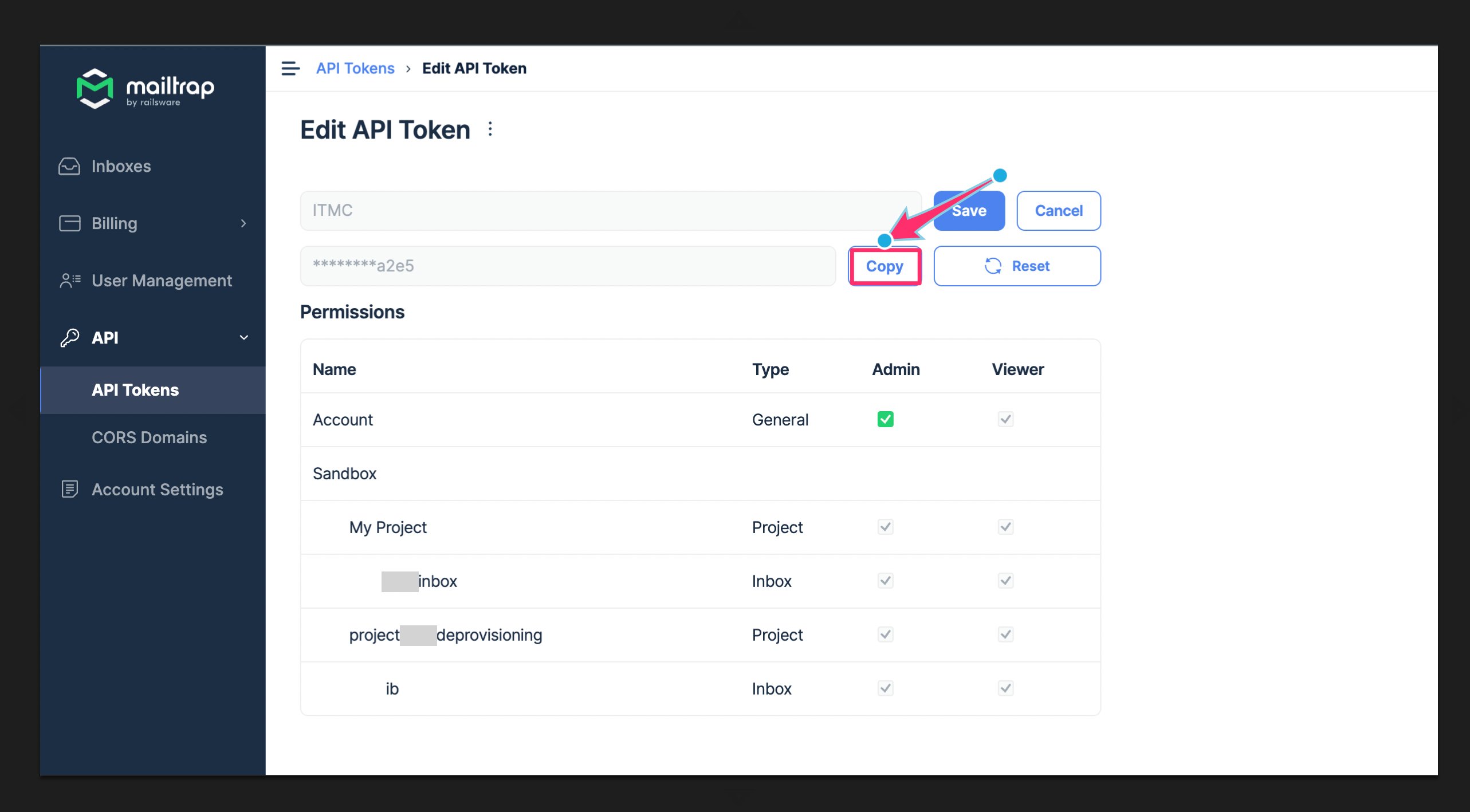
The displayed API Token will be your access key. Click the Copy button to save it.
Integration Setup
- In the Integrations screen, search for Mailtrap.
-
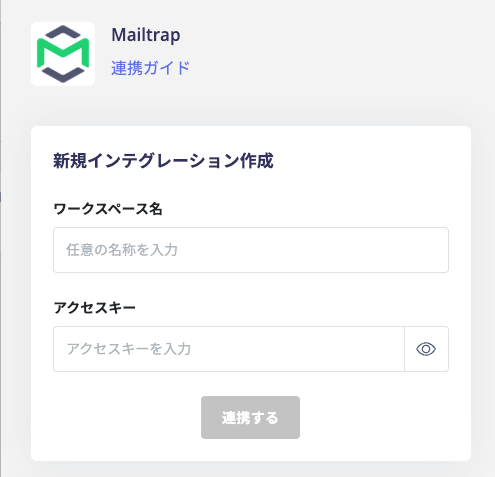
Enter any workspace name (such as your company name) and the API Token obtained in the previous step as the access key. Then click Connect.
- Once the Mailtrap integration is successful, the registered user information will appear in the account list. If the process did not complete successfully. Go to the Status tab on the Integrations screen to edit and try connecting again. If the issue persists, please contact us via chat.