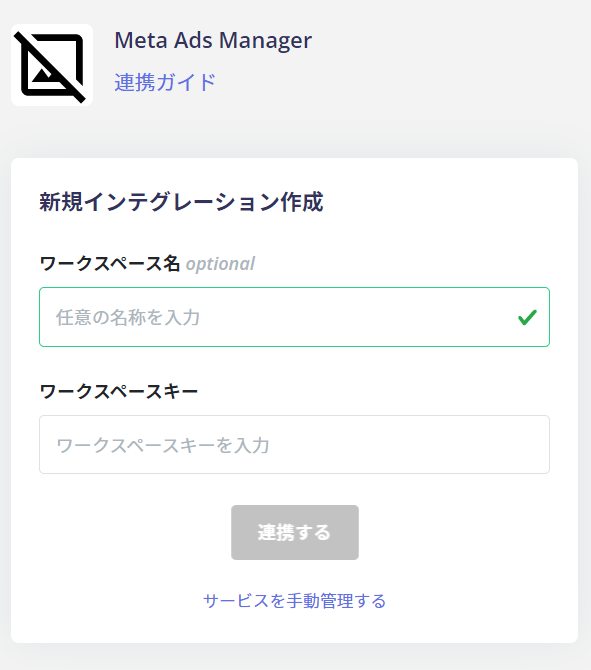
In the integration screen, search for Meta Ads Manager.
Enter any workspace name and the workspace key obtained in the previous step, then click Connect.
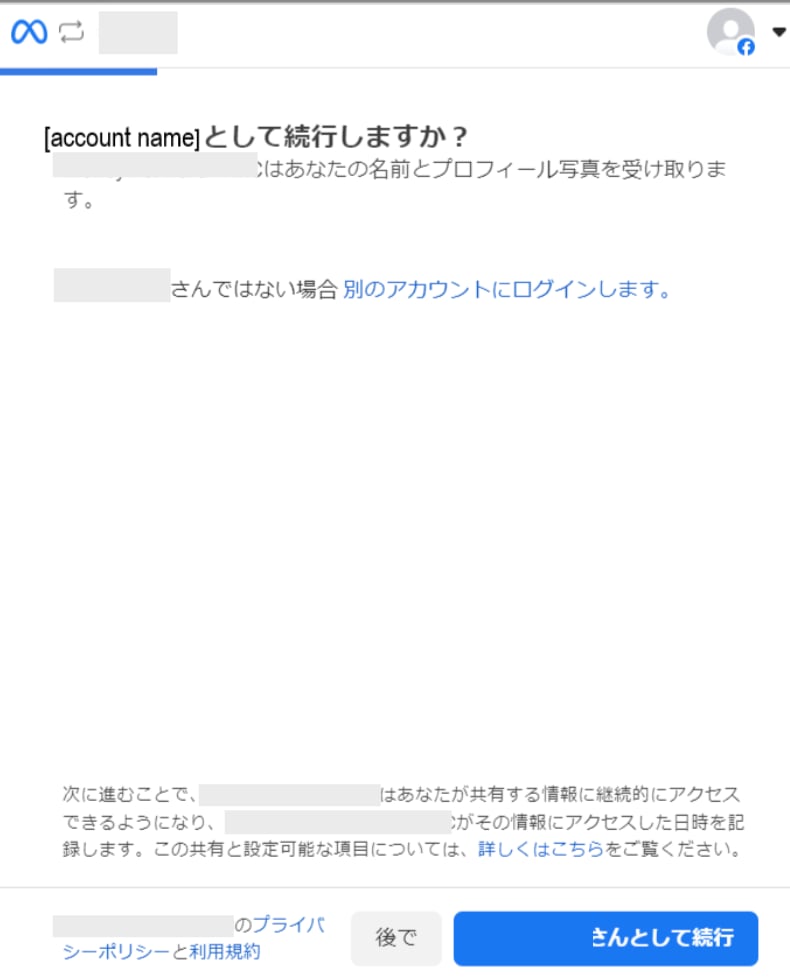
An account confirmation screen will appear. Confirm the account to connect and click Continue as [account name].
Configure the access permissions.
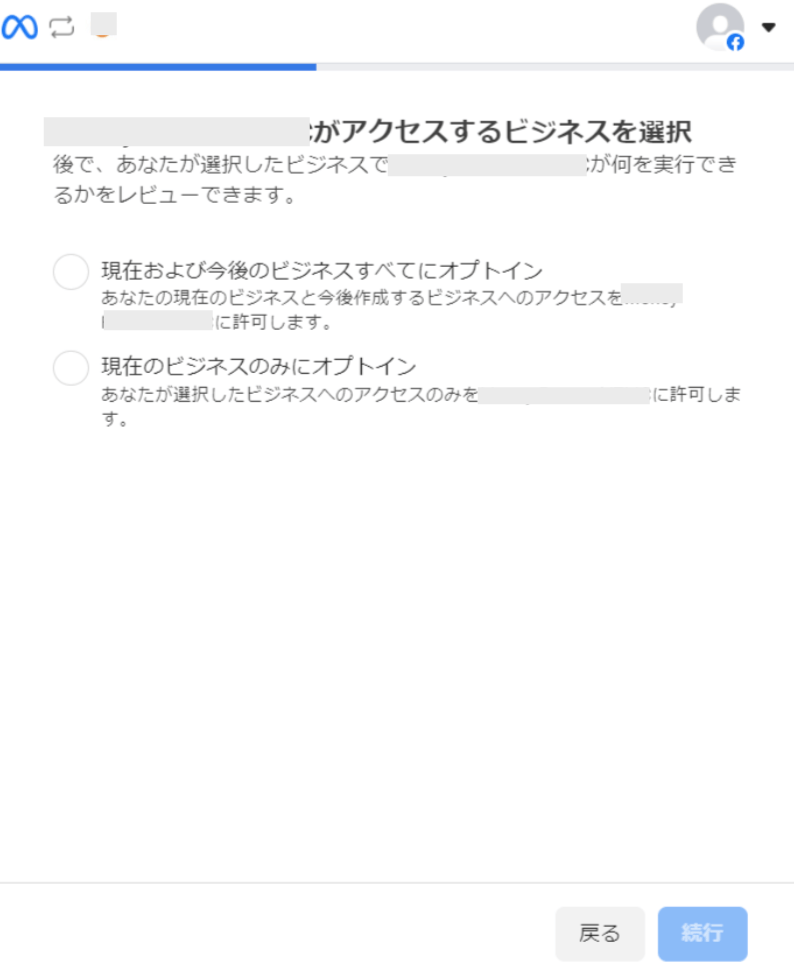
From “Opt in current business only”, select the business you want to connect, then click Continue.
Selecting “Opt in all current and future businesses” will grant access to all businesses you currently use. It also grants access to any you create in the future.
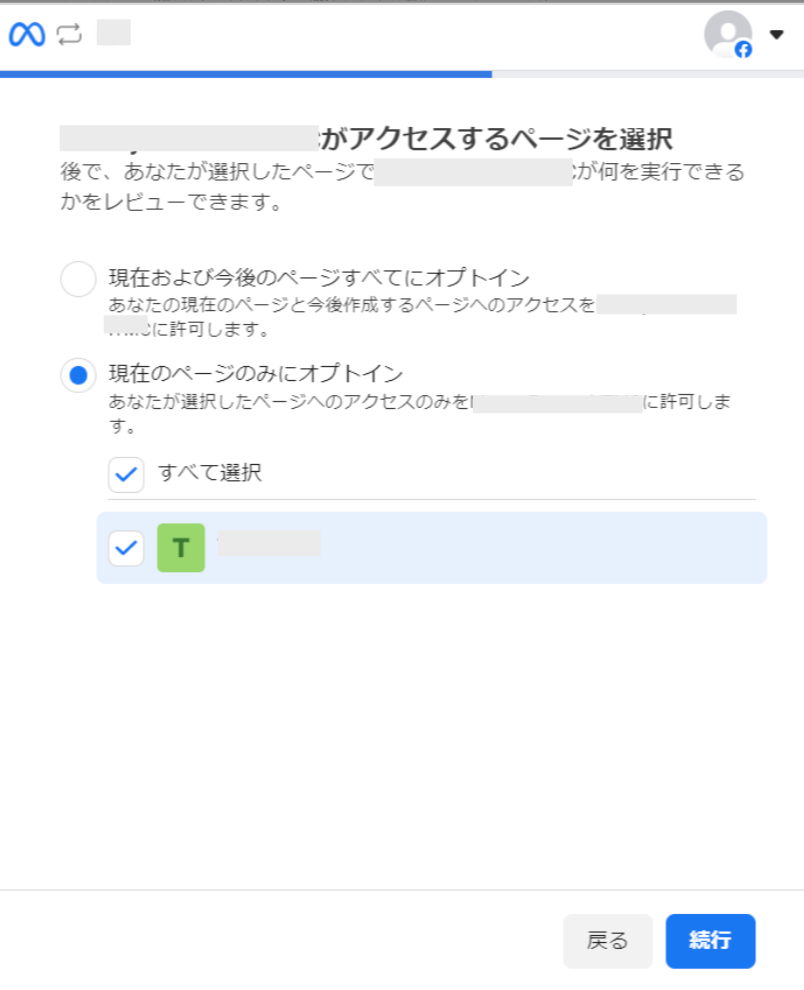
Select the pages you want to connect. From “Opt in current pages only”, select the pages you want to connect, then click Continue.
Selecting “Opt in all current and future pages” will grant access to all pages you currently use. It also grants access to any you create in the future.
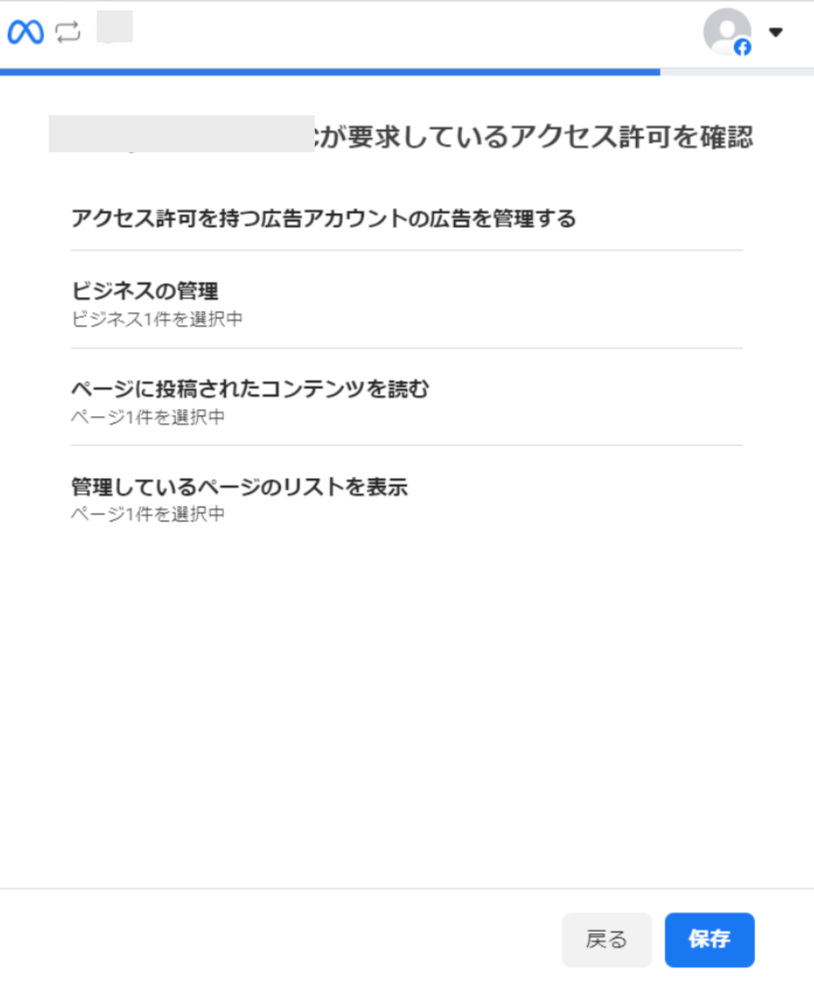
Review the selections you made in the previous steps. If everything is correct, click Save.
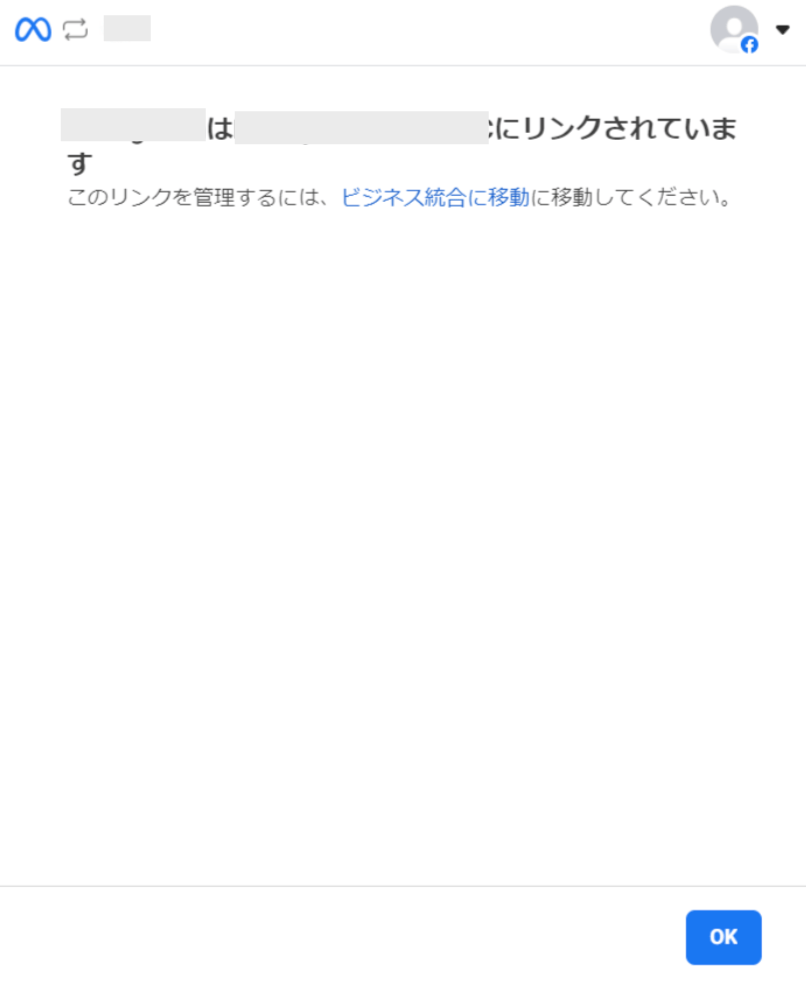
Setup is complete. Click OK.
Once the integration with Meta Ads Manager is successful, the screen updates. The registered user information will appear in the account list. If the setup does not complete successfully. Go to the Status tab on the integration screen, click Edit, and try connecting again. If the issue persists, please contact us via chat.
Manual Account Linking When Email Address Cannot Be Retrieved
This service is a SaaS where email addresses cannot be retrieved, so the user type will be determined as “Unknown.”If necessary, manually link (merge) accounts with other accounts.For configuration details, see below.Manually merge SaaS accounts