

Integration Specifications
Super Admin privileges are required for the integration.
Prerequisites
How to Log in to Okta
Go to the Okta login page and sign in by entering your sign-in URL.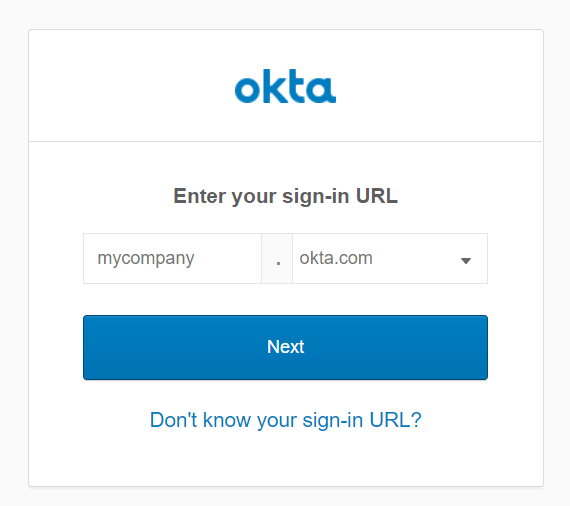
How to Obtain Your Workspace Key
After logging in to Okta, the workspace key is part of the URL — save it for later use.http://{workspace-key}.okta.com/admin (does not include https://)

How to Obtain Your Access Key
-
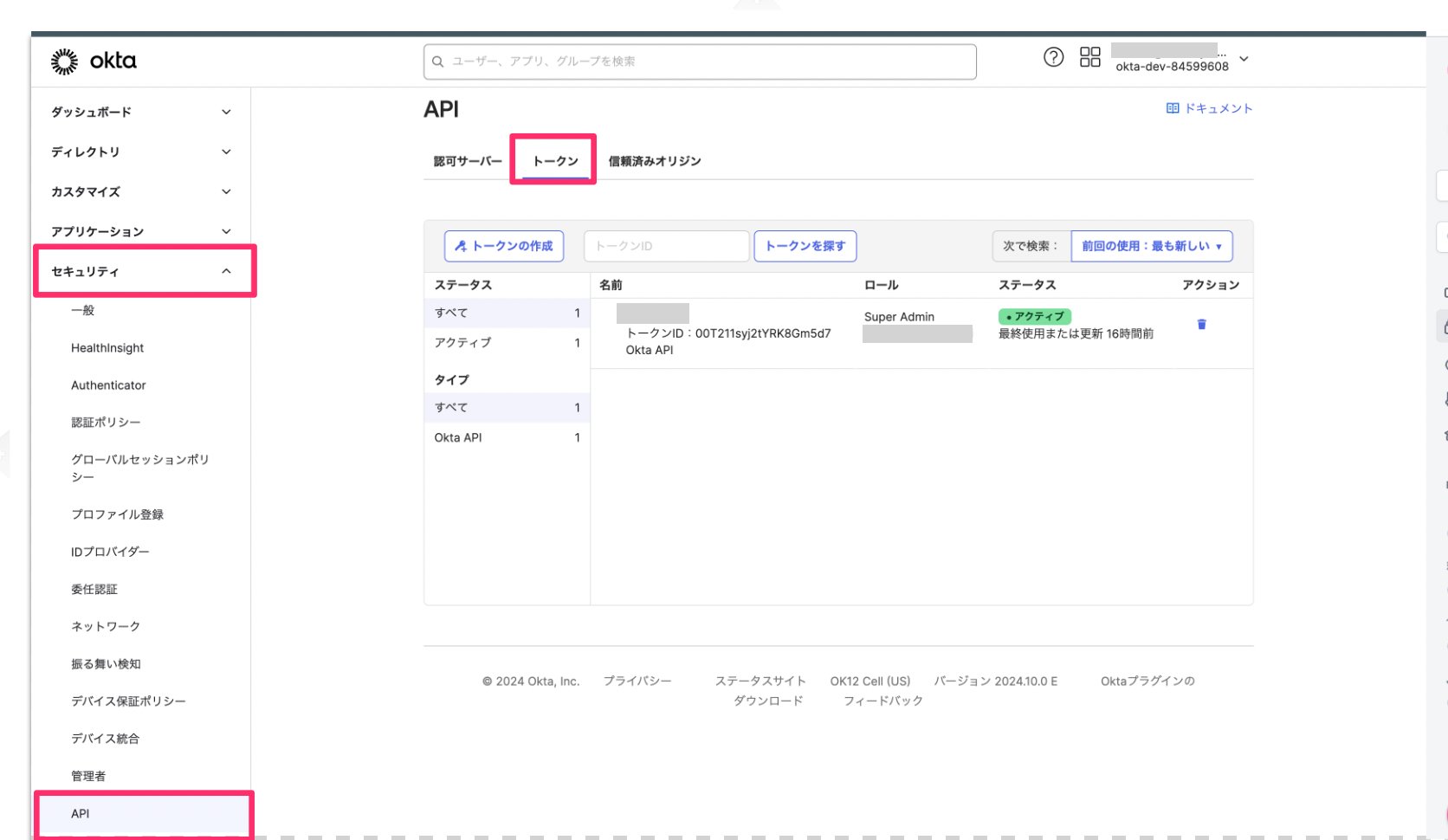
From the left menu, go to Security > API > Tokens and click Create Token.
-
A screen like the one below will appear. Enter any token name and click Create Token.
For This token’s API calls must originate from, select
Any IP.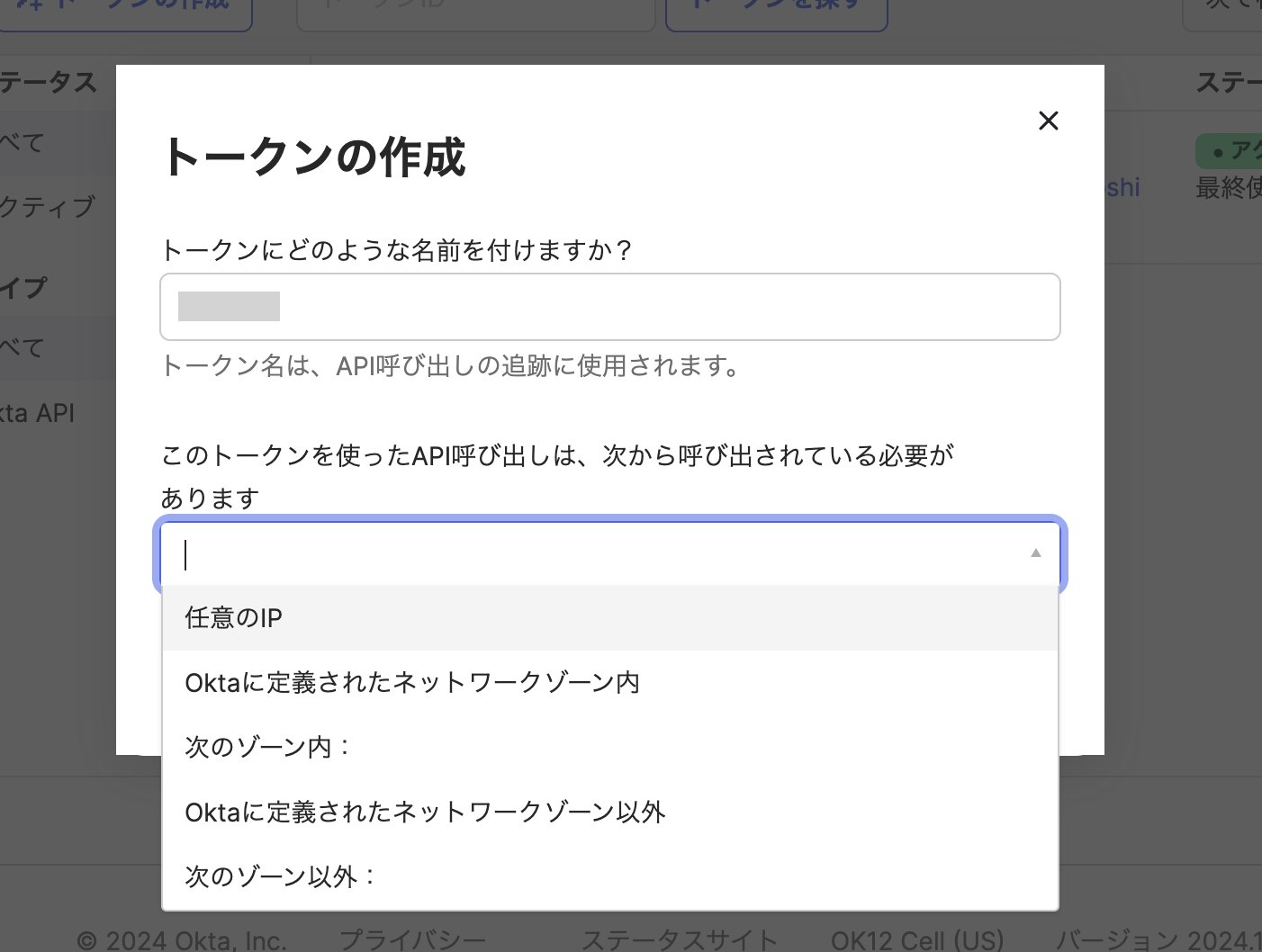
-
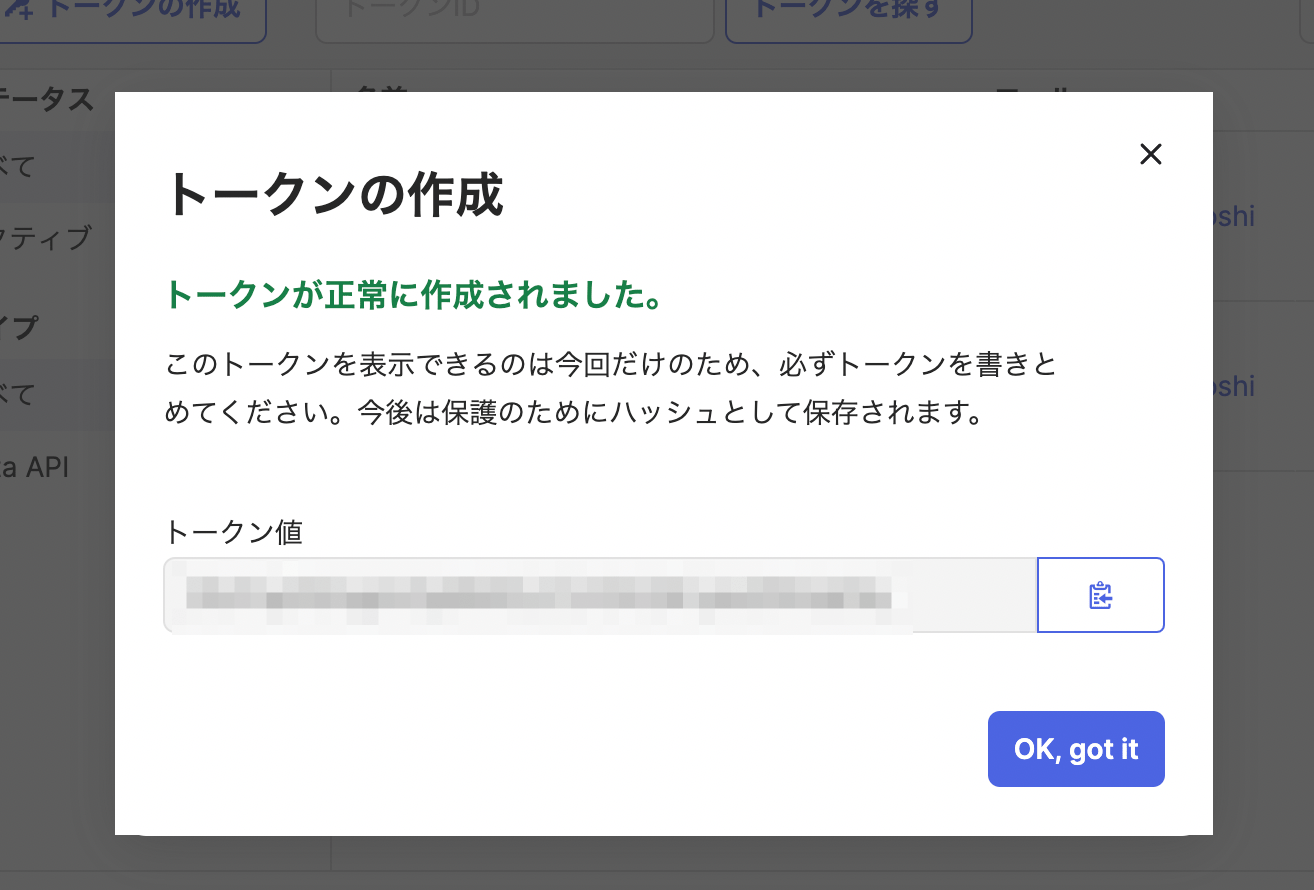
The token will be created. The token value is your access key — copy it for later use.
Integration Setup
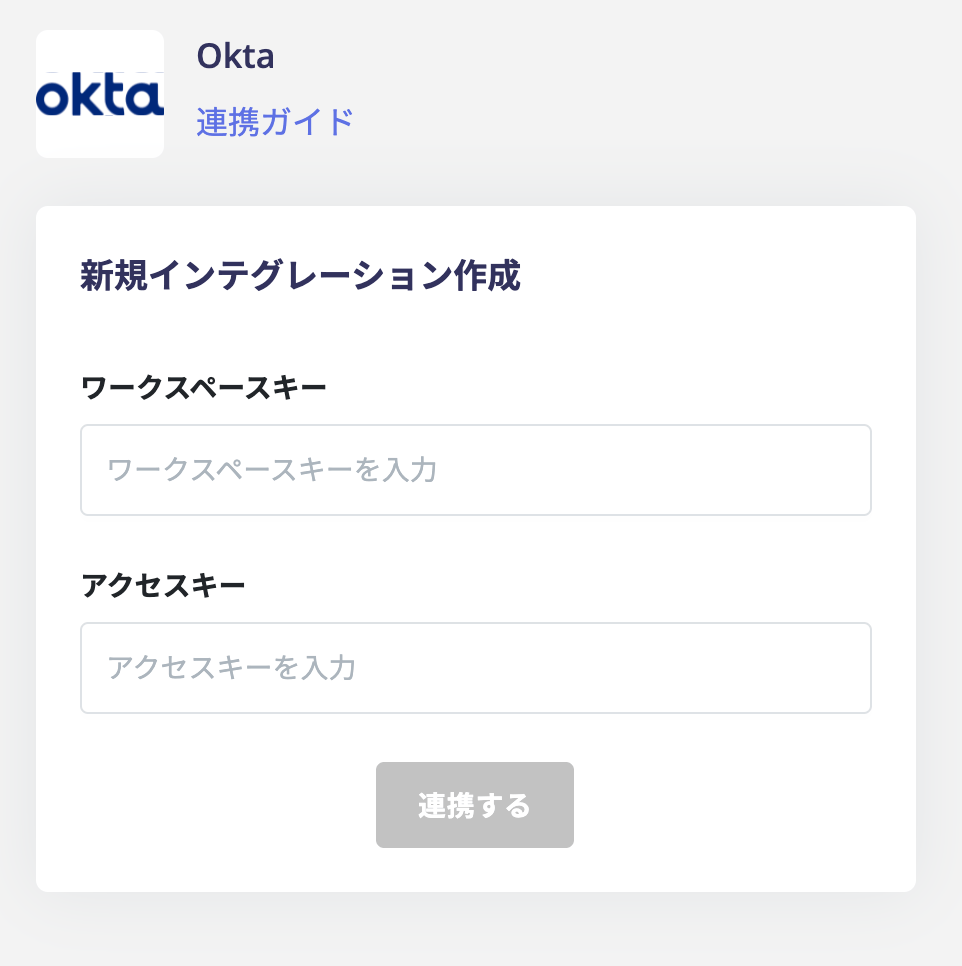
- On the Integrations page, search for Okta and click it.
-
Enter the workspace key and access key obtained in the previous steps, then click Connect.
- Once the integration with Okta is successful, the registered user information will appear in the account list. If the process does not complete successfully. Click Edit from the Status tab on the Integrations page and try connecting again. If the issue persists, please contact us via chat.