How to integrate MongoDB Cloud with Admina using an API key. Admina retrieves data such as user names, email addresses, and roles and supports account creation and deletion.
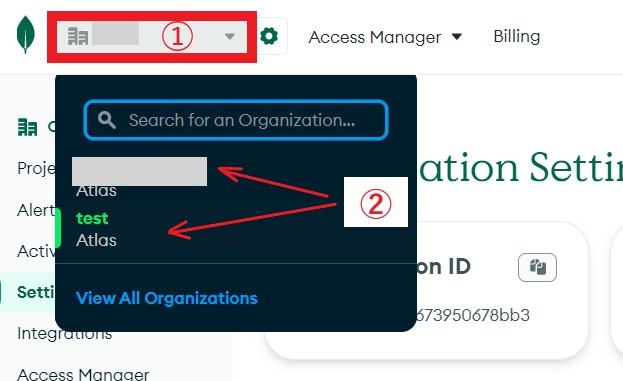
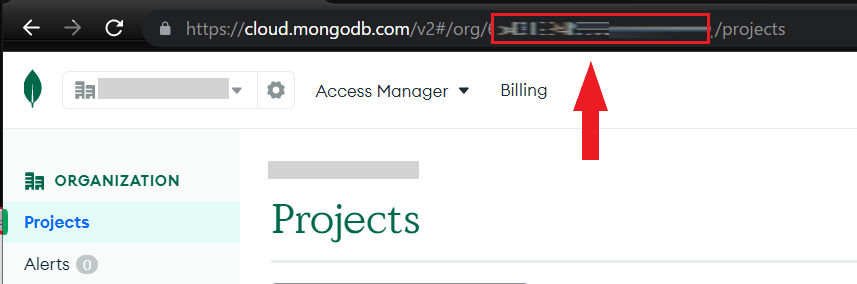
After logging in to MongoDB Cloud, click on the top left corner of the screen where Organizations is displayed.A menu will open — select the Organization you wish to link.You will be taken to the Organization settings page.Part of the URL in the Organization settings becomes the workspace key. Save it.https://cloud.mongodb.com/v2#/org/{workspace-key}/projects
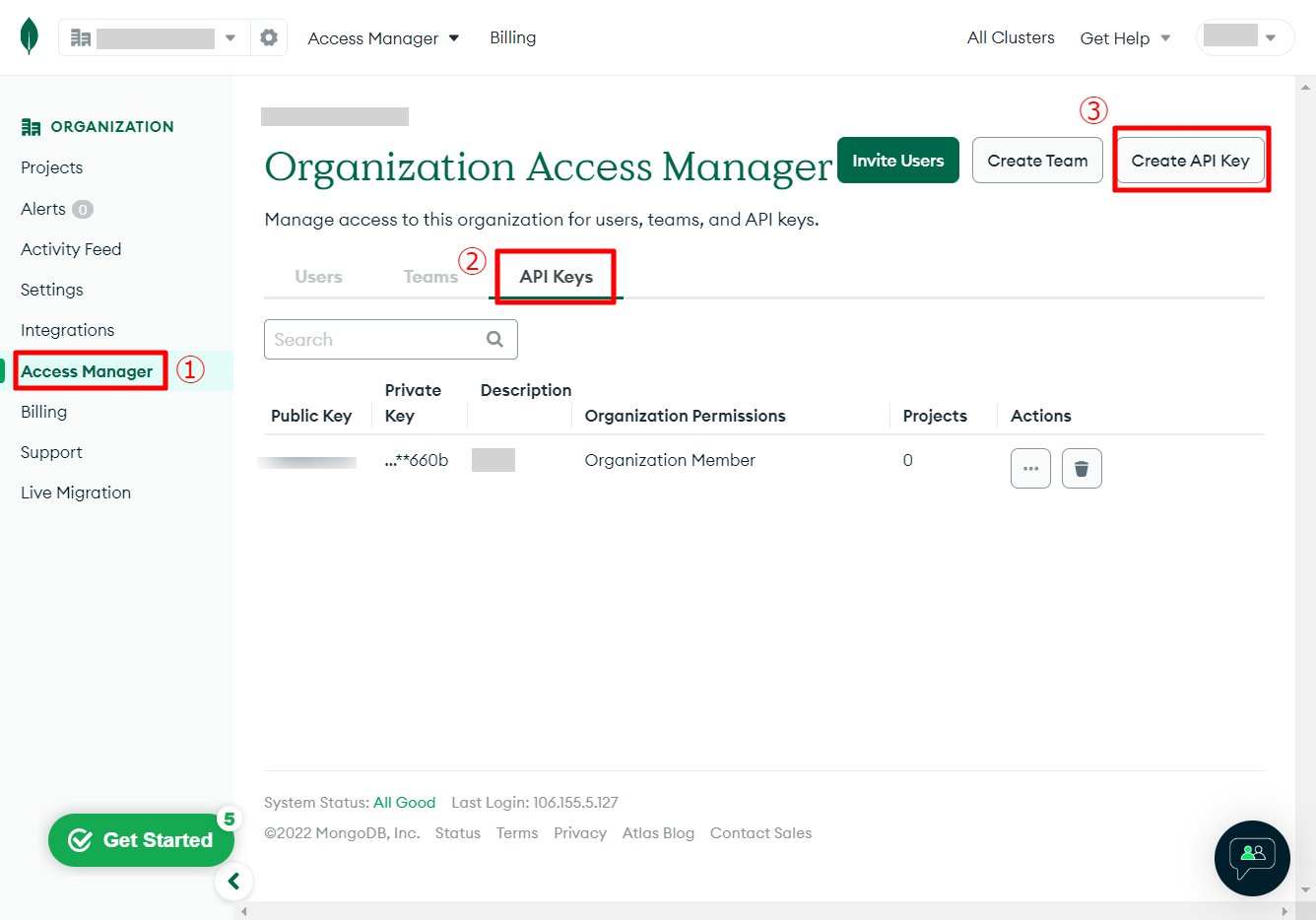
Select Access Manager from the side menu of the Organization settings page.
Select API Key from the menu tab as shown below, and click Create API Key.
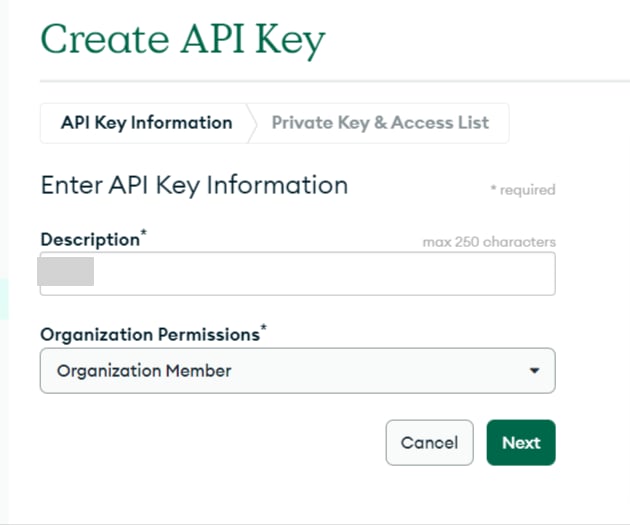
Enter any name (e.g., company name) in the Description field, select Organization Permissions, and click Next. For Organization Permissions, you may select more than one, but please select Organization Member at a minimum.
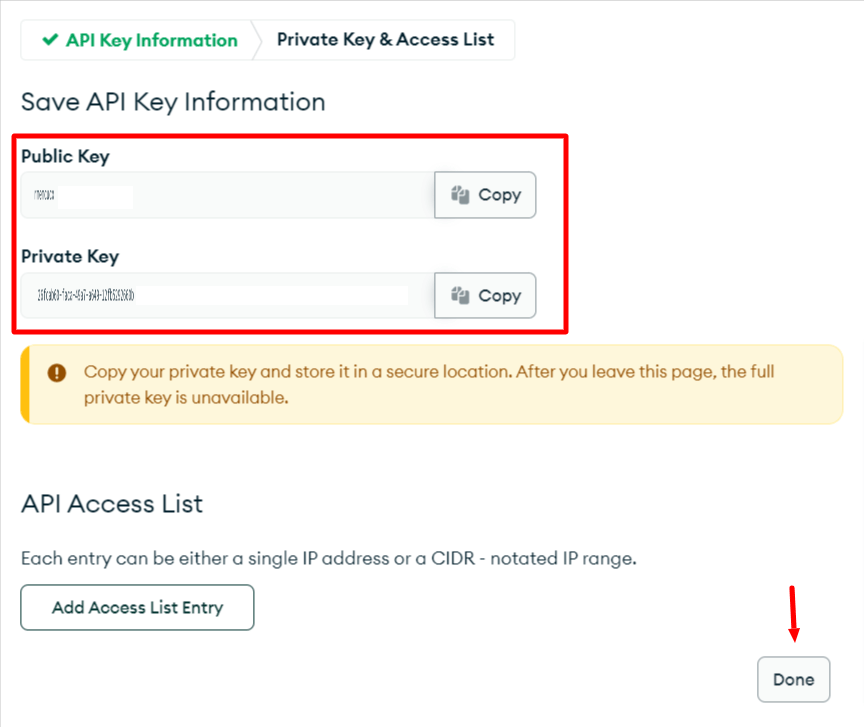
An API Key is created. Public key is the public key and Private key is the private key. Save them both.
The Private Key will not be redisplayed for security reasons. Be sure to save it.
On the Integration screen, search for MongoDB Cloud.
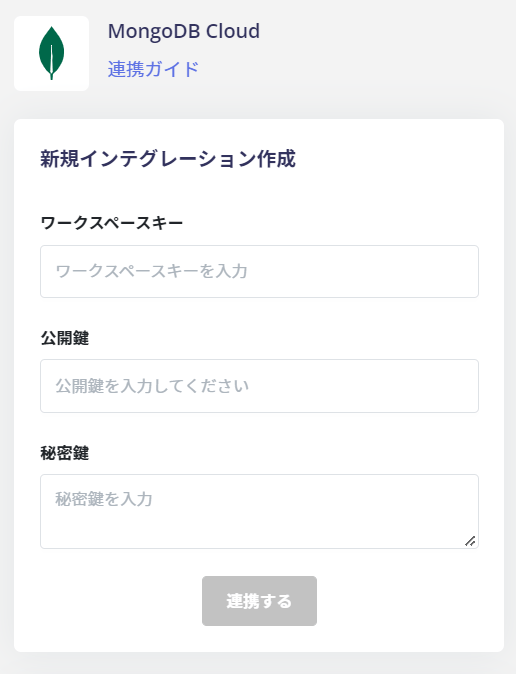
Enter the workspace key, public key, and private key obtained in the previous steps, and click Connect.
If the integration with MongoDB Cloud is successful, the registered user information will appear in the account list. If it does not complete successfully, please edit it from the Status tab on the Integration screen and try again. If the problem persists, please contact us via chat.