Integration Specifications

Prerequisites

How to obtain the API key

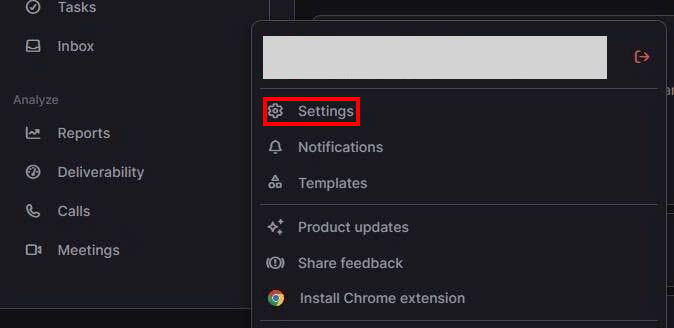
  1. Log in to lemlist, click your profile icon, then select Settings from the menu that appears. The lemlist profile menu with Settings
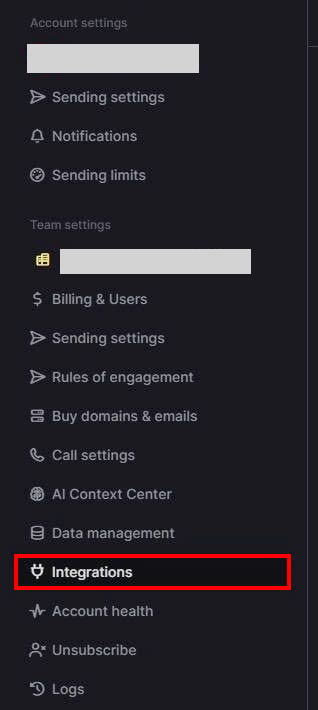
  2. Select Integrations in the left panel. The left panel of the lemlist settings page with Integrations
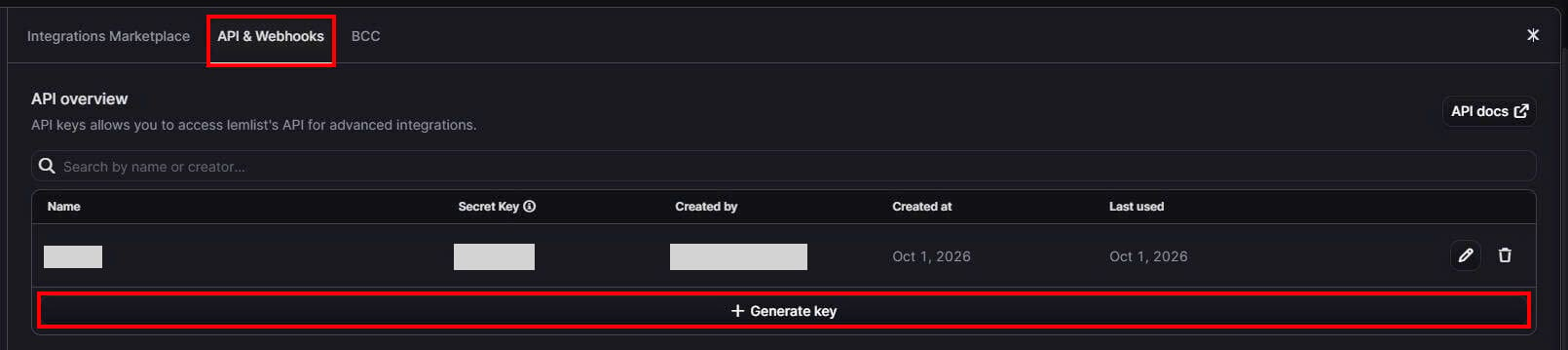
  3. Open the API & Webhooks tab, then click Generate key. The lemlist API & Webhooks tab with the Generate key button
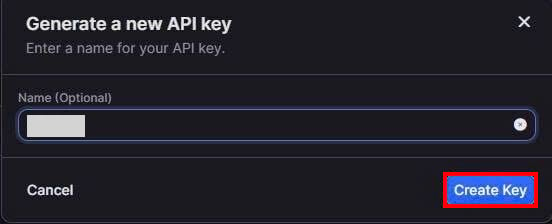
  4. In Name (Optional), enter a name to tell this integration apart, then click Create Key. The lemlist Generate a new API key dialog with Name and the Create Key button
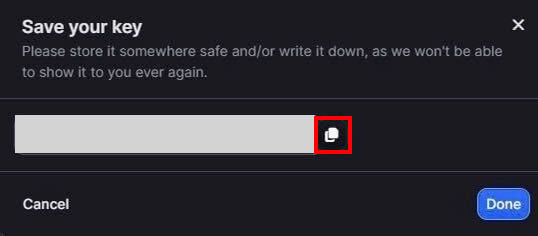
  5. Click the copy icon next to the API key to copy it, and save it. You cannot view the API key again after you close this dialog. The lemlist Save your key dialog with the API key and the copy icon

Setting up the integration

  1. In the integration screen, search for lemlist.
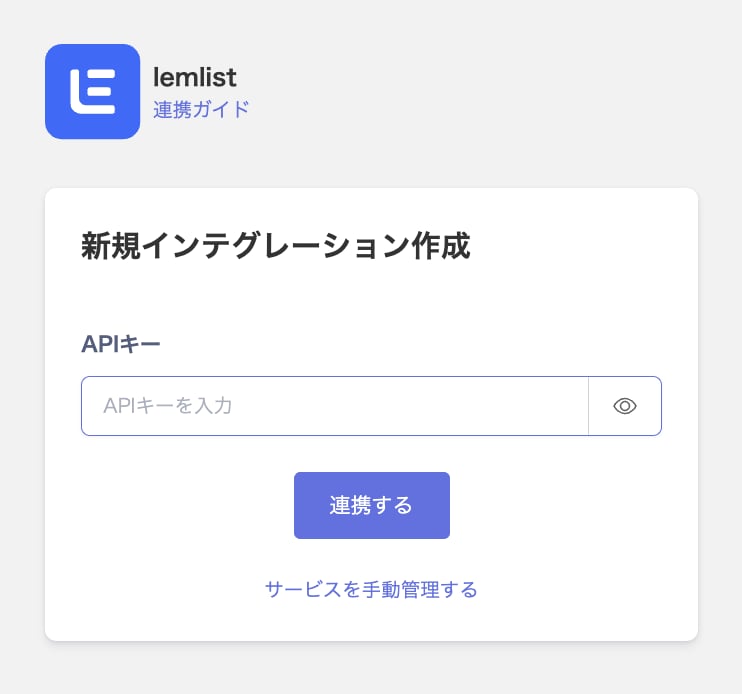
  2. Enter the API key you obtained in API Key, then click Integrate. The lemlist integration screen with the API key field
  3. When the integration with lemlist succeeds, registered user information appears in the account list. If it does not complete successfully, first try the steps in Troubleshoot SaaS integration errors. If the issue persists, check Information to provide and contact Support.

Last modified on October 9, 2026