

Integration Specifications
Prerequisites
Getting an API key
-
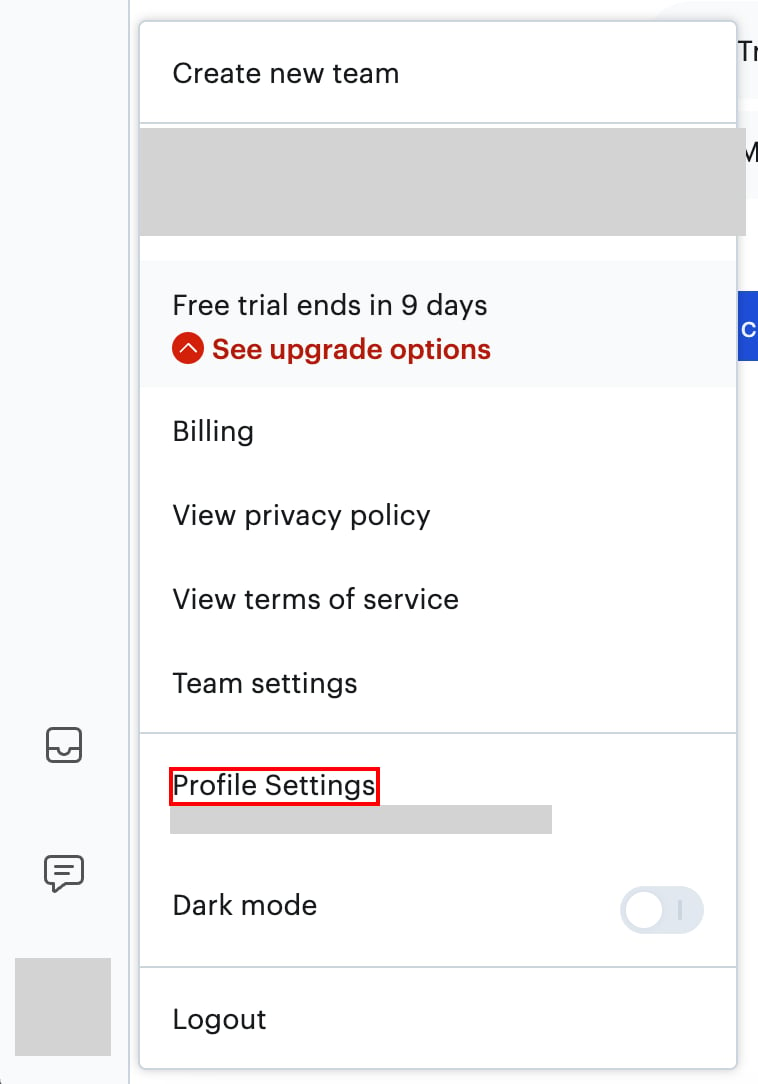
After logging in to Lokalise, click the profile icon in the bottom-left corner. Select Profile Settings from the menu that appears.
-
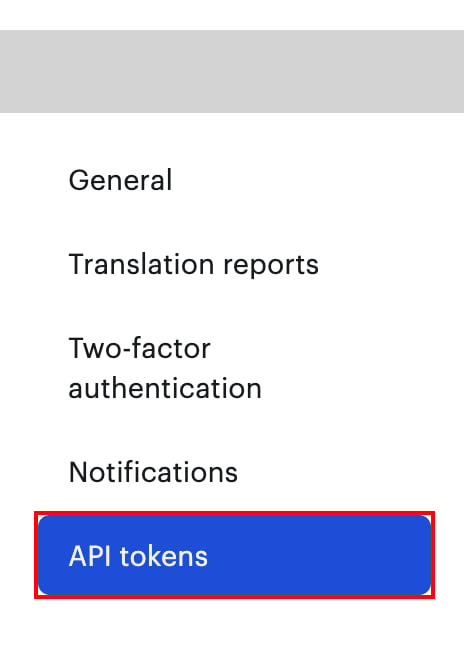
Select API tokens from the left menu on the profile settings screen.
-
Click Generate new token. Select Read and write access to your projects as the token type, then click Generate.
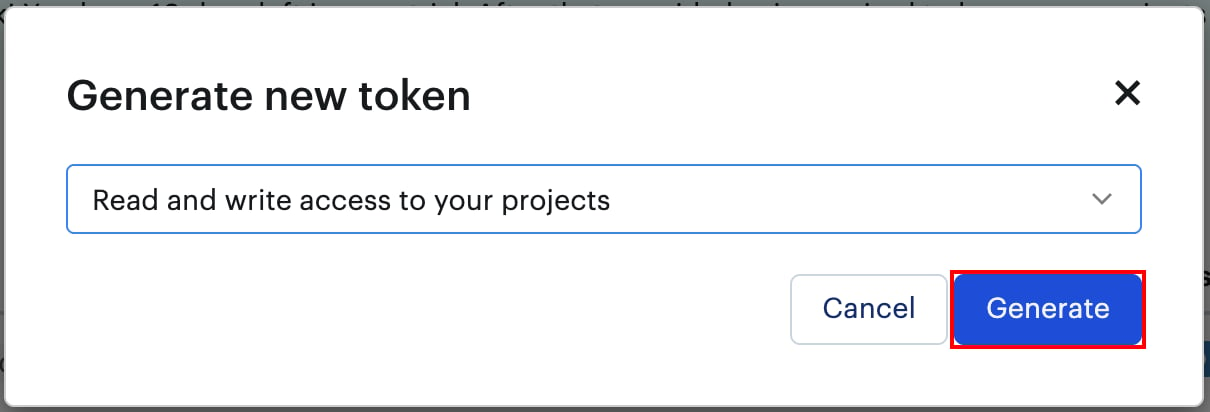
- Copy the issued API key.
Setting up the integration
- On the integration screen, search for Lokalise.
-
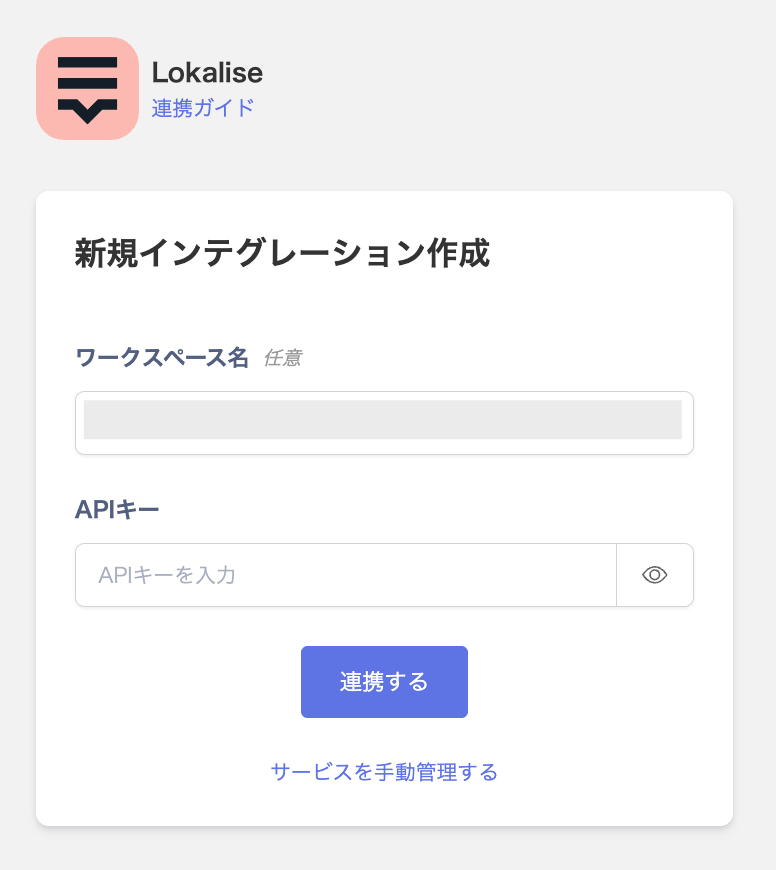
Enter a workspace name (optional) and the API key you obtained in the previous step, then click Connect.
- Once the integration with Lokalise succeeds, registered user information appears in the account list. If it doesn’t complete successfully, first try the steps in Troubleshoot SaaS integration errors. If that doesn’t resolve it, check Information to provide and contact support.