

Integration Specifications
When you use kaonavi as the employee master, you cannot sync only the employees linked to a specific domain. Admina syncs the information of all employees registered in kaonavi.
Prerequisites
How to Log In to kaonavi
Go to the kaonavi login page and enter your email address and password to log in.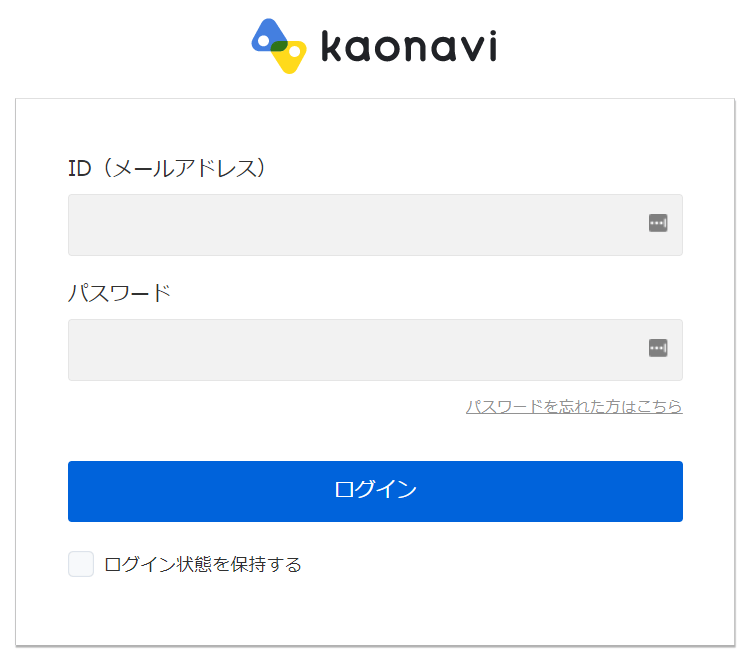
How to Obtain the Client ID and Client Secret
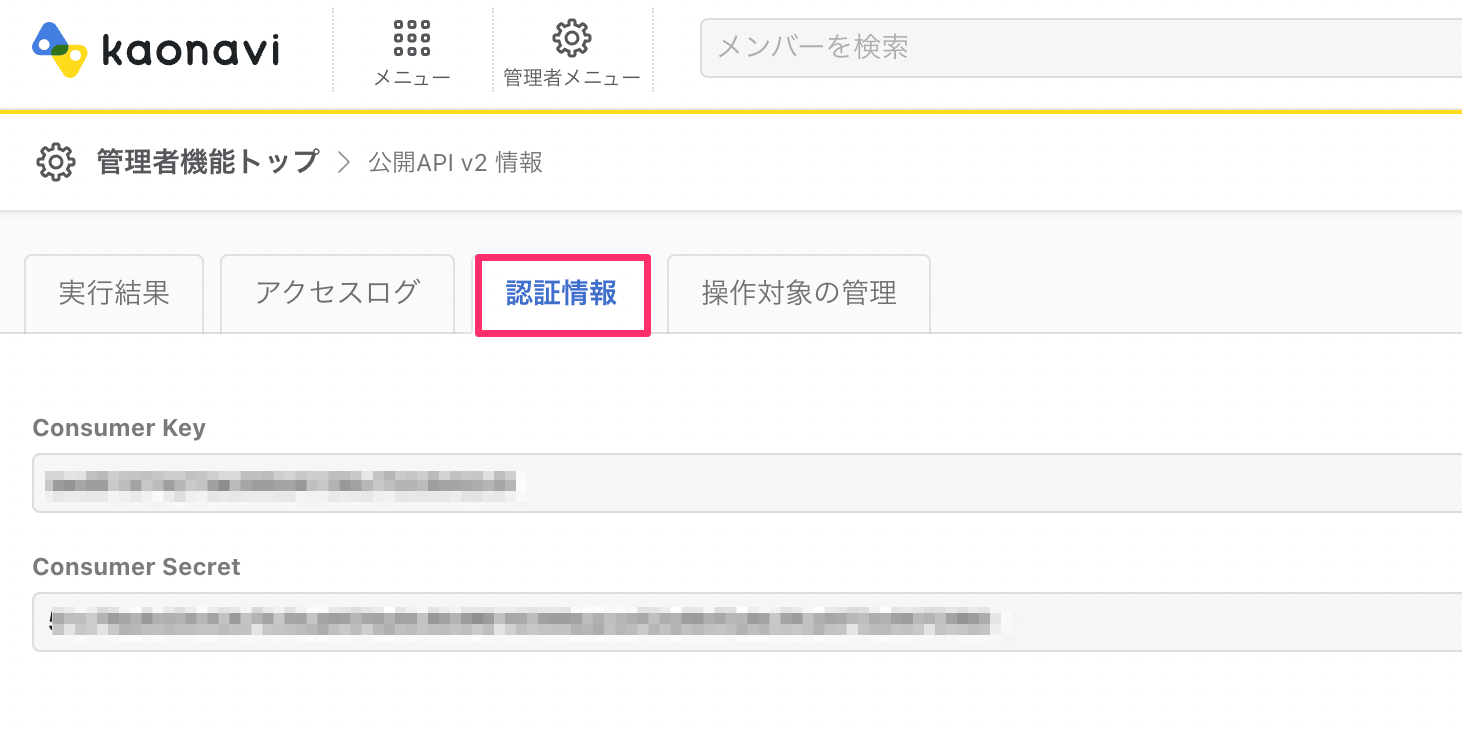
Log in to kaonavi. Then go to Admin Functions Top > Public API v2 Information > Authentication for yourConsumer Key and Consumer Secret.
The Consumer Key and Consumer Secret correspond to the Client ID and Client Secret respectively. Save them.
If you see a message indicating that “additional permissions are required” and the integration fails, please also check the following:Public API v2 Information > Operation Target Management > Check
Get, Register, and Delete for Member Information. (If you do not need to register or delete, check only Get.)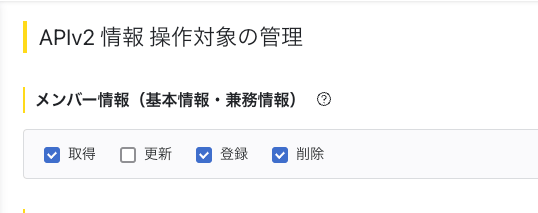
Integration Setup
Please integrate using an account with administrator privileges in kaonavi.
- In Integration > Integrations, search for kaonavi.
-
Enter any workspace name (such as your company name) and the Client ID and Client Secret obtained in the previous step. Then click Connect.
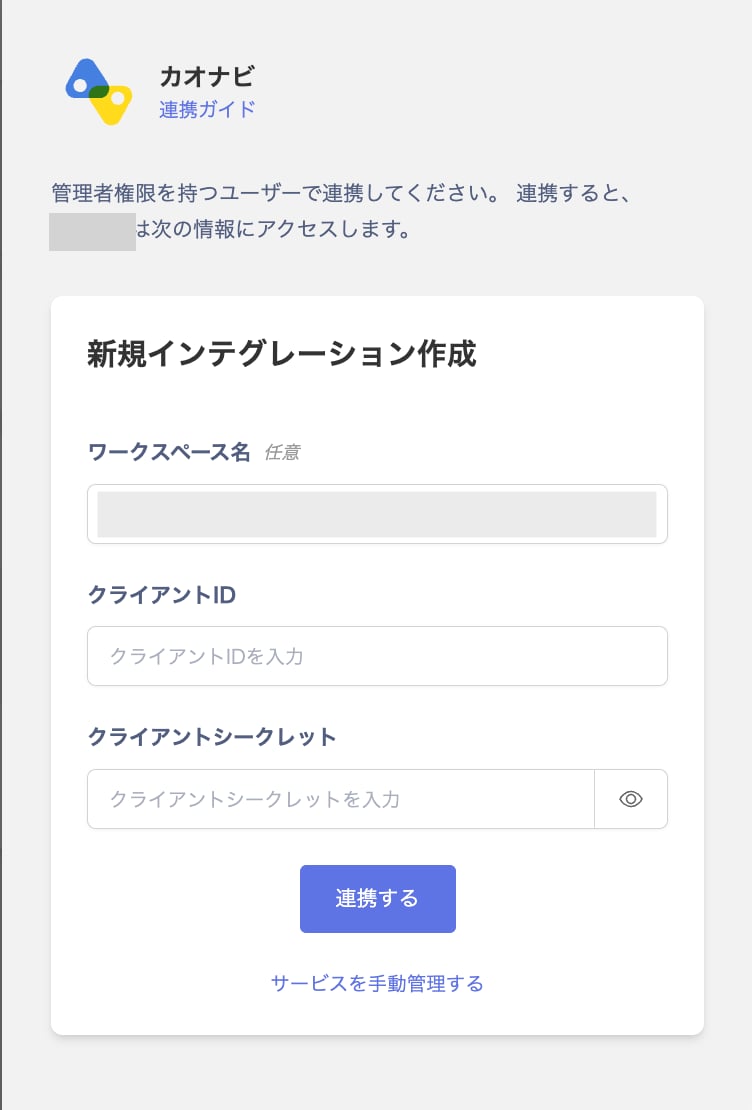
- Once the integration with kaonavi is successful, the registered user information will appear in the account list. If it does not complete successfully. Click Edit from the Status tab on the integrations screen and try connecting again. If the issue persists, please contact us via chat.