

Integration Specifications
An account with administrator privileges is required for the integration.The Microsoft Teams integration works per team. The workspace you select during the integration is a team in Microsoft Teams. The integration retrieves the service accounts that belong to that team. It does not retrieve service accounts across your entire Microsoft 365 organization (tenant). To manage multiple teams, connect each team separately.
Integration Setup
- In the integration screen, search for “Microsoft Teams ”.
-
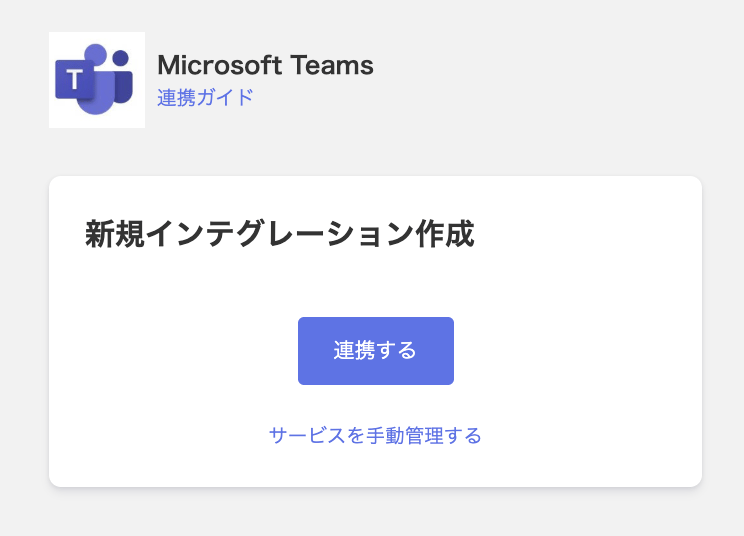
Click [Connect].
-
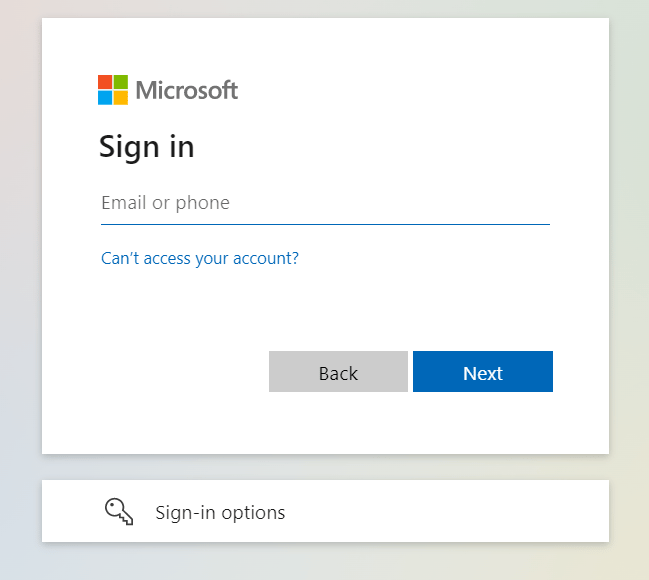
You will be redirected to the Microsoft login page. Enter the email address and password of an administrator account and log in.
-
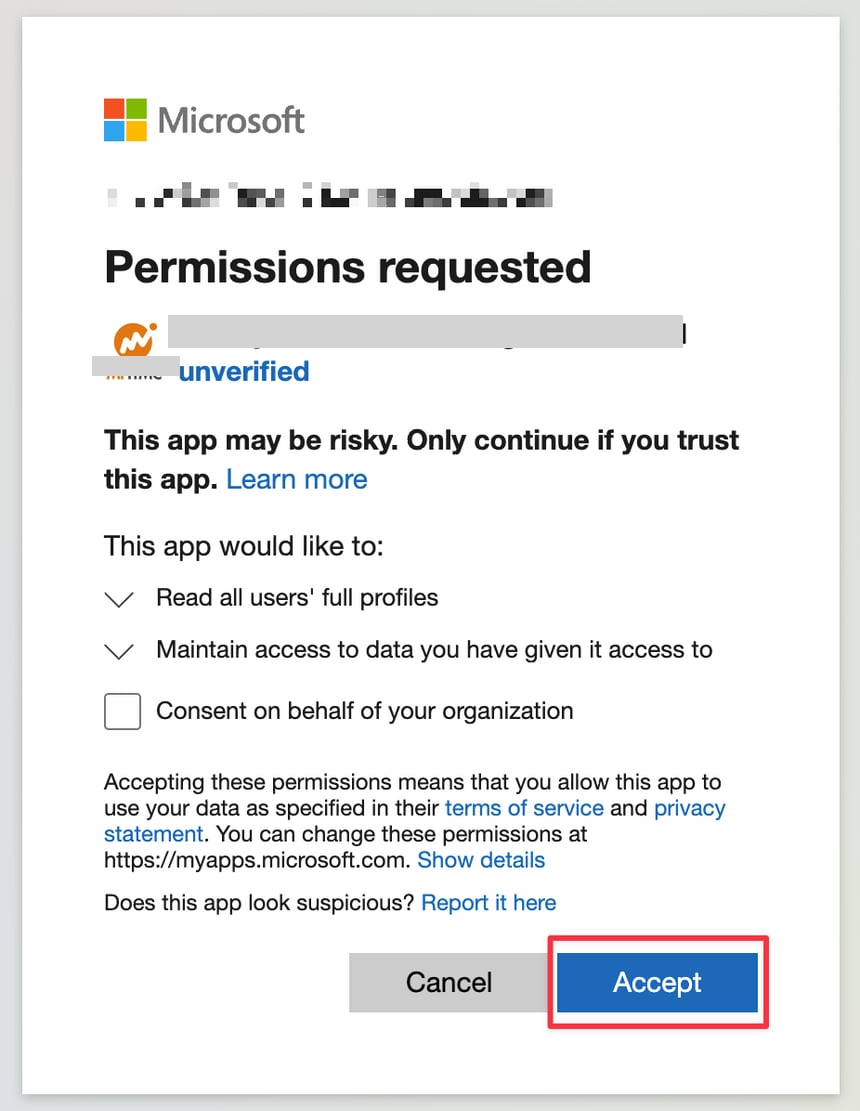
A consent screen like the one below will appear. Click Accept.
You do not need to check “Consent on behalf of your organization.”
- Once the Microsoft Teams integration is successful, the registered user information will appear in the account list.
If You Have Multiple Workspaces
The following screen will appear in the admin panel. Select the workspace you want to integrate.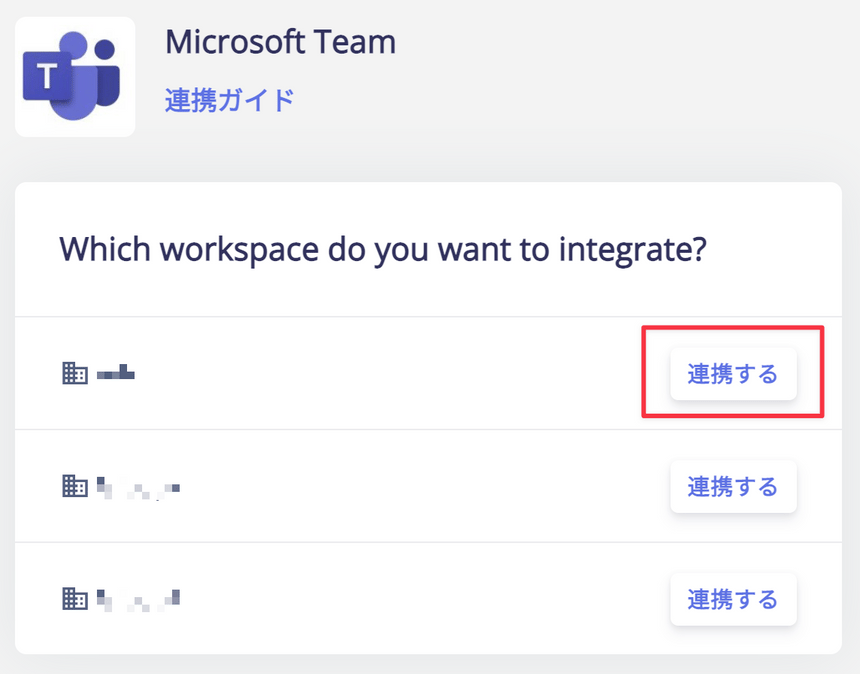
FAQ
Q. What should I check if I am not redirected to the integration screen when connecting with Microsoft Teams?
A. Please check the following:- Confirm that you are actually using Microsoft Teams and that a team exists.
- Check whether the same situation occurs every time.