

SaaS status: The target SaaS must be connected and linked with the administrator permissions (including API permissions) required to create and delete accounts.
How to Check Logs
- Select Automations from the left menu.
- On the Automations tab, click the three-dot menu on the right side of a workflow and select View logs.
- Check the workflow logs on the Executions and Logs screens.
How to Read the “Executions” Screen
The Executions screen shows the execution list and detailed information for each workflow run.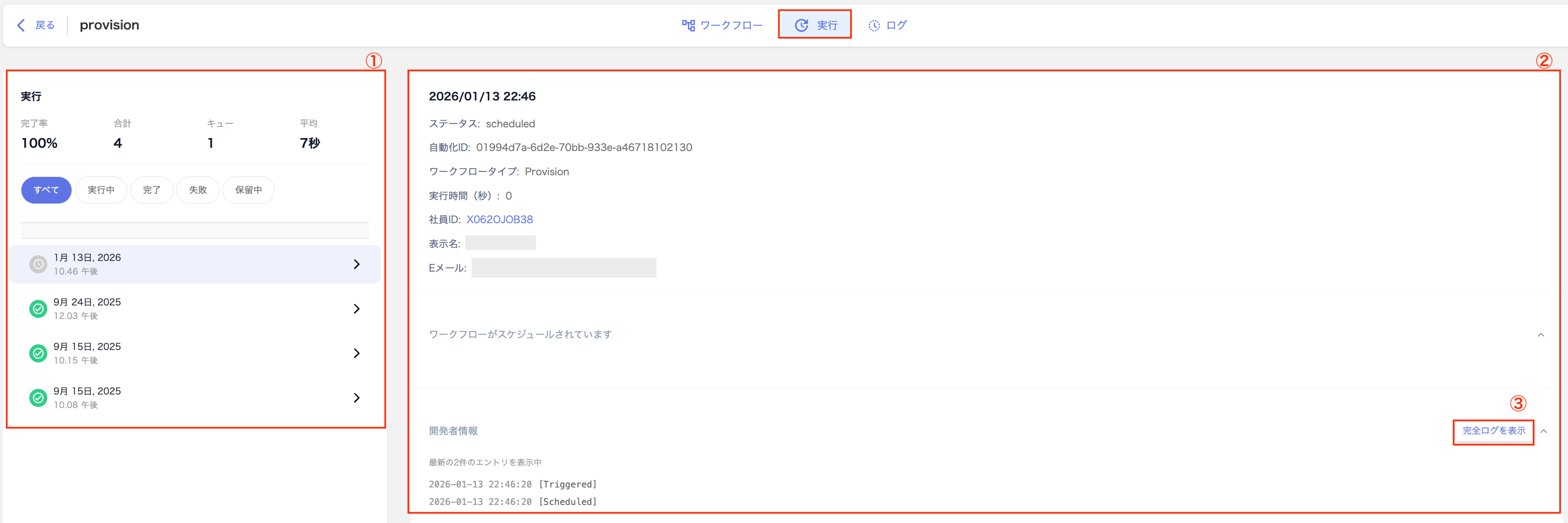
| # | Item | Description |
|---|---|---|
| 1 | Execution list | Displays a list of workflow executions. Use the filter to narrow results by All / Running / Completed / Failed / Pending. |
| 2 | Execution details | Shows detailed information for the selected execution. Status values include Completed (green) / Completed with errors (orange) / Failed (red) / Running (blue) / Pending (yellow). |
| 3 | View full log | Click View full log to navigate to the Logs screen. |
How to Read the “Logs” Screen
Navigate to Automations > Automations tab > select a workflow > Logs to view the log history for workflow executions.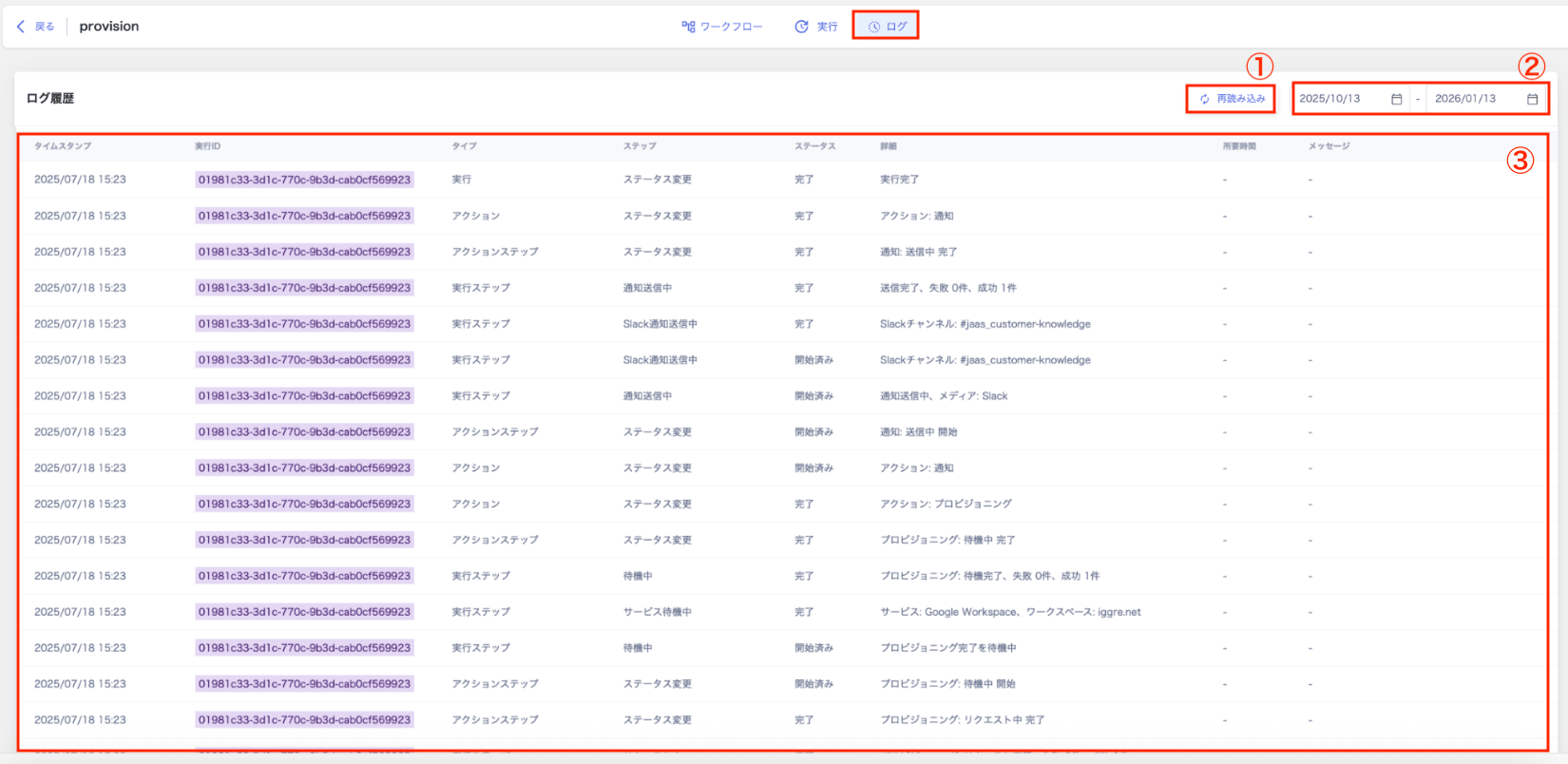
| # | Item | Description |
|---|---|---|
| 1 | Reload | Click Reload to refresh the log. |
| 2 | Filter | Use the date range filter to display only logs from a specific period. |
| 3 | Logs | View the history of each step in chronological order for each workflow execution. |
Log Field Descriptions
For setup instructions, see Getting started with automations.