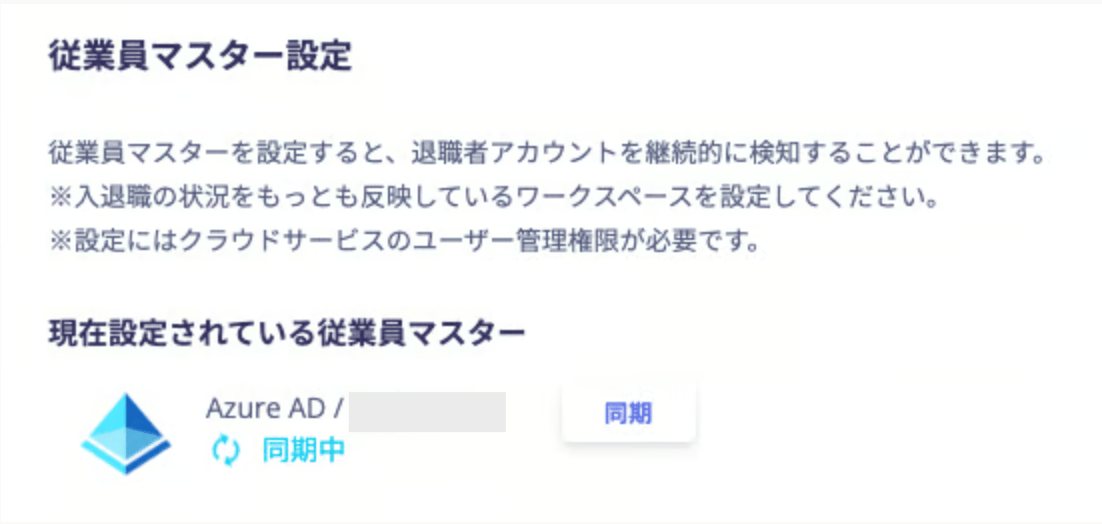
Managing multiple accounts in Microsoft 365 / EntraID (Azure AD)
When the same person uses multiple accounts as shown below, the sub-account SaaS accounts may be affected. They may be treated as resigned, or as guest accounts labeled “External”.- Main account: @abc.co.jp (employee master)
- Sub-account: @xyz.co.jp
Steps in EntraID (Azure AD)
- Go to the Azure Active Directory site, click Sign in, and log in to Azure AD.
-
Open the user’s properties, go to Contact info, and edit
Other emailto add the sub-account’s email address. If the user has three or more email addresses, add them the same way.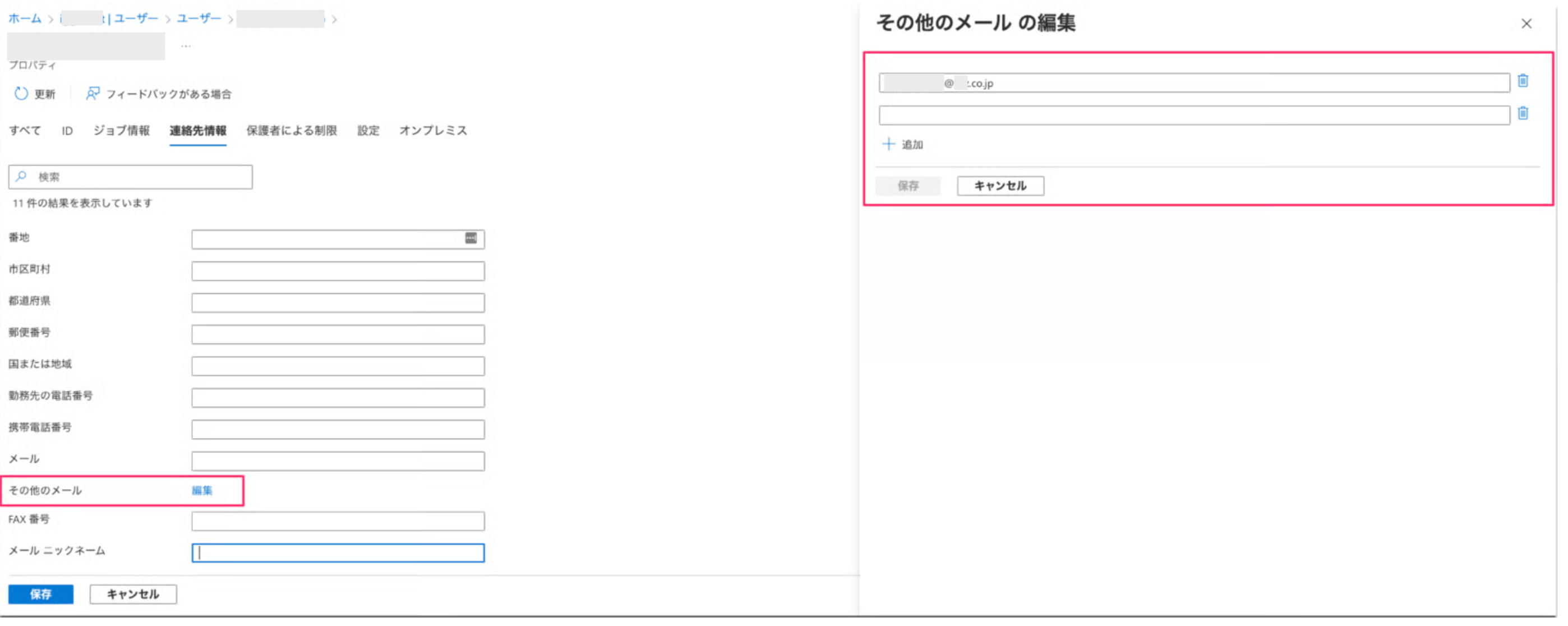
Steps in Microsoft 365
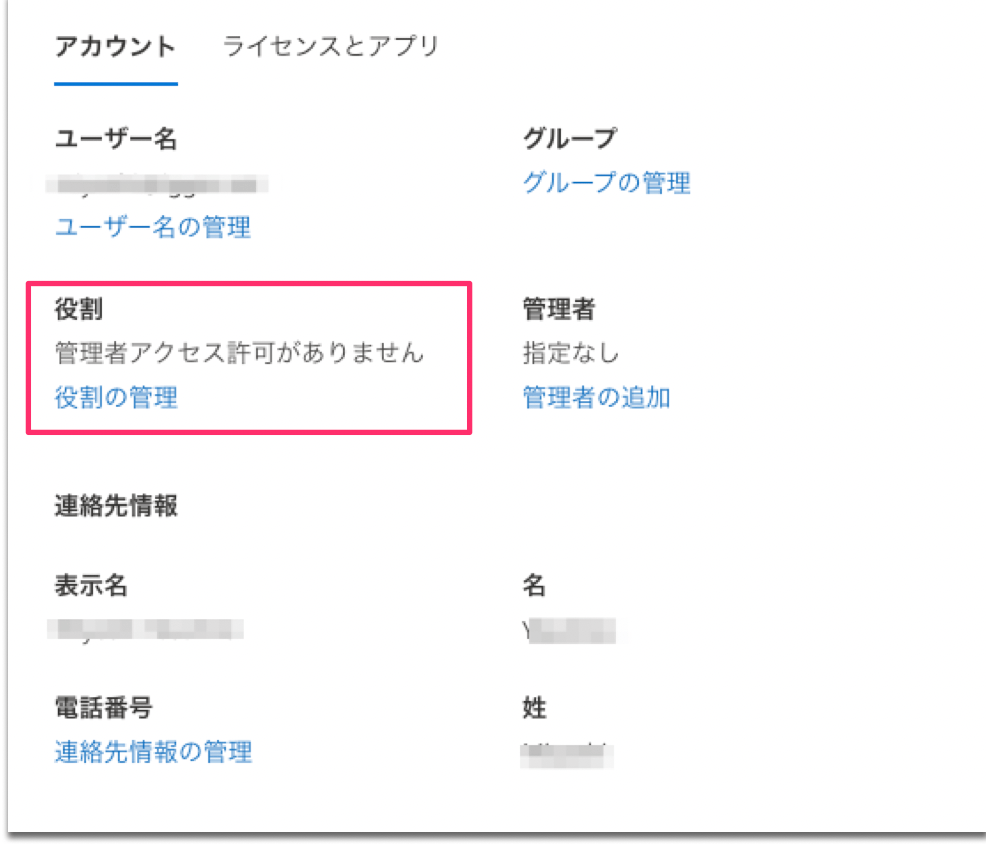
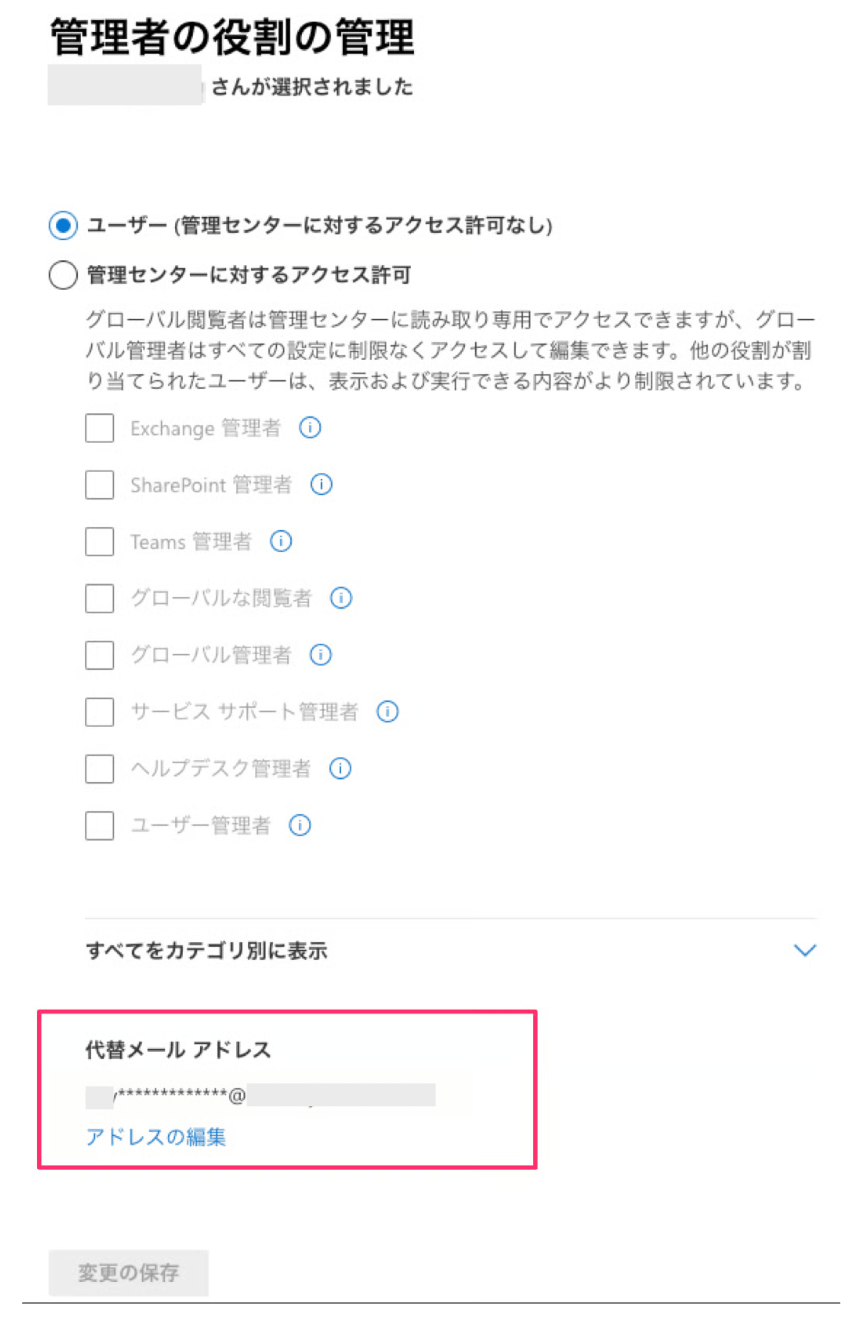
The Microsoft 365 admin center allows you to add only one email address. EntraID supports adding multiple addresses, so we recommend using EntraID if you are a Microsoft 365 customer.
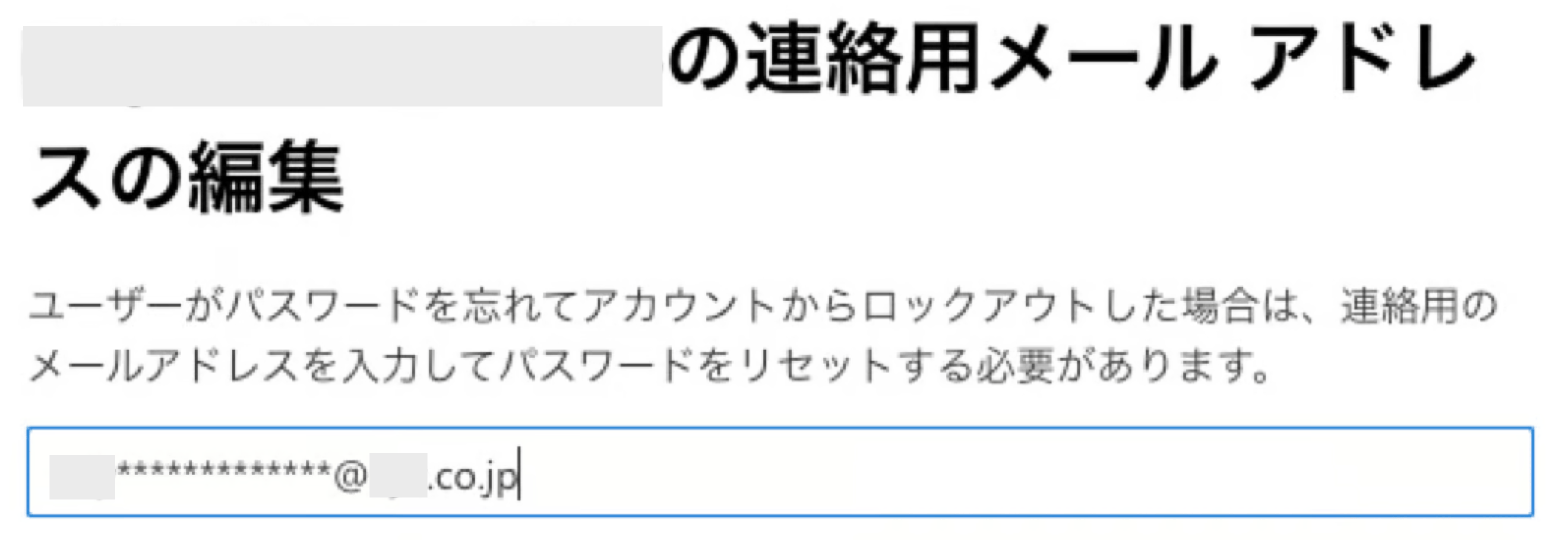
Alternate email address.
Re-synchronizing
After adding the email address in each service, perform a re-sync with Microsoft 365 or EntraID in this service.