

Redesigned knowledge base
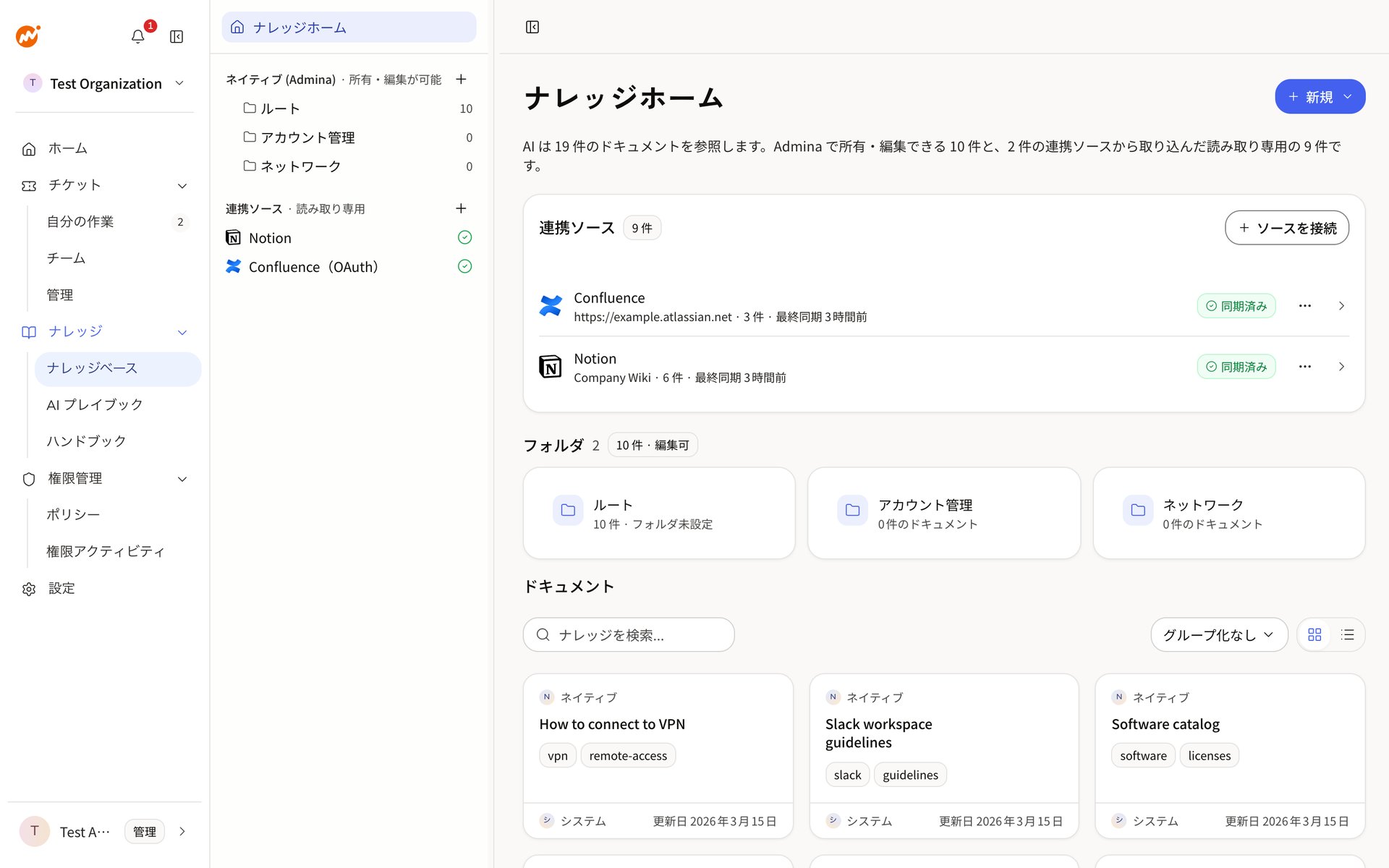
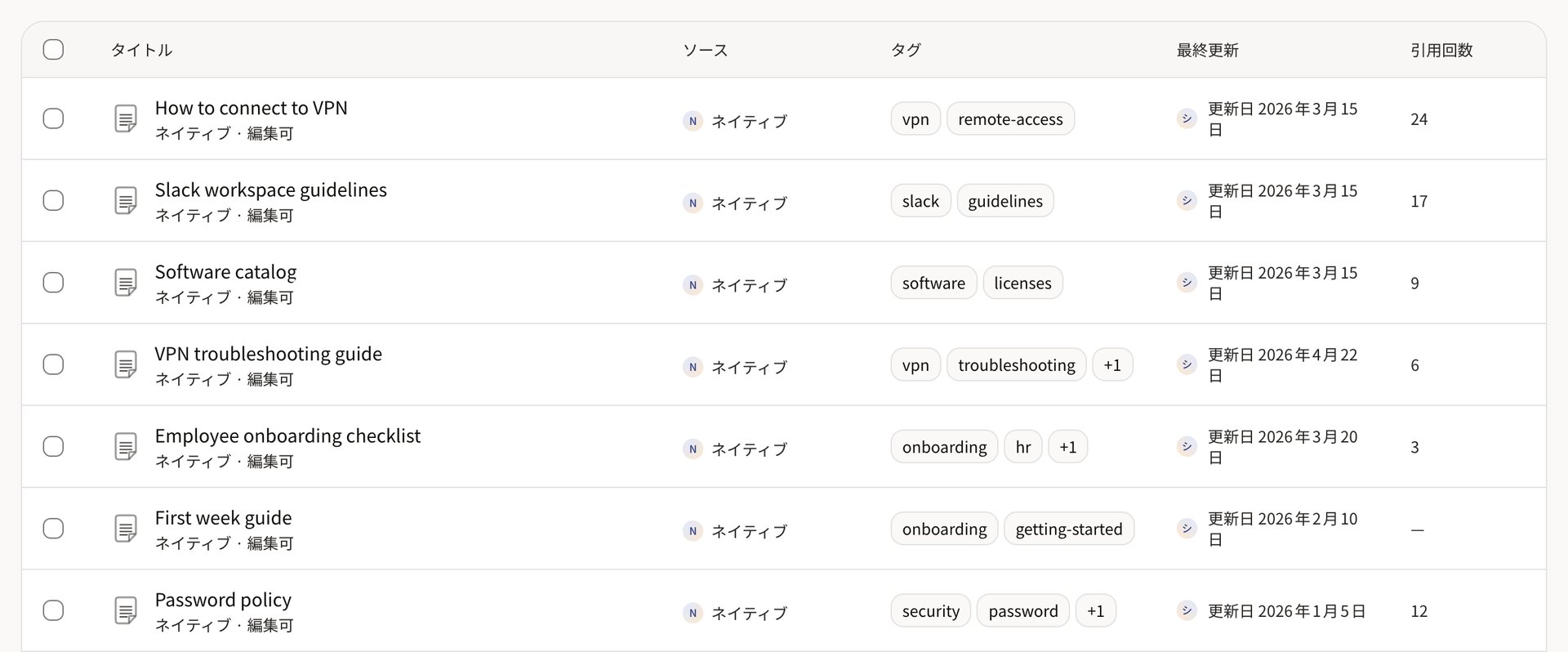
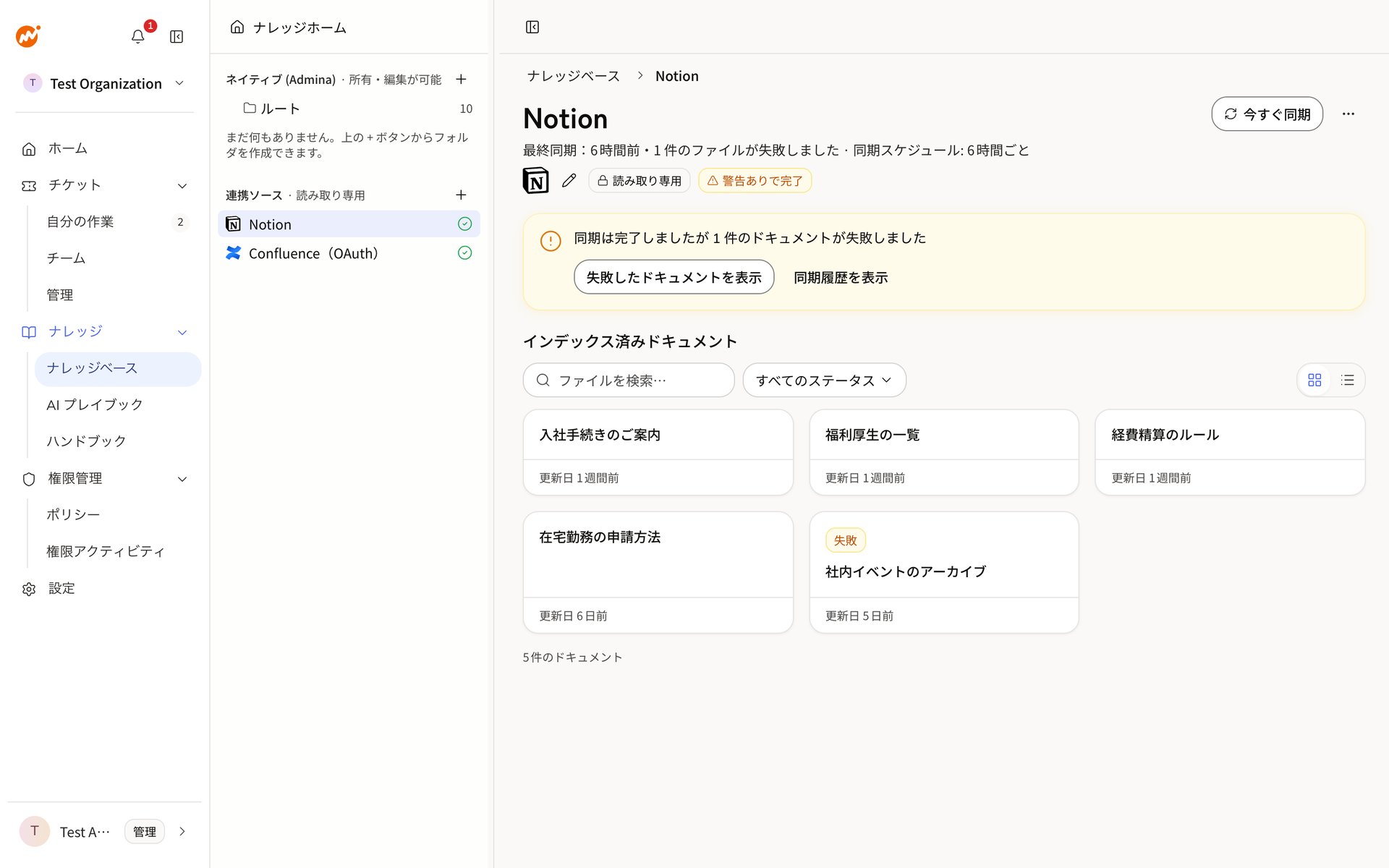
Documents created in AI Helpdesk can now be organized in folders. Create, rename, and delete folders, and move documents into them. Documents imported from connected sources are read-only and cannot be moved. Every document shows its source, and documents created in AI Helpdesk show Native. Tile cards and document details also show the Owner of documents created in AI Helpdesk. Documents created before this change show System as the owner. The knowledge base now opens to the knowledge home, with your own documents and your connected sources. Knowledge Integration under Settings > Integration is now called Knowledge sources. Knowledge base screens show them as Connected sources. The main additions are as follows.- Each connected source has a detail screen to search and filter its imported documents. Administrators can review the sync history, change the sync schedule, and reauthenticate with Edit credential there
- You can see how often AI agent answers cited each document in the last 30 days. Check the Citations column in List view, or AI citations (30d) in document details. As of August, Google Drive documents are not counted. This helps you tell frequently cited documents from rarely cited ones
- Documents imported from Notion are read-only, but administrators can use Duplicate to Native to make an editable copy. The copy does not sync with the original source
- Administrators can give each connected source a display name. Use Rename in the … menu, on the Connected sources list or the source’s detail screen. This helps when you connect the same service twice, such as two Notion workspaces
Connection wizard and scheduled sync for connected sources
Administrators now connect a source through a wizard. Choose the service and the connection method, then authenticate and configure the settings.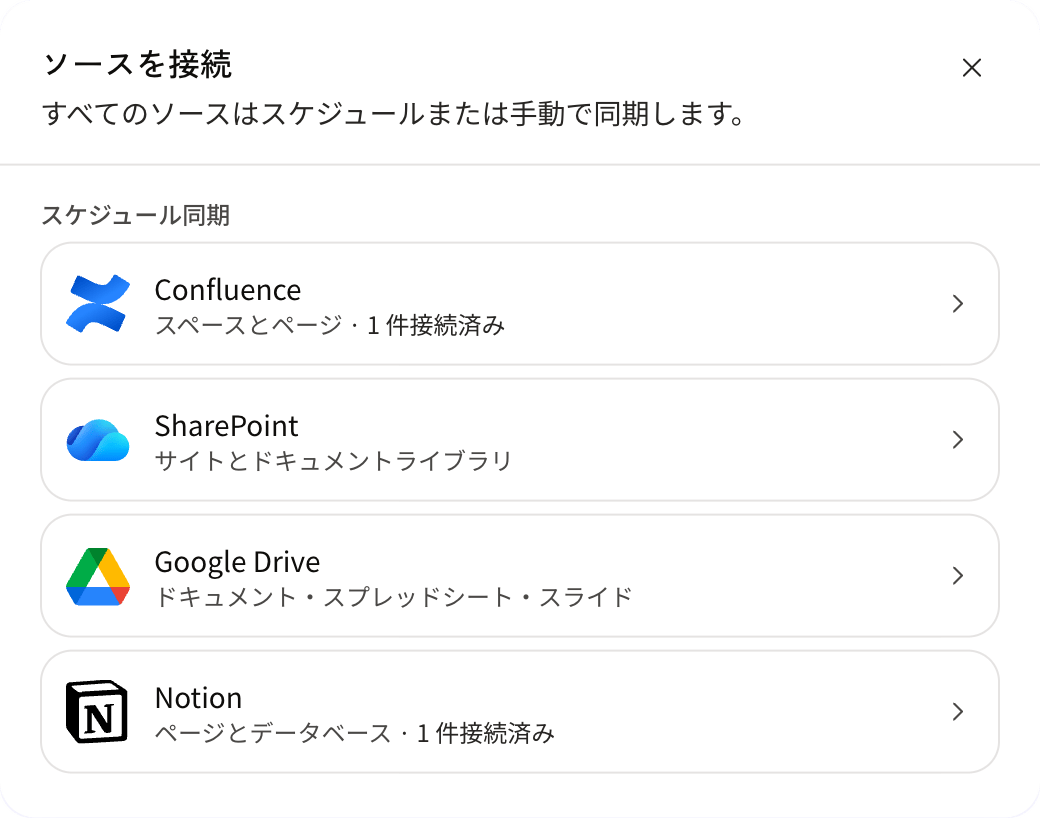
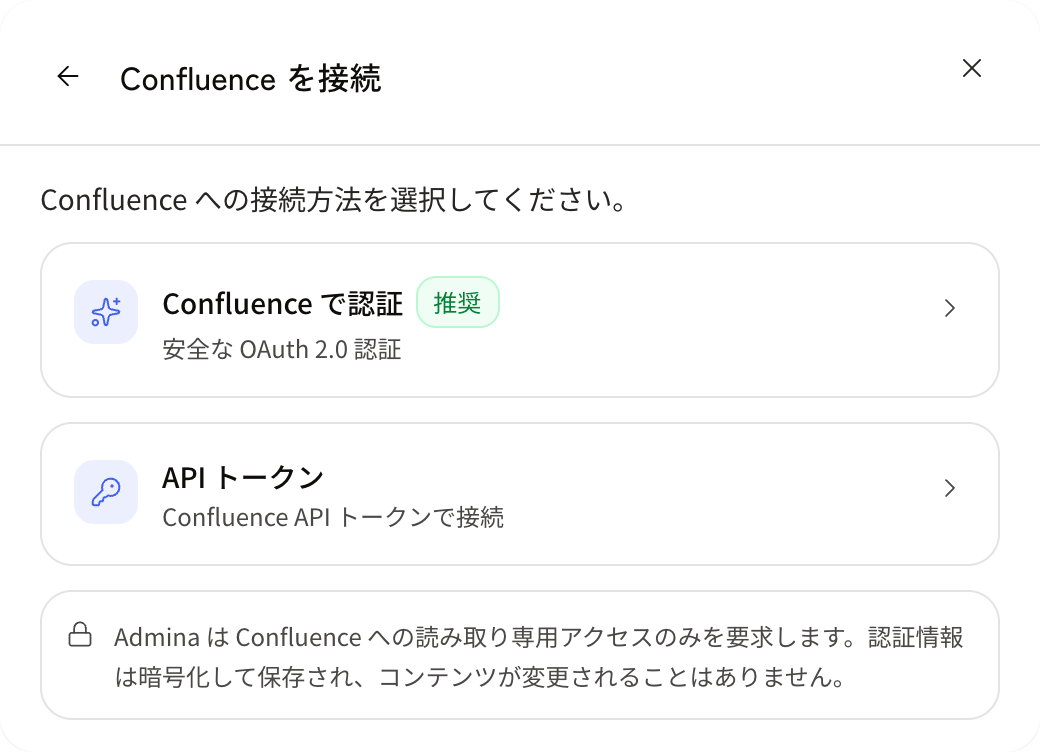
Page-level import for Confluence
Confluence sync settings now accept page URLs. Limit the AI agent’s scope to the pages you specify and their sub-pages, instead of a whole space. Page URLs work whether you connected with OAuth or an API token. For details, see Confluence integration.SaaS account operations by the AI agent
New Admina tools let the AI agent create SaaS accounts, manage account memos, and deactivate or delete SaaS accounts. By default, tools that create or update data ask for confirmation. Tools that can delete data are denied, including bulk saving of manually managed accounts. Change the setting for each tool in Permissions > Policies. For details, see Admina integration.Custom bot setup, and guidance after connecting a bot
The custom bot setup screens now let you download the file needed to create the app. Slack offers the app manifest, and Teams offers the app registration template. After you connect a standard or custom bot, the screen shows how to add the bot. For Slack, it shows the/invite command that invites the bot to a channel. For Teams, Google Chat, and LINE WORKS, it shows the bot name and where to add it. You can start receiving requests right after connecting.
Behavior changes
- New Session on the ticket screen now offers only Slack as the platform. The first message always notes that it was sent from the web, such as “sent by … from web” in English
- The Admin Email for Google Chat custom bots is now optional. It is required only for automatic mapping and for sending first-time escalation DMs
- A message such as “thank you” no longer closes a session automatically. The session closes when the requester clicks Close Ticket on the AI agent’s confirmation card. For what else closes a session, see Session lifecycle
Other improvements and fixes
- When you select an observer user for LINE WORKS or Teams, you can now find users beyond the first 100 by search
- The closure notice now appears only once, even if people keep posting in a closed session’s thread
- Fixed an issue where AI agent escalations in Google Chat direct messages failed with “Session not found”
- Fixed Notion syncs that never finished for large workspaces or failed when database rows were included
- Fixed an issue where the file list of a large knowledge source could not be displayed
- Fixed an issue where some tickets did not appear in the ticket list in organizations with large ticket volumes
- Fixed an issue where the status filter did not match the selected tab in the Team view
- Fixed an issue where the SharePoint connection setup sometimes did not complete