

{{document_search}} to Playbook steps, AI Agent can search the Knowledge base to provide enriched answers.
There are two ways to register Knowledge: file upload and inline creation.
Register via file upload
AI Helpdesk reads only the text contained in a PDF file. It cannot read text in images (OCR is not supported). If you upload a PDF that contains no text, such as a scanned document, the body is empty and the Knowledge details show “No content”.Convert such PDFs to a PDF with selectable text or to DOCX before uploading. You can also enter the body with inline creation.DOCX, PDF, and CSV files are converted to text when you upload them. If a file cannot be read and the conversion fails, the upload still completes. In this case, the Knowledge list keeps showing “Converting…” for that article.This status does not clear on its own over time. Delete the article, check that the file can be opened, and upload it again. You can also enter the body with inline creation.
Images embedded in TXT, MD, and DOCX files are saved with the Knowledge, and AI Agent can attach them to its replies. Images in CSV and PDF files are not imported.
1
Open the Knowledge management screen
From the AI Helpdesk admin screen, select Knowledge > Knowledge Base.
2
Upload files
Click Bulk Upload and select the files you want to register. You can select multiple files at once.
3
Review and confirm
After upload, the content of each Knowledge article is displayed. Review the content and click Upload.
Registered and updated Knowledge articles become searchable shortly after saving. If a newly registered article is not yet appearing in search results, wait a moment and try again.
Register via inline creation
1
Open the Knowledge management screen
From the AI Helpdesk admin screen, select Knowledge > Knowledge Base.
2
Start creating
Click Add Knowledge.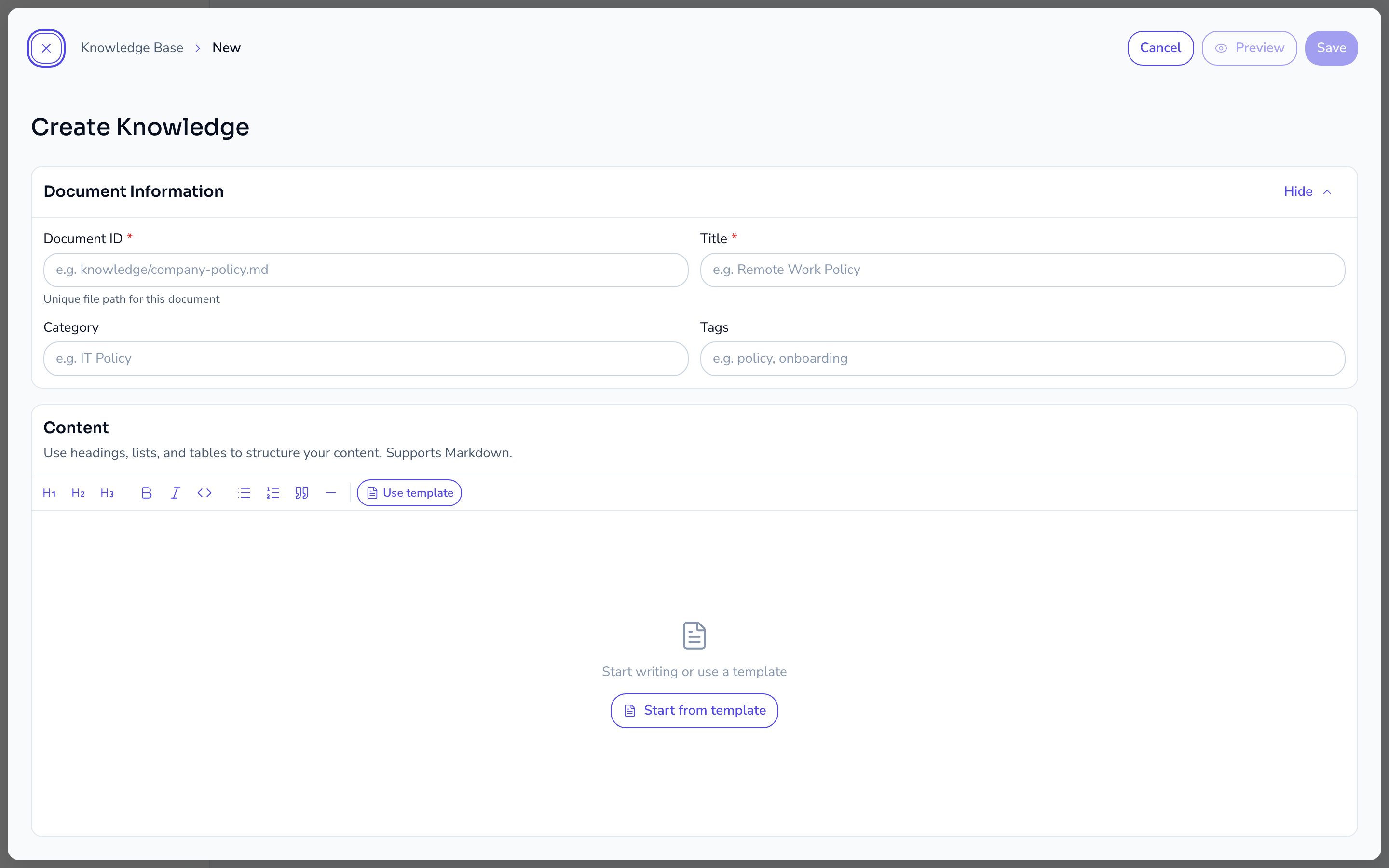
3
Enter content
Enter the Knowledge content in the text editor. You can also set a title, category, and tags.
4
Save
Click Save.
Edit a Knowledge article
1
Open the Knowledge management screen
From the AI Helpdesk admin screen, select Knowledge > Knowledge Base.
2
Select a Knowledge article
Click the article you want to edit, or select Edit from the … (action menu) at the end of the row.
3
Edit and save
Modify the content and click Save. Updated content becomes searchable shortly after saving.
Delete Knowledge articles
Delete a single article
1
Open the Knowledge management screen
From the AI Helpdesk admin screen, select Knowledge > Knowledge Base.
2
Select the article to delete
Select Delete from the … (action menu) at the end of the row.
3
Confirm deletion
Click Delete in the confirmation dialog.
Bulk delete
1
Open the Knowledge management screen
From the AI Helpdesk admin screen, select Knowledge > Knowledge Base.
2
Select articles to delete
Check the checkbox on each row. Checking the header row checkbox selects all currently displayed articles.
3
Run bulk delete
Click the Delete button that appears, then click Delete in the confirmation dialog.
Knowledge list
The Knowledge list shows the title, category, tags, and last-modified date for each article. Use the search bar at the top to filter articles by title. You can also filter by Category, Type, and Tag. The list can be grouped by category, type, tag, or last updated date.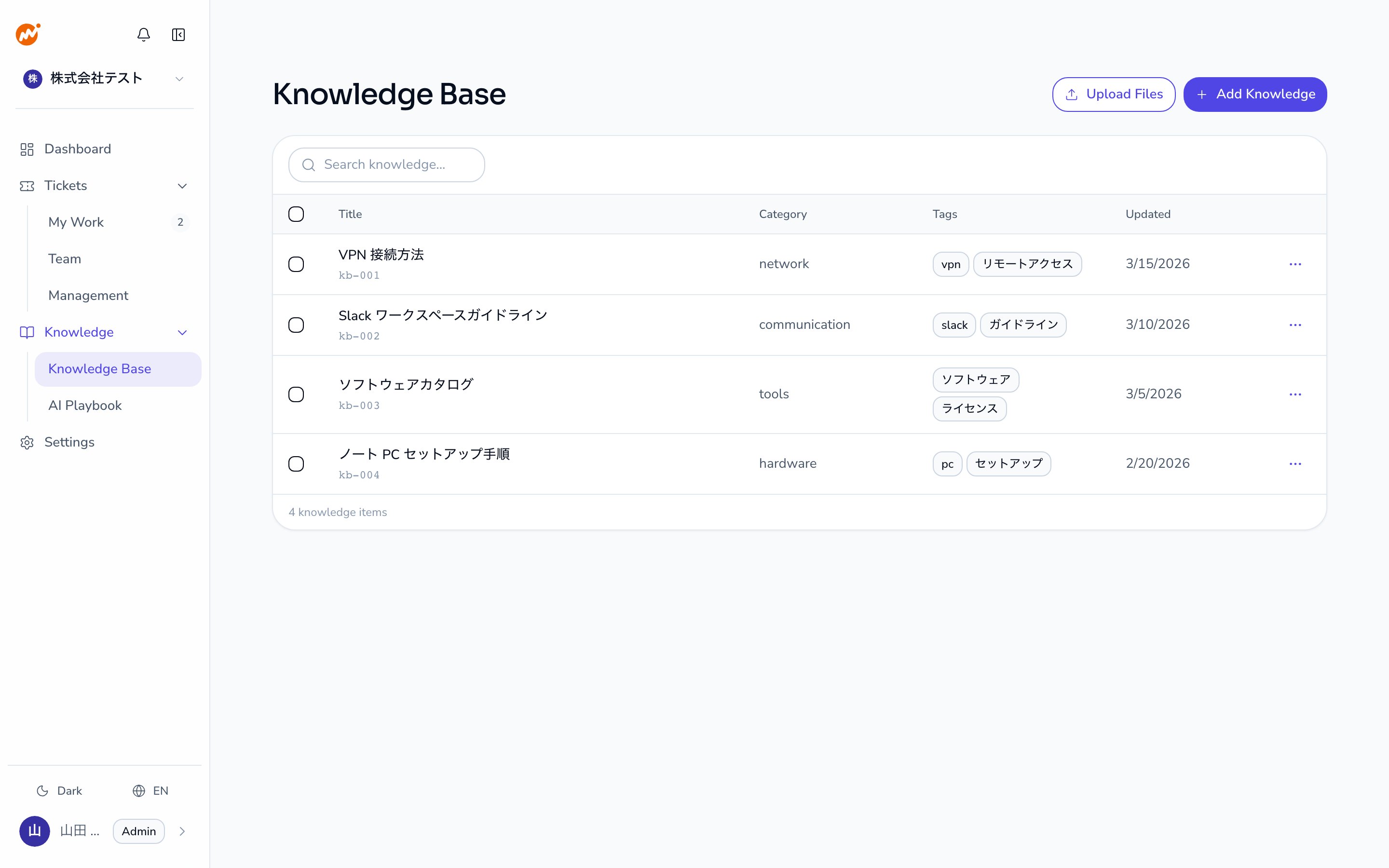
Notes on Knowledge management
- Knowledge articles are scoped to each tenant. Articles are not shared across tenants.
- Deleted articles are removed from the search index. Sessions already referencing the article’s content are not affected.