

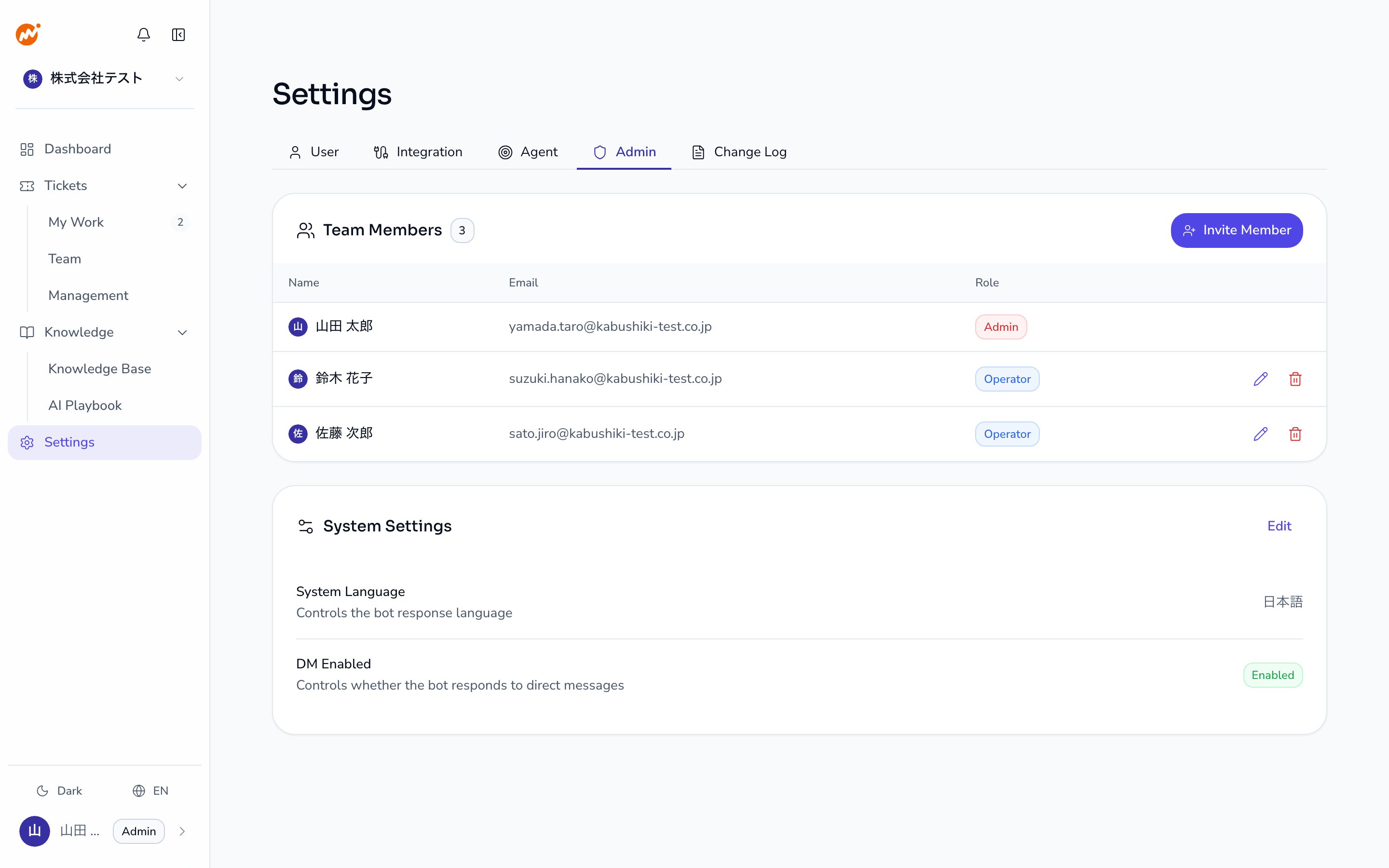
Roles
Roles can be combined. A single member can hold both Admin and Operator roles.
Inviting members
1
Open the invite dialog
Click the Invite member button in the upper right of the Team members section.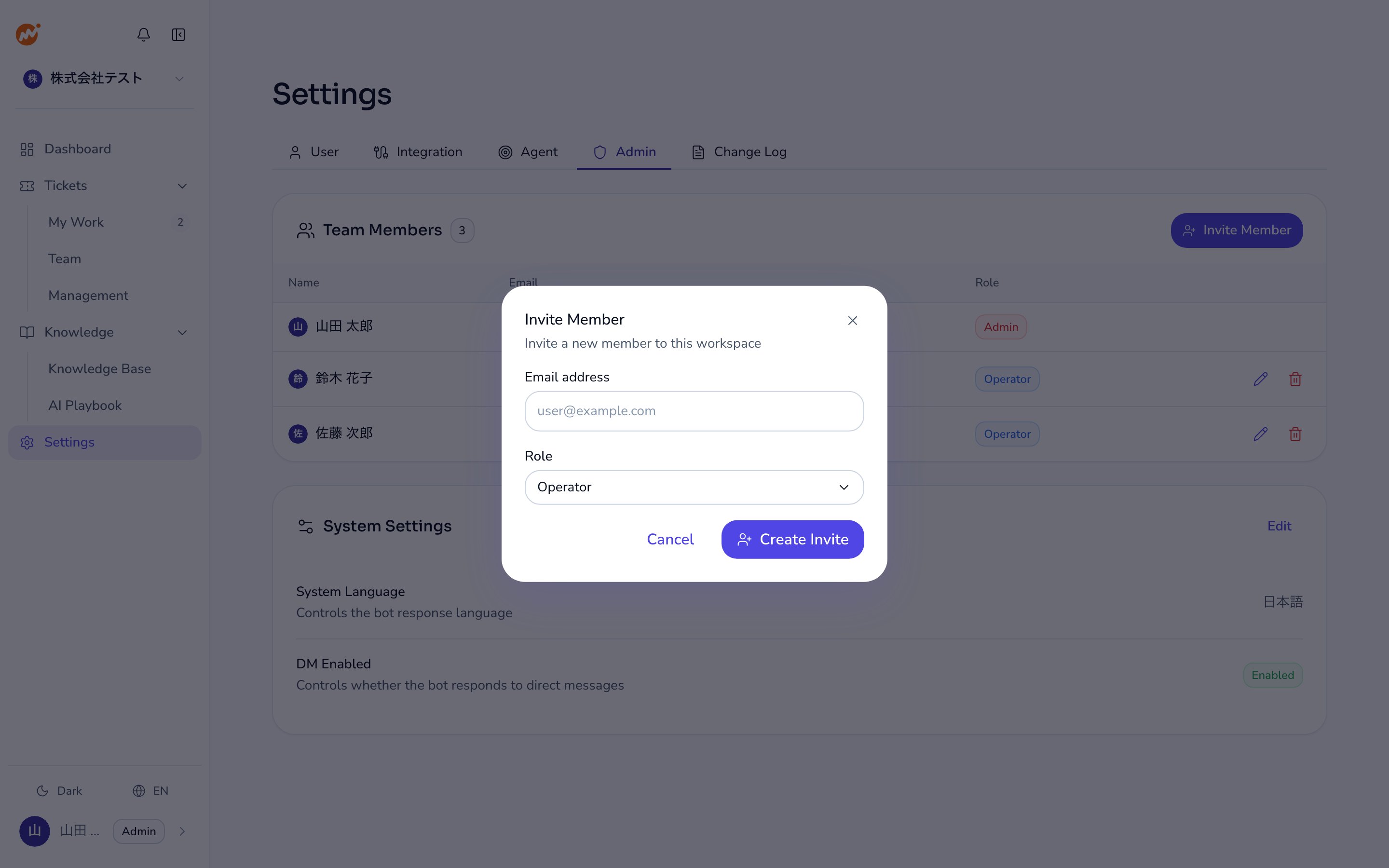
2
Enter the invitation details
Enter the email address of the user you want to invite and select the role to assign (Admin or Operator). The email address is required.
3
Send the invitation link
After creating the invitation, the link is copied to your clipboard. Send it to the intended recipient. Invitation links have an expiration date.
Managing invitations
Pending invitations appear at the bottom of the member list.- Copy link: Click the link icon on the invitation row to copy the invitation URL again
- Cancel invitation: Click the trash icon and select Cancel invitation in the confirmation dialog
Changing roles
1
Click the edit button for the target member
In the member list, click the pencil icon in the row of the user you want to update.
2
Change the role
Update the Admin and Operator checkboxes. At least one role must be selected.
3
Save
Click the save icon to save the changes.
Removing members
1
Click the trash icon for the target member
In the member list, click the trash icon in the row of the user you want to remove.
2
Confirm the removal
A confirmation dialog will appear. Review the details and click Confirm.
You can invite a removed member again with the same email address. When they accept the invitation, they rejoin the organization with the role selected in the invitation. Their role before removal is not restored. If they need both the Admin and Operator roles, change their roles after they join.You cannot remove yourself from the members. For this reason, if the organization has only one Admin, that Admin cannot be removed.
Linking messaging platform accounts
From the Team members section, you can link member accounts to Slack, Microsoft Teams, LINE WORKS, or Google Chat. A checkmark is shown in the member list when a link is established.- Link an account: Click the link icon and enter the member’s email address on that platform (or LINE WORKS user ID). Then click Verify followed by Confirm
- Unlink an account: Click the unlink icon and confirm the action
Related pages
- Session notification settings — Configure notifications for members
- Session lifecycle settings — Configure auto-close and reminder settings