

Register via file upload
Use file upload to register multiple Playbooks at once.1
Open the Playbook management screen
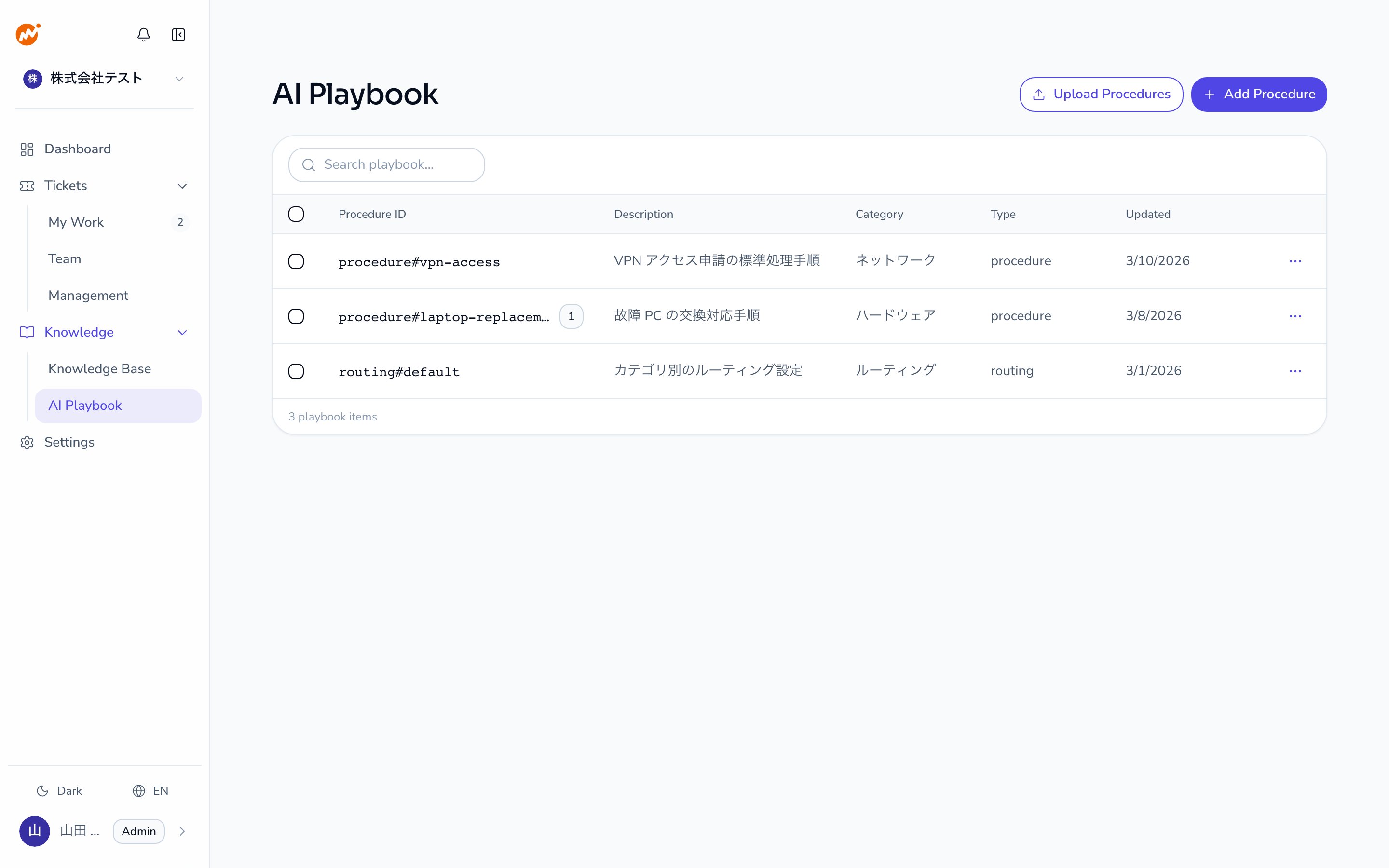
From the AI Helpdesk admin screen, select AI Playbook.
2
Select files
Click Upload Procedures and select the files you want to register. You can select multiple files at once.
3
Review and confirm
After upload, each file’s frontmatter and body are parsed, and any errors are shown per file. Review the content and click Upload.
Register via inline creation
Create a Playbook directly in the WebUI text editor.1
Open the Playbook management screen
From the AI Helpdesk admin screen, select AI Playbook.
2
Start creating
Click Add Procedure to open the creation form.
3
Write the Playbook
Enter the Playbook content in the text editor. For step notation, see Playbook step notation below.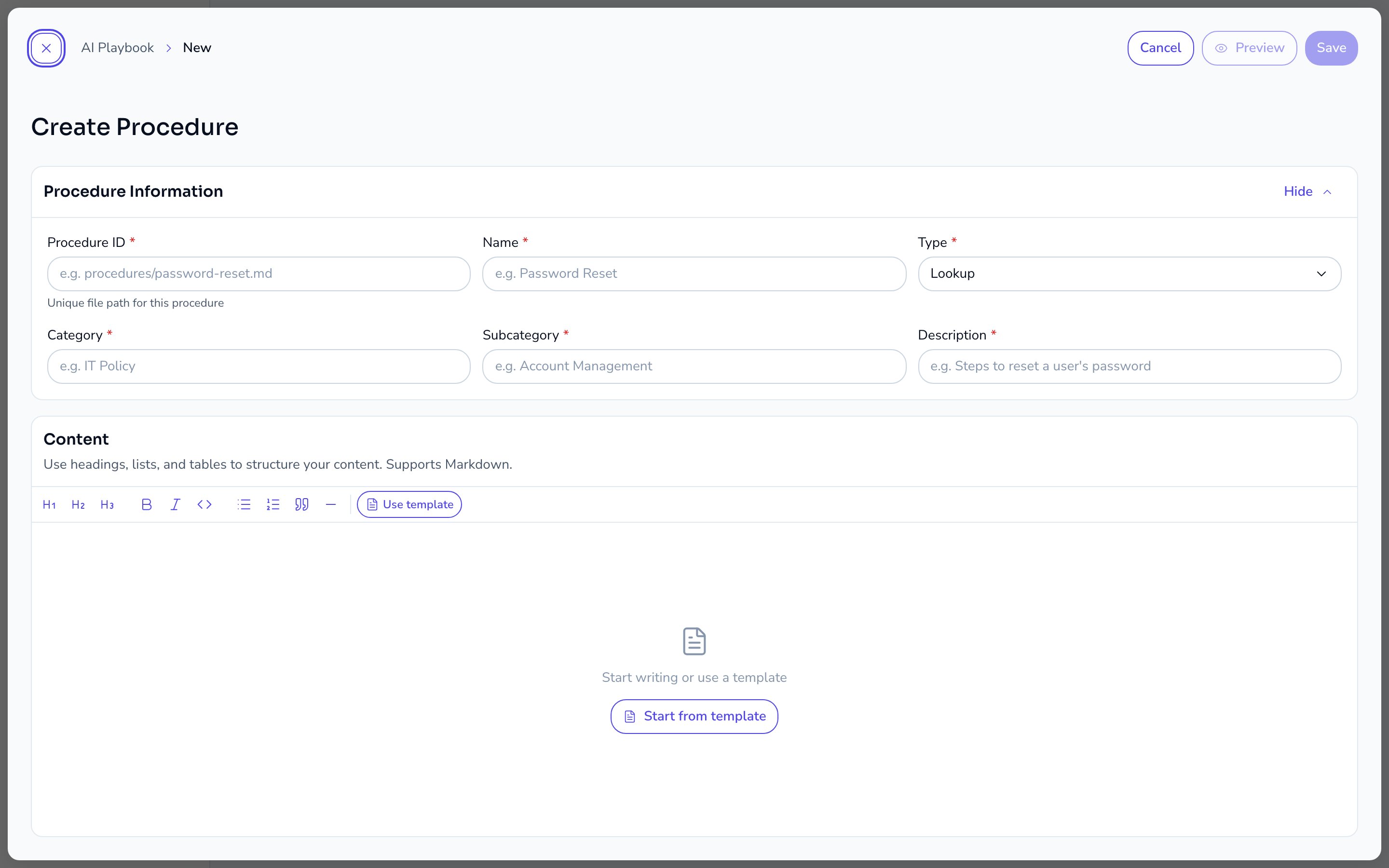
4
Save
Click Save. The registered Playbook takes effect from the next triage onward.
Playbook specifications
General-purpose Playbook
When the Triage Agent cannot match an inquiry to any other Playbook, it falls back to a general-purpose Playbook. This fallback Playbook is stored asprocedures/general.md. It appears in the list like any other Playbook and can be edited or deleted.
Keep the general-purpose Playbook’s content updated to provide a reasonable fallback experience. Deleting it removes the fallback response for unmatched inquiries, so proceed with caution.
When changes take effect
Registered or updated Playbook content takes effect from the next triage onward. Sessions already in progress are not affected.Playbook step notation
Playbook steps contain a natural language description of the action the AI agent should perform. Use the{{tool_name}} syntax in the step body to explicitly reference a tool the AI agent should call.
How to reference tools
Embed{{tool_name}} inline in the step text.
Available tools
Knowledge and document search
Admina data lookup (MCP)
Admina MCP tools require the Admina MCP integration to be enabled in Settings > Integration. Tool names follow the
{{mcp__admina__tool_name}} format. Check with your admin for the full list of available Admina tools.{{investigation}} and {{resolution_planning}} were removed as part of a prompt model refactor. The equivalent judgment is now built into the AI agent’s core instructions, so Playbooks no longer need to call them explicitly.Contact chip syntax ({{escalation_contact}})
{{escalation_contact}} is a different tool from {{escalation}}. It isn’t an action the AI performs — it’s notation for displaying a contact clearly in the step text. Adding an attribute displays a specific contact as an icon-labeled chip.
Playbook reference syntax ({{playbook_ref}})
{{playbook_ref:file_name}} is notation for specifying another Playbook for the AI agent to run. In the text editor, type / or {{ and select Playbook reference to see the list of registered Playbooks. When you select a Playbook, it’s inserted using its file name without the .md extension. If you type it manually, also use the file name without .md, not the name in the frontmatter.
The following example runs a Playbook registered with the file name printer-troubleshoot.md. Replace it with the file name of a Playbook you have registered.