

Three views
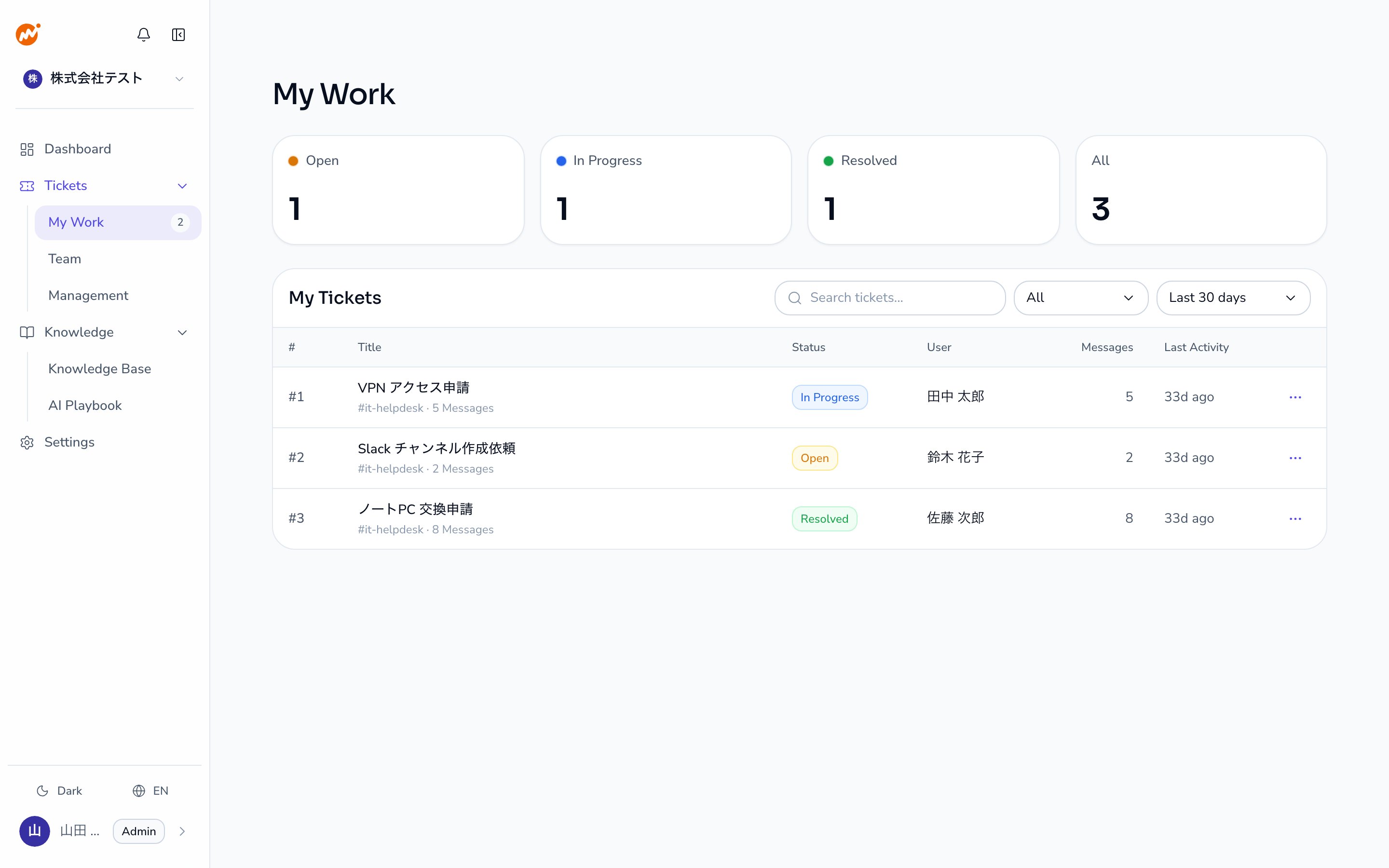
The Tickets screen has three views for different roles.The My Work view is displayed by default after login.
My Work view
This view shows the sessions you are responsible for. Four summary cards appear at the top.
Each row shows key information: ticket number / title / status / requester / message count / last updated time. Use the ”…” menu at the right end of a row to perform the following actions.
Team view
Use this view to pick up unassigned sessions or to get an overview of all operator sessions.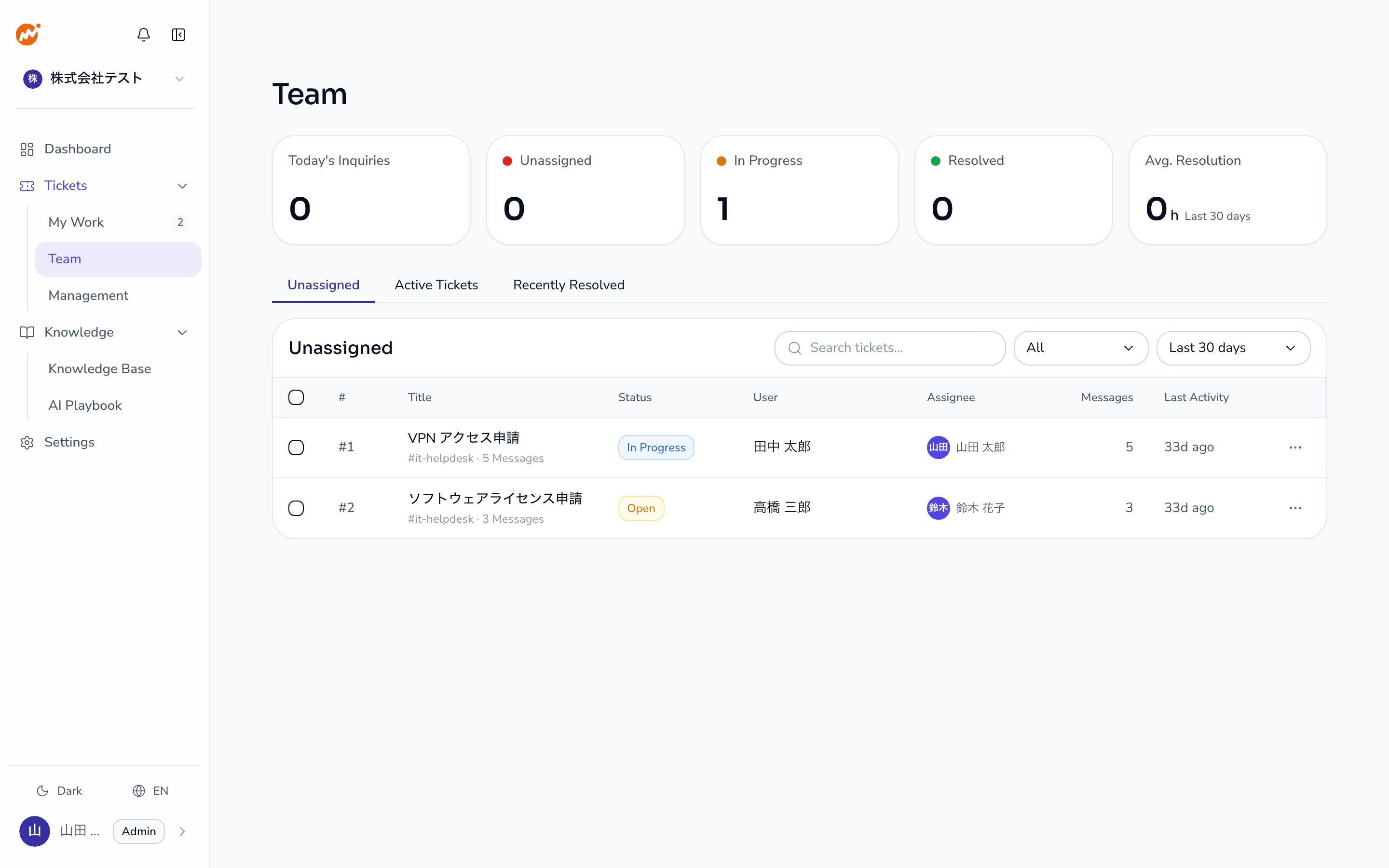
Management view
This view is available to Admins only. It shows all sessions in the organization with filtering and search. Use it for operational oversight and auditing.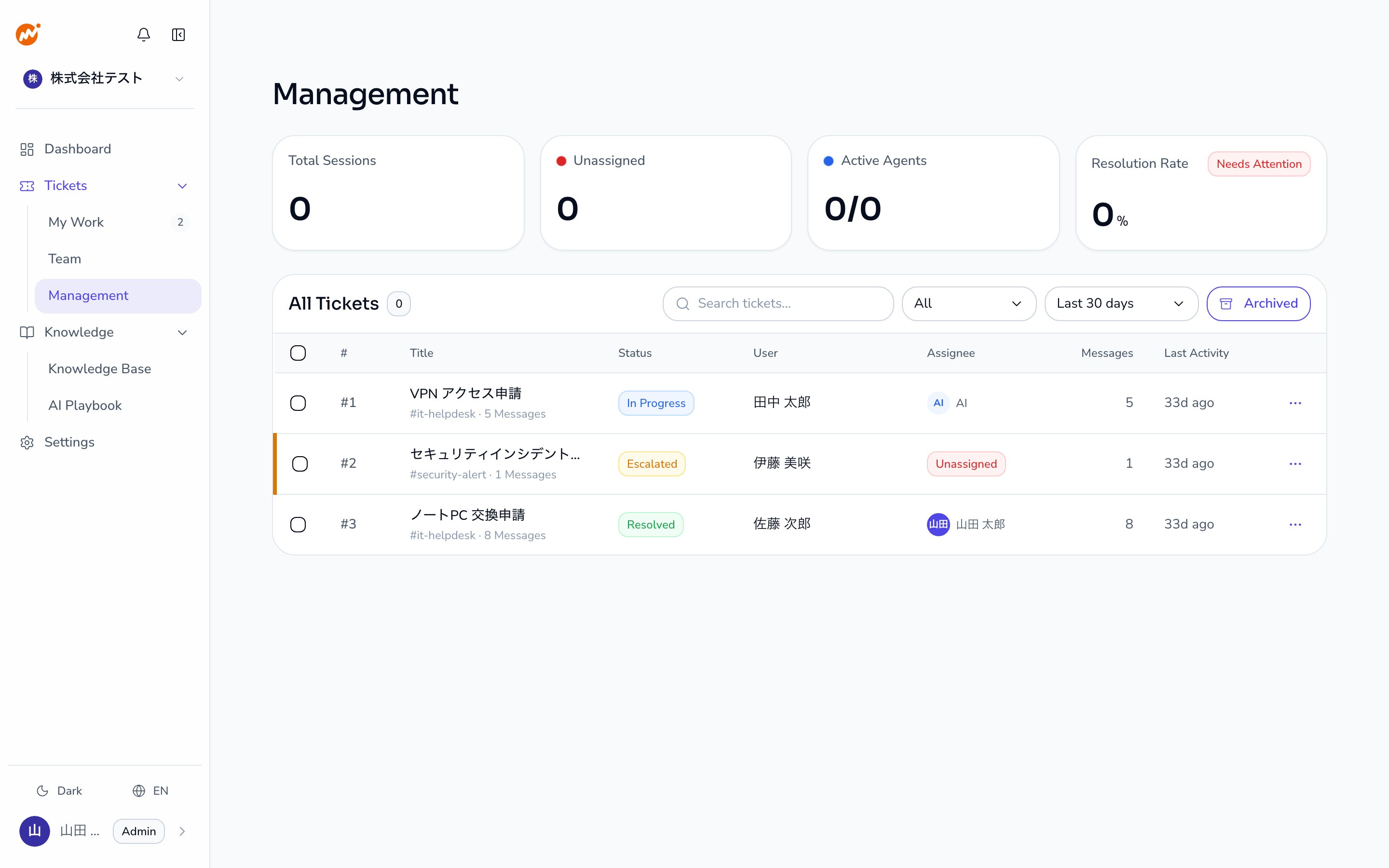
Ticket detail panel
Click any row or select “View Details” to open the ticket detail panel on the right side of the screen.Information displayed
Tickets created without a title, such as inquiries from chat, get an initial title from the first message. If the message is longer than 50 characters, the title ends with ”…” after the first 47 characters. When the ticket is closed, the AI gives it a new title based on the conversation.
If you rename a channel
You can keep using AI Helpdesk after renaming a channel that the bot has joined. AI Helpdesk identifies channels by ID, not by name. After the rename, the bot keeps responding in the channel, and threads of ongoing inquiries continue as before. The ticket’s “Channel” field shows the channel name at the time the ticket was created. If the name could not be retrieved, it shows the ID. Tickets created before the rename keep showing the old name.Open in Slack
If the session was created via Slack, you can open the original thread directly from the detail panel. The thread opens in the Slack app or browser.Opening in the Slack app requires the Slack desktop app to be installed.
Filters and search
The ticket list supports the following filters.
The text search filters by title or requester name.