

Language setting types
Personal language settings take precedence over the system default language. If an employee has not set a personal preference, the system default language applies.
How to change your personal language setting
Employees set their own language preference in AI Helpdesk chat with the!lang command, not the admin console.
en (English), ja (Japanese), or system (follow the system default language). Omit the argument to show your current setting. See AI command reference for details.
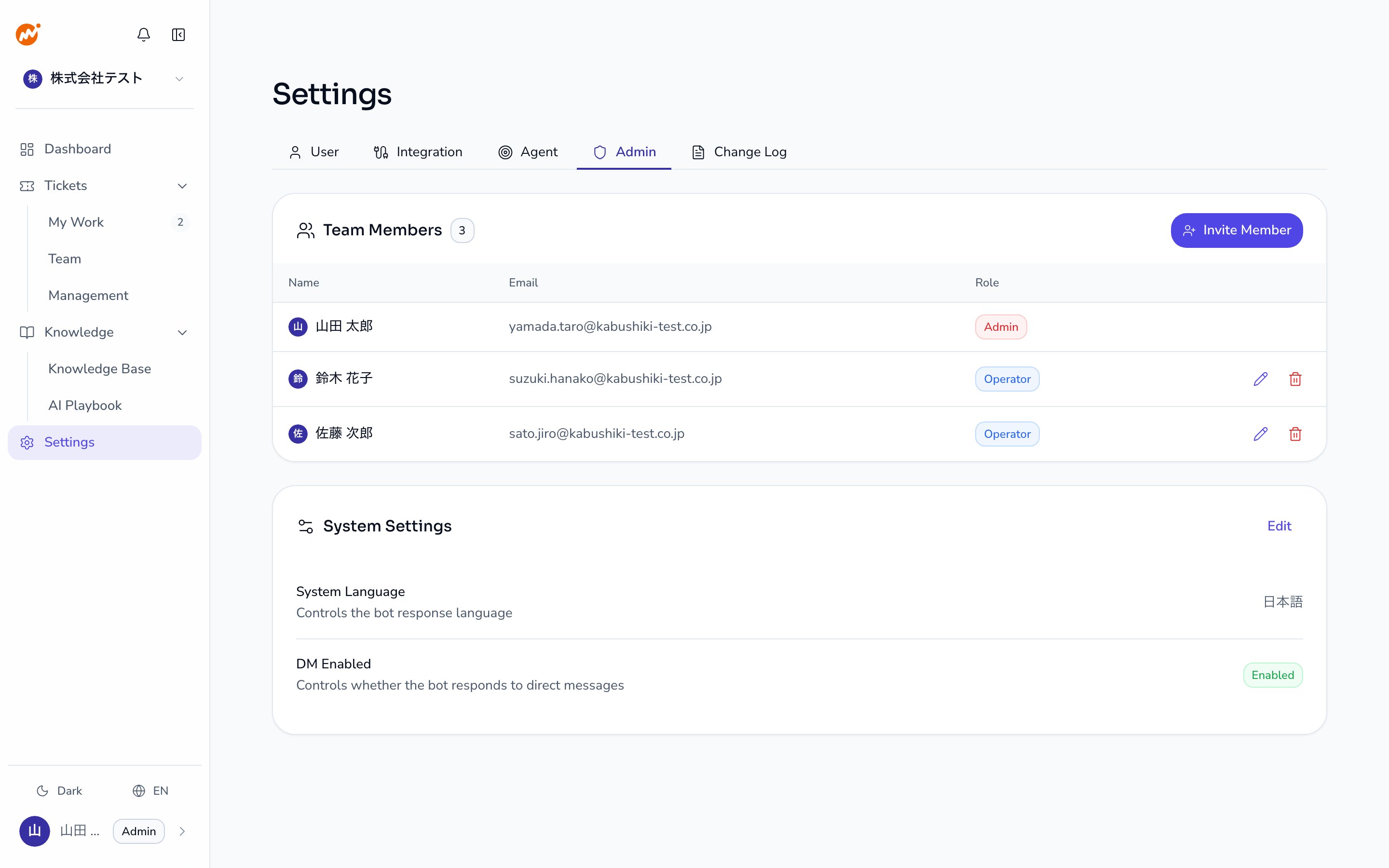
How to change the system default language
1
Open the Admin tab
Open Settings > Admin in the admin console.
2
Start editing system settings
Click the Edit button in the System settings section.
3
Select a language
Choose a language from the System language dropdown. Currently supported languages are Japanese and English.
4
Save
Click Save. Changes apply to new conversations immediately after saving.
Supported languages
Support for additional languages is planned for future releases.
Language setting priority
When the AI determines which language to respond in, the priority is as follows:- Employee’s personal language setting (if configured)
- System default language
Related pages
- AI command reference — Details on the
!langcommand