

Redesigned ticket screen
The ticket list has been redesigned. Open Filter next to the search box and add only the conditions you need, such as status or period. The available conditions differ by view (Filters and search). The Team view now uses the Handling filter instead of tabs and has no Status filter. In the Team view, add Handling from Filter. A selector showing All appears, where you choose Unassigned, AI handling, With human, or Resolved.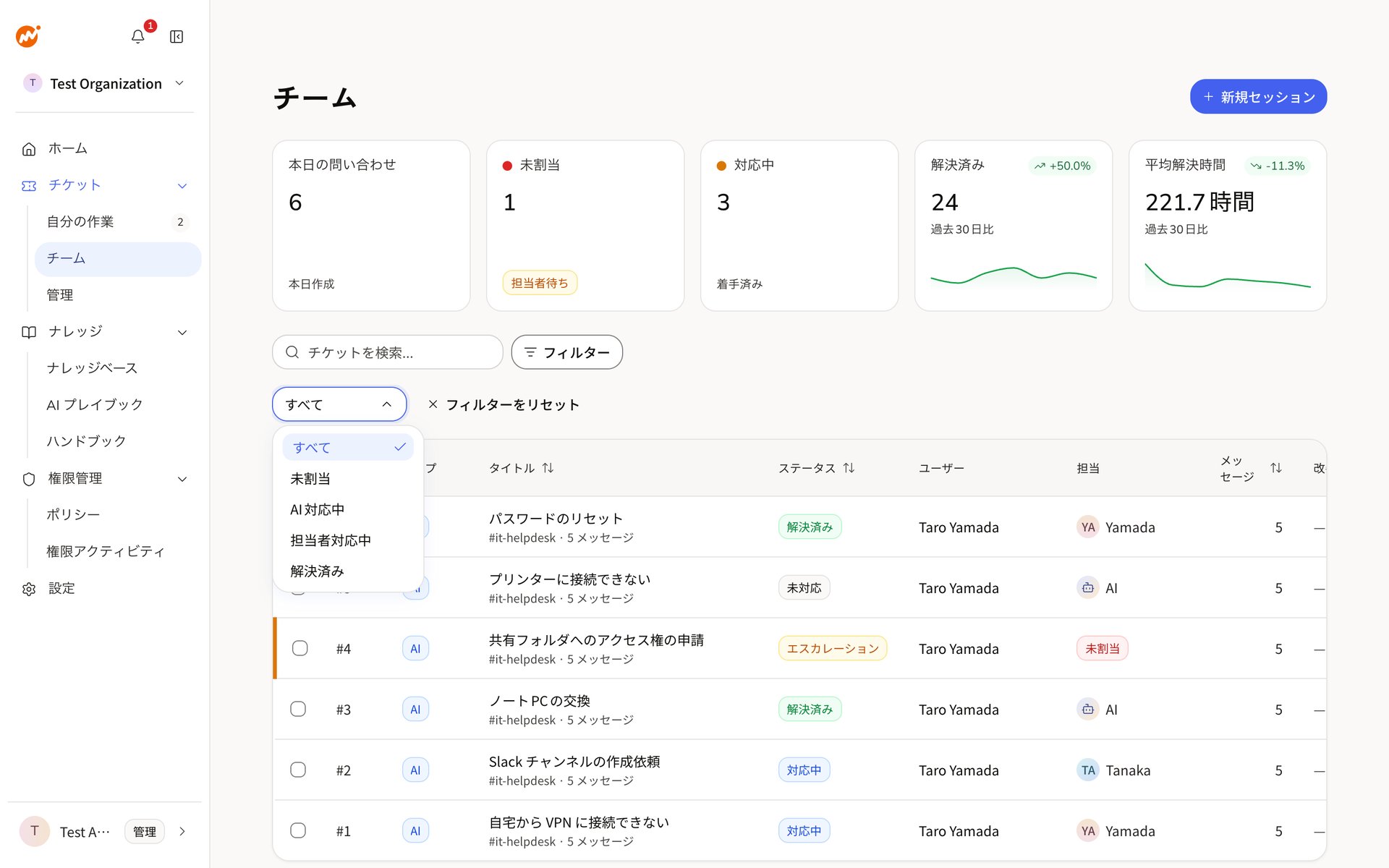
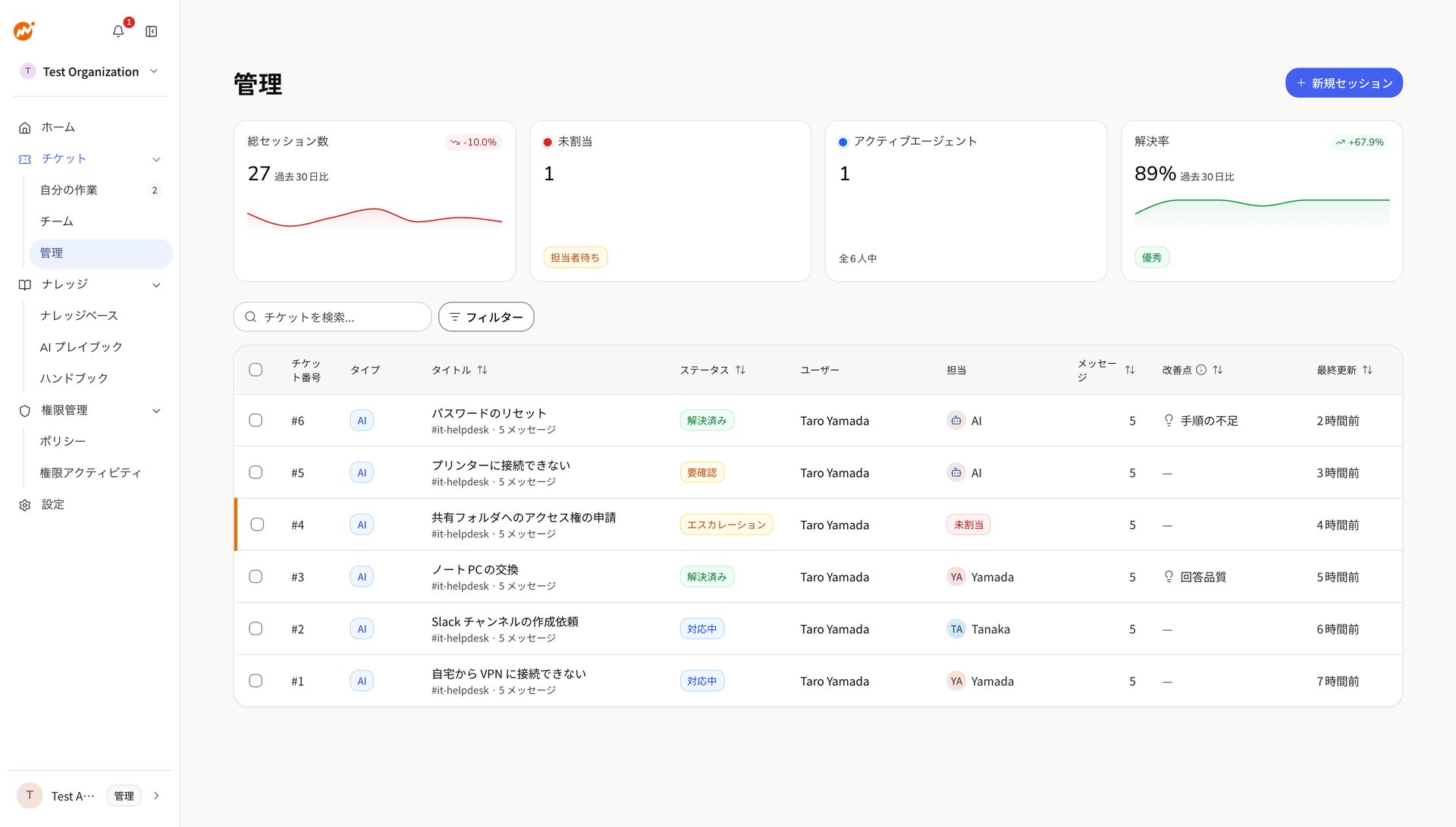
Slack replies under the operator’s own name
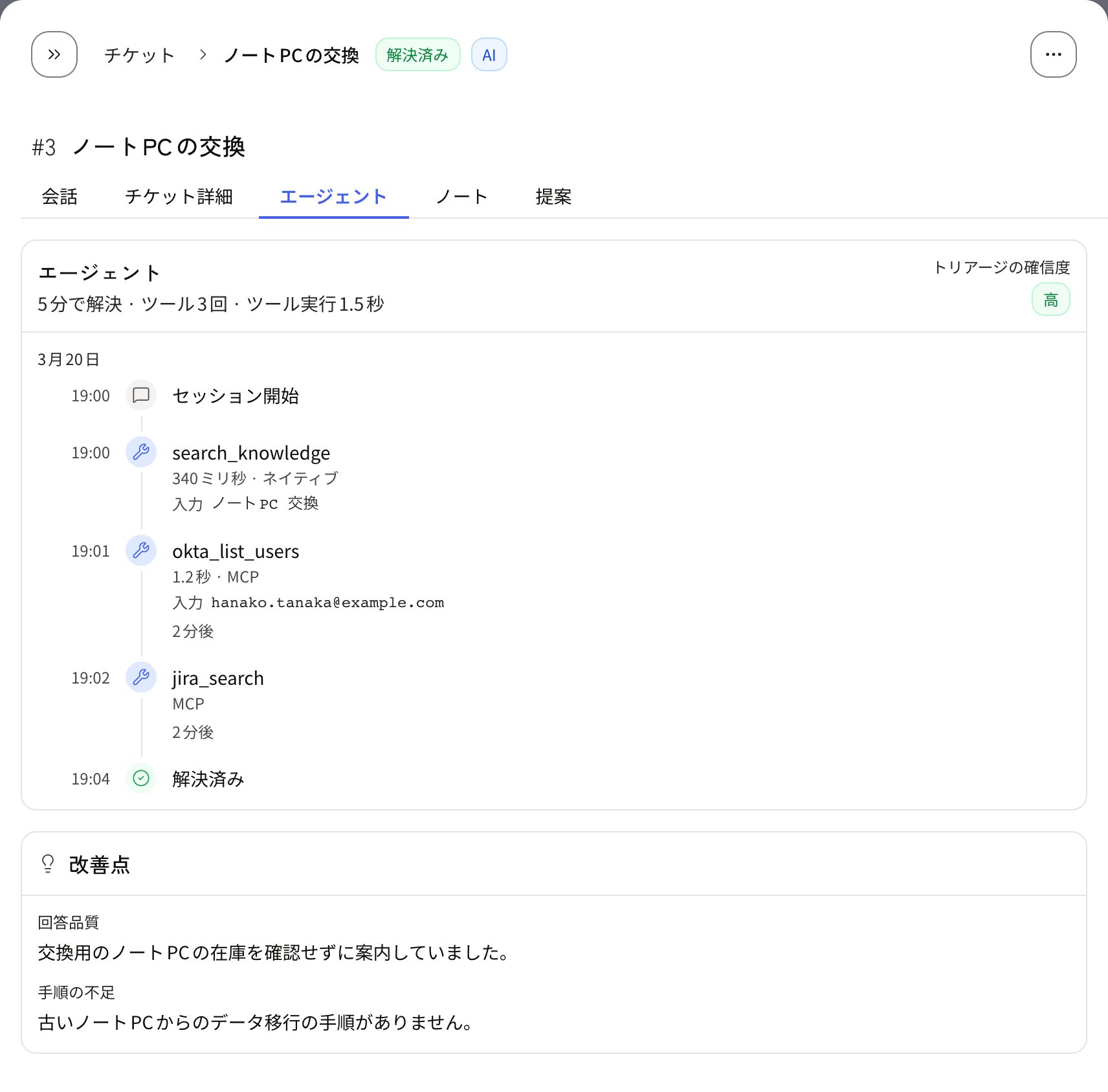
Operators can now link their own Slack account. Their replies from the admin console then appear in the Slack thread under their own name, not the bot’s. These posts are marked “via web.” Employees can more easily see who is handling their request. To link your Slack account with OAuth, open Linked Accounts in Settings > User. Then click the Slack icon (Link Slack Account) on the Slack workspace row. You can also start from the notice shown in a ticket’s reply box (User settings). Replies post under your own name only when Linked via OAuth appears. Accounts linked by email address, or showing Reconnect needed, post under the bot’s name. The reply then ends with the operator’s display name. Even with OAuth, replies post under the bot’s name when the replying operator is not in the request’s channel.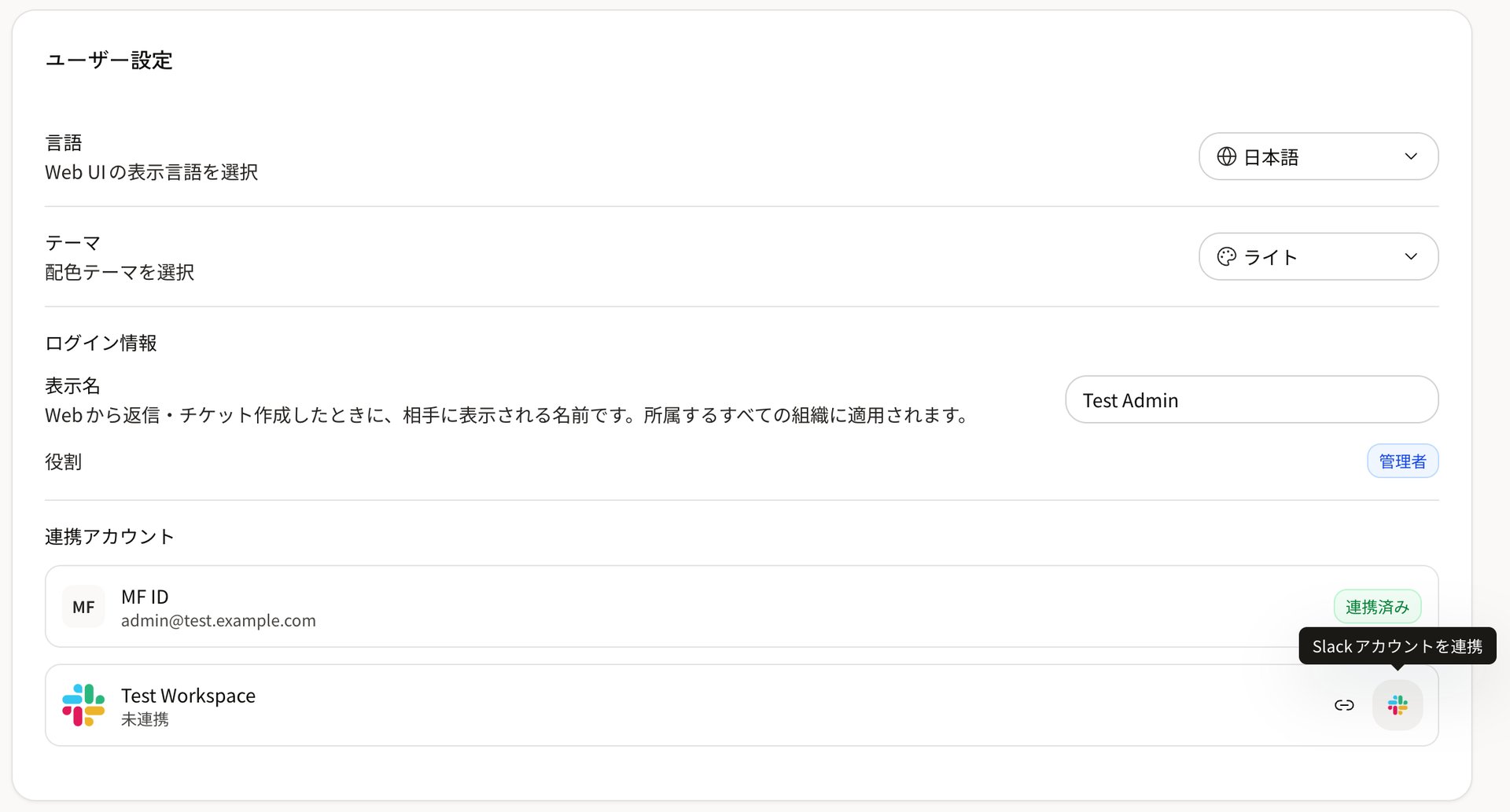
Names of LINE WORKS requesters
Requests from LINE WORKS now show the requester’s name registered in LINE WORKS instead of a user ID. You can see right away who sent each request. For requests started after this change, the ticket list and User on the Ticket Details tab show the name. On the Conversation tab, messages received after this change show the name. If the name is not available, an ID appears instead.Other improvements and fixes
- The Display Name can now be edited in Settings > User. The change applies to every organization you belong to
- Fixed an issue where playbook uploads let you select file types that cannot be registered. Playbook uploads accept only Markdown files