

Agent status and Stop button in Slack
While the AI answers in Slack, Slack’s own working status now replaces the “Processing your request…” message. Press the Stop button in that status to stop the AI right away. No answer is posted, and the thread shows that the run was stopped. Employees who want to rephrase a question can start over without waiting for the answer. Sessions in Slack are now named with the ticket number. This makes it easier to match a Slack conversation to its ticket in the admin console. To use this status, an admin needs to take action. For the standard bot, re-install the Slack app. For a custom bot, update the Slack app to match the latest manifest and re-install it. Then enter the credentials again in AI Helpdesk. For the steps, see Slack integration. If images that requesters sent in Slack were not imported, re-installing the app also fixes that. Until you do, Slack works as before.Images and files in chat
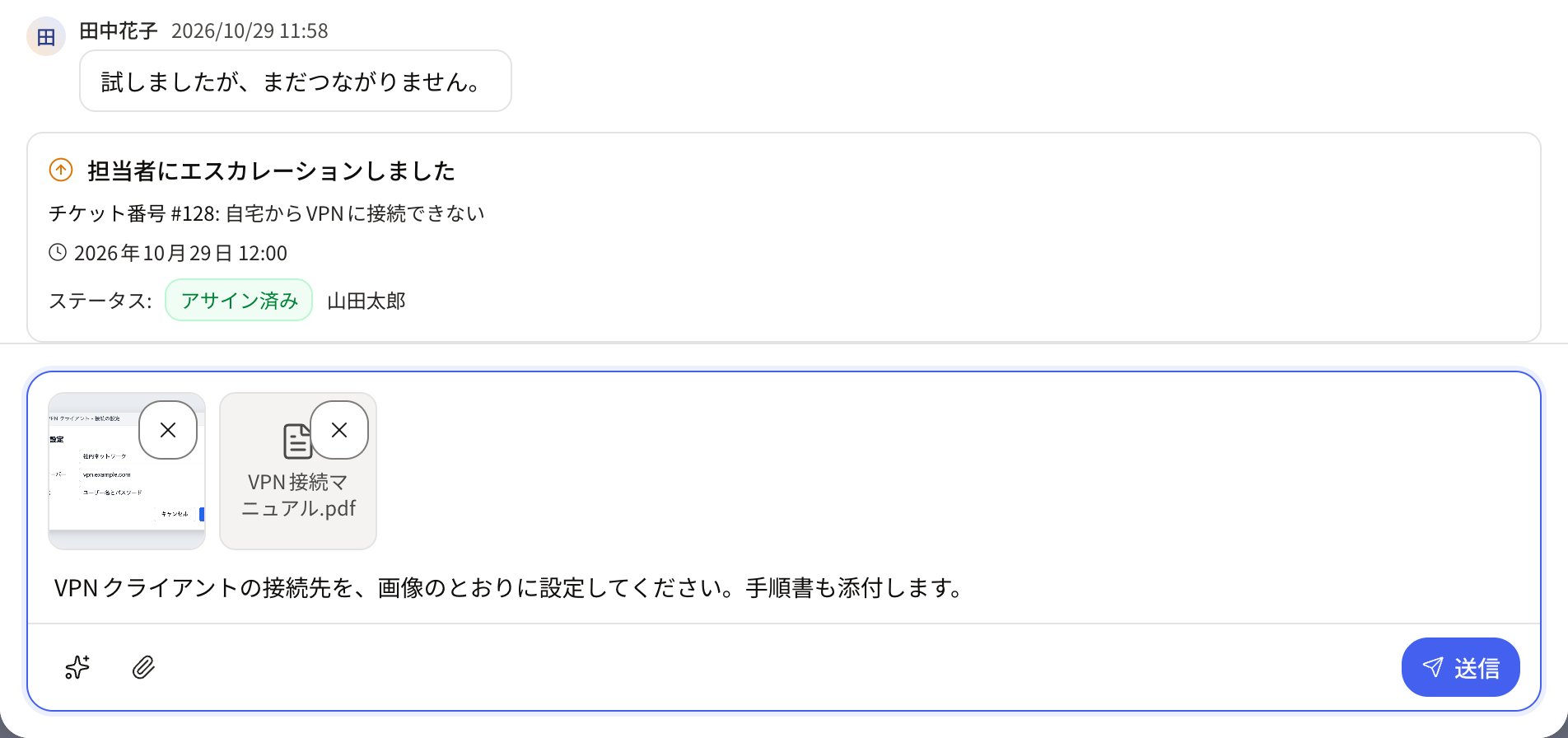
Images that requesters send in Slack, LINE WORKS, or Google Chat now appear in the ticket’s Conversation tab. Each image appears as a thumbnail after a malware scan. Click it to enlarge it. You can see the requester’s screenshots without opening the chat tool.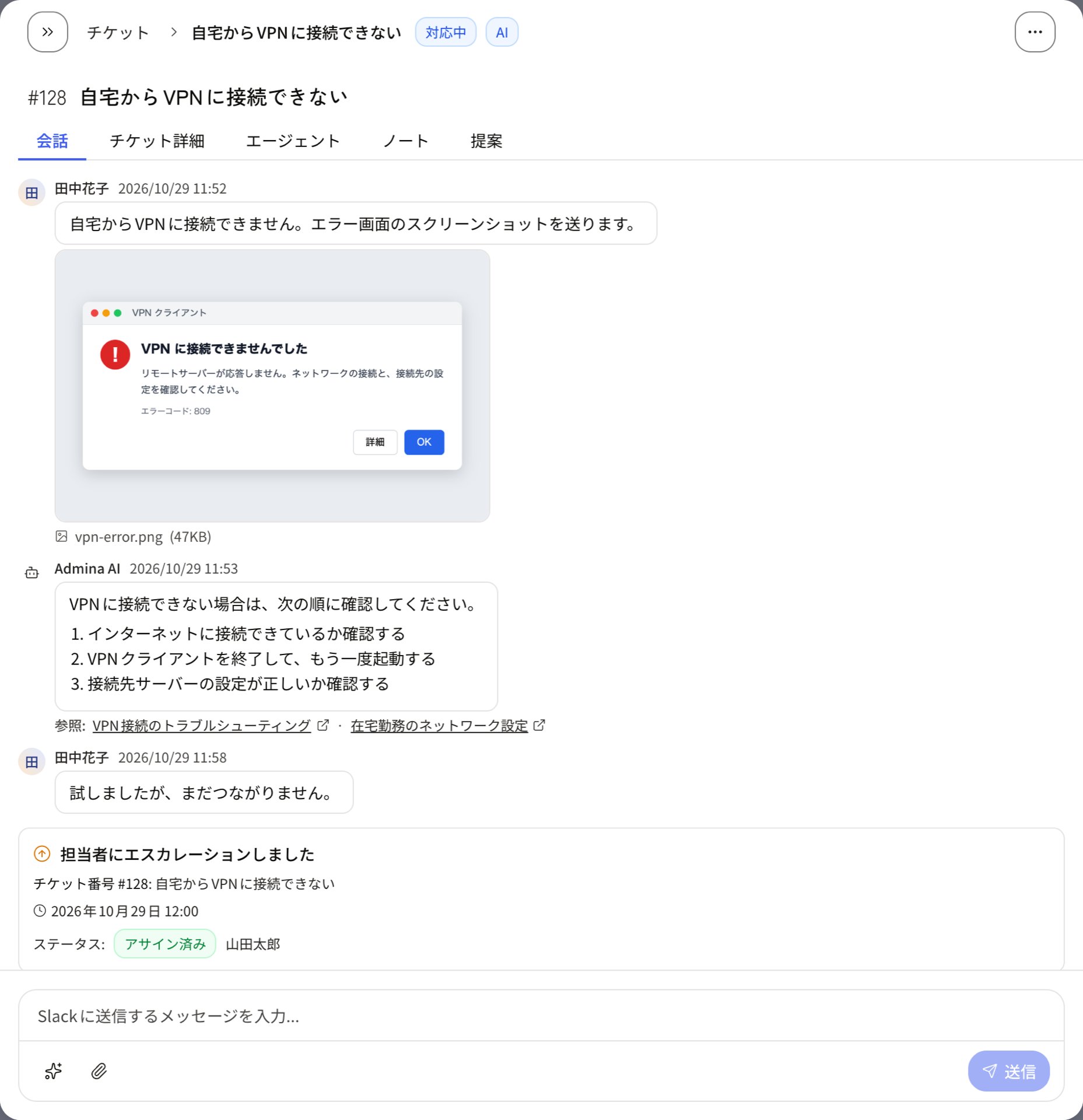
SLA status in the ticket list
The ticket list now has an SLA column. It shows the time left until the deadline, or how long the ticket is overdue. It applies to escalated tickets that are not resolved. This includes tickets with no assignee yet and tickets waiting for the requester. You can spot tickets close to their deadline and avoid missed follow-ups.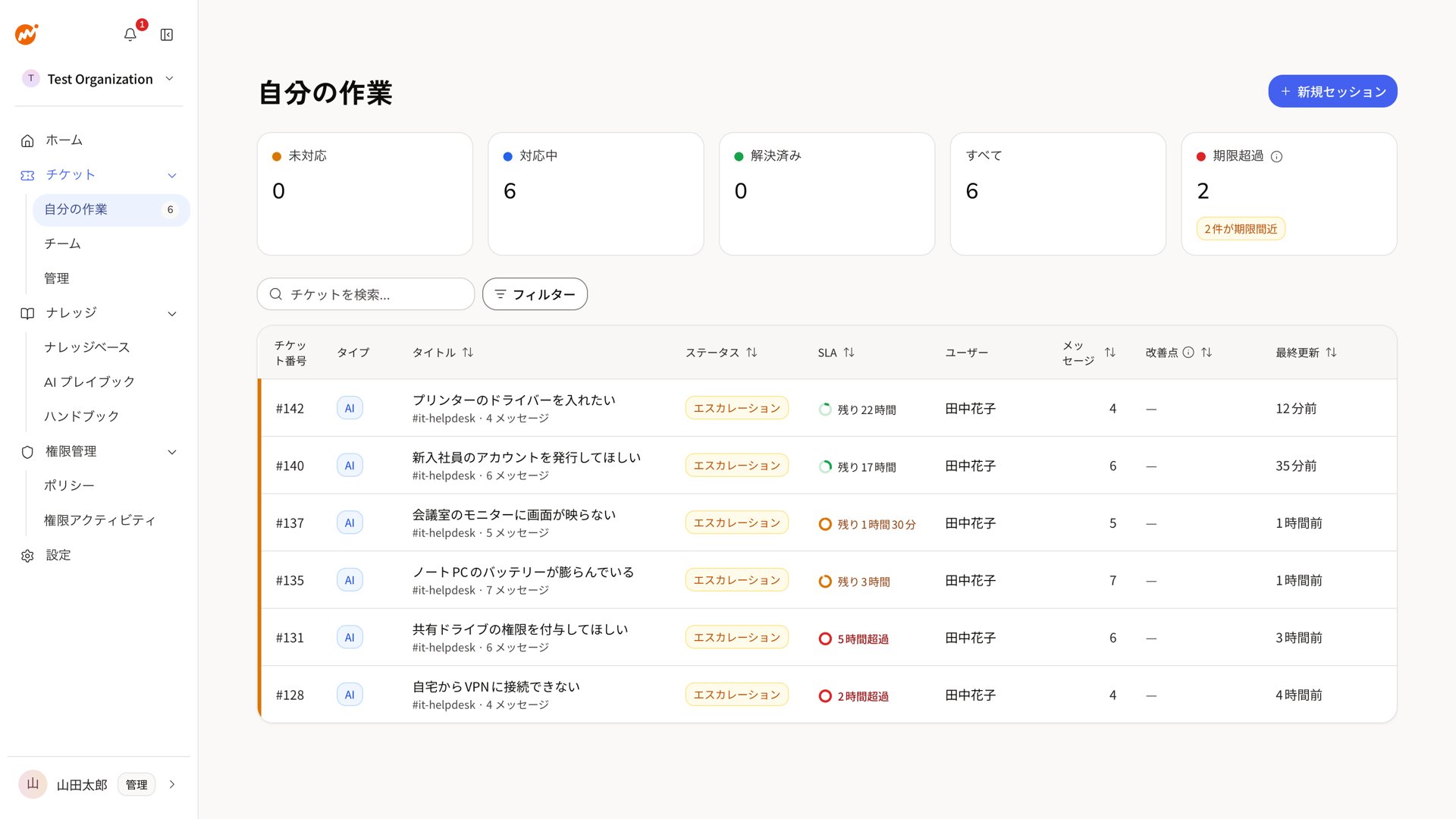
Sources in AI answers
AI replies now end with a “Sources:” line that lists the knowledge and web pages used for the answer, up to three. In Slack, Teams, and Google Chat, documents from connected sources and web pages open from their titles. Employees can check the basis of an answer more easily. The Conversation tab of the ticket details also shows source links under each AI reply. To hide sources, turn on Hide Source KB (Answer settings).Box as a knowledge source
You can now connect Box as a knowledge source. The AI agent can use the internal documents you store in Box to answer questions. Connect through OAuth from Authorize with Box (Connect Box).More Admina tools for the AI agent
The AI agent can now use 46 more Admina tools. From chat, it can check and update contract reminders, cost allocation, device groups, and alert rules. It can also handle asset number rules, IdP app assignments, integration logs, and workflow run history. By default, tools that read data run without approval. Tools that create or update data ask for approval first. The AI agent does not use high-impact tools, such as deleting data or removing IdP app assignments. You can change these permissions in Permissions > Policies (Set tool permissions).Images in handbooks
You can now add images to handbook steps. Paste an image into the step, drag and drop it, or choose a file. Click an image on the details screen to enlarge it. You can record on-screen steps with screenshots.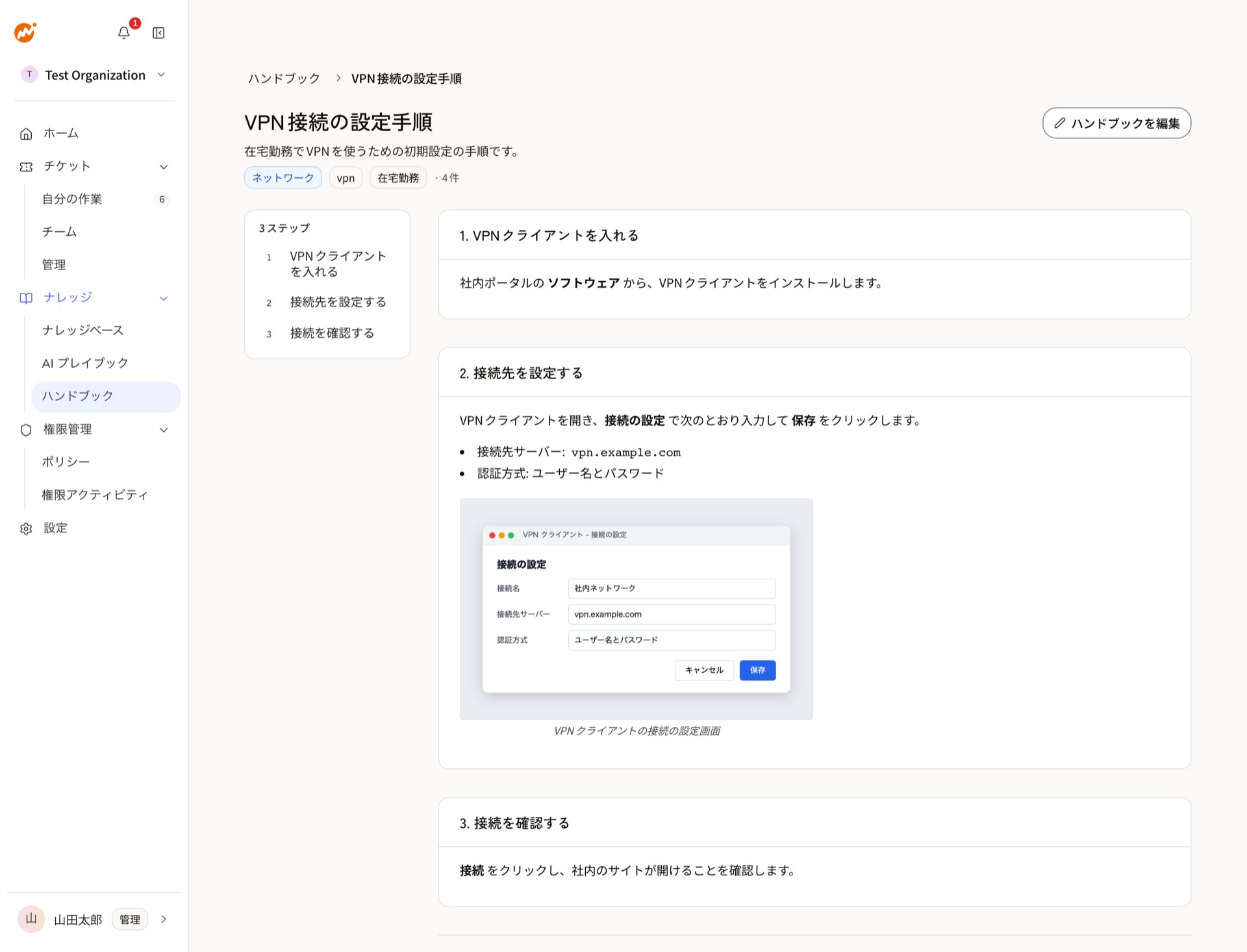
Updating knowledge and playbooks through the public API
The AI Helpdesk public API can now create, update, and delete knowledge and playbooks. It can also list improvement proposals for playbooks and apply or discard them. For example, you can update knowledge from your internal document system and automate routine work. Updates require an Admin API key (AI Helpdesk API).Behavior changes
- Escalated tickets that nobody has claimed no longer get reminders or automatic closing until someone claims them
- Approval requests now expire automatically after 30 minutes. Before, a request stayed pending after 30 minutes until someone acted on it (Approve tool runs)
- The default playbook (
general.md) can no longer be deleted on the web
Other improvements and fixes
- Searches in Knowledge Base, AI Playbook, and Handbook now include the body text. Documents from connected sources are still searched by name
- Notion database rows are now imported with their properties, such as text, select, and date. This applies to newly imported rows and to rows that have changed
- The name of each Teams group chat and LINE WORKS talk room now shows a label, the ticket number, and the first message. The label is “相談ルーム #” in Japanese and “Help Desk #” in English. Existing rooms keep their names
- In Teams, AI replies now carry the standard Teams label for AI-generated content. When an organization adds the standard bot but has not connected it to AI Helpdesk, the bot replies with setup guidance
- Requester replies now appear automatically in an open ticket
- The Proposals tab of the ticket details now shows only the proposals created from that ticket
- When you click Cancel while editing knowledge or a playbook, you are now asked to confirm if there are unsaved changes
- The Organization Policy field now shows the character count and the 10,000-character limit
- The Total Sessions stat card is now Total Tickets, and Resolution Rate is now Resolve Rate. In the Team view, the Overdue card replaces Today’s Inquiries
- The button on escalation and approval cards now reads View in AI Helpdesk instead of View in Admina
- Fixed an issue where the AI ignored messages that a requester sent in a row. Messages sent while the AI is answering now get a reply right after the current one
- Fixed an issue where the AI’s escalation and resolution check cards could appear in English for Japanese requesters. They now appear in the requester’s language in every chat tool
- Fixed an issue where the reply box placeholder mentioned Slack for Teams, LINE WORKS, and Google Chat tickets
- Fixed an issue where the AI could not see screenshots sent earlier in the conversation in later turns
- Fixed an issue where Notion database rows were imported even when Include database rows was turned off
- Fixed an issue where restoring an earlier version of a playbook failed with an error
- Fixed an issue where Claim for multiple tickets in the Team view skipped unclaimed escalated tickets
- Fixed an issue where the AI’s name appeared as “Mina - IT Helpdesk Assistant” in some places. The default name is “Admina AI”
- Fixed an issue where an empty message bubble appeared above messages that contained only images or files