

Integration Specifications
Prerequisites
A paid plan subscription is required for integration.
How to Log In to Zeplin
Go to the Zeplin login page, enter your preferred login method or email address and password, and log in.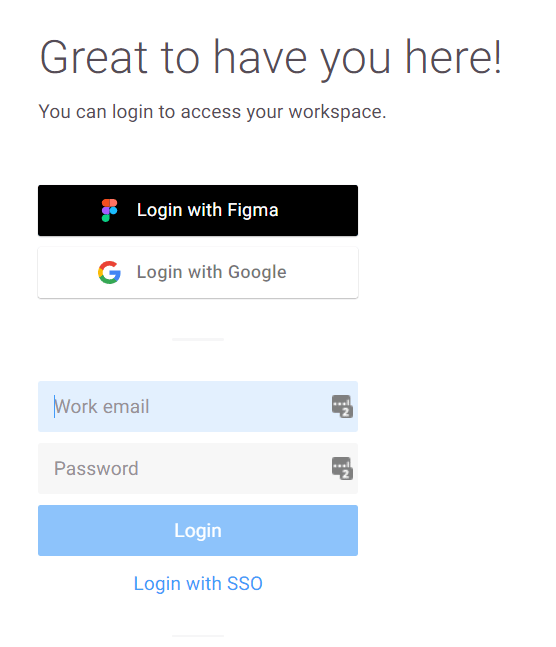
How to Obtain the Workspace Key
-
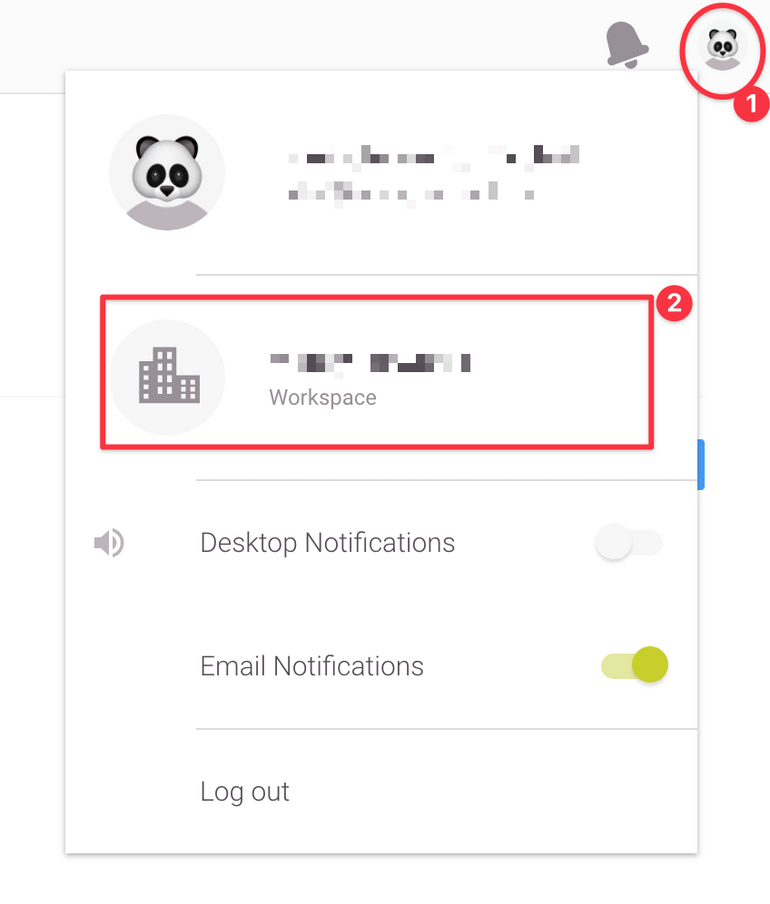
After logging in to Zeplin, click the profile photo in the upper right and select Workspace.
-
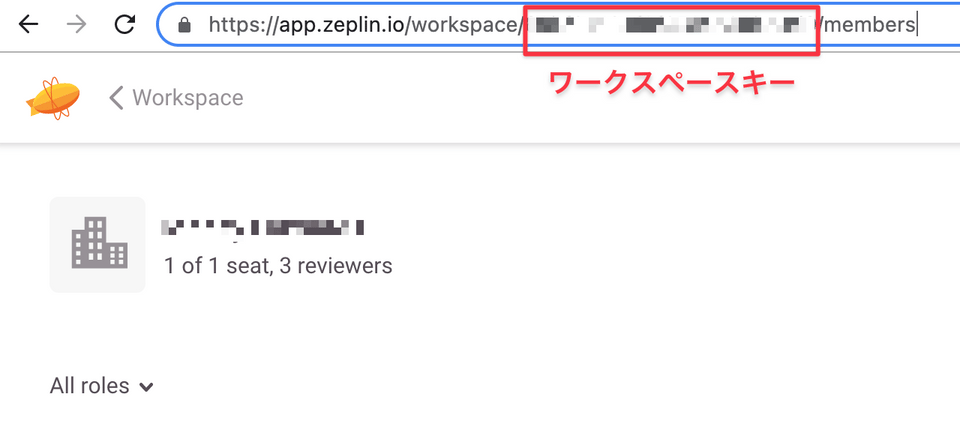
The URL portion on the next screen is your workspace key. Copy and save it.
How to Obtain the Access Key
-
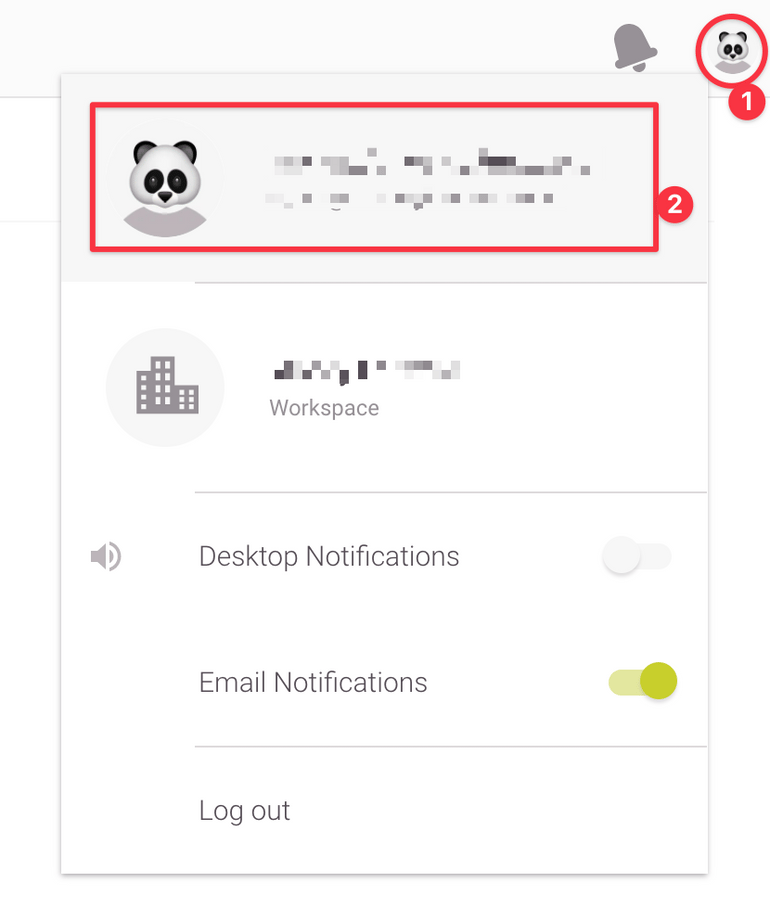
Click the profile photo in the upper right and select Account.
-
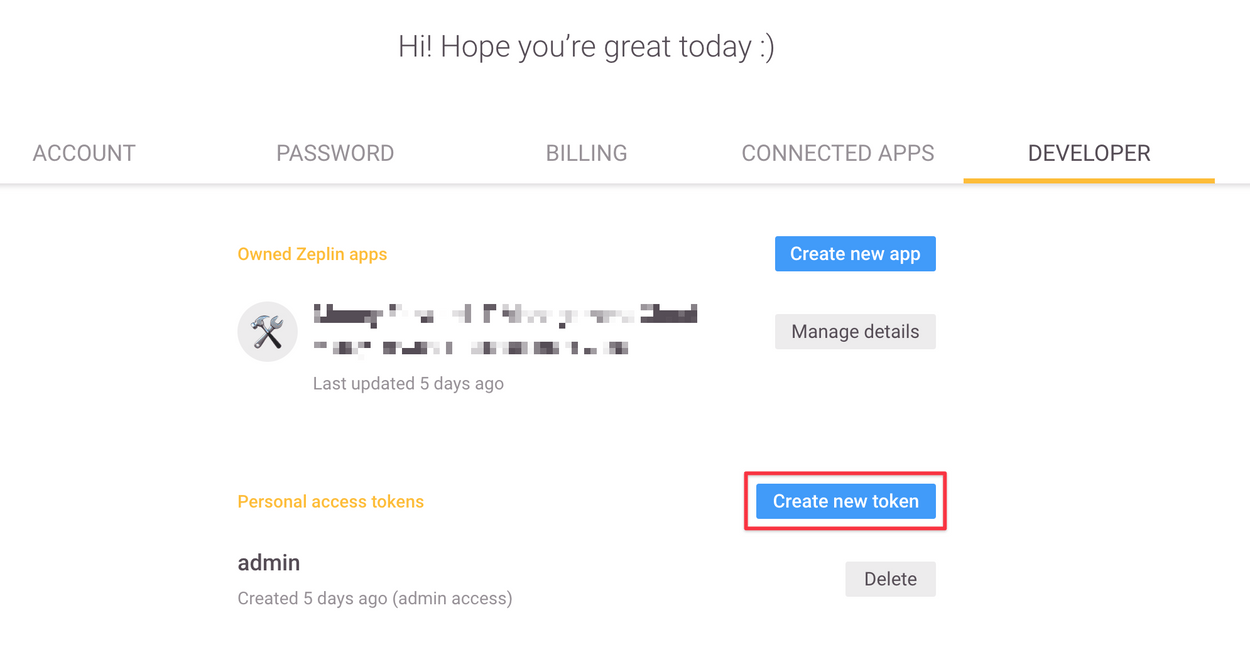
Under the DEVELOPER tab, click Create new token.
-
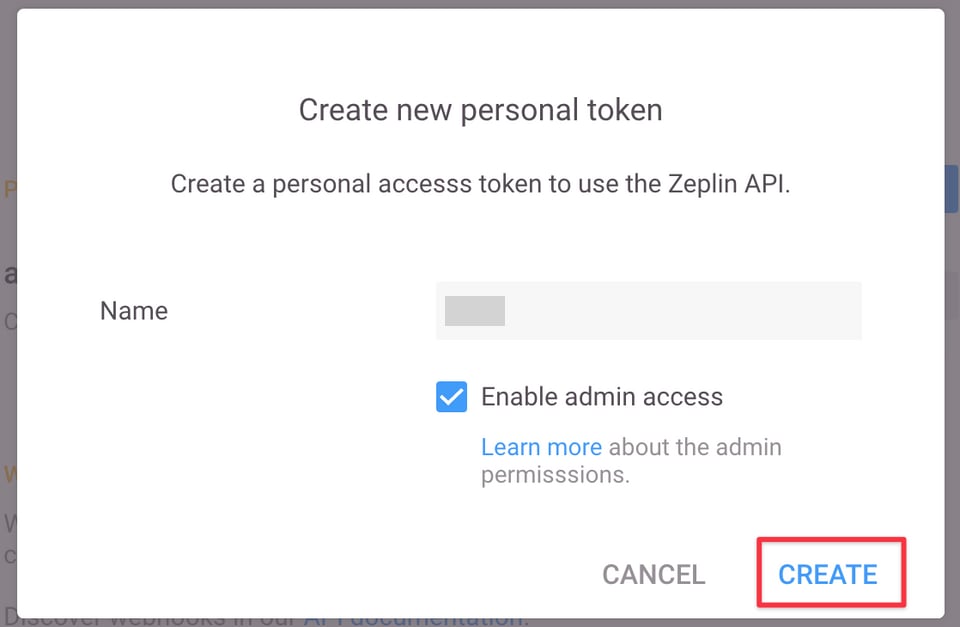
The following screen will appear. Enter any name, check Enable Admin access, and click Create.
-
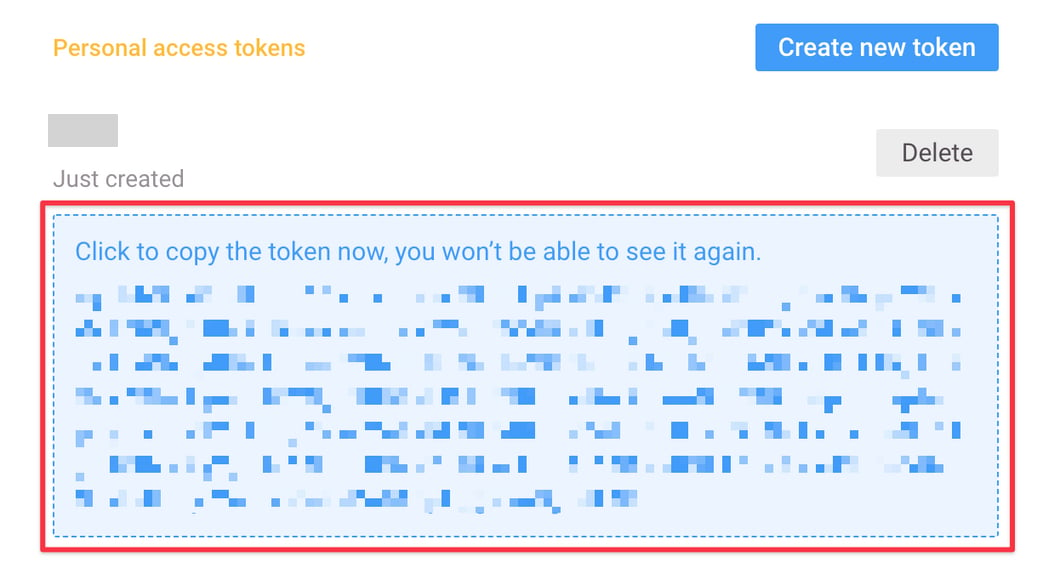
The Access Token will be displayed as shown below. The Access Token is your access key, so save it.
The token will not be displayed again. Please take note.
Integration Setup
- In the integration screen, search for Zeplin.
-
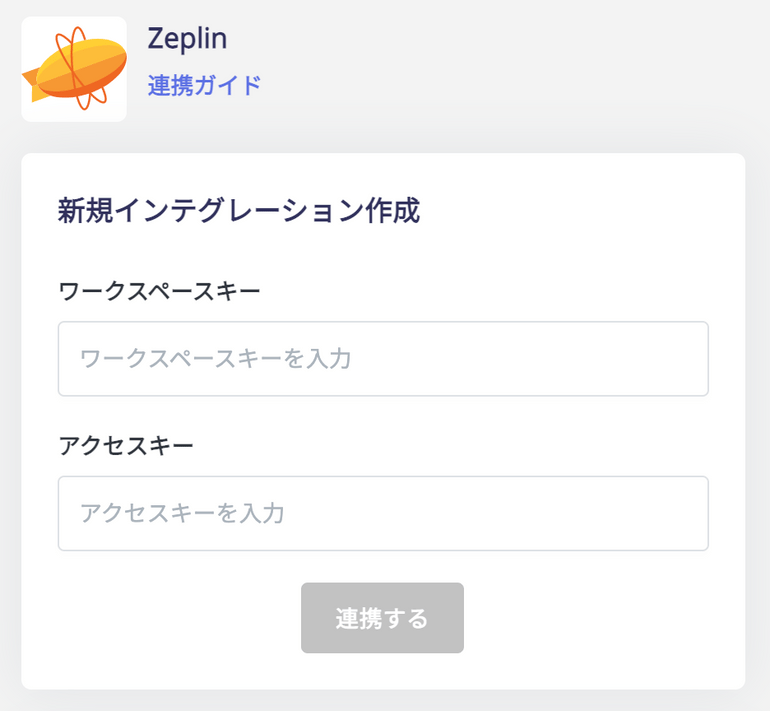
Enter the workspace key and access key obtained in the previous steps, then click Connect.
- Once the integration with Zeplin is successful, the registered user information will appear in the account list. If the setup does not complete successfully, go to the Status tab on the integration screen, click Edit. Try connecting again. If the issue persists, please contact us via chat.