

Integration Specifications
If you use phone number-based 2FA, integration is not possible. You will need to switch to an authenticator app for 2FA, or disable 2FA entirely.
Prerequisites
How to Log In to Whimsical
Go to the Whimsical login page and enter your email address and password to log in.Google, SSO, or other external authentication accounts cannot be used for integration. For details, see Cannot connect with an external authentication account (Google, SSO).
How to Find the Workspace Key
-
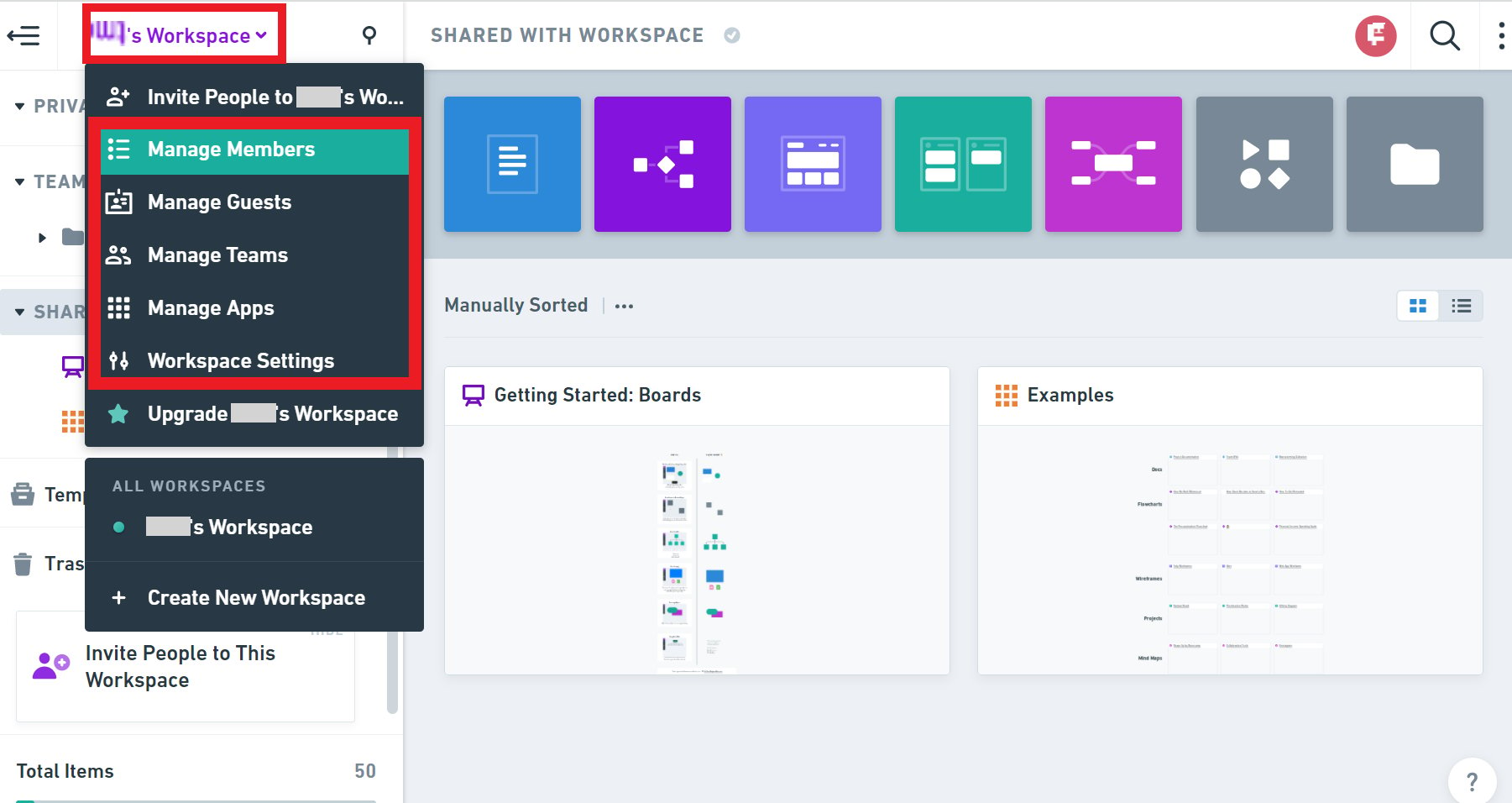
After logging in to Whimsical, click on the workspace name to go to the Workspace management page. You can reach the Workspace management page from the dropdown menu. Click any of Manage Members, Guests, Teams, Apps, or Settings.
-
Part of the URL is your workspace key — save it.
https://whimsical.com/workspace/{workspace-key}/members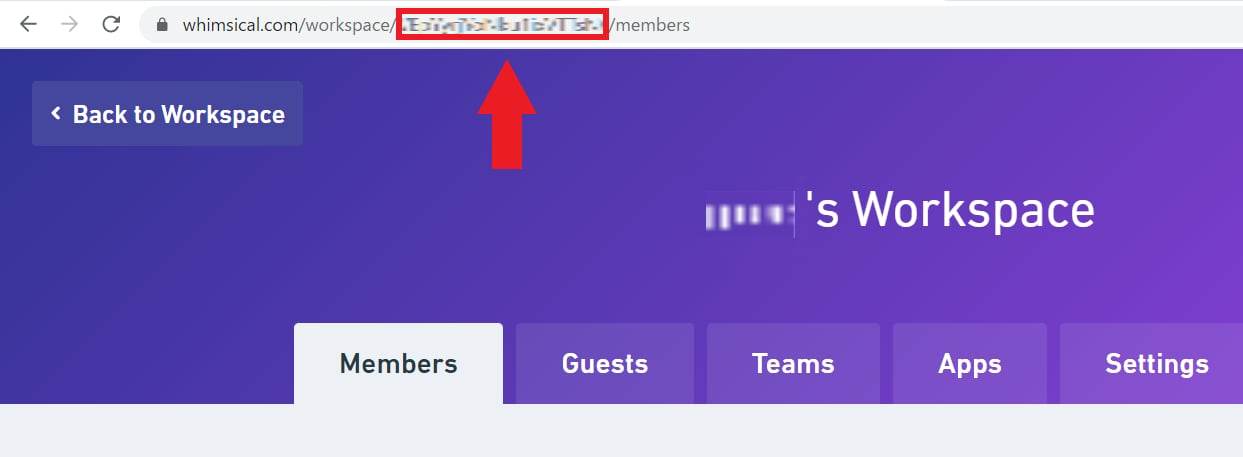
Integration Setup
- In the integrations screen, search for Whimsical.
-
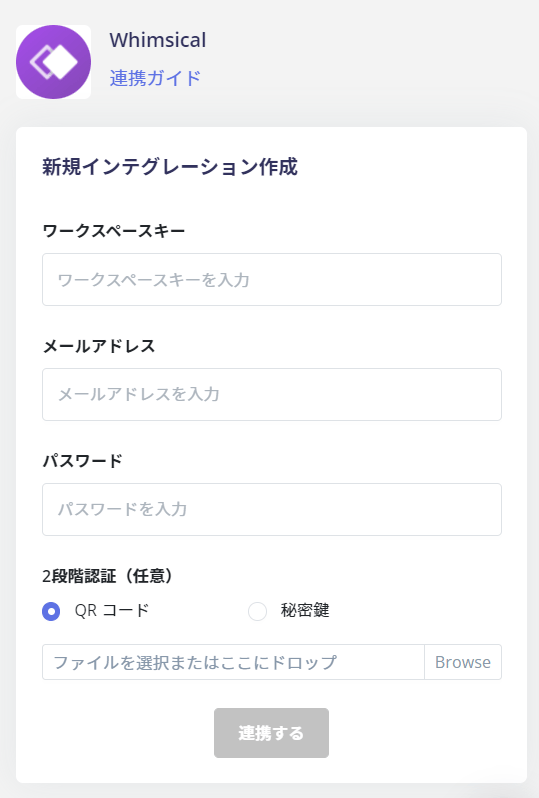
Enter the workspace key obtained in the previous step, along with your login email address and password.
- Once the integration with Whimsical is successful, the registered user information will appear in the account list. If it does not complete successfully, click Edit from the Status tab on the integrations screen. Try connecting again. If the issue persists, please contact us via chat.
When SAML Integration is Enabled
Whimsical has an option to enforce SAML. Please disable that setting and try connecting again.