

Integration Specifications
Prerequisites
How to Log in to Unity
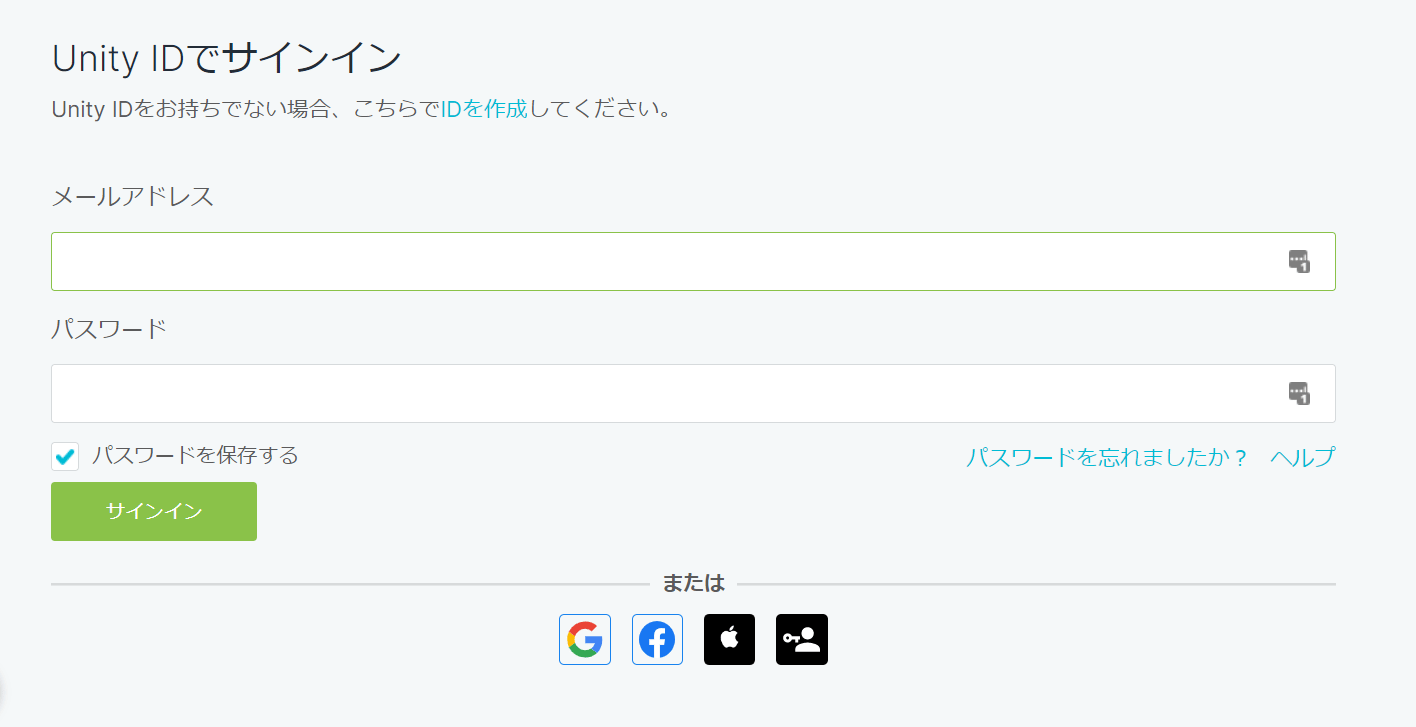
Go to the Unity login page and enter your email address and password to log in.External authentication accounts such as Google or SSO cannot be used for the integration. For details, see Cannot connect with an external authentication account (Google, SSO).
How to Obtain Your Organization ID
After logging in to Unity, select Organizations from the left menu. Then select the organization you want to integrate to go to its organization page. The organization name shown in ② of the image below is the organization ID.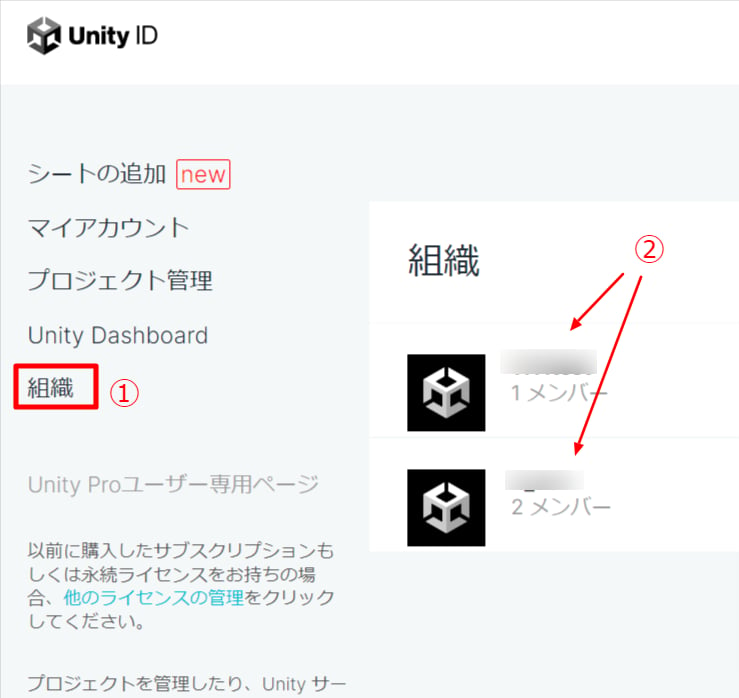
Integration Setup
- In the integrations screen, search for Unity.
-
Enter your Unity login email address and password along with the organization ID obtained in the previous step. Then click Connect.
If you use two-factor authentication for Unity, enter the verification code and click Connect.
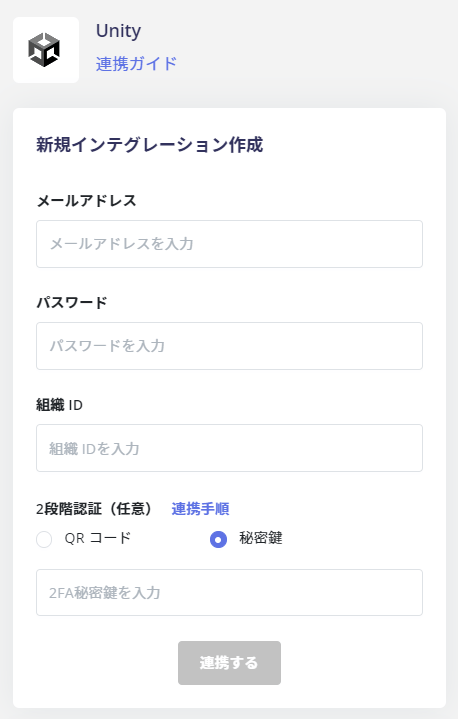
- Once the integration with Unity is successful, registered user information will appear in the account list. If the integration does not complete successfully. Click Edit on the status tab of the integrations screen and try connecting again. If the issue persists, please contact us via chat.
FAQ
Q. I see a “Workspace does not exist” message when integrating with Unity.
A. Your login to Unity succeeded. However, none of your account’s organizations has a name that exactly matches the organization ID you entered. The organization ID is matched against Unity’s organization name as an exact string. Any of the following can cause a mismatch:- The organization name was changed on the Unity side.
- The entered value and the organization name differ in case, spacing, full-width/half-width characters, or symbols.
- You entered the organization’s numeric ID or a project name instead of the organization name.
- The connected account is no longer a member of that organization.
- The organization itself was deleted or merged.