

Integration Specifications
Prerequisites
These instructions are for self-hosted WordPress. If your site is hosted on wordpress.com, please use the wordpress.com integration. The site you are connecting must also support HTTPS.
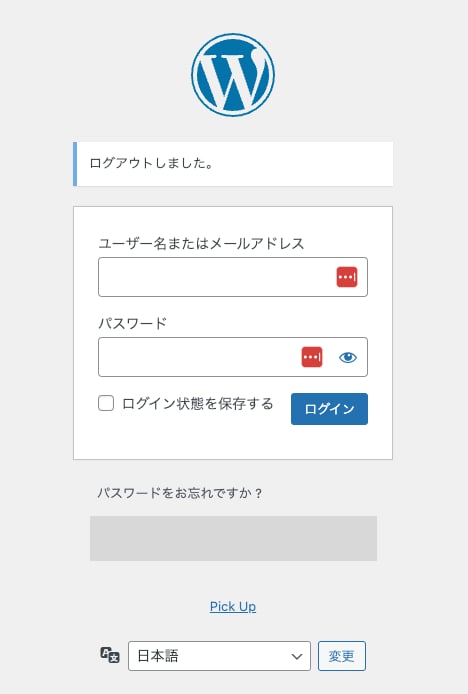
How to Log in to WordPress
Log in to your WordPress site by entering your email address and password.Cannot connect with an external authentication account (Google, SSO)
External authentication accounts such as Google or SSO cannot be used for integration. For details, please refer to the restriction: Integration Failure with Google Authentication or SSO External Authentication Accounts.
Checking Your Version
Depending on your version, you may need to install a plugin or upgrade. Please check the following:- Below Version 4.4 (released 2015)
- Integration is not available. Please consider upgrading.
- Version 4.4 – 5.5
- Plugin installation is required. Please install Application Passwords.
- Version 5.6 and later
- No plugin installation is needed. Proceed to the next step.

How to Generate an Application Password
After logging in to WordPress, select the Admin user from the user list. Scroll to the bottom of the user screen to find Application Passwords. Enter any name and click Add New Application Password.

Checking the Site Address (URL)
Go to Settings > General Settings from the left menu and copy the value of Site Address (URL).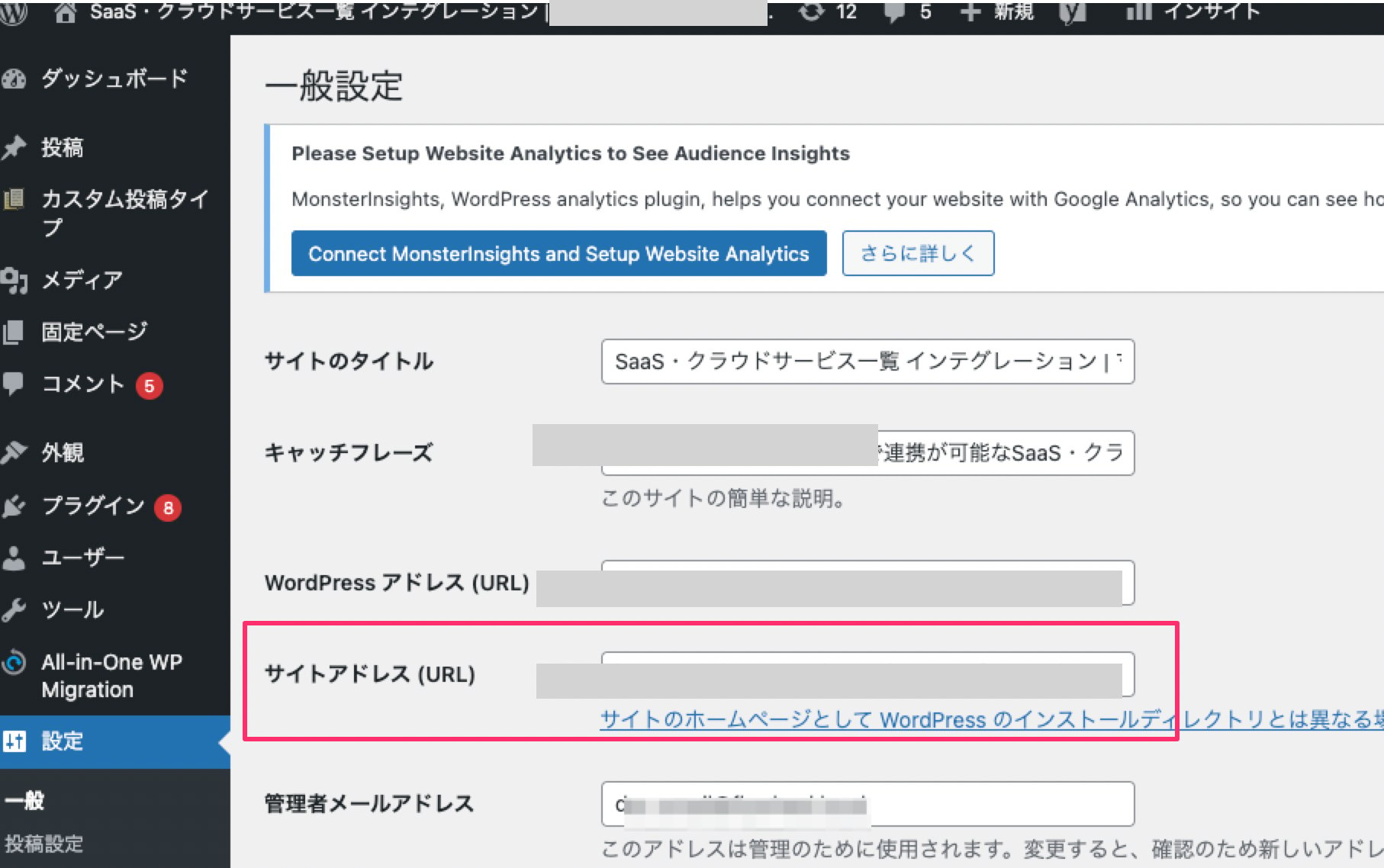
Integration Setup
- Search for wordpress self-host in the integration screen and click on it.
-
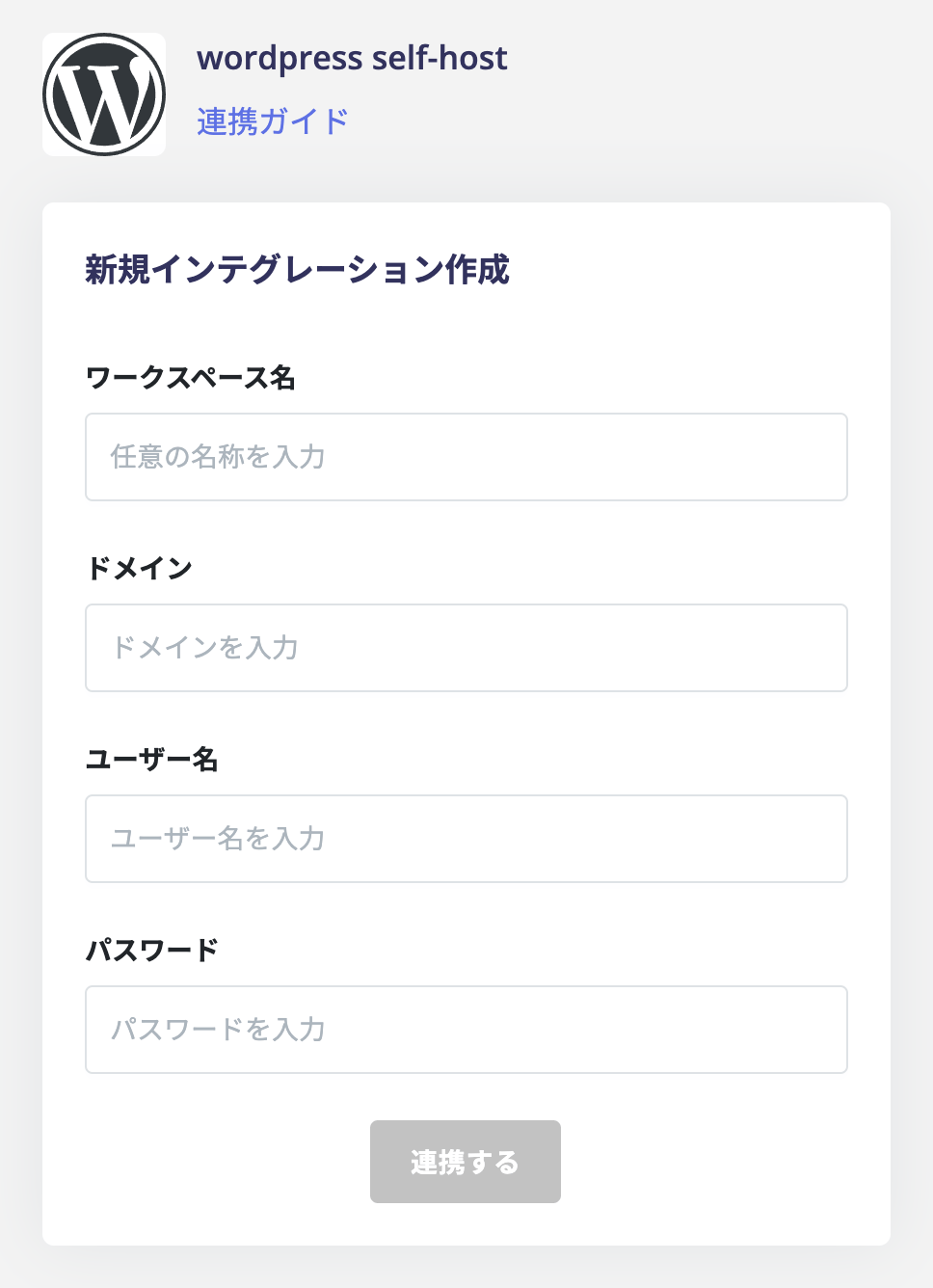
Enter the following values obtained in the previous steps and click Connect.
- Workspace Name: Any string (e.g., company name)
- Domain: The
Site Address (URL)confirmed earlier - Username: The
usernamethat was used to generate the application password - Password: The
application password
- Once the integration is successful, the registered user information will appear in the account list. If the process does not complete successfully. Click Edit from the Status tab on the integration screen and try connecting again. If the issue persists, please contact us via chat.