

Integration Specifications
A Shopify Plus plan is required for integration. When obtaining the access key, contact Shopify Plus Support to request the
read_users access scope for the app.Prerequisites
How to Log In to Shopify
Go to the Shopify login page and enter your email address and password to log in.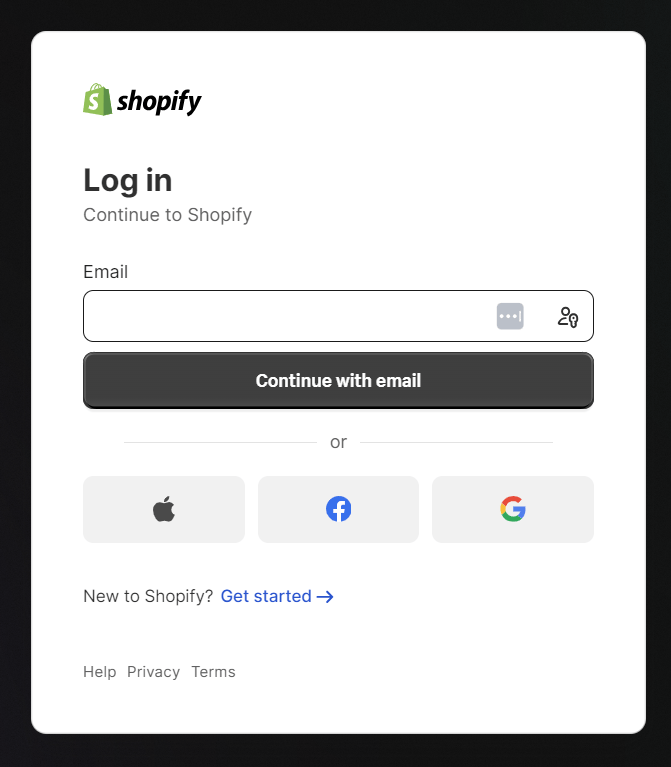
How to Obtain the Workspace Key
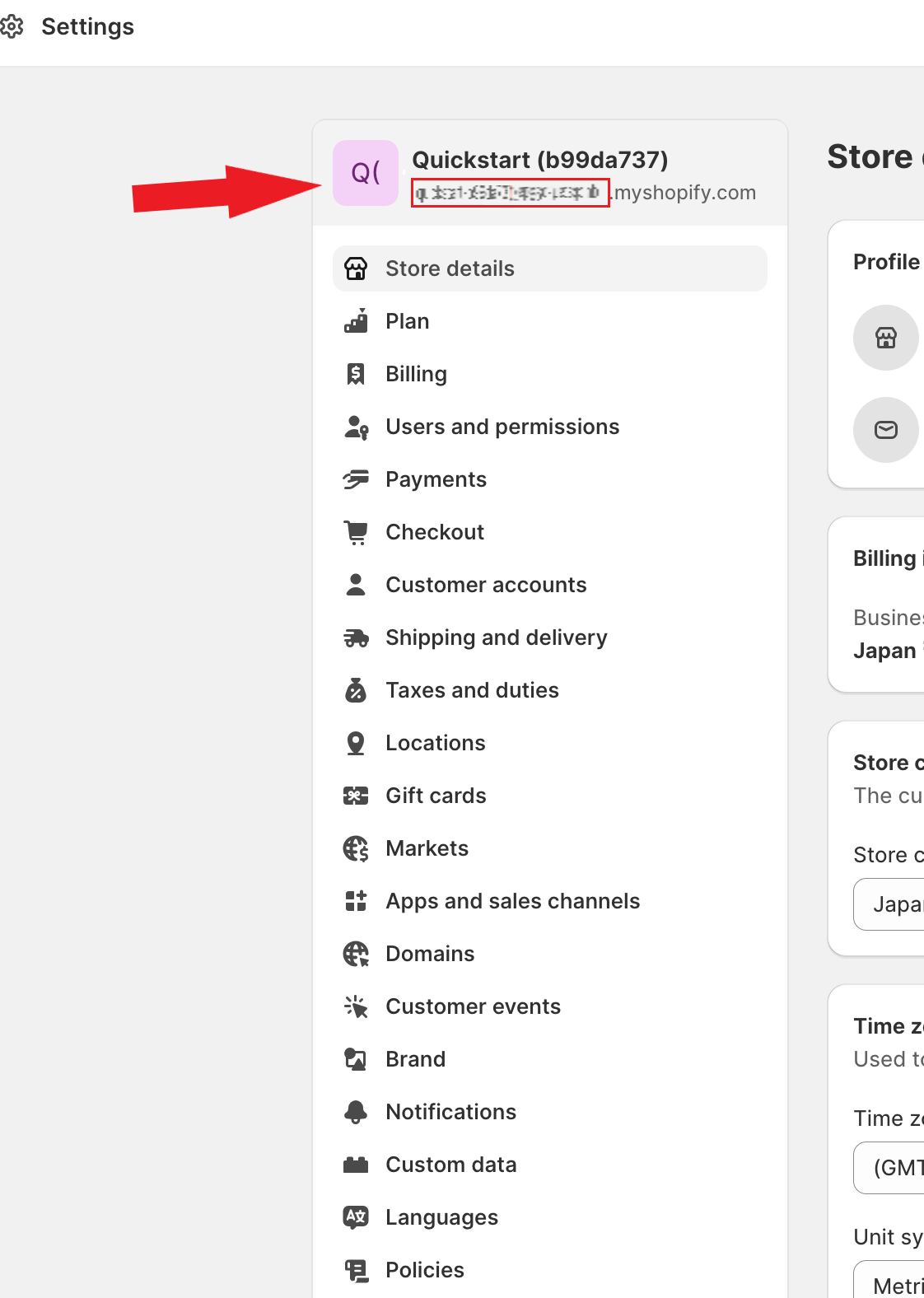
After logging in to Shopify, go to Settings. Your store name appears at the top of the side menu. The store domain shown below the store name is the workspace key.{workspace key}.myshopify.com
How to Obtain the Access Key
You must contact Shopify Plus Support to request the
read_users access scope for the app.- Go to Apps and sales channels > Develop apps > Create an app > Configure Admin API scopes. Proceed with the configuration.
-
For the scope, select
read_usersand click Save.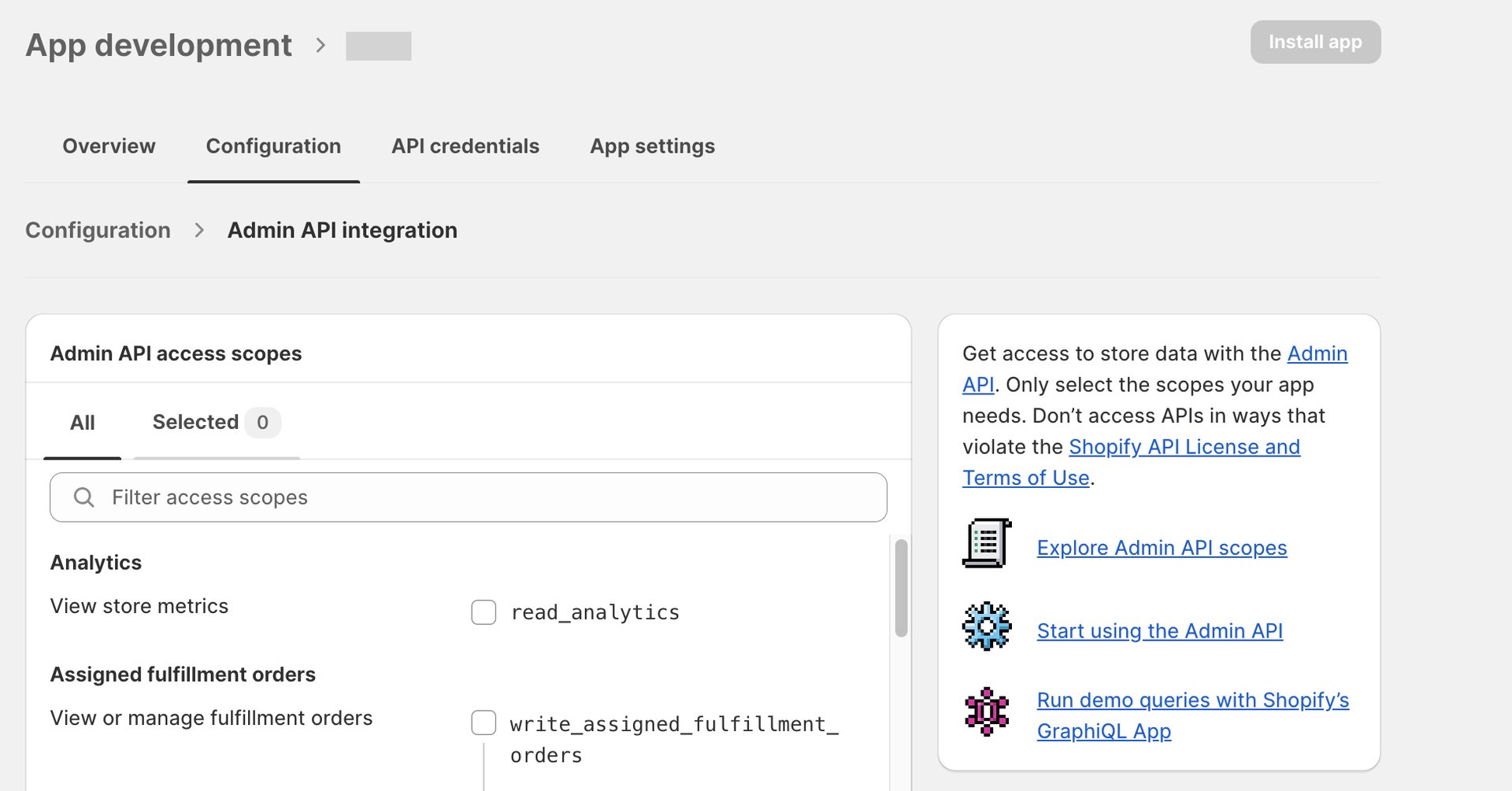
-
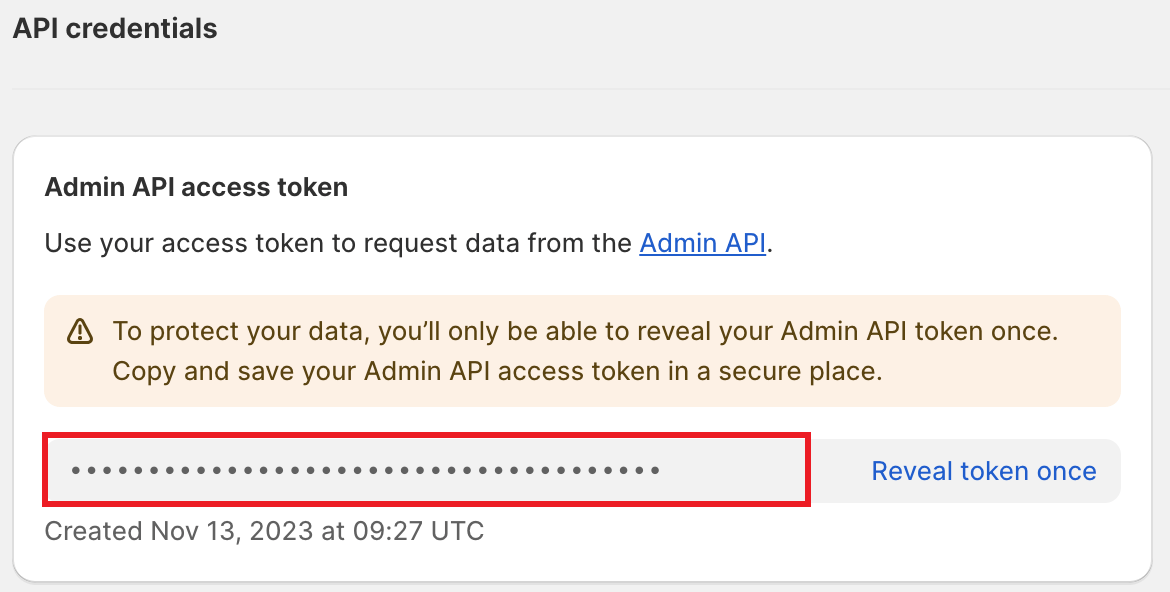
The Admin API access token will appear under API credentials. This is the access key, so copy and save it. Note: The Admin API access token is only displayed once, so be careful not to lose it.
Integration Setup
- In the integrations screen, search for Shopify.
-
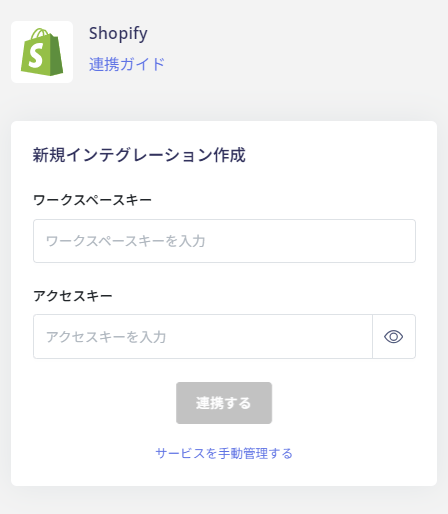
Enter the workspace key and access key obtained in the previous steps, then click Connect.
- Once the integration with Shopify is successful, registered user information will appear in the account list. If the integration does not complete successfully. Go to the Status tab on the integrations screen, click Edit, and try connecting again. If the issue persists, please contact us via chat.