How to integrate SonarQube Cloud (formerly SonarCloud) with Admina using an API key. Admina retrieves user names, roles, and statuses and supports account creation and deletion.
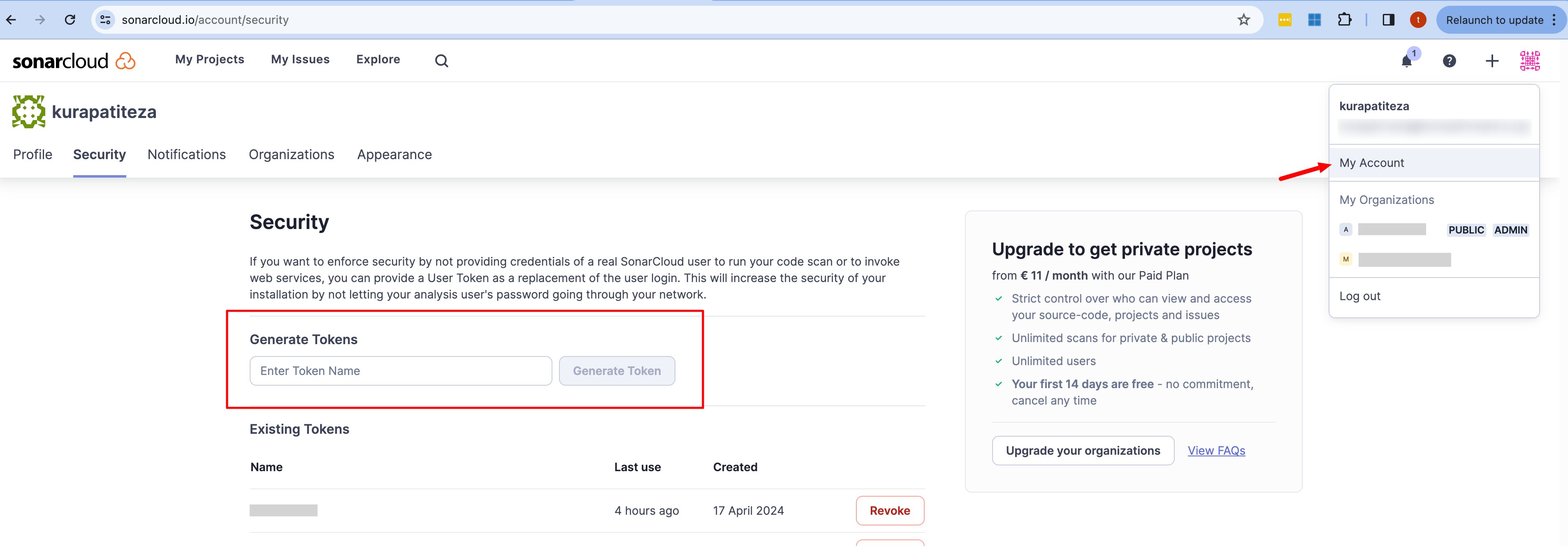
Open the menu from the account icon, go to My account > Security, and generate a token with Generate Tokens.This token is the API key used for integration.
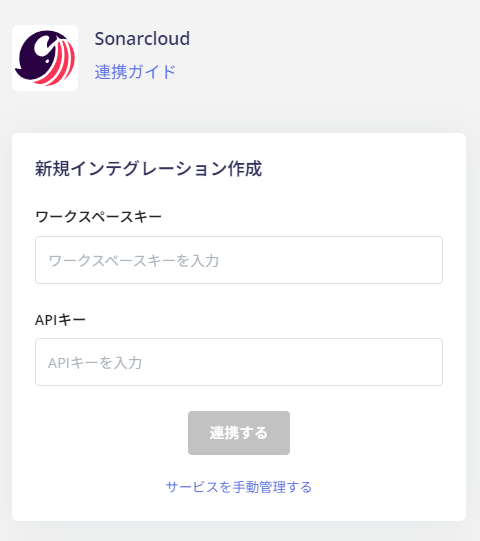
In the integration screen, search for Sonarcloud. The screen still shows the service under its previous name, Sonarcloud.
Enter the workspace key and API key obtained in the previous steps, then click Connect.
Once the integration with SonarQube Cloud is successful, registered user information will appear in the account list. If the process does not complete successfully. Click Edit on the Status tab of the integration screen and try connecting again. If the issue persists, please contact us via chat.
Manual Account Matching When Email Address Cannot Be Retrieved
This service is a SaaS where email addresses cannot be retrieved, so the user type will be determined as “Unknown.”If needed, manually link (deduplicate/merge) accounts with other accounts.For details on the settings, see Manually merge SaaS accounts.