

Integration Specifications
Prerequisites
How to get an API key (Client ID and Client Secret)
-
Log in to your PayPal business account. Then click the
</>(developer page) icon in the top right of the dashboard to go to the developer page.
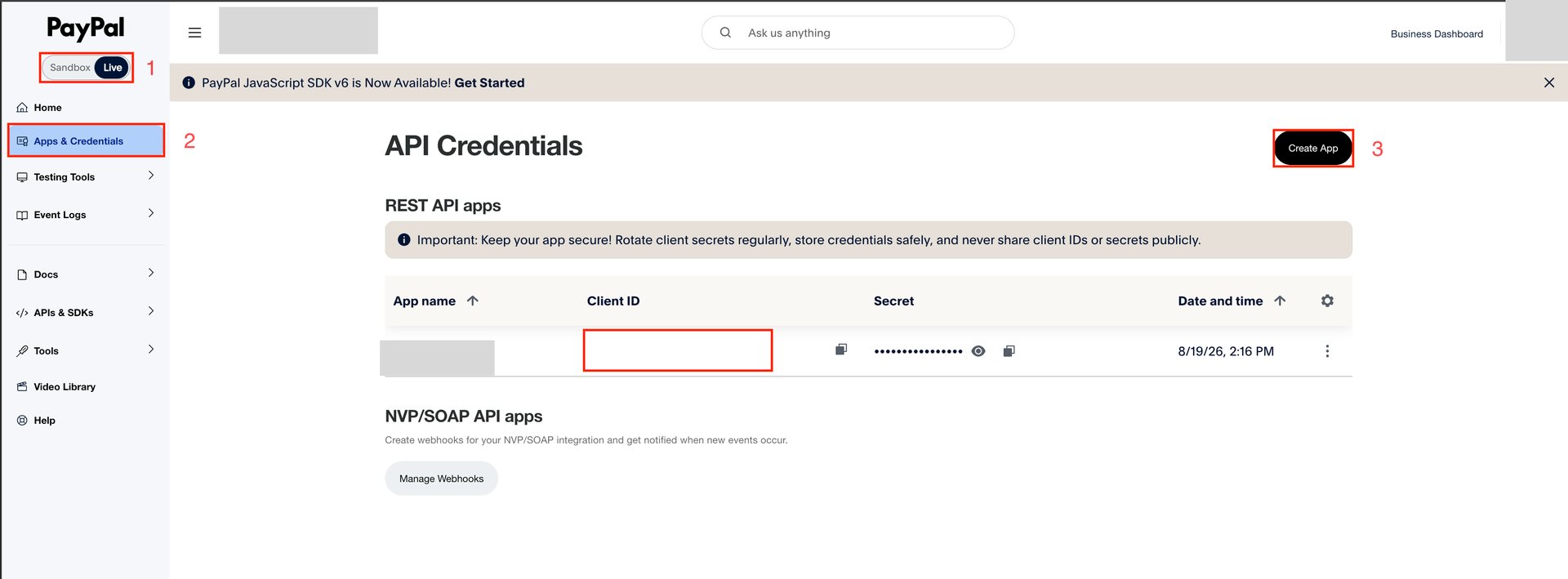
- The developer page has two versions: Sandbox and Live. Make sure to select Live so the correct billing amounts are captured. Sandbox is a simulator for testing only.
-
From the left panel, choose Apps & Credentials, then click Create App on the API Credentials tab.
-
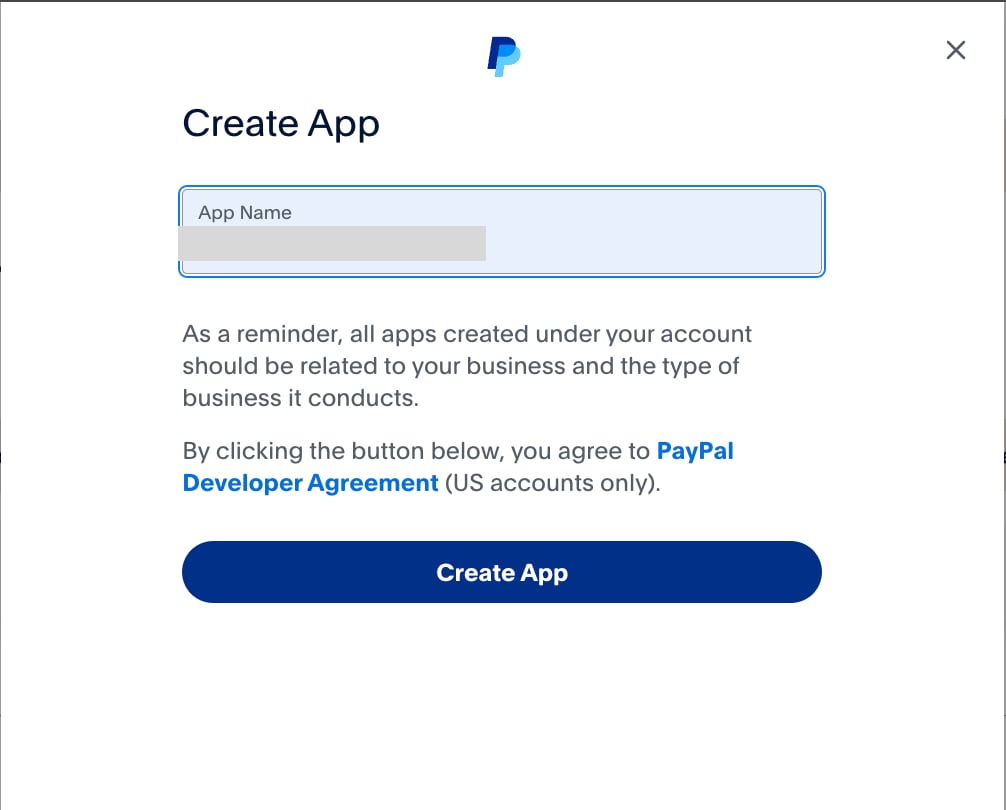
In the popup, enter any name for the app and click Create App.
-
The Client ID and Secret key are displayed — copy both. Scroll down to Features, enable Transaction search, and click Save Changes.
 It can take a while for a newly issued PayPal API key to become usable for the Admina integration (PayPal states this can take 5 minutes to 9 hours). Wait about 10 to 30 minutes after creating the key before setting up the integration in Admina.
Integration Setup
- Search for PayPal on the integrations screen.
-
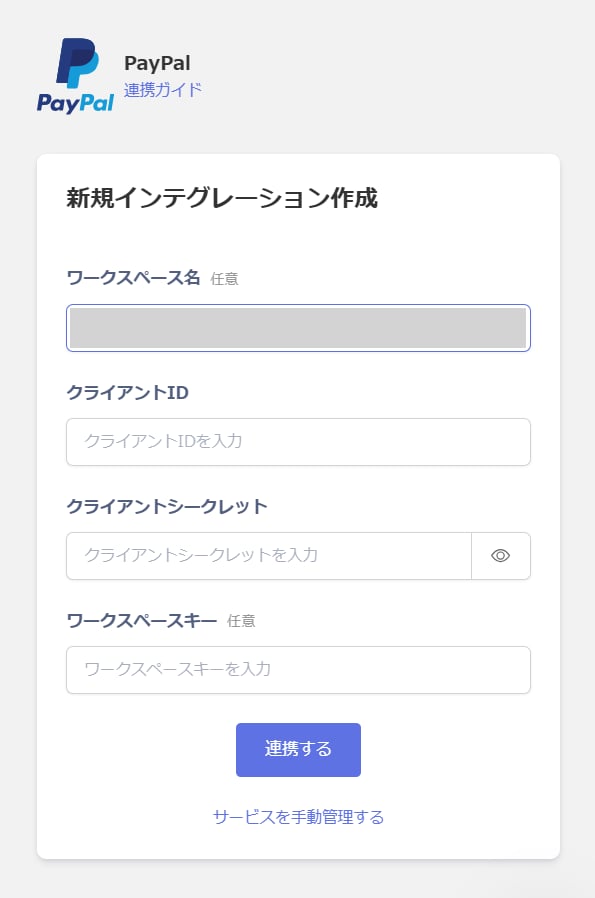
Enter the Client ID and Client Secret you obtained earlier, then click Integrate.
- Once the integration with PayPal succeeds, registered user information appears in the account list. If it doesn’t complete successfully, first try the steps in Troubleshoot SaaS integration errors. If that doesn’t resolve it, check Information to provide and contact support.