

Integration Specifications
Prerequisites
Getting your API key
-
After logging in to ServiceM8, select Settings.

-
Select API Keys.
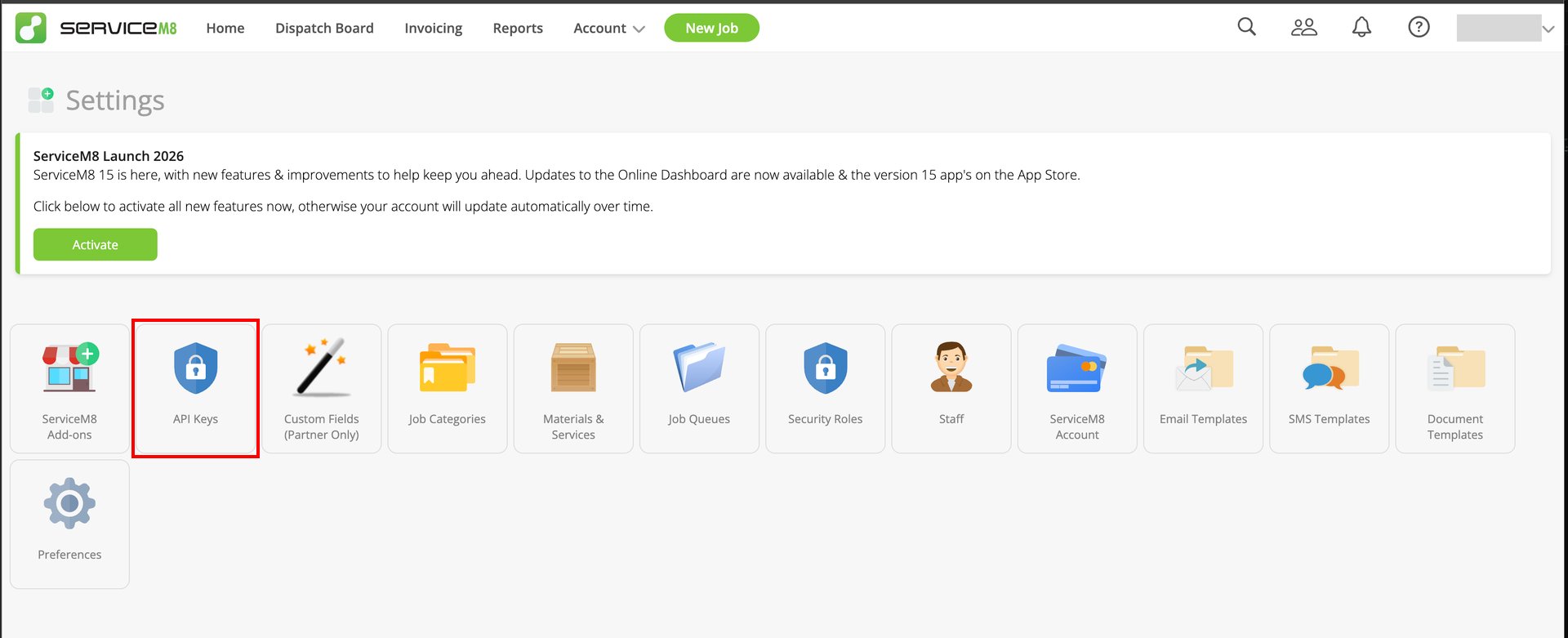
-
Click Add API Key. Enter any API Key Name, select Full Access under API Key Type, then click Create.
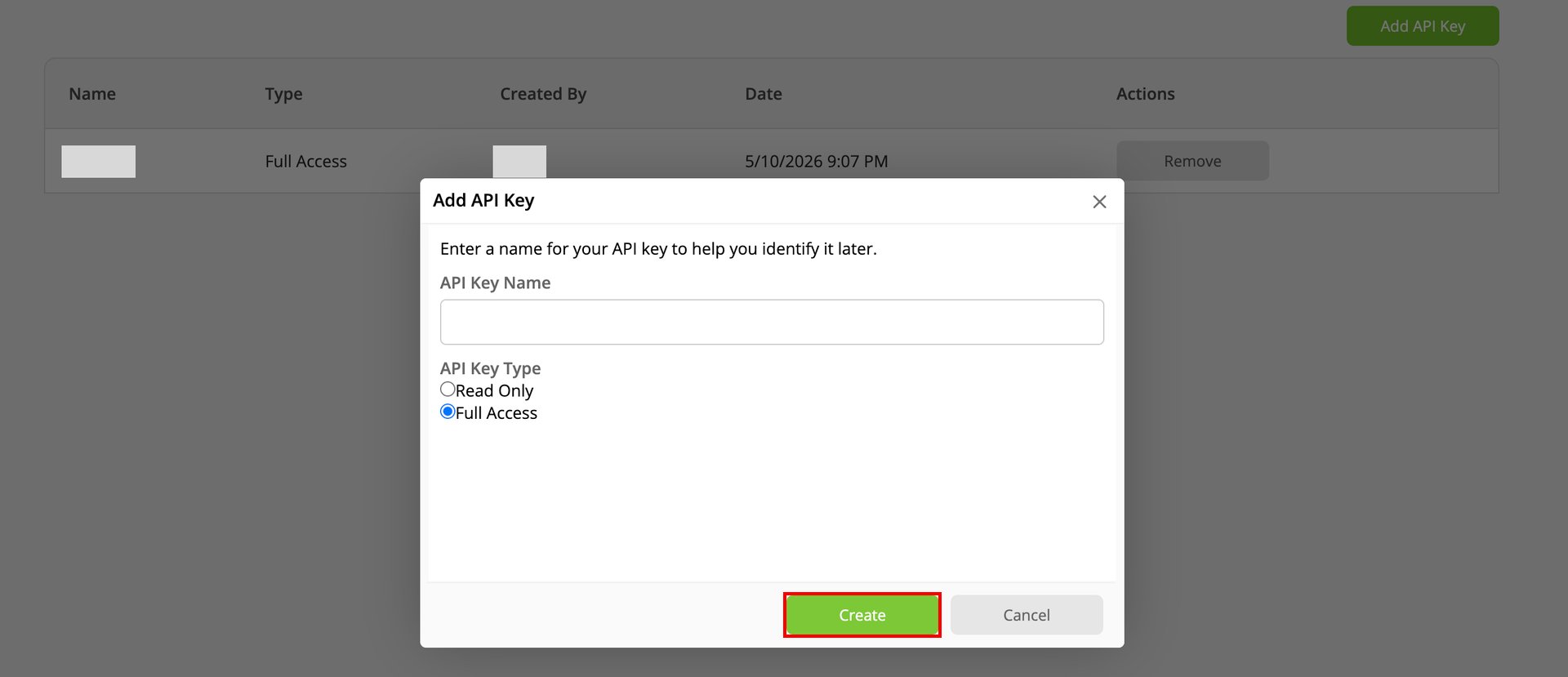
- Copy the API key that is issued.
Setting up the integration
- On the integration screen, search for ServiceM8.
-
Enter the API key you obtained in the previous steps into API key, then click Connect.
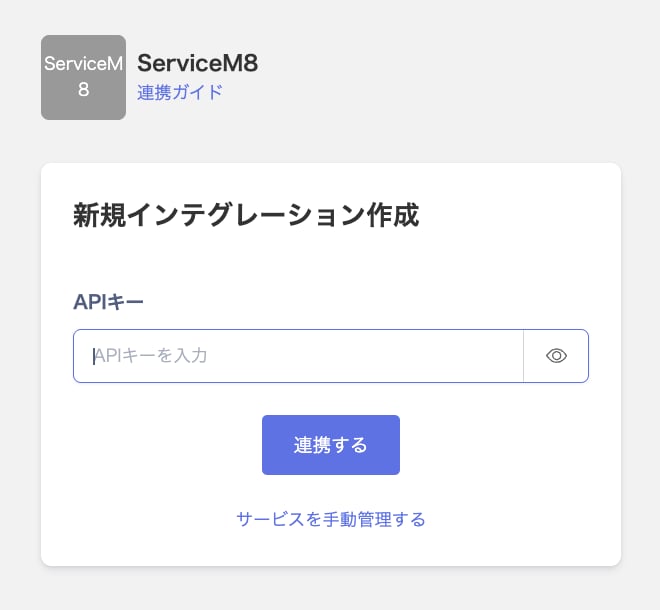
- Once the integration with ServiceM8 succeeds, registered user information appears in the account list. If it doesn’t complete successfully, first try the steps in Troubleshoot SaaS integration errors. If that doesn’t resolve it, check Information to provide and contact support.