

Integration Specifications
Prerequisites
Checking your workspace key
After logging in to Spir, part of the URL is your workspace key. Save it.The integration only supports logging in with a Microsoft account. If you use Spir with a Google account, the integration is not available.
Setting up the integration
- On the integration screen, search for Spir.
-
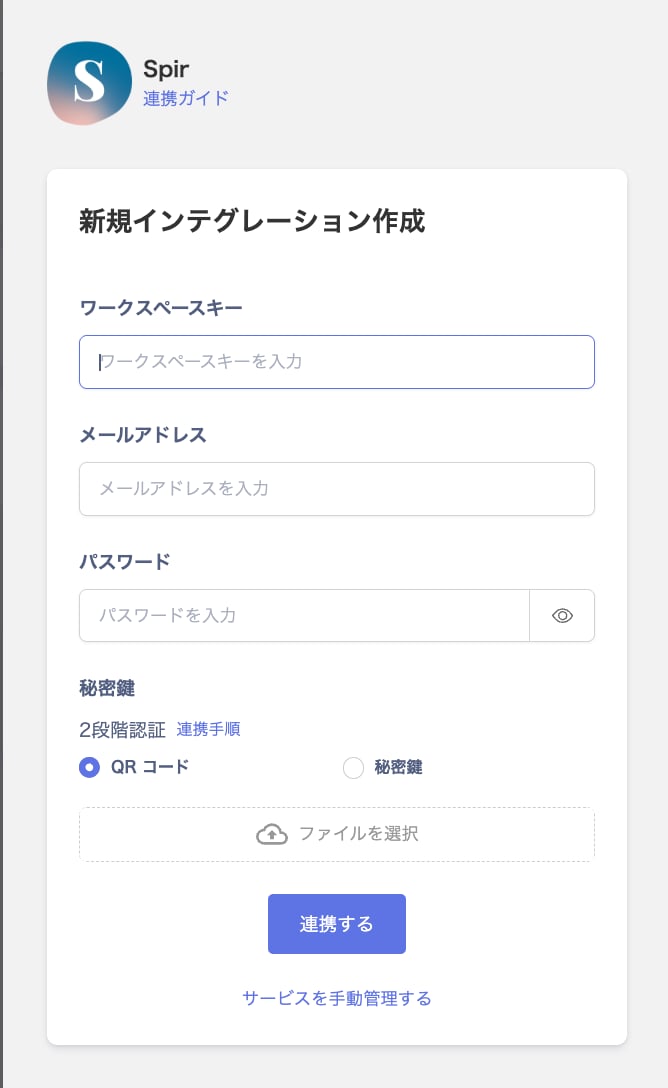
Enter the Workspace key, Email, and Password you checked in the previous step. If you have two-factor authentication set up, enter the QR code or the Secret key value in the Secret key field. Then click Connect.
- Once the integration with Spir succeeds, registered user information appears in the account list. If it doesn’t complete successfully, first try the steps in Troubleshoot SaaS integration errors. If that doesn’t resolve it, check Information to provide and contact support.