How to integrate Sumo Logic with Admina using an API key. Admina retrieves data such as user names, email addresses, and roles and supports account creation, deactivation, and deletion.
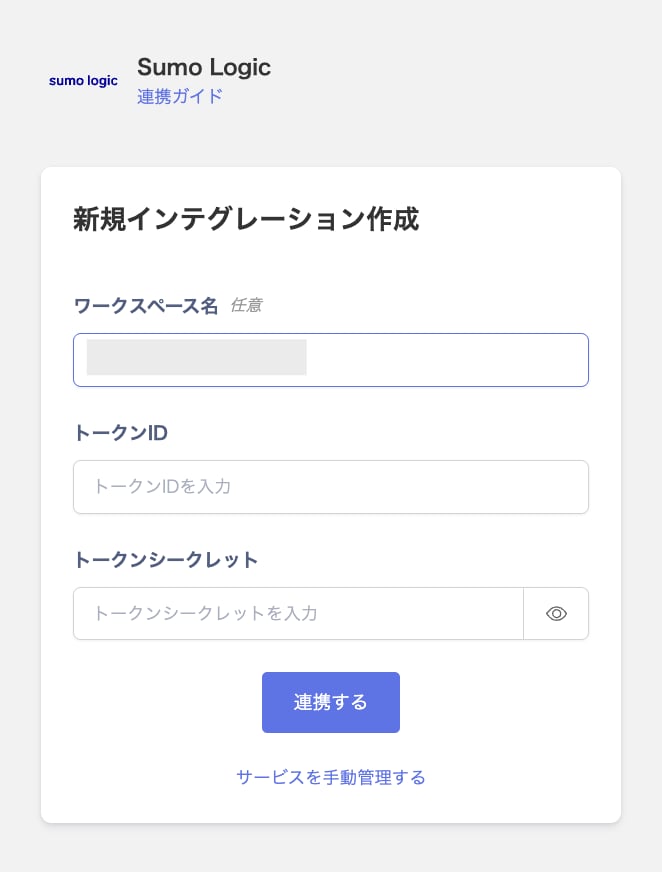
Enter the Token ID (Access ID) and Token Secret (Access Key) from the previous step, then click Connect.
Once the integration with Sumo Logic succeeds, registered user information appears in the account list. If it doesn’t complete successfully, first try the steps in Troubleshoot SaaS integration errors. If that doesn’t resolve it, check Information to provide and contact support.