How to integrate HRMOS Talent Management with Admina using an ID and password. Admina retrieves user names, email addresses, and statuses and supports account creation, deactivation, and deletion, as well as HR master integration.
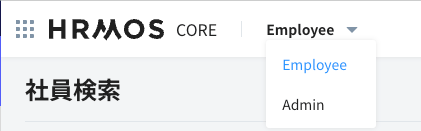
After logging in to HRMOS Talent Management, switch to Admin from the menu bar.
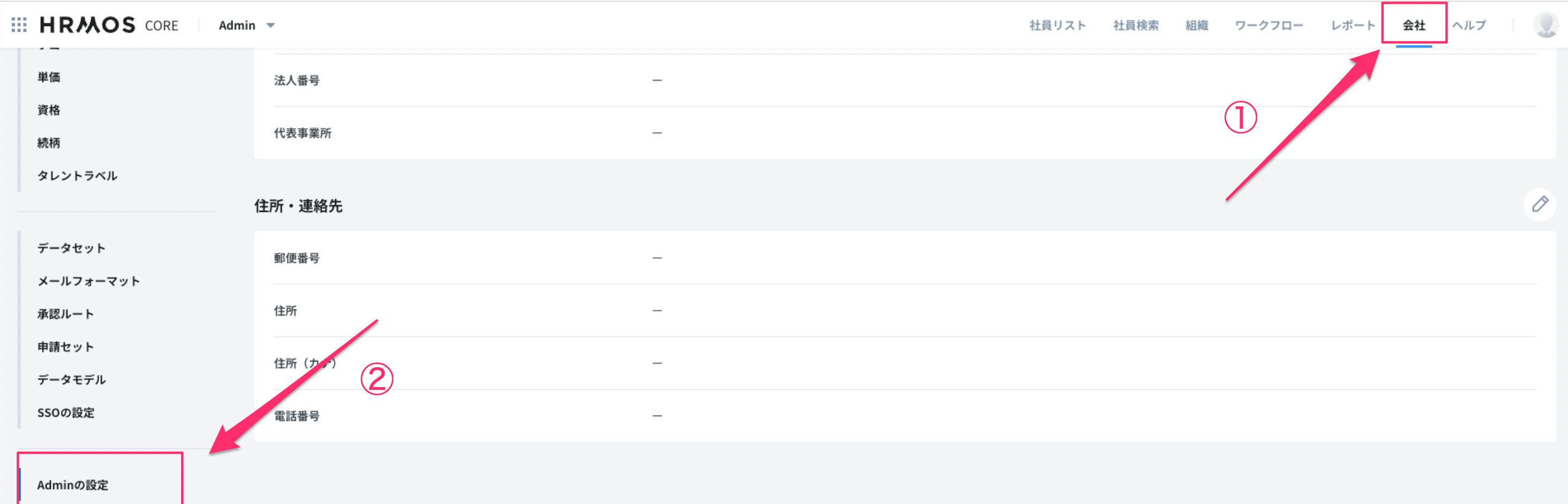
Click the company name from the menu bar, then click Admin Settings from the left menu.
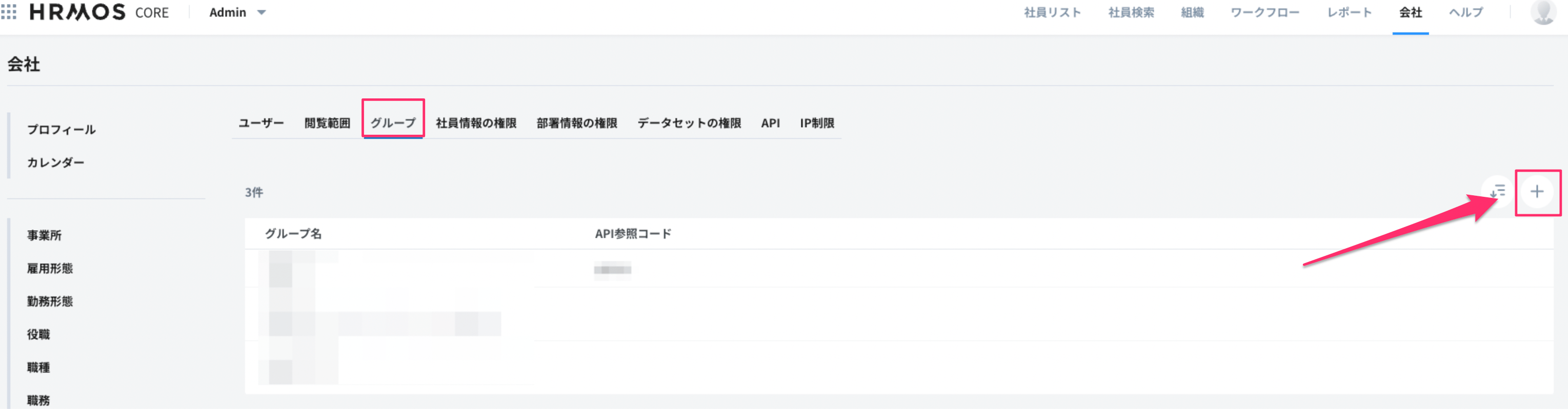
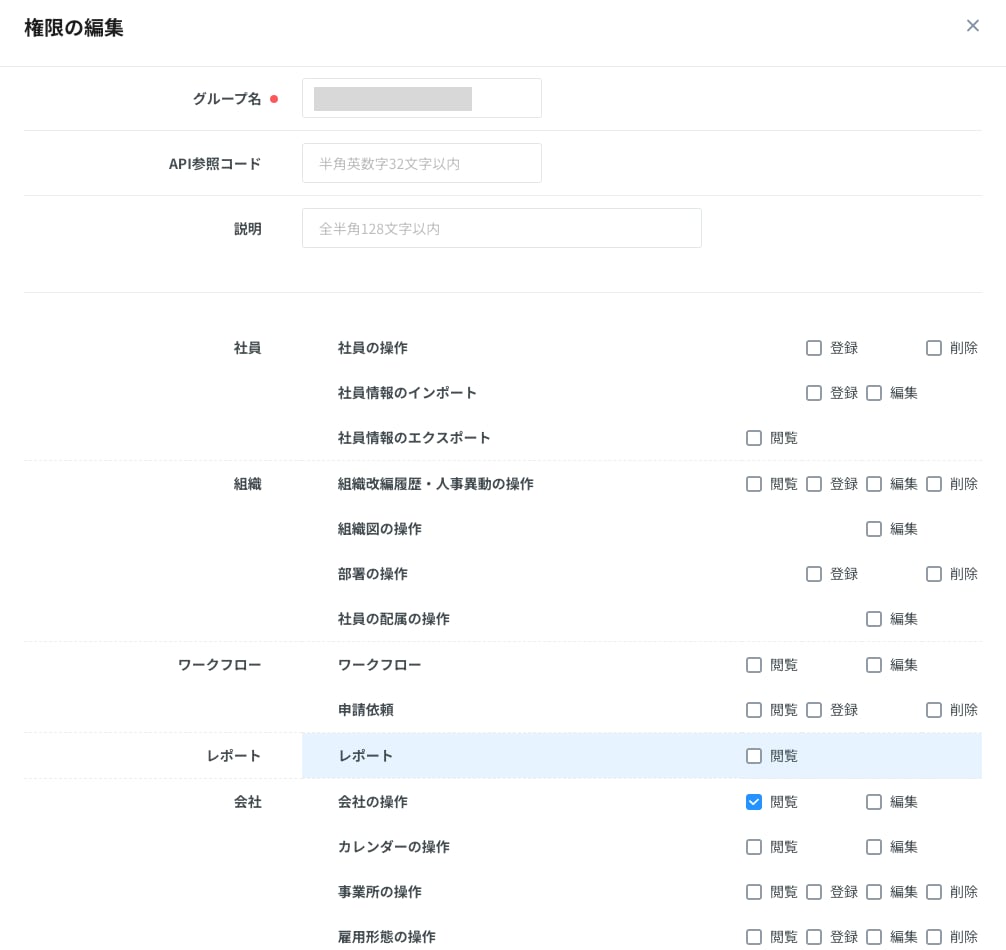
Select the Group tab, then click the + button on the right to create a new permission group.
On the next screen, enter a name for the group and check the Company Operations > View permission.
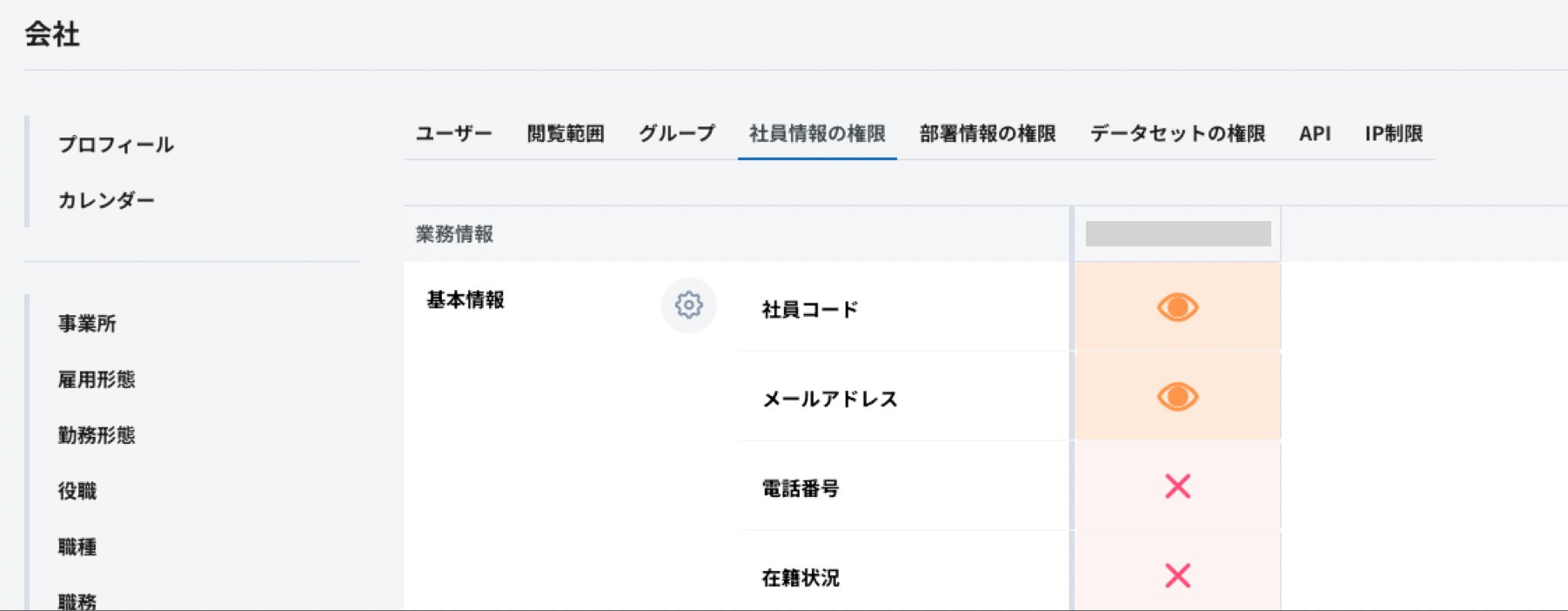
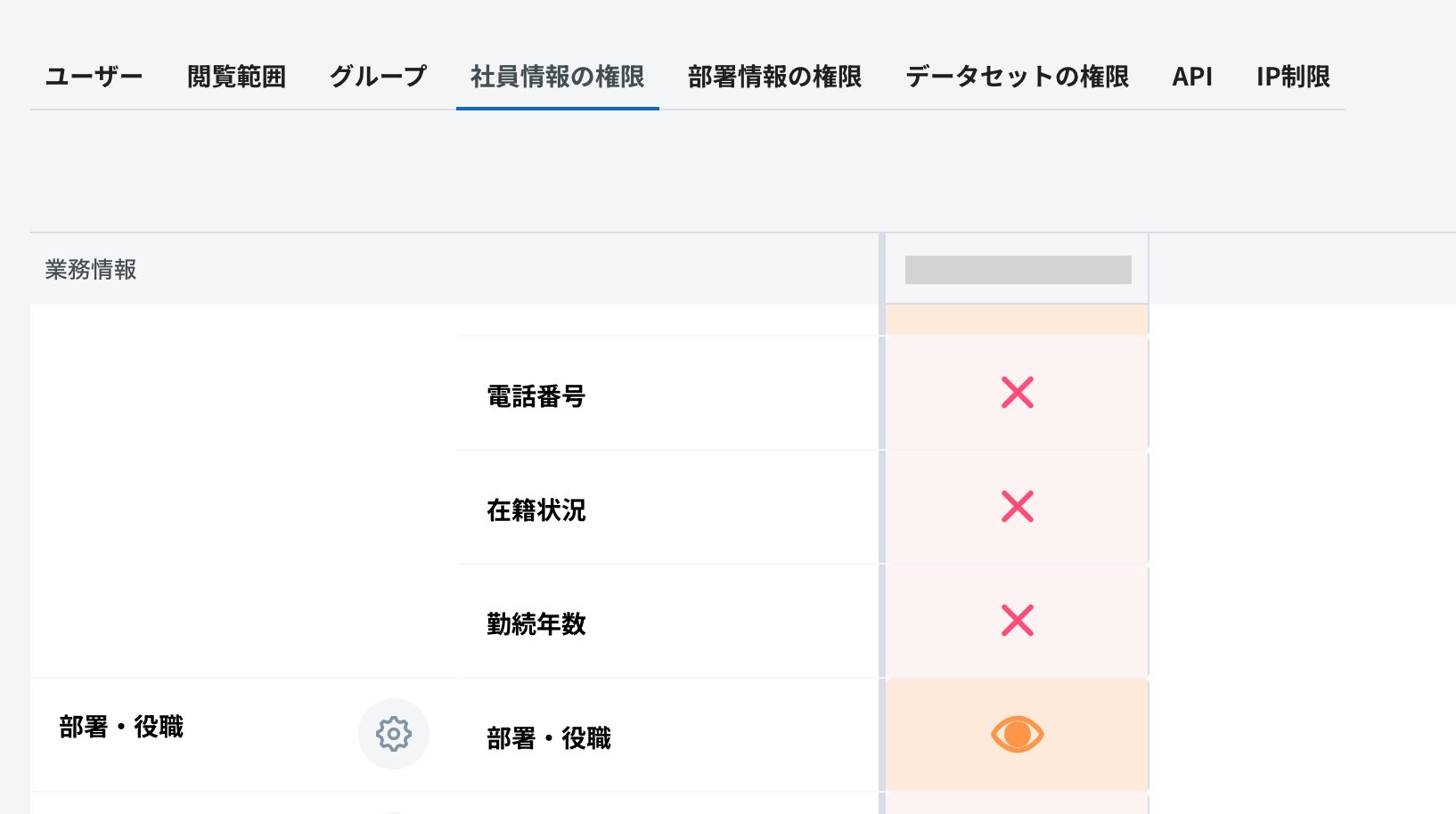
Navigate to the Employee Information Permissions tab. Grant the following permissions to the integration group you created. (Scroll down to see the permission options.)
Work Information > Basic Information > Employee Code, Email Address
Personal Information > Basic Information > Name
Account > Basic Information > Authentication Email Address
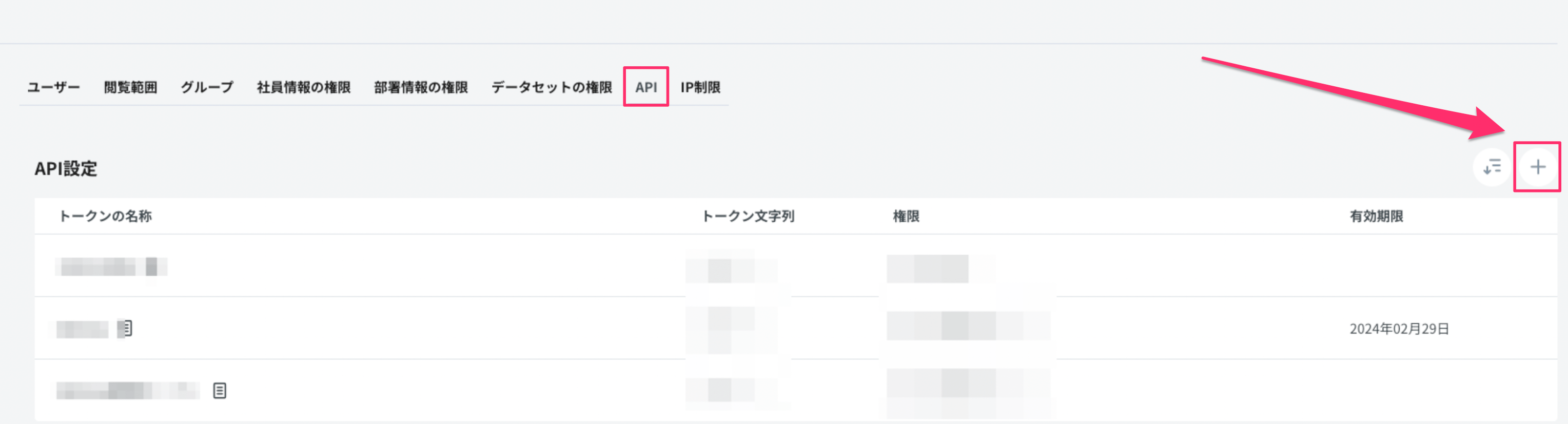
Navigate to the API tab and create a new API token.
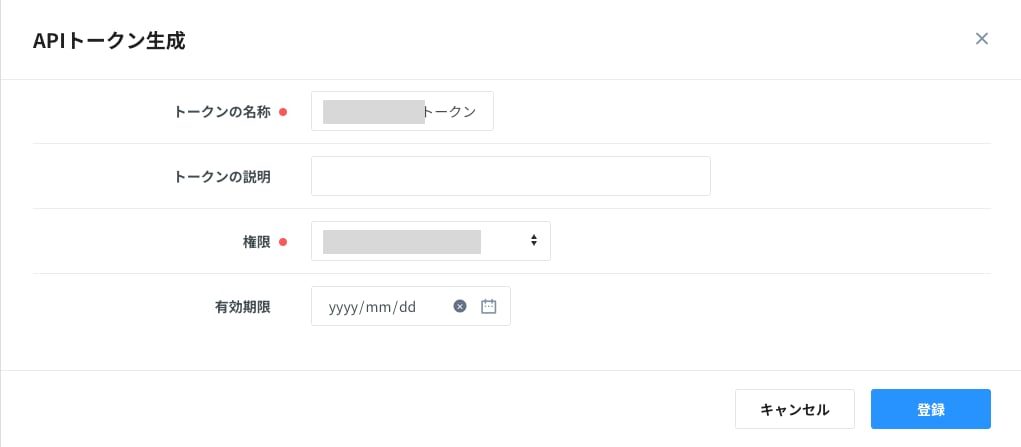
Enter a name for the token. Select the integration group you created for permissions, then click the Register button.
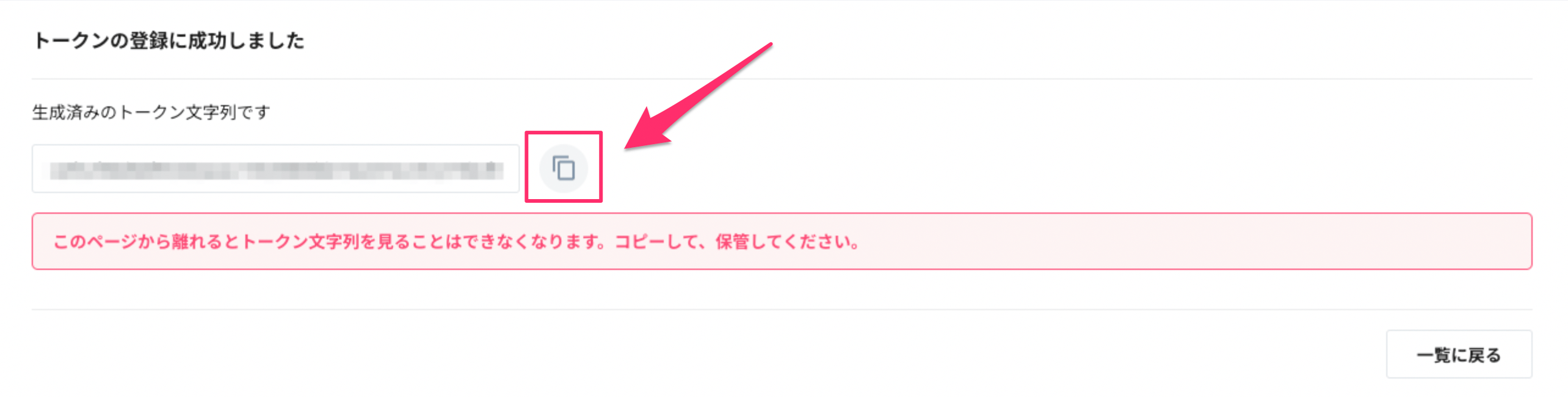
The token will be created. Copy and save it — this will be your API key for the integration.
To retrieve departments and positions, grant the appropriate permissions from the Employee Information permissions.
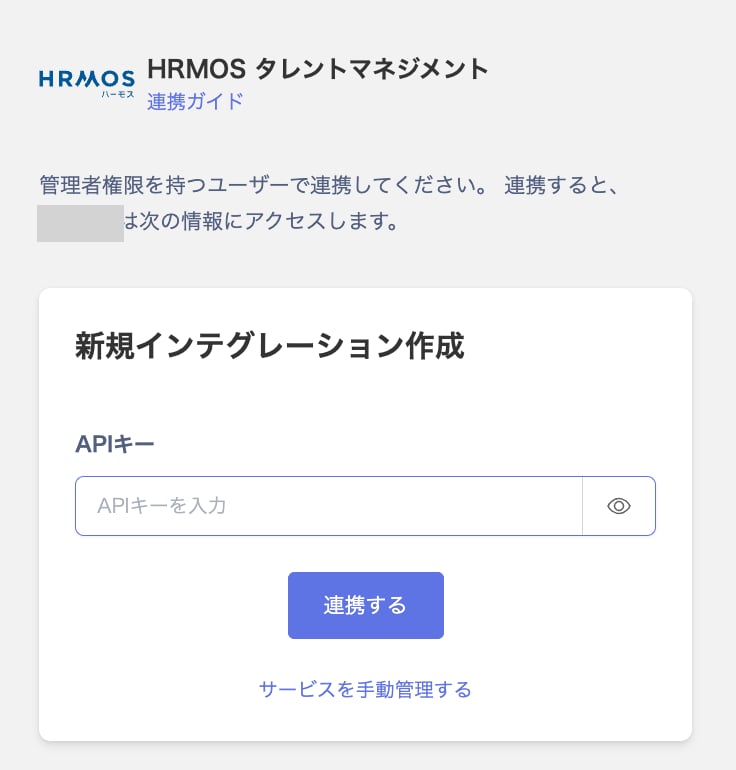
In the integration screen, search for HRMOS Talent Management.
Enter the API key obtained in the previous steps and click Connect.
Once the integration with HRMOS Talent Management is successful. The registered user information will appear in the account list.
If the process does not complete successfully. Go to the Status tab on the integration screen, click Edit, and try again. If the issue persists, please contact us via chat.