

Integration Specifications
Prerequisites
Getting your access key
- Log in to https://login.maas360.com/.
-
After logging in, check the URL shown in your browser’s address bar. The hostname shown there (for example,
m4.maas360.com) is the value you’ll use for the Base URL below.
- Go to Setup > Web Services API > Manage Access Key, then click Generate Access Key.
-
Select “MaaS360 Web Services” for Type, enter any Key Name, then click Generate.
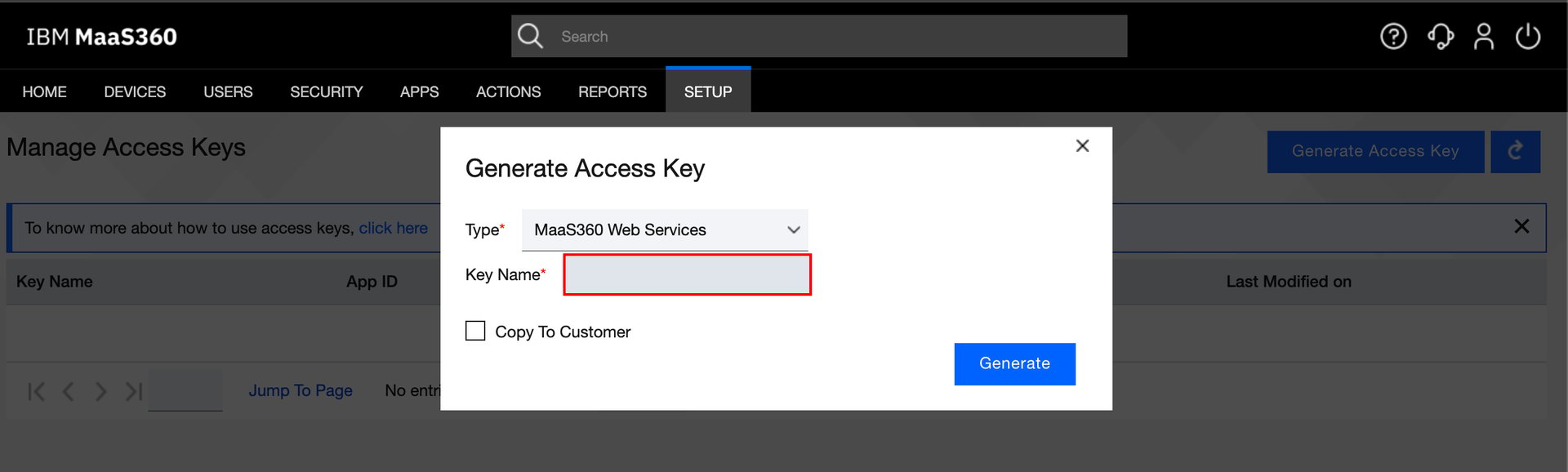
- Use the App ID and App Access Key that are issued as the Client ID and Client Secret described below.
Setting up the integration
- On the integration screen, search for IBM MaaS360.
-
Enter the following, then click Connect:
- The Base URL that includes the hostname you checked in step 2
- The Client ID and Client Secret from the previous step
- The username and password you use to log in to MaaS360
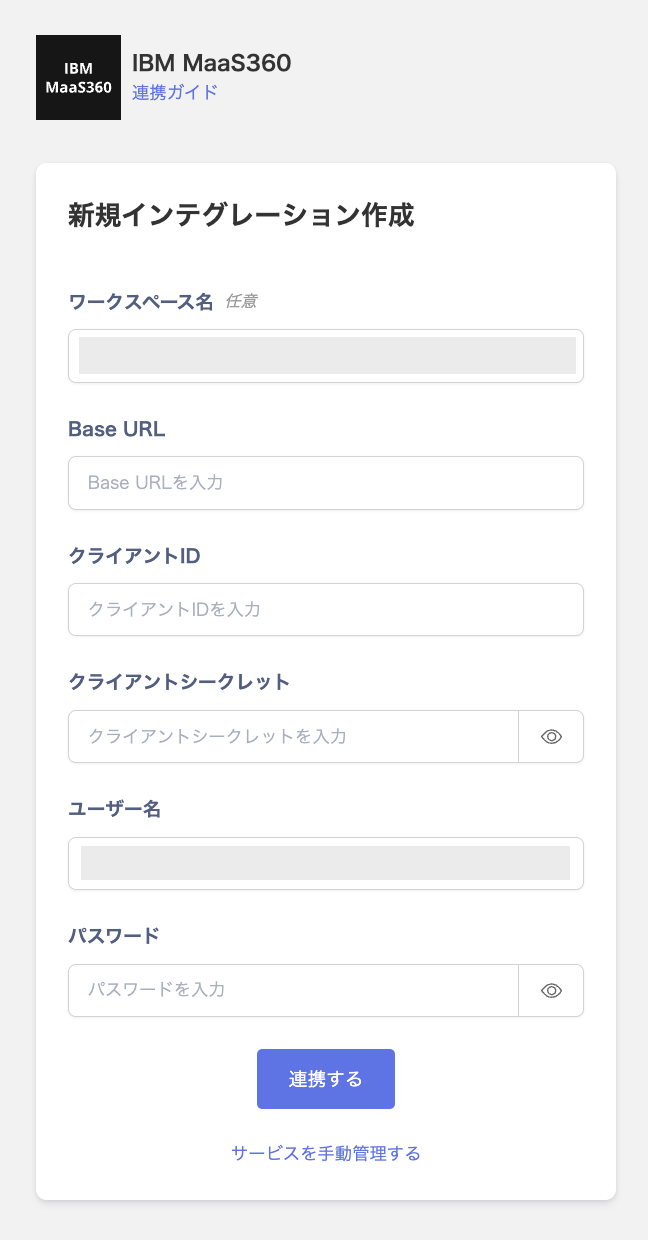
- Once the integration with IBM MaaS360 succeeds, registered user information appears in the account list. If it doesn’t complete successfully, first try the steps in Troubleshoot SaaS integration errors. If that doesn’t resolve it, check Information to provide and contact support.
MDM Integration
If you are using the device management feature, you can synchronize devices with IBM MaaS360. For details, see Sync devices with MDM-compatible SaaS.For devices where an IMEI/ESN cannot be retrieved (Windows, Mac, etc.), the UDID is set in the serial number field. Because this does not match the actual serial number already registered on this service, such devices are registered as new instead of being merged with an existing device.Records with an empty device name are not synchronized and are skipped.