Integration Specifications

Prerequisites

Getting your API key

  1. After logging in to Fathom, select Settings at the top right of the screen. Fathom menu at the top right of the screen with Settings highlighted
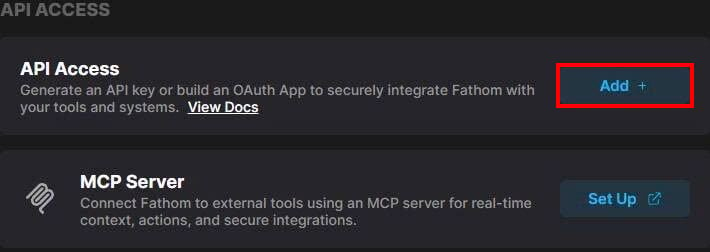
  2. Scroll down and click Add under API Access. API ACCESS section of the settings screen with the Add button for API Access highlighted
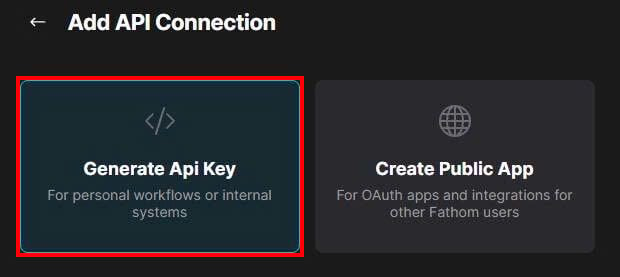
  3. On the Add API Connection screen, select Generate Api Key. Add API Connection screen with Generate Api Key highlighted
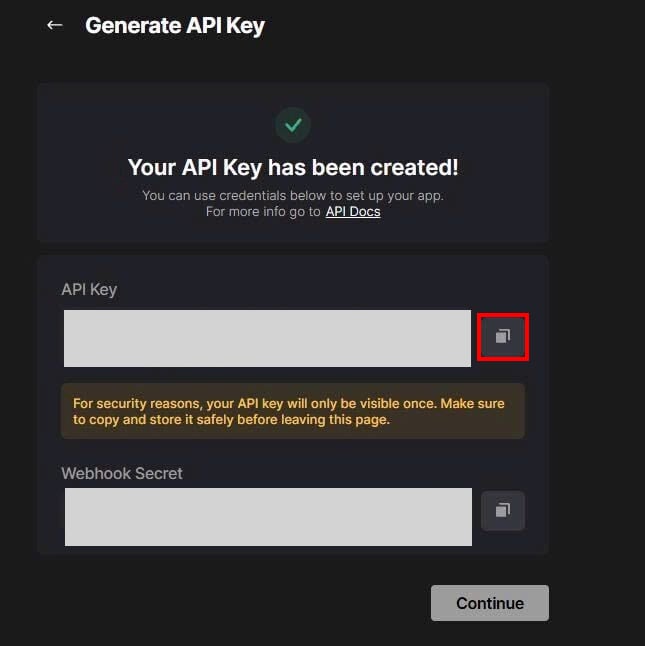
  4. Click the copy icon to the right of the API Key to copy it, then save it. The API key is shown only on this screen, so make sure to save it now. Generate API Key screen with the copy icon for the issued API Key highlighted
  • Generate the API key as a Fathom user with the Account Admin role. API keys generated by other users can’t be used for the integration.

Setting up the integration

  1. On the integration screen, search for Fathom.
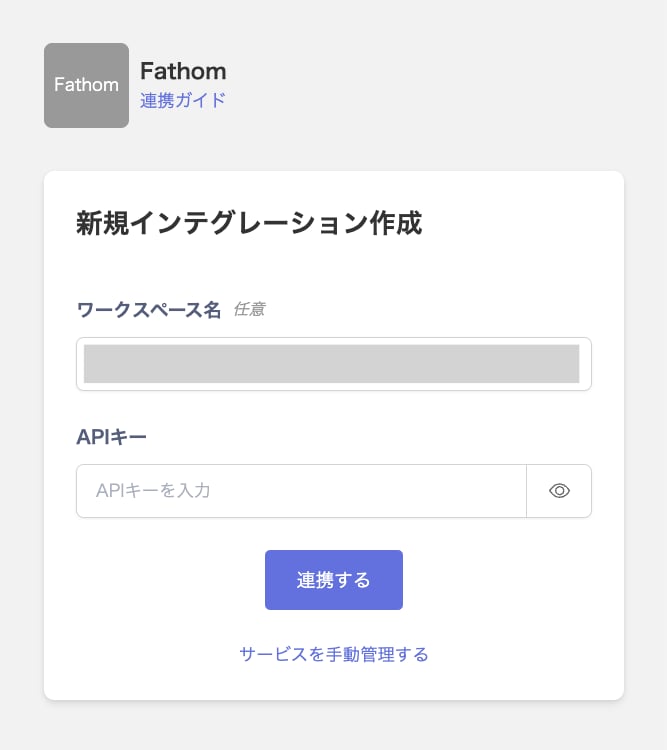
  2. Enter a Workspace name (optional) and the API key from the previous step, then click Connect. Fathom integration setup screen showing the Workspace name and API key fields
  3. Once the integration with Fathom succeeds, registered user information appears in the account list. If it doesn’t complete successfully, first try the steps in Troubleshoot SaaS integration errors. If that doesn’t resolve it, check Information to provide and contact support.

Last modified on October 15, 2026