How to integrate Gorgias with Admina using an API key. Admina retrieves data such as user names, email addresses, and roles and supports account creation and deletion.
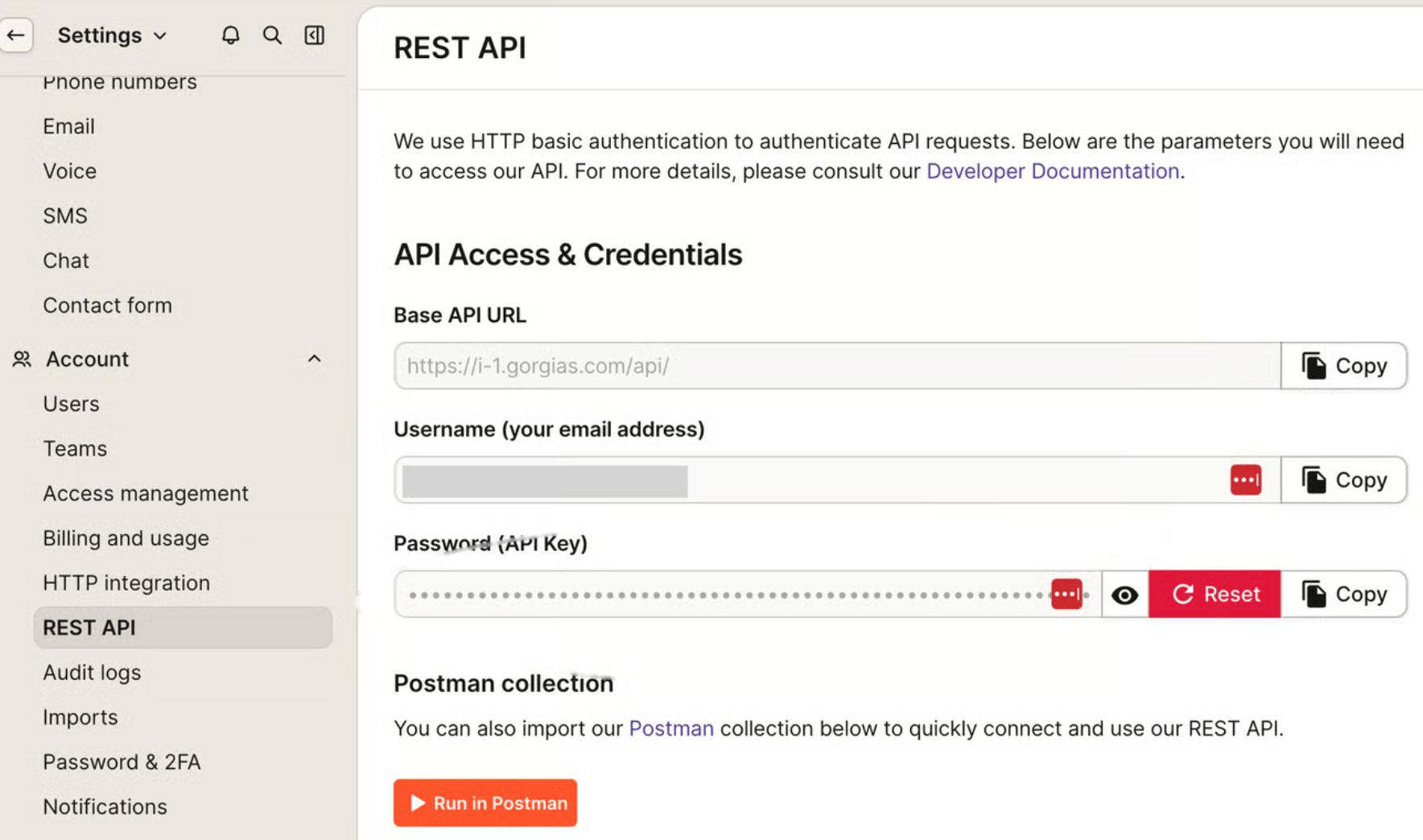
On the REST API screen, check the subdomain part of the Base API URL (for example, i-1 in https://i-1.gorgias.com/api/). This is your workspace key, so save it for later. Also check the Username (your email address) field.
If no Password (API Key) has been generated yet, click Create API key. If a key already exists, click Copy.
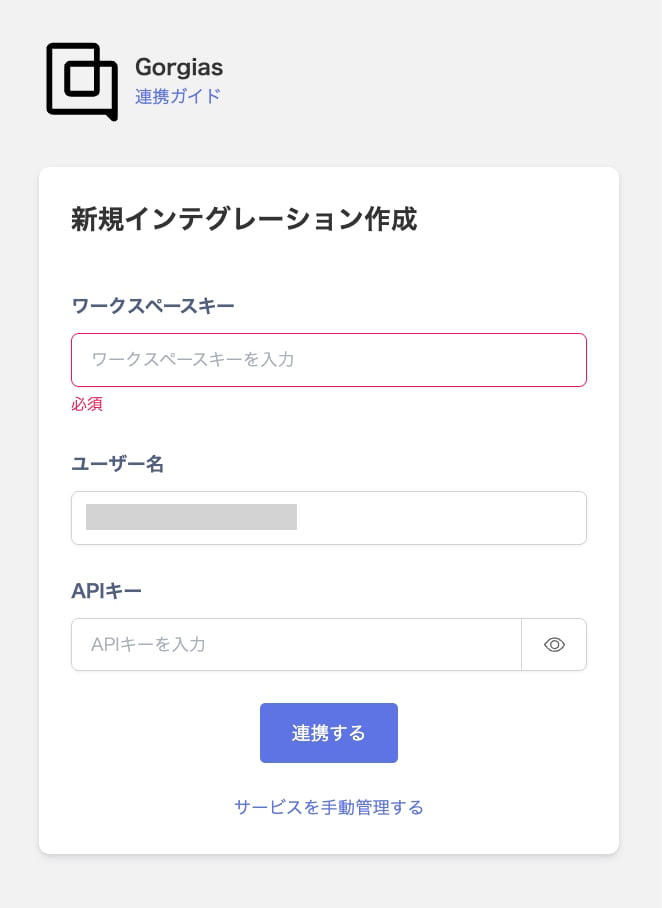
Enter the workspace key, username, and API key you obtained in the previous step, then click Connect.
Once the integration with Gorgias succeeds, registered user information appears in the account list. If it doesn’t complete successfully, first try the steps in Troubleshoot SaaS integration errors. If that doesn’t resolve it, check Information to provide and contact support.
Last modified on October 27, 2026
Was this page helpful?
{"docsConfig":{"theme":"mint","$schema":"https://mintlify.com/docs.json","name":"Admina Help Center","colors":{"primary":"#4361ee","light":"#bcd1ff","dark":"#4361ee"},"logo":{"light":"https://mintcdn.com/moneyforwardi/r7Kl_XskKl0zZU6O/images/logo-light.png?fit=max\u0026auto=format\u0026n=r7Kl_XskKl0zZU6O\u0026q=85\u0026s=34f61220e23b4287c2562d1517958299","dark":"https://mintcdn.com/moneyforwardi/r7Kl_XskKl0zZU6O/images/logo-dark.png?fit=max\u0026auto=format\u0026n=r7Kl_XskKl0zZU6O\u0026q=85\u0026s=5b6db21942c268fab71887726d3cf3f7","href":"/"},"favicon":"https://mintcdn.com/moneyforwardi/sBonQ3jiLBZfmNUI/images/favicon.jpg?fit=max\u0026auto=format\u0026n=sBonQ3jiLBZfmNUI\u0026q=85\u0026s=357aac4e2a753f60c369805a0e93e061","appearance":{"default":"system"},"background":{"color":{"light":"#faf9f7","dark":"#050919"}},"navbar":{"links":[{"href":"https://admina.moneyforward.com/jp","label":"サービス紹介"}],"primary":{"type":"button","label":"ログイン","href":"/goto/service-login"}},"footer":{"socials":{"x":"https://x.com/A_D_M_I_N_A_MFi","github":"https://github.com/moneyforward-i","facebook":"https://www.facebook.com/moneyforwardi"},"links":[{"header":"サービス","items":[{"label":"サービス紹介","href":"https://admina.moneyforward.com/jp"},{"label":"ログイン","href":"/goto/service-login"},{"label":"サービス稼働状況","href":"https://status.i.moneyforward.com/"}]},{"header":"規約","items":[{"label":"利用規約","href":"https://admina.moneyforward.com/jp/terms-of-service"},{"label":"プライバシーポリシー","href":"https://admina.moneyforward.com/jp/privacy"},{"label":"AIサービス特約","href":"https://admina.moneyforward.com/jp/terms-of-service"},{"label":"外部送信ツールに関する公表事項","href":"https://admina.moneyforward.com/jp/external-tools"}]},{"header":"会社情報","items":[{"label":"会社概要","href":"https://admina.moneyforward.com/jp/company"},{"label":"お問い合わせ","href":"https://admina.moneyforward.com/jp/contact"}]}]},"seo":{"metatags":{"google-site-verification":"NQWwJQFaBXylW27NyMRORXsBvXNu-mUz6MDPqC7NzF8","og:site_name":"Admina ヘルプセンター","og:locale":"ja_JP","og:type":"website","twitter:card":"summary_large_image","twitter:site":"@A_D_M_I_N_A_MFi"},"paths":[{"path":"en","metatags":{"og:site_name":"Admina Help Center","og:locale":"en_US"}}],"indexing":"navigable"},"fonts":{"heading":{"family":"Sora","weight":600},"body":{"family":"Nunito Sans","weight":400}},"icons":{"library":"fontawesome"},"integrations":{"clarity":{"projectId":"x8ucua5277"},"gtm":{"tagId":"GTM-PGZJN7LM"},"intercom":{"appId":"wgvy651g"}},"errors":{"404":{"redirect":true}},"contextual":{"options":["copy","view","chatgpt","claude"],"display":"header"},"thumbnails":{"appearance":"light","background":"https://mintcdn.com/moneyforwardi/UrS7Sqkq91cqBl-T/images/thumbnail-bg.svg?fit=max\u0026auto=format\u0026n=UrS7Sqkq91cqBl-T\u0026q=85\u0026s=fd3dfe79cbd33b042fef3356c334195f","fonts":{"family":"Noto Sans JP"}},"metadata":{"timestamp":true},"styling":{"latex":false},"navigation":{"languages":[{"language":"ja","href":""},{"language":"en","href":"en"}]}},"deployment":{"deploymentMetadataValue":{"subdomain":"moneyforwardi","hasAudioNarration":false,"actualSubdomain":"moneyforwardi","customDomains":["support.i.moneyforward.com"],"gitSource":{"type":"github","owner":"moneyforward-i","repo":"admina-support-docs","deployBranch":"main","contentDirectory":"docs","isPrivate":true,"mountPath":"","label":""},"chroma":{"liveDeploymentHistoryId":"6ae3faa4f80dee69c9bd82d2","collectionId":"fd8cc175-9ab9-4c52-b43b-1a64b5676295","schemaVersion":"v3","latestBuiltDeploymentHistoryId":"6ae3faa4f80dee69c9bd82d2"},"feedback":{"agentFeedback":true,"thumbs":true},"entitlements":{"AI_CHAT":{"status":"DISABLED"}},"buildId":"6ae3faa4f80dee69c9bd82d2","clientVersion":"0.0.4043","searchFilterCounts":[{"language":"ja","tag":"インテグレーション","count":488},{"language":"en","tag":"Integration","count":488},{"language":"ja","tag":"連携ガイド","count":480},{"language":"en","tag":"Integration guides","count":480},{"language":"default","tag":"API・MCP","count":200},{"language":"default","tag":"リファレンス","count":200},{"language":"default","tag":"IT Management API","count":175},{"language":"ja","tag":"IT Management","count":161},{"language":"en","tag":"IT Management","count":161},{"language":"en","tag":"0-9 / A-E","count":130},{"language":"ja","tag":"0-9 / A-E","count":124},{"language":"ja","tag":"機能別ガイド","count":119},{"language":"en","tag":"Guides by feature","count":119},{"language":"en","tag":"K-O","count":108},{"language":"en","tag":"P-T","count":102},{"language":"en","tag":"F-J","count":93},{"language":"ja","tag":"P-T","count":92},{"language":"ja","tag":"K-O","count":89},{"language":"ja","tag":"F-J","count":86},{"language":"en","tag":"U-Z","count":47},{"language":"ja","tag":"U-Z","count":46},{"language":"ja","tag":"日本語","count":43},{"language":"en","tag":"Admin settings","count":41},{"language":"default","tag":"Devices","count":40},{"language":"default","tag":"AIヘルプデスク API","count":25},{"language":"default","tag":"Directory","count":20},{"language":"default","tag":"Services","count":16},{"language":"default","tag":"Workspaces","count":13},{"language":"default","tag":"Contracts","count":12},{"language":"default","tag":"Surveys","count":12}],"searchSettings":{"maxResults":10}},"assistantConfig":{"enableAskAiButton":false,"enableStarterQuestions":false,"enableContextualStarterQuestions":false,"enableAskAiSearchBar":true},"basePath":"","hasChatPermissions":false,"hasWebMcpPermissions":false,"toggles":[{"name":"kill-isr","enabled":true,"variant":{"name":"disabled","enabled":false,"feature_enabled":true},"impressionData":false},{"name":"agent-mintlify-slack","enabled":true,"variant":{"name":"disabled","enabled":false,"feature_enabled":true},"impressionData":false},{"name":"agent-integrations-settings","enabled":true,"variant":{"name":"disabled","enabled":false,"feature_enabled":true},"impressionData":false},{"name":"automations-pr-grouping","enabled":true,"variant":{"name":"disabled","enabled":false,"feature_enabled":true},"impressionData":false},{"name":"custom-prefix","enabled":true,"variant":{"name":"disabled","enabled":false,"feature_enabled":true},"impressionData":false},{"name":"analytics-v7","enabled":true,"variant":{"name":"disabled","enabled":false,"feature_enabled":true},"impressionData":false},{"name":"user-flows-analytics","enabled":true,"variant":{"name":"disabled","enabled":false,"feature_enabled":true},"impressionData":false},{"name":"no-publish-flow","enabled":true,"variant":{"name":"disabled","enabled":false,"feature_enabled":true},"impressionData":false},{"name":"workos-onboarding","enabled":true,"variant":{"name":"disabled","enabled":false,"feature_enabled":true},"impressionData":false},{"name":"llms-txt-v2","enabled":true,"variant":{"name":"disabled","enabled":false,"feature_enabled":true},"impressionData":false},{"name":"snapshot-serving-live","enabled":true,"variant":{"name":"disabled","enabled":false,"feature_enabled":true},"impressionData":false},{"name":"stripTemperatureMiddleware","enabled":true,"variant":{"name":"disabled","enabled":false,"feature_enabled":true},"impressionData":false},{"name":"support-platform-pylon-zendesk","enabled":true,"variant":{"name":"disabled","enabled":false,"feature_enabled":true},"impressionData":false},{"name":"snapshot-serving","enabled":true,"variant":{"name":"disabled","enabled":false,"feature_enabled":true},"impressionData":false},{"name":"instant-rollback","enabled":true,"variant":{"name":"disabled","enabled":false,"feature_enabled":true},"impressionData":false},{"name":"granular-notifications-server","enabled":true,"variant":{"name":"disabled","enabled":false,"feature_enabled":true},"impressionData":false},{"name":"granular-notifications","enabled":true,"variant":{"name":"disabled","enabled":false,"feature_enabled":true},"impressionData":false},{"name":"automations-fable","enabled":true,"variant":{"name":"disabled","enabled":false,"feature_enabled":true},"impressionData":false},{"name":"fixed-ai-action-pricing","enabled":true,"variant":{"name":"disabled","enabled":false,"feature_enabled":true},"impressionData":false},{"name":"automation-resolve-merge-conflict","enabled":true,"variant":{"name":"disabled","enabled":false,"feature_enabled":true},"impressionData":false},{"name":"scoped-publishing","enabled":true,"variant":{"name":"disabled","enabled":false,"feature_enabled":true},"impressionData":false},{"name":"mintql","enabled":true,"variant":{"name":"disabled","enabled":false,"feature_enabled":true},"impressionData":false},{"name":"page-level-analytics","enabled":true,"variant":{"name":"disabled","enabled":false,"feature_enabled":true},"impressionData":false},{"name":"editor-version-history-v2","enabled":true,"variant":{"name":"disabled","enabled":false,"feature_enabled":true},"impressionData":false},{"name":"billing-page-v2","enabled":true,"variant":{"name":"disabled","enabled":false,"feature_enabled":true},"impressionData":false},{"name":"full-page-search","enabled":true,"variant":{"name":"disabled","enabled":false,"feature_enabled":true},"impressionData":false},{"name":"workspace-projects","enabled":true,"variant":{"name":"disabled","enabled":false,"feature_enabled":true},"impressionData":false},{"name":"assistant-v5","enabled":true,"variant":{"name":"disabled","enabled":false,"feature_enabled":true},"impressionData":false},{"name":"byok-sep-25","enabled":true,"variant":{"name":"disabled","enabled":false,"feature_enabled":true},"impressionData":false},{"name":"fork-pr-previews","enabled":true,"variant":{"name":"disabled","enabled":false,"feature_enabled":true},"impressionData":false},{"name":"revalidation-jwt","enabled":true,"variant":{"name":"disabled","enabled":false,"feature_enabled":true},"impressionData":false},{"name":"vite-origin","enabled":true,"variant":{"name":"disabled","enabled":false,"feature_enabled":true},"impressionData":false},{"name":"billing-updated-9-15","enabled":true,"variant":{"name":"disabled","enabled":false,"feature_enabled":true},"impressionData":false},{"name":"workos-sso-scim","enabled":true,"variant":{"name":"disabled","enabled":false,"feature_enabled":true},"impressionData":false},{"name":"hobby-abuse-scan","enabled":true,"variant":{"name":"disabled","enabled":false,"feature_enabled":true},"impressionData":false},{"name":"dashboard-inbox","enabled":true,"variant":{"name":"disabled","enabled":false,"feature_enabled":true},"impressionData":false},{"name":"workos-signup","enabled":true,"variant":{"name":"disabled","enabled":false,"feature_enabled":true},"impressionData":false},{"name":"turbopuffer-dual-write","enabled":true,"variant":{"name":"disabled","enabled":false,"feature_enabled":true},"impressionData":false},{"name":"workos-enabled","enabled":true,"variant":{"name":"disabled","enabled":false,"feature_enabled":true},"impressionData":false},{"name":"approve-review-flow","enabled":true,"variant":{"name":"disabled","enabled":false,"feature_enabled":true},"impressionData":false}],"googleFontsInlined":true},"customCss":[{"filePath":"style.css","content":":is(#sidebar, #mobile-nav) button[aria-expanded] span{font-weight:600}:is(#sidebar, #mobile-nav) .sidebar-group-header{font-size:.75rem;color:rgb(107 114 128)}html.dark :is(#sidebar, #mobile-nav) .sidebar-group-header{color:rgb(156 163 175)}:is(#sidebar, #mobile-nav) button[aria-expanded]+ul{margin-left:1rem;padding-left:.375rem;border-left:1px solid rgb(229 231 235)}html.dark :is(#sidebar, #mobile-nav) button[aria-expanded]+ul{border-left-color:rgb(255 255 255/.1)}:is(#sidebar, #mobile-nav) button[aria-expanded]+ul>li>a{padding-left:.625rem!important}footer div:has(>[data-testid^=mode-switch-]),html[data-page-mode=center]:has(.home) #content-area>.feedback-toolbar,html[data-page-mode=center]:has(.home) #header{display:none}#footer a[href*=\"mintlify.com\"],#footer p~a{color:#4a5565}#footer a[href*=\"mintlify.com\"]:hover,#footer p~a:hover{color:#030712}html.dark #footer p~a{color:#82858c}html.dark #footer p~a:hover{color:#b4b5ba}html.dark #footer a[href*=\"mintlify.com\"]{color:#99a1af}html.dark #footer a[href*=\"mintlify.com\"]:hover{color:#e5e7eb}html.dark{--admina-dark-surface:rgb(21 24 38);--admina-dark-border:rgb(255 255 255 / 0.12)}html.dark .card{background:var(--admina-dark-surface)}html.dark .card,html.dark .home-search{border-color:var(--admina-dark-border)}.blog-author-card{display:flex;gap:1rem;align-items:flex-start;margin-top:2rem;padding:1.25rem;border:1px solid rgb(229 231 235);border-radius:.75rem;background:rgb(249 250 251)}html.dark .blog-author-card{border-color:rgb(55 65 81);background:rgb(31 41 55)}.blog-author-avatar{flex-shrink:0;width:3.5rem;height:3.5rem;border-radius:50%;display:flex;align-items:center;justify-content:center;background:#4361ee;color:#fff;font-weight:600;font-size:1.125rem;overflow:hidden}.blog-author-avatar img{width:100%;height:100%;object-fit:cover}.blog-author-body{min-width:0}.blog-author-name{font-weight:600;color:rgb(17 24 39)}html.dark .blog-author-name{color:rgb(243 244 246)}.blog-author-bio,.blog-author-title{font-size:.875rem;color:rgb(107 114 128);margin-top:.125rem}html.dark .blog-author-links a,html.dark .blog-author-title{color:rgb(156 163 175)}.blog-author-bio{line-height:1.6;color:rgb(75 85 99);margin-top:.5rem}html.dark .blog-author-bio{color:rgb(209 213 219)}.blog-author-links{display:flex;gap:.75rem;margin-top:.75rem}.blog-author-links a{display:inline-flex;color:rgb(107 114 128);text-decoration:none;border-bottom:none}.blog-author-links a:hover{color:#4361ee}.blog-author-brand-icon{display:inline-block;width:18px;height:18px;vertical-align:middle;background-color:currentColor;-webkit-mask-repeat:no-repeat;mask-repeat:no-repeat;-webkit-mask-position:center;mask-position:center;-webkit-mask-size:contain;mask-size:contain}html.dark .blog-author-links a:hover{color:#6d83f2}html[data-page-mode=center]:has(.home) div:has(>#content-container){max-width:none;padding-left:0;padding-right:0}html[data-page-mode=center]:has(.home) div:has(>#content-area){padding-top:calc(4rem + var(--banner-height, 2.5rem))}@media (min-width:1024px){html[data-page-mode=center]:has(.home) div:has(>#content-area){padding-top:0}}html[data-page-mode=center]:has(.home) #content{margin-top:0;margin-bottom:0}html[data-page-mode=center] .home-section-head h2{line-height:1.7}html[data-page-mode=center] .home :is(h1, h2, h3, h4)>.absolute{display:none}html[data-page-mode=center] .home :is(h1, h2, h3, h4)>.cursor-pointer{cursor:auto}html[data-page-mode=center] .home a{border-bottom:none}.home{--home-heading:rgb(17 24 39);--home-border:rgb(229 231 235);--home-muted:rgb(75 85 99);--home-faint:rgb(107 114 128);--home-surface:#ffffff;--home-primary:#4361ee;max-width:64rem;margin:0 auto;padding:0 1.25rem;line-height:1.7;word-break:auto-phrase}html.dark .home{--home-heading:rgb(229 231 235);--home-border:rgb(35 42 69);--home-muted:rgb(175 182 197);--home-faint:rgb(148 156 174);--home-surface:var(--admina-dark-surface);--home-primary:#8fa2f7}html[data-current-path=\"/\"] #search-bar-entry,html[data-current-path=\"/en\"] #search-bar-entry{display:none}.home-hero,.home-search{display:flex;align-items:center}.home-hero{flex-direction:column;gap:.875rem;padding:4rem 0 3rem;text-align:center}.home-hero h1{margin:0;color:var(--home-heading);font-size:2.25rem;font-weight:700;line-height:1.3;letter-spacing:-.02em;text-wrap:balance}.home-hero p{max-width:36rem;margin:0;font-size:1rem;color:var(--home-muted)}.home-search{gap:.7rem;width:min(100%,34rem);height:3.5rem;margin-top:.75rem;padding:0 1.15rem;border:1.5px solid var(--home-border);border-radius:999px;background:var(--home-surface);box-shadow:0 1px 2px rgb(0 0 0/5%),0 8px 24px rgb(0 0 0/4%);font:inherit;color:var(--home-faint);text-align:left;cursor:pointer;transition:border-color .15s,box-shadow .15s}.home-search:hover{border-color:var(--home-primary)}.home-search:focus-visible{outline:2px solid var(--home-primary);outline-offset:2px}html.dark .home-search:hover{border-color:rgb(var(--primary-light))}.home-search-label{flex:1;font-size:1rem}.home-search-kbd{flex:none;padding:.1rem .4rem;border:1px solid var(--home-border);border-radius:.3rem;font-size:.75rem;font-weight:700}.home-section{padding-bottom:2.75rem}.home-section-head{display:flex;align-items:baseline;gap:.75rem;margin-bottom:1rem}.home-section-head h2{margin:0;color:var(--home-heading);font-size:1.375rem;font-weight:600;letter-spacing:-.01em}.home-section-links{display:flex;flex-wrap:wrap;gap:.35rem 1rem;margin-left:auto}.home-section-links a{font-size:.875rem;color:var(--home-muted);text-decoration:none;white-space:nowrap}.home-section-links a:hover,.home-updates-list a:hover .home-updates-title{color:var(--home-primary);text-decoration:underline}.home-badge{display:inline-block;margin-right:.5rem;padding:.05rem .5rem;border:1px solid var(--home-border);border-radius:999px;font-size:.72rem;font-weight:600;color:var(--home-muted);vertical-align:.05em}.home-updates-date{font-size:.875rem;font-weight:600;font-variant-numeric:tabular-nums;color:var(--home-heading)}.home-updates-list{display:grid;grid-template-columns:max-content max-content minmax(0,1fr);column-gap:1rem;margin:1rem 0 0;padding:0;border-top:1px solid var(--home-border);list-style:none}.home-updates-list a,.home-updates-list li{display:grid;grid-column:1/-1;grid-template-columns:subgrid}.home-updates-list li{margin:0;padding:0;border-bottom:1px solid var(--home-border)}.home-updates-list a{align-items:baseline;padding:.6rem .25rem;color:var(--home-heading);text-decoration:none}.home-updates-list .home-badge{justify-self:start;margin-right:0}.home-updates-title{font-size:.9375rem}.home-updates-list a:focus-visible{outline:2px solid var(--home-primary);outline-offset:2px}@media (max-width:640px){.home-hero{padding:4.5rem 0 2rem}.home-hero h1{font-size:1.75rem}.home-updates-list{grid-template-columns:max-content minmax(0,1fr);column-gap:.75rem}.home-updates-title{grid-column:1/-1}}.integration-catalog-controls{display:flex;flex-wrap:wrap;gap:.5rem;margin-bottom:.75rem}.integration-catalog-control{padding:.4rem .6rem;border-radius:.5rem;border:1px solid rgb(156 163 175/.45);background:0 0;color:inherit;font-size:.8125rem}.integration-catalog-search{flex:1 1 9rem;min-width:0;max-width:24rem}.integration-catalog-meta{display:flex;flex-wrap:wrap;justify-content:space-between;align-items:center;gap:.5rem 1rem;margin-bottom:.5rem;font-size:.8125rem}.integration-catalog-count{margin:0;opacity:.7}.integration-catalog-toggle{display:inline-flex;align-items:center;gap:.35rem;cursor:pointer;opacity:.85}.integration-catalog-toggle input{margin:0}.integration-catalog-actions{display:flex;flex-wrap:wrap;align-items:center;gap:.5rem .75rem}.integration-catalog-actions button{cursor:pointer}.integration-catalog-actions button:disabled{cursor:not-allowed;opacity:.5}.integration-catalog-empty{opacity:.45}.integration-catalog-updated{margin:.5rem 0 0;font-size:.75rem;opacity:.6}.integration-catalog-scroll{max-height:33rem;overflow:auto;border:1px solid rgb(156 163 175/.3);border-radius:.5rem}.integration-catalog-scroll>div,.integration-catalog-scroll>div>div{display:block!important;overflow:visible!important;contain:none!important;padding:0!important;margin:0!important}.integration-catalog-scroll table{display:table;overflow:visible;border-collapse:separate;border-spacing:0;table-layout:fixed;width:100%;min-width:99rem;margin:0;font-size:.8125rem}.integration-catalog-scroll td,.integration-catalog-scroll th{padding:.5rem .6rem;border-bottom:1px solid rgb(156 163 175/.25);vertical-align:top;text-align:left;overflow-wrap:anywhere}.integration-catalog-scroll thead th{position:sticky;top:0;z-index:2;font-weight:600;background:rgb(var(--background-light))}.integration-catalog-scroll td:first-child,.integration-catalog-scroll th:first-child{position:sticky;left:0;z-index:1;background:rgb(var(--background-light));border-right:1px solid rgb(156 163 175/.3)}.integration-catalog-scroll thead th:first-child{z-index:3}html.dark .integration-catalog-scroll td:first-child,html.dark .integration-catalog-scroll th:first-child,html.dark .integration-catalog-scroll thead th{background:rgb(var(--background-dark))}.integration-catalog-scroll tbody tr:hover td{background:rgb(156 163 175/.12)}.integration-catalog-scroll tbody tr:hover td:first-child{background:#efefee;background:color-mix(in srgb,rgb(var(--background-light)) 88%,rgb(156 163 175))}html.dark .integration-catalog-scroll tbody tr:hover td:first-child{background:#171b2b;background:color-mix(in srgb,rgb(var(--background-dark)) 88%,rgb(156 163 175))}.integration-catalog-badge{display:inline-block;padding:.1rem .45rem;margin:0 .25rem .25rem 0;border-radius:.625rem;font-size:.75rem;line-height:1.45;white-space:nowrap;color:#1d1f25}.integration-catalog-badge--blue{background:#cfdfff}.integration-catalog-badge--cyan{background:#d0f0fd}.integration-catalog-badge--teal{background:#c2f5e9}.integration-catalog-badge--green{background:#d1f7c4}.integration-catalog-badge--yellow{background:#ffeab6}.integration-catalog-badge--orange{background:#fee2d5}.integration-catalog-badge--red{background:#ffdce5}.integration-catalog-badge--pink{background:#ffdaf6}.integration-catalog-badge--purple{background:#ede2fe}.integration-catalog-badge--gray{background:#e5e7eb}html.dark .integration-catalog-badge{color:#e8eaf2}html.dark .integration-catalog-badge--blue{background:#2a3a63}html.dark .integration-catalog-badge--cyan{background:#1f3f52}html.dark .integration-catalog-badge--teal{background:#1c4340}html.dark .integration-catalog-badge--green{background:#26432a}html.dark .integration-catalog-badge--yellow{background:#4a3c1c}html.dark .integration-catalog-badge--orange{background:#4d3126}html.dark .integration-catalog-badge--red{background:#4d2632}html.dark .integration-catalog-badge--pink{background:#472541}html.dark .integration-catalog-badge--purple{background:#372a55}html.dark .integration-catalog-badge--gray{background:#2b3040}.integration-catalog-row--suspended td{color:rgb(156 163 175)}.integration-catalog-row--suspended a{color:inherit}.integration-catalog-row--suspended .integration-catalog-badge{opacity:.5}.integration-catalog-suspended{display:block;font-size:.75rem}.integration-catalog-scroll col.integration-catalog-col-name{width:13rem}.integration-catalog-scroll col.integration-catalog-col-mode{width:8rem}.integration-catalog-scroll col.integration-catalog-col-plan{width:10rem}.integration-catalog-scroll col.integration-catalog-col-automation,.integration-catalog-scroll col.integration-catalog-col-lifecycle{width:12rem}.integration-catalog-scroll col.integration-catalog-col-fetch{width:17rem}.integration-catalog-scroll col.integration-catalog-col-capabilities{width:13rem}.integration-catalog-scroll col.integration-catalog-col-memo{width:14rem}.integration-catalog:fullscreen{padding:3.25rem 1.25rem 1rem;overflow:auto;background:rgb(var(--background-light, 250 249 247))}.integration-catalog:fullscreen::backdrop{background:rgb(250 249 247)}html.dark .integration-catalog:fullscreen{background:rgb(var(--background-dark, 5 9 25))}html.dark .integration-catalog:fullscreen::backdrop{background:rgb(5 9 25)}.integration-catalog:fullscreen .integration-catalog-scroll{max-height:calc(100vh - 9.75rem)}.integration-catalog-control[aria-pressed=true]{border-color:rgb(var(--primary));color:rgb(var(--primary))}.integration-catalog:fullscreen .integration-catalog-scroll>div,.integration-catalog:fullscreen .integration-catalog-scroll>div>div{width:100%;max-width:100%}.integration-catalog:fullscreen .integration-catalog-scroll table{min-width:0;width:100%}.integration-catalog:fullscreen col.integration-catalog-col-name{width:15%}.integration-catalog:fullscreen col.integration-catalog-col-mode{width:8%}.integration-catalog:fullscreen col.integration-catalog-col-plan{width:10%}.integration-catalog:fullscreen col.integration-catalog-col-lifecycle{width:14%}.integration-catalog:fullscreen col.integration-catalog-col-automation{width:13%}.integration-catalog:fullscreen col.integration-catalog-col-fetch{width:15%}.integration-catalog:fullscreen col.integration-catalog-col-capabilities{width:12%}.integration-catalog:fullscreen col.integration-catalog-col-memo{width:13%}.nav-tag-pill-text[data-nav-tag=Suspended],.nav-tag-pill-text[data-nav-tag=連携停止中]{color:#854d0e;background:#fef9c3}html.dark .nav-tag-pill-text[data-nav-tag=Suspended],html.dark .nav-tag-pill-text[data-nav-tag=連携停止中]{color:#fde047;background:#342913}.integration-capabilities{margin:0 0 1.5rem;border:1px solid rgb(156 163 175/.3);border-radius:.5rem;overflow:hidden}.integration-capabilities-list{margin:0}.integration-capabilities-row{display:grid;grid-template-columns:12rem 1fr;gap:0 1rem;padding:.6rem .9rem;border-bottom:1px solid rgb(156 163 175/.2)}.integration-capabilities-row:last-child{border-bottom:none}.integration-capabilities-row dt{margin:0;font-size:.8125rem;font-weight:600;opacity:.75}.integration-capabilities-row dd{margin:0;font-size:.8125rem}.integration-capabilities-empty{opacity:.45}.integration-capabilities-note{display:block;margin-top:.25rem;font-size:.8125rem;opacity:.65}@media (max-width:40rem){.integration-capabilities-row{grid-template-columns:1fr;gap:.25rem}}.mdx-content img[src*=\"/images/\"]:not(:is(.card, .blog-author-avatar) *){height:auto;max-height:500px;object-fit:contain;object-position:left top}.mdx-content picture>img[src*=\"/images/\"]:not(:is(.card, .blog-author-avatar, .frame) *){margin-top:2em;margin-bottom:2em}.mdx-content ol{padding-left:1.625em}.mdx-content ol>li{padding-left:.375em}.a11y-limitations{margin:1.25rem 0;border:1px solid rgb(156 163 175/.3);border-radius:.5rem;overflow:hidden}.a11y-limitations>div{display:grid;grid-template-columns:minmax(9rem,30%) 1fr}.a11y-limitations>div+div{border-top:1px solid rgb(156 163 175/.2)}.a11y-limitations>div>p{margin:0;padding:.75rem 1rem}.a11y-limitations>div>p:first-child{font-weight:600;background:rgb(156 163 175/.12)}@media (max-width:40rem){.a11y-limitations>div{grid-template-columns:1fr}}"}],"page":{"pagePath":"en/integrations/gorgias","slug":"/en/integrations/gorgias","pageMetadata":{"title":"Gorgias","description":"How to integrate Gorgias with Admina using an API key. Admina retrieves data such as user names, email addresses, and roles and supports account creation and deletion.","features":["account-deletion","provisioning"],"href":"/en/integrations/gorgias"},"description":{"compiledSource":"\"use strict\";\nconst {jsx: _jsx} = arguments[0];\nconst {useMDXComponents: _provideComponents} = arguments[0];\nfunction _createMdxContent(props) {\n const _components = {\n p: \"p\",\n ..._provideComponents(),\n ...props.components\n };\n return _jsx(_components.p, {\n children: \"How to integrate Gorgias with Admina using an API key. Admina retrieves data such as user names, email addresses, and roles and supports account creation and deletion.\"\n });\n}\nfunction MDXContent(props = {}) {\n const {wrapper: MDXLayout} = {\n ..._provideComponents(),\n ...props.components\n };\n return MDXLayout ? _jsx(MDXLayout, {\n ...props,\n children: _jsx(_createMdxContent, {\n ...props\n })\n }) : _createMdxContent(props);\n}\nreturn {\n default: MDXContent\n};\n","frontmatter":{},"scope":{}},"pageType":"default","mdx":{"mdxSource":{"compiledSource":"\"use strict\";const{Fragment:_Fragment,jsx:_jsx,jsxs:_jsxs}=arguments[0];const{useMDXComponents:_provideComponents}=arguments[0];const IntegrationCapabilities=({lang=`ja`,modes=``,plan=``,lifecycle=``,automation=``,fetch=``,capabilities=``,memo=``})=>{const _components={a:`a`,..._provideComponents()};const TEXT={ja:{rows:{mode:`連携モード`,plan:`連携可能プラン`,lifecycle:`アカウントライフサイクル`,automation:`自動化`,fetch:`取得データ`,capabilities:`対応機能`,memo:`備考`},empty:`-`,planNote:`AIによる調査をもとにした内容で、実際と異なる場合があります。最新の情報は、各サービスの公式サイトでご確認ください。`,more:`各項目の意味は[連携可能SaaS・機能対応一覧](/integrations/supported-saas)をご覧ください。`,mode:{\"API Key\":`APIキー`},lifecycle:{provisioning:`アカウント作成`,deactivate:`アカウント無効化`,delete:`アカウント削除`},automation:{provisioning:`アカウント作成`,deactivate:`アカウント無効化`,delete:`アカウント削除`},fetch:{User:`ユーザー名`,Mail:`メールアドレス`,Role:`ロール`,Status:`ステータス`,\"2FA\":`二要素認証`,LastActivity:`最終利用日`,Licenses:`ライセンス`},capabilities:{\"employee-master\":`従業員マスター連携`,\"identity-provider\":`IDプロバイダー連携`,\"cost-aggregation\":`コスト管理`,\"file-aggregation\":`ファイル管理`,\"file-permissions\":`ファイル権限管理`,\"device-aggregation\":`MDM連携`}},en:{rows:{mode:`Integration mode`,plan:`Supported plan`,lifecycle:`Account lifecycle`,automation:`Automation`,fetch:`Fetched data`,capabilities:`Capabilities`,memo:`Notes`},empty:`-`,planNote:`Based on AI research and may differ from the actual plans. For the latest information, check each service's official website.`,more:`See [Supported SaaS and Capabilities](/en/integrations/supported-saas) for what each item means.`,mode:{},lifecycle:{provisioning:`Account creation`,deactivate:`Account deactivation`,delete:`Account deletion`},automation:{provisioning:`Account creation`,deactivate:`Account deactivation`,delete:`Account deletion`},fetch:{LastActivity:`Last Activity`},capabilities:{\"employee-master\":`HR master`,\"identity-provider\":`Identity provider`,\"cost-aggregation\":`Cost management`,\"file-aggregation\":`File management`,\"file-permissions\":`File permissions`,\"device-aggregation\":`MDM integration`}}}[lang===`en`?`en`:`ja`];const BADGE_COLORS={\"ID/Password\":`yellow`,\"API Key\":`cyan`,OAuth:`red`,App:`purple`,User:`blue`,Mail:`cyan`,Role:`orange`,Status:`teal`,\"2FA\":`pink`,LastActivity:`green`,Licenses:`purple`,provisioning:`green`,delete:`red`,deactivate:`yellow`,\"employee-master\":`blue`,\"identity-provider\":`teal`,\"cost-aggregation\":`yellow`,\"file-aggregation\":`cyan`,\"file-permissions\":`orange`,\"device-aggregation\":`purple`};const list=value=>String(value||``).split(`,`).map(item=>item.trim()).filter(Boolean);const badges=(source,labels)=>{const values=list(source);if(values.length===0){return _jsx(`span`,{className:`integration-capabilities-empty`,children:TEXT.empty})}return values.map(value=>_jsx(`span`,{className:`integration-catalog-badge integration-catalog-badge--`+(BADGE_COLORS[value]||`gray`),children:labels?.[value]??value},value))};const text=value=>value||_jsx(`span`,{className:`integration-capabilities-empty`,children:TEXT.empty});const linkify=value=>{if(!value)return null;const parts=[];let rest=String(value);let key=0;for(;;){const mid=rest.indexOf(`](`);if(mid\u003c0)break;const open=rest.lastIndexOf(`[`,mid);const close=rest.indexOf(`)`,mid);if(close\u003c0)break;if(open\u003c0){parts.push(rest.slice(0,mid+2));rest=rest.slice(mid+2);continue}if(open>0)parts.push(rest.slice(0,open));parts.push(_jsx(_components.a,{href:rest.slice(mid+2,close),target:`_blank`,rel:`noopener noreferrer`,children:rest.slice(open+1,mid)},key++));rest=rest.slice(close+1)}if(rest)parts.push(rest);return parts};const ROWS=[[`mode`,badges(modes,TEXT.mode)],[`plan`,plan\u0026\u0026plan!==`-`?_jsxs(`span`,{children:[plan,_jsx(`span`,{className:`integration-capabilities-note`,children:TEXT.planNote})]}):text(plan)],[`lifecycle`,badges(lifecycle,TEXT.lifecycle)],[`automation`,badges(automation,TEXT.automation)],[`fetch`,badges(fetch,TEXT.fetch)],[`capabilities`,badges(capabilities,TEXT.capabilities)],[`memo`,text(linkify(memo))]];return _jsx(`div`,{className:`integration-capabilities`,children:_jsx(`dl`,{className:`integration-capabilities-list`,children:ROWS.map(([key,value])=>_jsxs(`div`,{className:`integration-capabilities-row`,children:[_jsx(`dt`,{children:TEXT.rows[key]}),_jsx(`dd`,{children:value})]},key))})})};function _createMdxContent(props){const _components={a:`a`,code:`code`,li:`li`,ol:`ol`,p:`p`,strong:`strong`,..._provideComponents(),...props.components},{Frame,Heading,OptimizedImage,_MdxComponentBoundary}=_components;if(!Frame)_missingMdxReference(`Frame`,true);if(!Heading)_missingMdxReference(`Heading`,true);if(!OptimizedImage)_missingMdxReference(`OptimizedImage`,true);if(!_MdxComponentBoundary)_missingMdxReference(`_MdxComponentBoundary`,true);return _jsxs(_Fragment,{children:[_jsx(Heading,{level:`2`,id:`integration-specifications`,children:`Integration Specifications`}),`\n`,_jsx(_MdxComponentBoundary,{name:`IntegrationCapabilities`,children:_jsx(IntegrationCapabilities,{lang:`en`,modes:`API Key`,plan:`All plans`,lifecycle:`provisioning, delete`,fetch:`User, Mail, Role, Status, LastActivity`})}),`\n`,_jsx(Heading,{level:`2`,id:`prerequisites`,children:`Prerequisites`}),`\n`,_jsx(Heading,{level:`3`,id:`getting-your-api-key`,children:`Getting your API key`}),`\n`,_jsxs(_components.ol,{children:[`\n`,_jsxs(_components.li,{children:[`\n`,_jsxs(_components.p,{children:[`After logging in to Gorgias, click the settings icon (the gear icon) at the bottom left of the screen. For details, see `,_jsx(_components.a,{href:`https://docs.gorgias.com/en-US/rest-api-208286`,children:`REST API authentication credentials (external site)`}),`.`]}),`\n`,_jsx(Frame,{children:_jsx(`img`,{src:`https://mintcdn.com/moneyforwardi/_a-5xavKwpAZRjs8/images/integrations/gorgias/settings-menu.png?fit=max\u0026auto=format\u0026n=_a-5xavKwpAZRjs8\u0026q=85\u0026s=3f316615e09a2e0cf8d4b7dac2af6a33`,alt:`Gorgias settings icon at the bottom left of the admin screen`,style:{maxWidth:`min(100%, 800px)`,height:`auto`},noZoom:true,\"data-og-width\":`56`,width:`56`,\"data-og-height\":`58`,height:`58`,\"data-path\":`images/integrations/gorgias/settings-menu.png`,\"data-optimize\":`true`,\"data-opv\":`3`,srcset:`https://mintcdn.com/moneyforwardi/_a-5xavKwpAZRjs8/images/integrations/gorgias/settings-menu.png?w=280\u0026fit=max\u0026auto=format\u0026n=_a-5xavKwpAZRjs8\u0026q=85\u0026s=b9cfa328cb3732175271256a9254c710 280w, https://mintcdn.com/moneyforwardi/_a-5xavKwpAZRjs8/images/integrations/gorgias/settings-menu.png?w=560\u0026fit=max\u0026auto=format\u0026n=_a-5xavKwpAZRjs8\u0026q=85\u0026s=f08d44839f7e2c5ef1e16489cf6558ed 560w, https://mintcdn.com/moneyforwardi/_a-5xavKwpAZRjs8/images/integrations/gorgias/settings-menu.png?w=840\u0026fit=max\u0026auto=format\u0026n=_a-5xavKwpAZRjs8\u0026q=85\u0026s=09619ff40f0613b290e0b251f95b48bd 840w, https://mintcdn.com/moneyforwardi/_a-5xavKwpAZRjs8/images/integrations/gorgias/settings-menu.png?w=1100\u0026fit=max\u0026auto=format\u0026n=_a-5xavKwpAZRjs8\u0026q=85\u0026s=b91370dd2f2a193619c75cf0580fcd6e 1100w, https://mintcdn.com/moneyforwardi/_a-5xavKwpAZRjs8/images/integrations/gorgias/settings-menu.png?w=1650\u0026fit=max\u0026auto=format\u0026n=_a-5xavKwpAZRjs8\u0026q=85\u0026s=32268aa2042a4e417b227654b103a412 1650w, https://mintcdn.com/moneyforwardi/_a-5xavKwpAZRjs8/images/integrations/gorgias/settings-menu.png?w=2500\u0026fit=max\u0026auto=format\u0026n=_a-5xavKwpAZRjs8\u0026q=85\u0026s=b62686ba72ab1e98dc1297db0ff0c140 2500w`})}),`\n`]}),`\n`,_jsxs(_components.li,{children:[`\n`,_jsxs(_components.p,{children:[`From the `,_jsx(_components.strong,{children:`Settings`}),` list, select `,_jsx(_components.strong,{children:`REST API`}),`.`]}),`\n`,_jsx(Frame,{children:_jsx(`img`,{src:`https://mintcdn.com/moneyforwardi/_a-5xavKwpAZRjs8/images/integrations/gorgias/rest-api-nav.png?fit=max\u0026auto=format\u0026n=_a-5xavKwpAZRjs8\u0026q=85\u0026s=d76252901d5a702a971e51df45cf16c7`,alt:`Gorgias settings menu with REST API selected`,style:{maxWidth:`min(100%, 800px)`,height:`auto`},noZoom:true,\"data-og-width\":`158`,width:`158`,\"data-og-height\":`64`,height:`64`,\"data-path\":`images/integrations/gorgias/rest-api-nav.png`,\"data-optimize\":`true`,\"data-opv\":`3`,srcset:`https://mintcdn.com/moneyforwardi/_a-5xavKwpAZRjs8/images/integrations/gorgias/rest-api-nav.png?w=280\u0026fit=max\u0026auto=format\u0026n=_a-5xavKwpAZRjs8\u0026q=85\u0026s=0aff56707278cff5532c1e767cdbdd99 280w, https://mintcdn.com/moneyforwardi/_a-5xavKwpAZRjs8/images/integrations/gorgias/rest-api-nav.png?w=560\u0026fit=max\u0026auto=format\u0026n=_a-5xavKwpAZRjs8\u0026q=85\u0026s=c6589f52b1345d84832c3c0241f53db5 560w, https://mintcdn.com/moneyforwardi/_a-5xavKwpAZRjs8/images/integrations/gorgias/rest-api-nav.png?w=840\u0026fit=max\u0026auto=format\u0026n=_a-5xavKwpAZRjs8\u0026q=85\u0026s=5bc6adb131168edcba294aca65cebdb1 840w, https://mintcdn.com/moneyforwardi/_a-5xavKwpAZRjs8/images/integrations/gorgias/rest-api-nav.png?w=1100\u0026fit=max\u0026auto=format\u0026n=_a-5xavKwpAZRjs8\u0026q=85\u0026s=5c6a01b8ff1f37d45312af36bd4d3f03 1100w, https://mintcdn.com/moneyforwardi/_a-5xavKwpAZRjs8/images/integrations/gorgias/rest-api-nav.png?w=1650\u0026fit=max\u0026auto=format\u0026n=_a-5xavKwpAZRjs8\u0026q=85\u0026s=c822d44bc2ef971c32e2dc7412321591 1650w, https://mintcdn.com/moneyforwardi/_a-5xavKwpAZRjs8/images/integrations/gorgias/rest-api-nav.png?w=2500\u0026fit=max\u0026auto=format\u0026n=_a-5xavKwpAZRjs8\u0026q=85\u0026s=a0f9e9e49748ef50dc4cc65c29d67b13 2500w`})}),`\n`]}),`\n`,_jsxs(_components.li,{children:[`\n`,_jsxs(_components.p,{children:[`On the `,_jsx(_components.strong,{children:`REST API`}),` screen, check the subdomain part of the `,_jsx(_components.strong,{children:`Base API URL`}),` (for example, `,_jsx(_components.code,{children:`i-1`}),` in `,_jsx(_components.code,{children:`https://i-1.gorgias.com/api/`}),`). This is your `,_jsx(_components.strong,{children:`workspace key`}),`, so save it for later. Also check the `,_jsx(_components.strong,{children:`Username (your email address)`}),` field.`]}),`\n`]}),`\n`,_jsxs(_components.li,{children:[`\n`,_jsxs(_components.p,{children:[`If no `,_jsx(_components.strong,{children:`Password (API Key)`}),` has been generated yet, click `,_jsx(_components.strong,{children:`Create API key`}),`. If a key already exists, click `,_jsx(_components.strong,{children:`Copy`}),`.`]}),`\n`,_jsx(OptimizedImage,{src:`https://mintcdn.com/moneyforwardi/_a-5xavKwpAZRjs8/images/integrations/gorgias/rest-api-key.png?fit=max\u0026auto=format\u0026n=_a-5xavKwpAZRjs8\u0026q=85\u0026s=22e3bcbd5295d962c0ccabc97b66f09d`,alt:`Gorgias REST API screen showing the API key`,\"data-og-width\":`1768`,width:`1768`,\"data-og-height\":`1044`,height:`1044`,\"data-path\":`images/integrations/gorgias/rest-api-key.png`,\"data-optimize\":`true`,\"data-opv\":`3`,srcset:`https://mintcdn.com/moneyforwardi/_a-5xavKwpAZRjs8/images/integrations/gorgias/rest-api-key.png?w=280\u0026fit=max\u0026auto=format\u0026n=_a-5xavKwpAZRjs8\u0026q=85\u0026s=c5fc776d9bfcb36dc9b1aa13ea57744d 280w, https://mintcdn.com/moneyforwardi/_a-5xavKwpAZRjs8/images/integrations/gorgias/rest-api-key.png?w=560\u0026fit=max\u0026auto=format\u0026n=_a-5xavKwpAZRjs8\u0026q=85\u0026s=9fe4848921ab507126fea2a766e183a0 560w, https://mintcdn.com/moneyforwardi/_a-5xavKwpAZRjs8/images/integrations/gorgias/rest-api-key.png?w=840\u0026fit=max\u0026auto=format\u0026n=_a-5xavKwpAZRjs8\u0026q=85\u0026s=01390d5b07b69f97911565a7d80afa04 840w, https://mintcdn.com/moneyforwardi/_a-5xavKwpAZRjs8/images/integrations/gorgias/rest-api-key.png?w=1100\u0026fit=max\u0026auto=format\u0026n=_a-5xavKwpAZRjs8\u0026q=85\u0026s=77574090d105d94011d9e016ce534a1d 1100w, https://mintcdn.com/moneyforwardi/_a-5xavKwpAZRjs8/images/integrations/gorgias/rest-api-key.png?w=1650\u0026fit=max\u0026auto=format\u0026n=_a-5xavKwpAZRjs8\u0026q=85\u0026s=f0b30c45dae1a62170e974d0f15a1063 1650w, https://mintcdn.com/moneyforwardi/_a-5xavKwpAZRjs8/images/integrations/gorgias/rest-api-key.png?w=2500\u0026fit=max\u0026auto=format\u0026n=_a-5xavKwpAZRjs8\u0026q=85\u0026s=c3774fed6ecc1ee083bb758b55a7a616 2500w`}),`\n`]}),`\n`]}),`\n`,_jsx(Heading,{level:`2`,id:`setting-up-the-integration`,children:`Setting up the integration`}),`\n`,_jsxs(_components.ol,{children:[`\n`,_jsxs(_components.li,{children:[`\n`,_jsxs(_components.p,{children:[`On the integration screen, search for `,_jsx(_components.strong,{children:`Gorgias`}),`.`]}),`\n`]}),`\n`,_jsxs(_components.li,{children:[`\n`,_jsxs(_components.p,{children:[`Enter the `,_jsx(_components.strong,{children:`workspace key`}),`, `,_jsx(_components.strong,{children:`username`}),`, and `,_jsx(_components.strong,{children:`API key`}),` you obtained in the previous step, then click `,_jsx(_components.strong,{children:`Connect`}),`.`]}),`\n`,_jsx(OptimizedImage,{src:`https://mintcdn.com/moneyforwardi/_a-5xavKwpAZRjs8/images/integrations/gorgias/setup-modal.png?fit=max\u0026auto=format\u0026n=_a-5xavKwpAZRjs8\u0026q=85\u0026s=25142503adb3cecffabce33496113611`,alt:`Gorgias integration setup screen`,\"data-og-width\":`662`,width:`662`,\"data-og-height\":`908`,height:`908`,\"data-path\":`images/integrations/gorgias/setup-modal.png`,\"data-optimize\":`true`,\"data-opv\":`3`,srcset:`https://mintcdn.com/moneyforwardi/_a-5xavKwpAZRjs8/images/integrations/gorgias/setup-modal.png?w=280\u0026fit=max\u0026auto=format\u0026n=_a-5xavKwpAZRjs8\u0026q=85\u0026s=a3d7d0faf5fb3ce1e90f7b6cd93f30ea 280w, https://mintcdn.com/moneyforwardi/_a-5xavKwpAZRjs8/images/integrations/gorgias/setup-modal.png?w=560\u0026fit=max\u0026auto=format\u0026n=_a-5xavKwpAZRjs8\u0026q=85\u0026s=9d420caaac4d8c01ae89fd95a5eb0145 560w, https://mintcdn.com/moneyforwardi/_a-5xavKwpAZRjs8/images/integrations/gorgias/setup-modal.png?w=840\u0026fit=max\u0026auto=format\u0026n=_a-5xavKwpAZRjs8\u0026q=85\u0026s=c612590a55c99b1b00685198348dc52a 840w, https://mintcdn.com/moneyforwardi/_a-5xavKwpAZRjs8/images/integrations/gorgias/setup-modal.png?w=1100\u0026fit=max\u0026auto=format\u0026n=_a-5xavKwpAZRjs8\u0026q=85\u0026s=9a77a5e8654cda824288152d5cbf04f5 1100w, https://mintcdn.com/moneyforwardi/_a-5xavKwpAZRjs8/images/integrations/gorgias/setup-modal.png?w=1650\u0026fit=max\u0026auto=format\u0026n=_a-5xavKwpAZRjs8\u0026q=85\u0026s=382f54dd3200a61ca2293a72d1422f12 1650w, https://mintcdn.com/moneyforwardi/_a-5xavKwpAZRjs8/images/integrations/gorgias/setup-modal.png?w=2500\u0026fit=max\u0026auto=format\u0026n=_a-5xavKwpAZRjs8\u0026q=85\u0026s=b77130bcadcaf1d8244d5821d61de2a0 2500w`}),`\n`]}),`\n`,_jsxs(_components.li,{children:[`\n`,_jsxs(_components.p,{children:[`Once the integration with Gorgias succeeds, registered user information appears in the account list. If it doesn’t complete successfully, first try the steps in `,_jsx(_components.a,{href:`/en/it-management/saas-management/93nahw45is-trouble`,children:`Troubleshoot SaaS integration errors`}),`. If that doesn’t resolve it, check `,_jsx(_components.a,{href:`/en/it-management/saas-management/93nahw45is-trouble#info-to-provide`,children:`Information to provide`}),` and contact `,_jsx(_components.a,{href:`/en/contact-support`,children:`support`}),`.`]}),`\n`]}),`\n`]})]})}function MDXContent(props={}){const{wrapper:MDXLayout}={..._provideComponents(),...props.components};return MDXLayout?_jsx(MDXLayout,{...props,children:_jsx(_createMdxContent,{...props})}):_createMdxContent(props)}return{IntegrationCapabilities,default:MDXContent};function _missingMdxReference(id,component){throw new Error(`Expected `+(component?`component`:`object`)+\" `\"+id+\"` to be defined: you likely forgot to import, pass, or provide it.\")}","frontmatter":{},"scope":{"config":{},"pageMetadata":{"title":"Gorgias","description":"How to integrate Gorgias with Admina using an API key. Admina retrieves data such as user names, email addresses, and roles and supports account creation and deletion.","features":["account-deletion","provisioning"],"href":"/en/integrations/gorgias"}}},"mdxSourceWithNoJs":null,"noJsSplices":[[159,4217,")=>null;function _cr"]]},"mdxExtracts":{"tableOfContents":[{"title":"Integration Specifications","slug":"integration-specifications","depth":2,"children":[]},{"title":"Prerequisites","slug":"prerequisites","depth":2,"children":[{"title":"Getting your API key","slug":"getting-your-api-key","depth":3,"children":[]}]},{"title":"Setting up the integration","slug":"setting-up-the-integration","depth":2,"children":[]}],"codeExamples":{}},"jsLinks":["/_mintlify/custom/moneyforwardi/abbf0b4838830c9e/search-trigger.js","/_mintlify/custom/moneyforwardi/5c486283aa17f605/blog-author-jsonld.js"],"subdomain":"moneyforwardi","siteName":"Admina Help Center","title":"Gorgias - Admina Help Center","navMaps":{"firstHrefInVersion":{},"firstHrefInLanguage":{"ja":{"href":"/integrations/gorgias","matchLevel":1},"en":{"href":"/en/integrations/gorgias","matchLevel":0}}},"lastModified":"2026-10-27T11:23:07.812Z","gitLastModified":"2026-10-27T11:21:23.000Z","originalFileLocation":"en/integrations/gorgias.mdx","locale":"en"},"headHtml":"\u003cscript data-mint-head>(function(){var d=document.documentElement,p=null;if(!p){try{p=localStorage.getItem(\"isDarkMode\")}catch(e){}if(p==='true')p='dark';else if(p==='false')p='light';if(p!=='light'\u0026\u0026p!=='dark'\u0026\u0026p!=='system')p=\"system\"}var r=p==='system'?(matchMedia(\"(prefers-color-scheme: dark)\").matches?'dark':'light'):p;d.classList.remove(r==='dark'?'light':'dark');d.classList.add(r);d.setAttribute(\"data-theme-preference\",p)})();\u003c/script>\u003cmeta data-mint-head name=\"description\" content=\"How to integrate Gorgias with Admina using an API key. Admina retrieves data such as user names, email addresses, and roles and supports account creation and deletion.\">\u003cmeta data-mint-head name=\"application-name\" content=\"Admina Help Center\">\u003cmeta data-mint-head name=\"generator\" content=\"Mintlify\">\u003clink data-mint-head rel=\"icon\" type=\"image/png\" sizes=\"192x192\" href=\"/mintlify-assets/_mintlify/favicons/moneyforwardi/mqyv-j-ER3Q2YTmV/_generated/favicon/android-chrome-192x192.png\" media=\"(prefers-color-scheme: light)\">\u003clink data-mint-head rel=\"apple-touch-icon\" type=\"image/png\" sizes=\"180x180\" href=\"/mintlify-assets/_mintlify/favicons/moneyforwardi/mqyv-j-ER3Q2YTmV/_generated/favicon/apple-touch-icon.png\">\u003clink data-mint-head rel=\"icon\" type=\"image/png\" sizes=\"16x16\" href=\"/mintlify-assets/_mintlify/favicons/moneyforwardi/mqyv-j-ER3Q2YTmV/_generated/favicon/favicon-16x16.png\" media=\"(prefers-color-scheme: light)\">\u003clink data-mint-head rel=\"icon\" type=\"image/png\" sizes=\"32x32\" href=\"/mintlify-assets/_mintlify/favicons/moneyforwardi/mqyv-j-ER3Q2YTmV/_generated/favicon/favicon-32x32.png\" media=\"(prefers-color-scheme: light)\">\u003clink data-mint-head rel=\"shortcut icon\" type=\"image/x-icon\" href=\"/mintlify-assets/_mintlify/favicons/moneyforwardi/mqyv-j-ER3Q2YTmV/_generated/favicon/favicon.ico\" media=\"(prefers-color-scheme: light)\">\u003clink data-mint-head rel=\"icon\" type=\"image/png\" sizes=\"192x192\" href=\"/mintlify-assets/_mintlify/favicons/moneyforwardi/mqyv-j-ER3Q2YTmV/_generated/favicon-dark/android-chrome-192x192.png\" media=\"(prefers-color-scheme: dark)\">\u003clink data-mint-head rel=\"icon\" type=\"image/png\" sizes=\"16x16\" href=\"/mintlify-assets/_mintlify/favicons/moneyforwardi/mqyv-j-ER3Q2YTmV/_generated/favicon-dark/favicon-16x16.png\" media=\"(prefers-color-scheme: dark)\">\u003clink data-mint-head rel=\"icon\" type=\"image/png\" sizes=\"32x32\" href=\"/mintlify-assets/_mintlify/favicons/moneyforwardi/mqyv-j-ER3Q2YTmV/_generated/favicon-dark/favicon-32x32.png\" media=\"(prefers-color-scheme: dark)\">\u003clink data-mint-head rel=\"shortcut icon\" type=\"image/x-icon\" href=\"/mintlify-assets/_mintlify/favicons/moneyforwardi/mqyv-j-ER3Q2YTmV/_generated/favicon-dark/favicon.ico\" media=\"(prefers-color-scheme: dark)\">\u003cmeta data-mint-head property=\"og:title\" content=\"Gorgias - Admina Help Center\">\u003cmeta data-mint-head property=\"og:description\" content=\"How to integrate Gorgias with Admina using an API key. Admina retrieves data such as user names, email addresses, and roles and supports account creation and deletion.\">\u003cmeta data-mint-head property=\"og:site_name\" content=\"Admina Help Center\">\u003cmeta data-mint-head property=\"og:url\" content=\"https://support.i.moneyforward.com/en/integrations/gorgias\">\u003cmeta data-mint-head property=\"og:type\" content=\"website\">\u003cmeta data-mint-head property=\"og:image\" content=\"https://moneyforwardi.mintlify.app/_mintlify/api/og/v2?division=F-J\u0026amp;title=Gorgias\u0026amp;description=How+to+integrate+Gorgias+with+Admina+using+an+API+key.+Admina+retrieves+data+such+as+user+names%2C+email+addresses%2C+and+roles+and+supports+account+creation+and+de\u0026amp;theme=8b5fba73138797ee11e51993\u0026amp;signature=0a0ec1b1e4eda029d1b4c91c5697d4210f356bc295d77d4cebc5e36927b7988e\">\u003cmeta data-mint-head property=\"og:image:width\" content=\"1200\">\u003cmeta data-mint-head property=\"og:image:height\" content=\"630\">\u003cmeta data-mint-head name=\"twitter:card\" content=\"summary_large_image\">\u003cmeta data-mint-head name=\"twitter:title\" content=\"Gorgias - Admina Help Center\">\u003cmeta data-mint-head name=\"twitter:description\" content=\"How to integrate Gorgias with Admina using an API key. Admina retrieves data such as user names, email addresses, and roles and supports account creation and deletion.\">\u003cmeta data-mint-head name=\"twitter:image\" content=\"https://moneyforwardi.mintlify.app/_mintlify/api/og/v2?division=F-J\u0026amp;title=Gorgias\u0026amp;description=How+to+integrate+Gorgias+with+Admina+using+an+API+key.+Admina+retrieves+data+such+as+user+names%2C+email+addresses%2C+and+roles+and+supports+account+creation+and+de\u0026amp;theme=8b5fba73138797ee11e51993\u0026amp;signature=0a0ec1b1e4eda029d1b4c91c5697d4210f356bc295d77d4cebc5e36927b7988e\">\u003cmeta data-mint-head name=\"twitter:image:width\" content=\"1200\">\u003cmeta data-mint-head name=\"twitter:image:height\" content=\"630\">\u003cmeta data-mint-head name=\"msapplication-config\" content=\"/mintlify-assets/_mintlify/favicons/moneyforwardi/mqyv-j-ER3Q2YTmV/_generated/favicon/browserconfig.xml\">\u003cmeta data-mint-head name=\"apple-mobile-web-app-title\" content=\"Admina Help Center\">\u003cmeta data-mint-head name=\"msapplication-TileColor\" content=\"#4361ee\">\u003cmeta data-mint-head name=\"og:locale\" content=\"en_US\">\u003cmeta data-mint-head name=\"google-site-verification\" content=\"NQWwJQFaBXylW27NyMRORXsBvXNu-mUz6MDPqC7NzF8\">\u003clink data-mint-head rel=\"canonical\" href=\"https://support.i.moneyforward.com/en/integrations/gorgias\">\u003clink data-mint-head rel=\"alternate\" type=\"application/xml\" href=\"/sitemap.xml\">\u003clink data-mint-head rel=\"alternate\" type=\"text/markdown\" href=\"/en/integrations/gorgias.md\">\u003clink data-mint-head rel=\"alternate\" hreflang=\"en\" href=\"https://support.i.moneyforward.com/en/integrations/gorgias\">\u003clink data-mint-head rel=\"alternate\" hreflang=\"ja\" href=\"https://support.i.moneyforward.com/integrations/gorgias\">\u003clink data-mint-head rel=\"alternate\" hreflang=\"x-default\" href=\"https://support.i.moneyforward.com/integrations/gorgias\">\u003cscript data-mint-head type=\"application/ld+json\">{\"@context\":\"https://schema.org\",\"@graph\":[{\"@type\":\"Organization\",\"@id\":\"https://support.i.moneyforward.com/#organization\",\"name\":\"Admina Help Center\",\"url\":\"https://support.i.moneyforward.com\",\"logo\":{\"@type\":\"ImageObject\",\"url\":\"https://mintcdn.com/moneyforwardi/r7Kl_XskKl0zZU6O/images/logo-light.png?fit=max\u0026auto=format\u0026n=r7Kl_XskKl0zZU6O\u0026q=85\u0026s=34f61220e23b4287c2562d1517958299\"}},{\"@type\":\"WebSite\",\"@id\":\"https://support.i.moneyforward.com#website\",\"name\":\"Admina Help Center\",\"url\":\"https://support.i.moneyforward.com\",\"publisher\":{\"@id\":\"https://support.i.moneyforward.com/#organization\"}},{\"@type\":\"WebPage\",\"@id\":\"https://support.i.moneyforward.com/en/integrations/gorgias#webpage\",\"url\":\"https://support.i.moneyforward.com/en/integrations/gorgias\",\"name\":\"Gorgias\",\"description\":\"How to integrate Gorgias with Admina using an API key. Admina retrieves data such as user names, email addresses, and roles and supports account creation and deletion.\",\"dateModified\":\"2026-10-27T11:21:23.000Z\",\"isPartOf\":{\"@id\":\"https://support.i.moneyforward.com#website\"},\"breadcrumb\":{\"@id\":\"https://support.i.moneyforward.com/en/integrations/gorgias#breadcrumb\"}},{\"@type\":\"BreadcrumbList\",\"@id\":\"https://support.i.moneyforward.com/en/integrations/gorgias#breadcrumb\",\"itemListElement\":[{\"@type\":\"ListItem\",\"position\":1,\"name\":\"Integration guides\",\"item\":\"https://support.i.moneyforward.com/en/integrations/15five\"},{\"@type\":\"ListItem\",\"position\":2,\"name\":\"F-J\",\"item\":\"https://support.i.moneyforward.com/en/integrations/aameaokacf-fast-answer-2\"},{\"@type\":\"ListItem\",\"position\":3,\"name\":\"Gorgias\",\"item\":\"https://support.i.moneyforward.com/en/integrations/gorgias\"}]},{\"@type\":[\"Article\",\"TechArticle\"],\"@id\":\"https://support.i.moneyforward.com/en/integrations/gorgias#article\",\"headline\":\"Gorgias\",\"name\":\"Gorgias\",\"description\":\"How to integrate Gorgias with Admina using an API key. Admina retrieves data such as user names, email addresses, and roles and supports account creation and deletion.\",\"url\":\"https://support.i.moneyforward.com/en/integrations/gorgias\",\"mainEntityOfPage\":{\"@id\":\"https://support.i.moneyforward.com/en/integrations/gorgias#webpage\"},\"dateModified\":\"2026-10-27T11:21:23.000Z\",\"publisher\":{\"@id\":\"https://support.i.moneyforward.com/#organization\"},\"isPartOf\":{\"@id\":\"https://support.i.moneyforward.com#website\"}}]}\u003c/script>\u003cscript data-mint-head type=\"application/ld+json\">{\"@context\":\"https://schema.org\",\"@type\":\"WebSite\",\"name\":\"Admina Help Center\",\"creator\":{\"@type\":\"Organization\",\"name\":\"Mintlify\",\"url\":\"https://mintlify.com\"}}\u003c/script>","siteName":"Admina Help Center","nav":{"global":null,"languages":[{"language":"ja","pages":[{"title":"ja","href":"/integrations/gorgias"}]},{"language":"en","tabs":[{"tab":"Home","pages":[{"title":"Home","href":"/en"}]},{"tab":"IT Management","pages":[{"title":"IT Management","href":"/en/it-management"}]},{"tab":"AI Helpdesk","pages":[{"title":"AI Helpdesk","href":"/en/ai-helpdesk"}]},{"tab":"Integration","groups":[{"group":"Introduction","pages":[{"title":"About Integration","href":"/en/integrations"},{"title":"Integration Release Notes","href":"/en/integrations/changelog"}]},{"group":"Integration","pages":[{"title":"List of supported SaaS","href":"/en/integrations/supported-saas"},{"title":"Stopped Integration Services","href":"/en/integrations/3o136jtgw2-stop-services"},{"title":"Identity Provider Integration (Entra ID)","href":"/en/integrations/4l37o2sowt-idp-entraid"}]},{"group":"Integration guides","pages":[{"group":"0-9 / A-E","expanded":false,"pages":[{"title":"15Five","href":"/en/integrations/15five"},{"title":"1Password","href":"/en/integrations/7es19bafxn-1-password"},{"title":"Acall","href":"/en/integrations/386zoza9k6-workstyle-os-acall"},{"title":"Active! gate SS","href":"/en/integrations/begdlmzoij-active-gate-ss"},{"title":"ActiveCampaign","href":"/en/integrations/p9x940kand-active-campaign"},{"title":"Admina","href":"/en/integrations/r522oisczf-admina"},{"title":"Adobe","href":"/en/integrations/mbxljfy03c-adobe-enterprise-plan"},{"title":"Aha!","href":"/en/integrations/aha"},{"title":"AirCourse","href":"/en/integrations/xvvubzr7eb-air-course"},{"title":"Aircall","href":"/en/integrations/aircall"},{"title":"Airtable","tag":"Suspended","href":"/en/integrations/w9iartebkn-airtable"},{"title":"Akerun","href":"/en/integrations/stnxbz0lwb-akerun"},{"title":"Amazon Business","tag":"Suspended","href":"/en/integrations/o61qwgwd2w-amazon-business"},{"title":"Amazon Web Services (AWS IAM)","href":"/en/integrations/dc2mjsw9oy-aws"},{"title":"Amplitude","href":"/en/integrations/j71tfpqbr5-amplitude"},{"title":"AmpTalk","href":"/en/integrations/v7apjz28xg-amptalk"},{"title":"Apollo","href":"/en/integrations/7qfa2jo3vg-apollo"},{"title":"App Store Connect","href":"/en/integrations/ike1sh7ghl-app-store-connect"},{"title":"AppFigures","href":"/en/integrations/d4crjxmmm7-app-figures"},{"title":"AppFollow","href":"/en/integrations/7cfqtg86oq-appfollow"},{"title":"Apple Developer Enterprise Program","href":"/en/integrations/apple-developer-enterprise"},{"title":"AppsFlyer","href":"/en/integrations/4mjkxvswxb-apps-flyer"},{"title":"Asana","href":"/en/integrations/s01way5qw1-asana"},{"title":"Ashita no Cloud","href":"/en/integrations/sp1qst0jcv-ashitano-cloud"},{"title":"Atlassian","href":"/en/integrations/fvq84nqet2-atlassian"},{"title":"Attio","href":"/en/integrations/attio"},{"title":"Auth0","href":"/en/integrations/auth0"},{"title":"Autify","href":"/en/integrations/t0phdfq3mg-autify"},{"title":"Autodesk","tag":"Suspended","href":"/en/integrations/1zqael7fth-autodesk"},{"title":"Avoma","href":"/en/integrations/avoma"},{"title":"Awesome Screenshot","tag":"Suspended","href":"/en/integrations/n8ubs2tq5z-awesome-screenshot"},{"title":"AWS IAM Identity Center","href":"/en/integrations/eujd10zuc3-aws-sso"},{"title":"Azure DevOps","href":"/en/integrations/azure-devops"},{"title":"Backlog","href":"/en/integrations/hmkrwhoa98-backlog"},{"title":"Bakuraku Series","href":"/en/integrations/r7u4ghb6yi-bakuraku"},{"title":"BambooHR","href":"/en/integrations/cr0rct5aw8-bamboo-hr"},{"title":"Basecamp","href":"/en/integrations/odg5jj1uka-basecamp"},{"title":"Baserow","href":"/en/integrations/baserow"},{"title":"Bigin by Zoho CRM","href":"/en/integrations/0i60v7qc0v-bigin-by-zoho-crm"},{"title":"Bitbucket","href":"/en/integrations/5m2o6g9zy1-bitbucket"},{"title":"Bitdefender","href":"/en/integrations/jx2660280q-bitdefender"},{"title":"Bitrise","href":"/en/integrations/bqc0vlrgo8-bitrise"},{"title":"Bitwarden","href":"/en/integrations/wpq2xr7guh-bitwarden"},{"title":"Biz Storage File Share","href":"/en/integrations/ak9xuan3a5-bizstorage"},{"title":"BlazeMeter","href":"/en/integrations/mo7s1o3qfz-blaze-meter"},{"title":"Board","href":"/en/integrations/kudu9thi1d-board"},{"title":"BoldSign","href":"/en/integrations/boldsign"},{"title":"Bonusly","href":"/en/integrations/bonusly"},{"title":"Box","href":"/en/integrations/w1zy4zi45d-box"},{"title":"Brabio!","href":"/en/integrations/oouseblckw-brabio"},{"title":"Brevo","href":"/en/integrations/brevo"},{"title":"Buddycom","href":"/en/integrations/buddycom"},{"title":"BugSnag","href":"/en/integrations/bugsnag"},{"title":"Businessmap","href":"/en/integrations/t5mbn7892s-businessmap"},{"title":"Cacoo","href":"/en/integrations/m7g7zqo3f1-cacoo"},{"title":"Calendly","href":"/en/integrations/d0sig49i3g-calendly"},{"title":"Call Connect","href":"/en/integrations/ih283rpilu-call-connect"},{"title":"Canny","href":"/en/integrations/wo2qi0fq50-canny"},{"title":"Canva","href":"/en/integrations/ww8qpvqk37-canva"},{"title":"Channel Talk","href":"/en/integrations/p8eshern4d-channel"},{"title":"ChatGPT Business (formerly ChatGPT Team)","tag":"Suspended","href":"/en/integrations/4zim1wpjbp-chatgpt-for-teams"},{"title":"Chatwork","href":"/en/integrations/sp3krhj6sn-chatwork"},{"title":"CircleCI","href":"/en/integrations/yjxebmxbbj-circle-ci"},{"title":"Cisco Duo","href":"/en/integrations/jrq4o9c483-cisco-duo"},{"title":"Cisco Meraki","href":"/en/integrations/x4i9war9h0-cisco-meraki"},{"title":"Cisco Umbrella","href":"/en/integrations/yyed0q40i0-cisco-umbrella"},{"title":"Claude (Anthropic)","href":"/en/integrations/8jvckq1cxk-claudeai"},{"title":"ClickHouse Cloud","href":"/en/integrations/clickhouse-cloud"},{"title":"ClickUp","href":"/en/integrations/xee8353y3o-click-up"},{"title":"Clinked","href":"/en/integrations/clinked"},{"title":"ClipStudio","href":"/en/integrations/a8hz7n2q85-clipstudio"},{"title":"Clockify","href":"/en/integrations/o33kkqzkhh-clockify"},{"title":"CLOMO","href":"/en/integrations/i7du3grltw-clomo"},{"title":"Close","href":"/en/integrations/close"},{"title":"Cloud Campus","href":"/en/integrations/ipkp46khcz-cloud-campus"},{"title":"Cloud CIRCUS","href":"/en/integrations/er2et0h79u-cloud-circus"},{"title":"Cloudflare","href":"/en/integrations/7sn4txfknp-cloudflare"},{"title":"Cloudflare Zero Trust","href":"/en/integrations/byfs337j6o-cloudflare-zero-trust"},{"title":"CloudGate UNO","href":"/en/integrations/pjindyqpsm-cloud-gate-uno"},{"title":"CloudSign","href":"/en/integrations/jq2glspkoa-cloudsign"},{"title":"CloudTalk","href":"/en/integrations/cloudtalk"},{"title":"Codecov","href":"/en/integrations/39wtowrizi-codecov"},{"title":"CoderPad","href":"/en/integrations/ruoq6q0oiu-coder-pad"},{"title":"Collaboflow","href":"/en/integrations/2t1x5w55td-collaboflow"},{"title":"Confluence","href":"/en/integrations/kvnlufkmiz-confluence"},{"title":"Contentful","href":"/en/integrations/k3y5rym2sv-contentful"},{"title":"ContractS CLM","href":"/en/integrations/5v8bkw3jv6-contract-s-clm"},{"title":"Convi.BASE","href":"/en/integrations/pr5zoklj5h-convi-base"},{"title":"Coopel","href":"/en/integrations/tz8qzshvby-coopel"},{"title":"Copper","href":"/en/integrations/copper"},{"title":"Craft","href":"/en/integrations/o46m04ukdc-craft"},{"title":"Create!Webflow","href":"/en/integrations/zvo3ys982y-createwebflow"},{"title":"Crisp","href":"/en/integrations/crisp"},{"title":"CrowdStrike","href":"/en/integrations/t7tx0v4prb-crowdstrike"},{"title":"Cursor","href":"/en/integrations/9c92jh7hl7-cursor"},{"title":"CyberMail","href":"/en/integrations/8ccv144y75-cybermail"},{"title":"Cybozu Office","href":"/en/integrations/79jc5hfcpb-cybozu"},{"title":"cybozu.com 共通管理","href":"/en/integrations/cybozu"},{"title":"Databricks","href":"/en/integrations/databricks"},{"title":"Datadog","href":"/en/integrations/l7k9m32990-datadog"},{"title":"DatoCMS","href":"/en/integrations/uejgsq4ov1-datocms"},{"title":"dbt platform (formerly dbt Cloud)","href":"/en/integrations/mfg6gqsqmd-dbt-cloud"},{"title":"Deel","href":"/en/integrations/deel"},{"title":"DeepL","tag":"Suspended","href":"/en/integrations/86thot789k-deepl"},{"title":"DeployGate","href":"/en/integrations/pjqchvktaa-deploygate"},{"title":"Deputy","href":"/en/integrations/deputy"},{"title":"desknet's NEO","href":"/en/integrations/svfko3w1ij-desknets-neo"},{"title":"Dialpad","href":"/en/integrations/91b27etzkf-dialpad"},{"title":"direct","href":"/en/integrations/ig9m949mfz-direct"},{"title":"DirectCloud","href":"/en/integrations/6yj9az049u-direct-cloud"},{"title":"Discord","href":"/en/integrations/wucg3s1k32-discord"},{"title":"Discourse","href":"/en/integrations/discourse"},{"title":"Docbase","href":"/en/integrations/d43uuq61l1-docbase"},{"title":"Docker","href":"/en/integrations/k4qje3khp7-docker"},{"title":"DocSend","href":"/en/integrations/4vi2ej2l02-doc-send"},{"title":"DocuSign","href":"/en/integrations/843jsa1gaw-docu-sign"},{"title":"Domo","href":"/en/integrations/yzxva08tet-domo"},{"title":"Drata","href":"/en/integrations/u794qk7sof-drata"},{"title":"Dropbox Business","href":"/en/integrations/tfthg9pesh-dropbox-business"},{"title":"Dropbox Sign (formerly Hellosign)","href":"/en/integrations/6q4q25nnf0-dropboxsign"},{"title":"Dynatrace","href":"/en/integrations/9h96eh0joi-dynatrace"},{"title":"eeasy","href":"/en/integrations/o0zsq3hb1u-eeasy"},{"title":"Elastic Cloud","href":"/en/integrations/1uylcojwwh-elastic-cloud"},{"title":"ElevenLabs","href":"/en/integrations/elevenlabs"},{"title":"Emergency Call","href":"/en/integrations/5yj0mbvd69-emergency-call"},{"title":"Envoy","href":"/en/integrations/jhmysqco1n-envoy"},{"title":"esa","href":"/en/integrations/flrr62psg2-esa"},{"title":"Exment","href":"/en/integrations/x20rqqc9e7-exment"},{"title":"Expensify","href":"/en/integrations/6bubkg72jm-expensify"},{"title":"ESET PROTECT Hub","href":"/en/integrations/eset-protect-hub"}]},{"group":"F-J","expanded":false,"pages":[{"title":"FastAnswer2","href":"/en/integrations/aameaokacf-fast-answer-2"},{"title":"Fastly","href":"/en/integrations/fvv8h0s6m2-fastly"},{"title":"Fathom","href":"/en/integrations/fathom"},{"title":"Favro","href":"/en/integrations/b6rfkcj0nd-favro"},{"title":"Fieldwire","href":"/en/integrations/fieldwire"},{"title":"Figma","href":"/en/integrations/p1quea1tdz-figma"},{"title":"FileForce","href":"/en/integrations/uecsus6fcv-file-force"},{"title":"Firebase","href":"/en/integrations/firebase"},{"title":"Fivetran","href":"/en/integrations/wjcar8clsj-fivetran"},{"title":"Float","href":"/en/integrations/d8he3uv173-float"},{"title":"Flyle","href":"/en/integrations/6354pq067b-flyle"},{"title":"fondesk","href":"/en/integrations/exw5885xe5-fondesk"},{"title":"Fontworks","href":"/en/integrations/0ua95y2jkt-fontworks"},{"title":"Formrun","href":"/en/integrations/06dfnkix0p-formrun"},{"title":"Formspree","href":"/en/integrations/mp17obsd0f-formspree"},{"title":"freee Accounting","href":"/en/integrations/t6l0w7sttn-freee"},{"title":"freee HR","href":"/en/integrations/phy5i4jwnu-freeehr"},{"title":"freee Sales","href":"/en/integrations/hd3twu1doi-freee-sales"},{"title":"freee Sign (formerly NINJA SIGN)","href":"/en/integrations/4jqd6w7a1y-ninja-sign"},{"title":"FreshBooks","href":"/en/integrations/mjl2hwh7oe-fresh-books"},{"title":"Freshcaller","href":"/en/integrations/k8fk8cd3h0-freshcaller"},{"title":"Freshchat","href":"/en/integrations/xwvru69a70-freshchat"},{"title":"Freshdesk","href":"/en/integrations/my2fk5ld5m-freshdesk"},{"title":"Freshsales","href":"/en/integrations/freshsales"},{"title":"Freshservice","href":"/en/integrations/o2jkh2dty2-freshservice"},{"title":"Front","href":"/en/integrations/2r1x818kde-front"},{"title":"Gainsight NXT","href":"/en/integrations/gainsight-nxt"},{"title":"Ganttpro","href":"/en/integrations/cxgpi4kxlp-ganttpro"},{"title":"Garoon","href":"/en/integrations/8rfggjnd7f-garoon"},{"title":"Gather","href":"/en/integrations/4x34enkfyg-gather"},{"title":"Genesys Cloud","href":"/en/integrations/c9aoxr2cu7-genesyscloud"},{"title":"Ghost","href":"/en/integrations/6cu87lk07y-ghost"},{"title":"GigaCC","href":"/en/integrations/c2zjuk3ep6-giga-cc"},{"title":"GitHub","href":"/en/integrations/ole2ao8nnb-github"},{"title":"GitKraken","href":"/en/integrations/y8s5gnb3no-git-kraken"},{"title":"GitLab","href":"/en/integrations/kft84lhxzk-git-lab"},{"title":"GMO Sign","href":"/en/integrations/7q14nu2x56-gmosign"},{"title":"GMO Trust Login","href":"/en/integrations/ozjjsa4c6z-trustlogin-by-gmo"},{"title":"Google Ads","href":"/en/integrations/56gwb33hdg-google-ads"},{"title":"Google Analytics","href":"/en/integrations/9ikeuhzgwl-google-analytics"},{"title":"Google Cloud Platform","href":"/en/integrations/n0b51m6id9-google-cloud-platform"},{"title":"Google Drive","href":"/en/integrations/k7vonejs7q-google-drive"},{"title":"Google Play Console","href":"/en/integrations/4rntg52e2j-google-play-console"},{"title":"Google Tag Manager","href":"/en/integrations/8xculxcikw-google-tag-manager"},{"title":"Google Workspace","description":"How to integrate Google Workspace with Admina using OAuth. Admina retrieves data such as user names, email addresses, and roles and supports account creation, deactivation, and deletion, as well as HR master integration.","href":"/en/integrations/n0zl359vup-google-workspace"},{"title":"Gorgias","href":"/en/integrations/gorgias"},{"title":"Grafana Cloud","description":"How to integrate Grafana Cloud with Admina using an API key. Admina retrieves data such as user names, email addresses, and roles and supports account deletion.","href":"/en/integrations/fuzyhpx0ba-grafana-cloud"},{"title":"Greenhouse","href":"/en/integrations/greenhouse"},{"title":"GrooveHQ","href":"/en/integrations/7fg2w7lma3-groove-hq"},{"title":"Guru","href":"/en/integrations/guru"},{"title":"HackMD","tag":"Suspended","href":"/en/integrations/bb3lz1zs5k-hack-md"},{"title":"HaloPSA","href":"/en/integrations/4jbf5cz8ap-halopsa"},{"title":"Harvest","href":"/en/integrations/harvest"},{"title":"HCP Terraform (formerly Terraform Cloud)","href":"/en/integrations/yllecvqyz0-terraform-cloud"},{"title":"Heap","href":"/en/integrations/h1ea4u5e54-heap"},{"title":"HENNGE One","href":"/en/integrations/6js8u23p28-hennge-one"},{"title":"Heroku","href":"/en/integrations/1mr1hoo79r-heroku"},{"title":"HERP Hire","href":"/en/integrations/goxtpp2q3u-herp-hire"},{"title":"Hex","href":"/en/integrations/hex"},{"title":"Honeybadger","href":"/en/integrations/3hdm7lo91d-honeybadger"},{"title":"Honeycomb","href":"/en/integrations/bi6t4cprik-honeycomb"},{"title":"Hotjar","href":"/en/integrations/6jxo7aavg3-hotjar"},{"title":"HotProfile","href":"/en/integrations/p7q9k3bmtm-hotprofile"},{"title":"HRBrain Talent Management","href":"/en/integrations/aegf3040lo-hrbrain"},{"title":"HRMOS Attendance","href":"/en/integrations/pyny3jlw0i-hrmos-tr"},{"title":"HRMOS Recruit","href":"/en/integrations/sbcynvwzqt-hrmos-hr"},{"title":"HRMOS Talent Management","href":"/en/integrations/4cn6z4acaw-hrmos"},{"title":"Hubble","href":"/en/integrations/tq8t8msoro-hubble"},{"title":"Hubble (SCIM)","href":"/en/integrations/c9g13s8j2p-hubble-scim"},{"title":"HubSpot","href":"/en/integrations/iq3vf71kj6-hubspot"},{"title":"Hubstaff","href":"/en/integrations/hubstaff"},{"title":"Huntress","href":"/en/integrations/xv1b8gmfg5-huntress"},{"title":"i-Reporter","href":"/en/integrations/lh5771gdau-i-reporter"},{"title":"IBM MaaS360","href":"/en/integrations/ibm-maas360"},{"title":"Insightly","href":"/en/integrations/insightly"},{"title":"Intercom","href":"/en/integrations/y67r323dvk-intercom"},{"title":"InVision","tag":"Suspended","href":"/en/integrations/6lt7e9w2ya-invision"},{"title":"invox","href":"/en/integrations/jf879woj80-invox"},{"title":"Iru (Kandji)","href":"/en/integrations/ga789u4vdw-kandji"},{"title":"ISM CloudOne","href":"/en/integrations/4gd2tfn2j6-ism-cloud-one"},{"title":"Jamf (Pro)","href":"/en/integrations/a9ybjwczho-jamf"},{"title":"JetBrains","href":"/en/integrations/imyg5vsnno-jetbrains"},{"title":"Jibble","href":"/en/integrations/pusda3mgeh-jibble"},{"title":"Jicoo","href":"/en/integrations/8b9isuq5du-jicoo"},{"title":"Jinjer","href":"/en/integrations/zasbaln1b1-jinjer"},{"title":"Jira","href":"/en/integrations/ed18w2d8r3-jira"},{"title":"Jitbit Helpdesk","href":"/en/integrations/jitbit-helpdesk"},{"title":"Jobcan Attendance","href":"/en/integrations/b49ss4908h-kintai"},{"title":"Jobcan Labor HR","href":"/en/integrations/3unbhiz10e-jobcan-hr"},{"title":"Jobcan Payroll","href":"/en/integrations/f68boukfow-jobcan-payment"},{"title":"Jobcan Recruitment Management","href":"/en/integrations/6hfzjga7vw-jobcan-jinji"},{"title":"Jobcan Workflow","href":"/en/integrations/61ttgkropf-jobcan-wf"},{"title":"JumpCloud","href":"/en/integrations/jumpcloud"}]},{"group":"K-O","expanded":false,"pages":[{"title":"Kamon","href":"/en/integrations/vazds4d2hh-kamon"},{"title":"kaonavi","href":"/en/integrations/hsz8p8i38g-kaonavi"},{"title":"KARTE","href":"/en/integrations/8tvx0iz32m-karte"},{"title":"Keeper Enterprise","href":"/en/integrations/0z83xd6yzp-keeper"},{"title":"Kentik","href":"/en/integrations/jwpyovm6n2-kentik"},{"title":"Kibela","href":"/en/integrations/e1e0yva5n7-kibela"},{"title":"kickflow","href":"/en/integrations/vkxjfmf909-kickflow"},{"title":"Kincone","href":"/en/integrations/mw6cwiku3m-kincone"},{"title":"KING OF TIME","href":"/en/integrations/mzbp8uovgy-king-of-time"},{"title":"kintone (global version)","href":"/en/integrations/kwxku0pw8d-kintone-en"},{"title":"Kintone (Japan)","href":"/en/integrations/zdvaxq9b9x-kintone"},{"title":"Klipfolio","href":"/en/integrations/lt7lmpqb0u-klipfolio"},{"title":"KnowledgeOwl","href":"/en/integrations/knowledgeowl"},{"title":"Kommo","href":"/en/integrations/xjlzbaix6p-kommo"},{"title":"LANSCOPE Endpoint Manager","href":"/en/integrations/4qs08a6tkc-lanscope-endpoint-manager"},{"title":"LANSCOPE Endpoint Manager (Device)","href":"/en/integrations/0d8iamh58k-lanscope-endpoint-manager-device"},{"title":"Lark","href":"/en/integrations/xei3b539al-lark"},{"title":"Lastpass","href":"/en/integrations/g5u3ii8uy5-lastpass"},{"title":"LaunchDarkly","href":"/en/integrations/sbtbzgv33g-launch-darkly"},{"title":"learningBOX","href":"/en/integrations/i1bhgwylbl-learning-box"},{"title":"lemlist","href":"/en/integrations/lemlist"},{"title":"LINE WORKS","href":"/en/integrations/vh1g8tdfgn-lineworks"},{"title":"Linear","href":"/en/integrations/qbg5cilw29-linear"},{"title":"Livestorm","href":"/en/integrations/livestorm"},{"title":"LogMeIn","href":"/en/integrations/logmein"},{"title":"Logz.io","href":"/en/integrations/logzio"},{"title":"Lokalise","href":"/en/integrations/lokalise"},{"title":"Looker","href":"/en/integrations/dkuqgcrjon-looker"},{"title":"Loom","href":"/en/integrations/qz3x3v36ng-loom"},{"title":"Lucidchart","href":"/en/integrations/xt7uqh1fq6-lucidchart"},{"title":"Lumin","href":"/en/integrations/cpbznabbyw-lumin"},{"title":"Lychee Redmine","href":"/en/integrations/e2uduntzg0-lychee-redmine"},{"title":"Mackerel","href":"/en/integrations/9nme3w3ep7-mackerel"},{"title":"MagicPod","href":"/en/integrations/ycszcwx8n1-magic-pod"},{"title":"Mailgun","href":"/en/integrations/mailgun"},{"title":"Mailtrap","href":"/en/integrations/ai1fzfo82g-mailtrap"},{"title":"Mailwise","href":"/en/integrations/3r3loavepy-mailwise"},{"title":"MAJOR FLOW Z","href":"/en/integrations/s8e403fwwa-major-flow-z"},{"title":"Make","href":"/en/integrations/mkzuhvnfbq-make"},{"title":"ManageEngine ServiceDesk Plus (Cloud)","href":"/en/integrations/manageengine-servicedesk-plus-cloud"},{"title":"Manatal","href":"/en/integrations/manatal"},{"title":"Manifestly","href":"/en/integrations/manifestly"},{"title":"Marketo Engage","href":"/en/integrations/mic4spn9ww-marketo-engage"},{"title":"Mekari Jurnal","href":"/en/integrations/z4ohqpvb6x-mekari-jurnal"},{"title":"Mekari Talenta","href":"/en/integrations/210z3ljddy-mekari-talenta"},{"title":"Meta Ads Manager","tag":"Suspended","href":"/en/integrations/to54vjs8hb-meta-ad-manager"},{"title":"Meta for Business (Meta Business Suite)","tag":"Suspended","href":"/en/integrations/l2dl9iji0t-meta-for-business"},{"title":"Metabase","href":"/en/integrations/0x4wp1rmiq-metabase"},{"title":"MicroCMS","href":"/en/integrations/j1xa8qisq2-micro-cms"},{"title":"Microsoft 365","href":"/en/integrations/yp7xi6xpuk-microsoft-365"},{"title":"Microsoft Entra ID (Azure AD)","href":"/en/integrations/3fyaqnp8nn-azure-ad"},{"title":"Microsoft Intune","href":"/en/integrations/gih8y5idkp-microsoft-intune"},{"title":"Microsoft Teams","href":"/en/integrations/xn1e96v3j3-microsoft-teams"},{"title":"MiiTel","href":"/en/integrations/lvcdqj7dj5-miitel"},{"title":"Miro","href":"/en/integrations/av6idlf6qh-miro"},{"title":"Missive","href":"/en/integrations/missive"},{"title":"Mixmax","href":"/en/integrations/mixmax"},{"title":"Mixpanel","href":"/en/integrations/mixpanel"},{"title":"Monday.com","href":"/en/integrations/a83y4xdxjm-monday"},{"title":"Money Forward Cloud Attendance","href":"/en/integrations/odv3ujqe27-moneyforward-kintai"},{"title":"Money Forward Cloud Human Resources Management","href":"/en/integrations/boroq0cc60-moneyforward-employee"},{"title":"Money Forward Cloud Invoice","href":"/en/integrations/yzhj8qvhbt-moneyforward-invoice"},{"title":"Money Forward Cloud Kintai Plus (formerly AKASHI)","href":"/en/integrations/kvk5tm5epm-akashi"},{"title":"Money Forward Cloud Year-End Tax Adjustment","href":"/en/integrations/drrczgk9w7-money-forward-cloud-year-end-tax-adjustment"},{"title":"Money Forward Pay for Business","href":"/en/integrations/wrep36x1nd-pay-for-business"},{"title":"MoneyForward Cloud Accounting","href":"/en/integrations/blddlma8cd-moneyforward-ac"},{"title":"MoneyForward Cloud Accounting Plus (Accounts)","href":"/en/integrations/krpnv8pzpj-plus"},{"title":"MoneyForward Cloud Accounting Plus (Cost Data)","href":"/en/integrations/7ls3eohrd6-plus-cost"},{"title":"MoneyForward Cloud Accounts Payable","href":"/en/integrations/ux1mgh0a75-moneyforward-payable"},{"title":"MoneyForward Cloud Consolidated Accounting","href":"/en/integrations/j5jdky0i4n-moneyforward-cloud-consolidated-accounting"},{"title":"MoneyForward Cloud Contract","href":"/en/integrations/yt32iy0k0g-moneyforward-contract"},{"title":"MoneyForward Cloud Expense","href":"/en/integrations/0jcl85rfr5-moneyforward-keihi"},{"title":"MoneyForward Cloud Fixed Assets","href":"/en/integrations/g7dvxugyah-fixed-assets"},{"title":"MoneyForward Cloud MyNumber","href":"/en/integrations/66bof0s4fi-moneyforward-cloud-mynumber"},{"title":"MoneyForward Cloud Payroll","href":"/en/integrations/2paasi484j-moneyforward-payroll"},{"title":"MoneyForward Cloud Social Insurance","href":"/en/integrations/9au17o0j7j-moneyforward-cloud-social-insurance"},{"title":"MongoDB Cloud","href":"/en/integrations/hpxi935tbn-mongo-db-cloud"},{"title":"Morisawa Fonts","href":"/en/integrations/dqe221ozps-morisawa-fonts"},{"title":"Mural","href":"/en/integrations/j71amjxqo0-mural"},{"title":"My Redmine","href":"/en/integrations/yd18gv7emi-my-redmine"},{"title":"n8n","href":"/en/integrations/prv90tk517-n8n"},{"title":"n8n Self-Hosted","href":"/en/integrations/gc8vrmg0n1-n8n-self-hosted"},{"title":"Netlify","href":"/en/integrations/z8odcj5dj3-netlify"},{"title":"Netsuite","href":"/en/integrations/6el5kn3y4k-netsuite"},{"title":"New Relic","href":"/en/integrations/jftcsn62g7-new-relic"},{"title":"NEXT ENGINE","href":"/en/integrations/8n1o8xh2ay-next-engine"},{"title":"Nextcloud","href":"/en/integrations/nextcloud"},{"title":"NI Collabo 360","href":"/en/integrations/82urf16h1l-ni-collabo-360"},{"title":"Nicereply","href":"/en/integrations/nicereply"},{"title":"Nimble","href":"/en/integrations/nimble"},{"title":"NinjaMock","href":"/en/integrations/xy3d883spz-ninja-mock"},{"title":"NinjaOne RMM","href":"/en/integrations/m9d3dzk86e-ninjaone-rmm"},{"title":"noCRM.io","href":"/en/integrations/nocrm-io"},{"title":"NotePM","href":"/en/integrations/cyvbwqtdlg-note-pm"},{"title":"Notion","href":"/en/integrations/w4m649fp11-notion"},{"title":"Okta","href":"/en/integrations/5rad7jk230-okta"},{"title":"OneDrive","href":"/en/integrations/wzq7l0abvj-one-drive"},{"title":"Onelogin","href":"/en/integrations/mfo3ap26rr-onelogin"},{"title":"Onshape","href":"/en/integrations/onshape"},{"title":"OpenAI Platform","href":"/en/integrations/lxp6out516-openai-platform"},{"title":"OpenAI Platform (Project level)","href":"/en/integrations/openai-project"},{"title":"Openlogi","href":"/en/integrations/ki7omtrc91-openlogi"},{"title":"oplus","href":"/en/integrations/4a2e9raf57-oplus"},{"title":"OpsRamp","href":"/en/integrations/31psvj9nuo-opsramp"},{"title":"Outline","href":"/en/integrations/outline"},{"title":"OutSystems","href":"/en/integrations/hgqpj36wdn-out-systems"},{"title":"Overflow","href":"/en/integrations/ghscy521op-overflow"},{"title":"oVice","href":"/en/integrations/rlm7ot05za-o-vice"}]},{"group":"P-T","expanded":false,"pages":[{"title":"PagerDuty","href":"/en/integrations/pqyujwryt9-pager-duty"},{"title":"PandaDoc","href":"/en/integrations/pandadoc"},{"title":"PayPal","href":"/en/integrations/paypal"},{"title":"Percy","tag":"Suspended","href":"/en/integrations/hcl7fidtj8-percy"},{"title":"Perdoo","href":"/en/integrations/dw2bvgp5lb-perdoo"},{"title":"PHONE APPLI PEOPLE","href":"/en/integrations/d32r1ydky8-phone-appli-people"},{"title":"Phrase","href":"/en/integrations/phrase"},{"title":"Pingdom","href":"/en/integrations/pingdom"},{"title":"PingIdentity","href":"/en/integrations/pingidentity"},{"title":"Pipedrive","href":"/en/integrations/rnp41ikh8t-pipedrive"},{"title":"Pipefy","href":"/en/integrations/2b97e8do0a-pipefy"},{"title":"Plain","href":"/en/integrations/plain"},{"title":"PostHog","href":"/en/integrations/posthog"},{"title":"Postman","tag":"Suspended","href":"/en/integrations/y8bt5nirxk-postman"},{"title":"Productboard","href":"/en/integrations/mcpdmcty19-productboard"},{"title":"ProtoPie","href":"/en/integrations/0smkbi2ona-protopie"},{"title":"Qiita Team","href":"/en/integrations/yvtawcrlaz-qiita-team"},{"title":"Quantive","href":"/en/integrations/uzr1mserph-quantive"},{"title":"Quay","href":"/en/integrations/2n20dmct4b-quay"},{"title":"Questetra","href":"/en/integrations/8ok1jsuqnk-questetra"},{"title":"Quickbase","href":"/en/integrations/quickbase"},{"title":"Quickbooks","href":"/en/integrations/tdpi2jqz4u-quickbooks"},{"title":"Raku-ro","href":"/en/integrations/3piwdoe5xu-raku-ro"},{"title":"Rakuraku Hanbai","href":"/en/integrations/3l9o5qfiai-rakurakuhanbai"},{"title":"Rakuraku Jidootai (formerly Mail Dealer)","href":"/en/integrations/p61sp98uvq-mail-dealer"},{"title":"Rakuraku Seisan","href":"/en/integrations/srm4zqh0vc-rakurakuseisan"},{"title":"Re:lation","href":"/en/integrations/ntatw65v1d-relation"},{"title":"Receptionist","href":"/en/integrations/vbmoz788ec-receptionist"},{"title":"Redash","href":"/en/integrations/63zn1dirx1-redash"},{"title":"Redis Cloud","href":"/en/integrations/j3fioa2tia-redis-cloud"},{"title":"Reftab","href":"/en/integrations/vqf2ddr7fj-reftab"},{"title":"Ricoh Drive","href":"/en/integrations/d242rrwacm-ricoh-drive"},{"title":"Rollbar","href":"/en/integrations/4ctlnci1a8-rollbar"},{"title":"Runn","href":"/en/integrations/vv8meaqkau-runn"},{"title":"Sage HR","href":"/en/integrations/sage-hr"},{"title":"Saiyo Ikkatsu Kanri-kun","href":"/en/integrations/s82s890tjf-kanri-kun"},{"title":"SAKURA Cloud","href":"/en/integrations/eyaqadi4g1-sakura-cloud"},{"title":"Salesforce","href":"/en/integrations/4wesje6xey-salesforce"},{"title":"Sansan","href":"/en/integrations/9egq6u8wqg-sansan"},{"title":"Save Point","href":"/en/integrations/7yqqvf4m1s-save-point"},{"title":"Seculio","href":"/en/integrations/ze1evglfas-seculio"},{"title":"SECURE DELIVER","href":"/en/integrations/2v07y0ogl7-secure-deliver"},{"title":"SecureNavi","href":"/en/integrations/ffugyhks7f-securenavi"},{"title":"SendGrid","href":"/en/integrations/pxzjyglr96-send-grid"},{"title":"Sentry","href":"/en/integrations/jqu7mdxcdu-sentry"},{"title":"ServiceM8","href":"/en/integrations/servicem8"},{"title":"ServiceNow","href":"/en/integrations/9hhkg21v33-service-now"},{"title":"Shopify","href":"/en/integrations/oo5n9wd6bu-shopify"},{"title":"Shortcut","href":"/en/integrations/shortcut"},{"title":"Signavio","href":"/en/integrations/fxqc6qrzdr-signavio"},{"title":"Site24x7","href":"/en/integrations/6ojiaqtske-site24x7"},{"title":"Sketch","href":"/en/integrations/mt307n3d70-sketch"},{"title":"Slack","href":"/en/integrations/ewbrldy8ej-slack"},{"title":"Slack Enterprise","href":"/en/integrations/ivgjrxqafk-slack-enterprise"},{"title":"Slido","href":"/en/integrations/64drbe4bx2-slido"},{"title":"Smaregi","href":"/en/integrations/zi1lggkm5y-smaregi"},{"title":"Smaregi TimeCard","href":"/en/integrations/6eugws8a9z-smaregi-tr"},{"title":"SmartDB","href":"/en/integrations/jloes0st8a-smart-db"},{"title":"SmartHR","href":"/en/integrations/zyl6g8sbgx-smart-hr"},{"title":"smartround","href":"/en/integrations/k7aqd0752r-smartround"},{"title":"Smartsheet","href":"/en/integrations/dkme7pl2we-smartsheet"},{"title":"Snowflake","href":"/en/integrations/isgle90yvb-snowflake"},{"title":"Snyk","href":"/en/integrations/yk5cx4vn9t-snyk"},{"title":"Soliton OneGate","href":"/en/integrations/q84p5ttyjx-soliton-one-gate"},{"title":"SonarQube Cloud (formerly SonarCloud)","href":"/en/integrations/t8fj5lzl1o-sonarcloud"},{"title":"Soracom","href":"/en/integrations/9ba4fffkej-soracom"},{"title":"Spir","href":"/en/integrations/spir"},{"title":"Splashtop Enterprise","href":"/en/integrations/9pveygc75d-splashtop-enterprise"},{"title":"Square","href":"/en/integrations/tlhb836y0m-square"},{"title":"SS1 Cloud","href":"/en/integrations/ss1-cloud"},{"title":"Statsig","href":"/en/integrations/statsig"},{"title":"Studio","href":"/en/integrations/q3xm63dp7u-studio"},{"title":"Sumo Logic","href":"/en/integrations/sumologic"},{"title":"Sunsama","href":"/en/integrations/glc4bot90y-sunsama"},{"title":"Supabase","href":"/en/integrations/supabase"},{"title":"Tableau","href":"/en/integrations/bnm2ez8od8-tableau"},{"title":"Tailscale","href":"/en/integrations/0srjpo76x6-tailscale"},{"title":"TalentLMS","href":"/en/integrations/talentlms"},{"title":"Tally","href":"/en/integrations/vma5tiflxr-tally"},{"title":"Tayoreru Doko Demo Cabinet","href":"/en/integrations/yg2aj7mx93-dococab"},{"title":"Tayori","href":"/en/integrations/atgf2ecxm7-tayori"},{"title":"Teachme Biz","href":"/en/integrations/vu7g4pc2lk-teachmebiz"},{"title":"TeamGantt","href":"/en/integrations/5lurp2njpf-team-gantt"},{"title":"TeamSpirit","href":"/en/integrations/ngqvn9shkt-teamspirit"},{"title":"TeamViewer","href":"/en/integrations/344i5hkcpa-teamviewer"},{"title":"Teamwork","href":"/en/integrations/f0x0a3adib-teamwork"},{"title":"Techtouch","href":"/en/integrations/l0gyhq1v0a-techtouch"},{"title":"TestRail","href":"/en/integrations/xnlxeyb7k3-testrail"},{"title":"TimeCrowd","href":"/en/integrations/0thykp0zzb-timecrowd"},{"title":"Timetastic","href":"/en/integrations/timetastic"},{"title":"Todoist","href":"/en/integrations/gl6vc70z6e-todoist"},{"title":"Toggl Track","href":"/en/integrations/vficid255g-toggl-track"},{"title":"TOKIUM","href":"/en/integrations/7d8sfshc6e-tokium"},{"title":"Toyokumo Safety Confirmation Service 2","href":"/en/integrations/ezjsxqt384-anpikakunin"},{"title":"TrackJS","href":"/en/integrations/qwplueeqjj-track-js"},{"title":"Transifex","href":"/en/integrations/8xlogdyn6i-transifex"},{"title":"Trello","href":"/en/integrations/zx3gwqisxm-trello"},{"title":"Trimble","href":"/en/integrations/uf7xp37zd9-trimble"},{"title":"trocco","href":"/en/integrations/f2v9rv7fzo-trocco"},{"title":"Twilio","href":"/en/integrations/uryg6oec9d-twilio"},{"title":"Typeform","href":"/en/integrations/xcuf7lryr7-typeform"},{"title":"TypeTalk","tag":"Suspended","href":"/en/integrations/4bhw1o5pyo-typetalk"}]},{"group":"U-Z","expanded":false,"pages":[{"title":"Unipos","tag":"Suspended","href":"/en/integrations/0oapm5l164-unipos"},{"title":"Unity","href":"/en/integrations/aqx0cjhbfj-unity"},{"title":"VAddy","href":"/en/integrations/fk5tgj9y6z-vaddy"},{"title":"Valimail","href":"/en/integrations/tzf1rd4ddm-valimail"},{"title":"Vercel","href":"/en/integrations/ba5w9kwaf2-vercel"},{"title":"Vimeo","href":"/en/integrations/kq1h6ed9he-vimeo"},{"title":"Wantedly","href":"/en/integrations/leer2p7etd-wantedly"},{"title":"Webex by CISCO","href":"/en/integrations/c1tardcsas-webex-by-cisco"},{"title":"Webflow","href":"/en/integrations/i0ajmys3t3-webflow"},{"title":"Whimsical","href":"/en/integrations/j3asr9onl0-whimsical"},{"title":"Wistia","href":"/en/integrations/z8bh3lsien-wistia"},{"title":"WithSecure","href":"/en/integrations/evw4sq6odq-withsecure"},{"title":"Wix","href":"/en/integrations/kegw6n811m-wix"},{"title":"Wordpress","href":"/en/integrations/mn16q7cley-word-press-com"},{"title":"Wordpress self-host (API)","href":"/en/integrations/l8rsks1rlt-wordpress-selfhost-api"},{"title":"Workable","href":"/en/integrations/ra7rq3zf6w-workable"},{"title":"Workato","href":"/en/integrations/workato"},{"title":"workhub","href":"/en/integrations/6l0b84rqs1-workhub"},{"title":"Workleap","href":"/en/integrations/workleap"},{"title":"WorkOS","href":"/en/integrations/workos"},{"title":"Workplace from Meta","href":"/en/integrations/z0m3cb4q49-workplace-from-meta"},{"title":"Wrike","href":"/en/integrations/rdnxwdie2f-wrike"},{"title":"X-Point Cloud","href":"/en/integrations/m4sqkj2l08-x-point-cloud"},{"title":"xMatters","href":"/en/integrations/xmatters"},{"title":"Xero","href":"/en/integrations/08o450smuz-xero"},{"title":"YarakuZen","href":"/en/integrations/ixu3smjdt1-yarakuzen"},{"title":"Yayoi My Portal","href":"/en/integrations/d92b750sgi-yayoi-myportal"},{"title":"Yoom","href":"/en/integrations/k6967rbw9w-yoom"},{"title":"YouCanBook.me","href":"/en/integrations/mq1mm1tpoq-you-can-book-me"},{"title":"YouTrack","href":"/en/integrations/j8ux6r9cjs-you-track"},{"title":"YouTrack Self-Hosted","href":"/en/integrations/6gicv4soc5-you-track-self-hosted"},{"title":"ZAC","href":"/en/integrations/ktxs696t87-zac"},{"title":"Zaico","href":"/en/integrations/a7zu6u5ljx-zaico"},{"title":"Zapier","href":"/en/integrations/5qwondg96w-zapier"},{"title":"Zendesk","href":"/en/integrations/c45qdh3j6c-zendesk"},{"title":"Zenhub","href":"/en/integrations/uy44brddn2-zenhub"},{"title":"Zeplin","href":"/en/integrations/64d9vmzsuo-zeplin"},{"title":"Zoho Analytics","href":"/en/integrations/7voeaxzynv-zoho-analytics"},{"title":"Zoho Books","href":"/en/integrations/5jn8ggv1rd-zoho-books"},{"title":"Zoho CRM","href":"/en/integrations/z2wpu2vcgn-zoho-crm"},{"title":"Zoho Desk","href":"/en/integrations/bg6ovvnk3l-zoho-desk"},{"title":"Zoho Expense","href":"/en/integrations/4xwwji7s2x-zoho-expense"},{"title":"Zoho Inventory","href":"/en/integrations/09ac48jv6f-zoho-inventory"},{"title":"Zoho People","href":"/en/integrations/huj9r8wh1w-zoho-people"},{"title":"Zoho Recruit","href":"/en/integrations/uyl0mhaqzl-zoho-recruit"},{"title":"Zoho Shifts","href":"/en/integrations/yy346e4vdb-zoho-shifts"},{"title":"Zoom","href":"/en/integrations/49wg0blffw-zoom"}]}]}]},{"tab":"API \u0026 MCP","menu":[{"item":"IT Management API","icon":"server","pages":[{"title":"IT Management API","href":"/en/api-reference/it-management"}]},{"item":"AI Helpdesk API","icon":"message-bot","pages":[{"title":"AI Helpdesk API","href":"/en/api-reference/ai-helpdesk"}]},{"item":"Remote MCP","icon":"diagram-project","pages":[{"title":"Remote MCP","href":"/en/remote-mcp/it-management"}]}],"pages":[{"title":"API \u0026 MCP","href":"/en/api-reference/it-management"}]},{"tab":"Blog","pages":[{"title":"Blog","href":"/blog"}]}]}]},"basePath":"","title":"Gorgias - Admina Help Center","buildId":"dpl_G9nrg4qeJSZtah1Ziwbc2n6WkLch","deploymentId":"dpl_G9nrg4qeJSZtah1Ziwbc2n6WkLch","dynamics":["07c022d89b","a74be98ba7"],"chunks":["Frame-Bpq2Z6jK.js","DynamicMarkdown-D5M2At0B.js","zoom-image-lightbox-DL4wrF0w.js","lightbox-handle-r17bVUz3.js"]}