How to integrate Google Workspace with Admina using OAuth. Admina retrieves data such as user names, email addresses, and roles and supports account creation, deactivation, and deletion, as well as HR master integration.
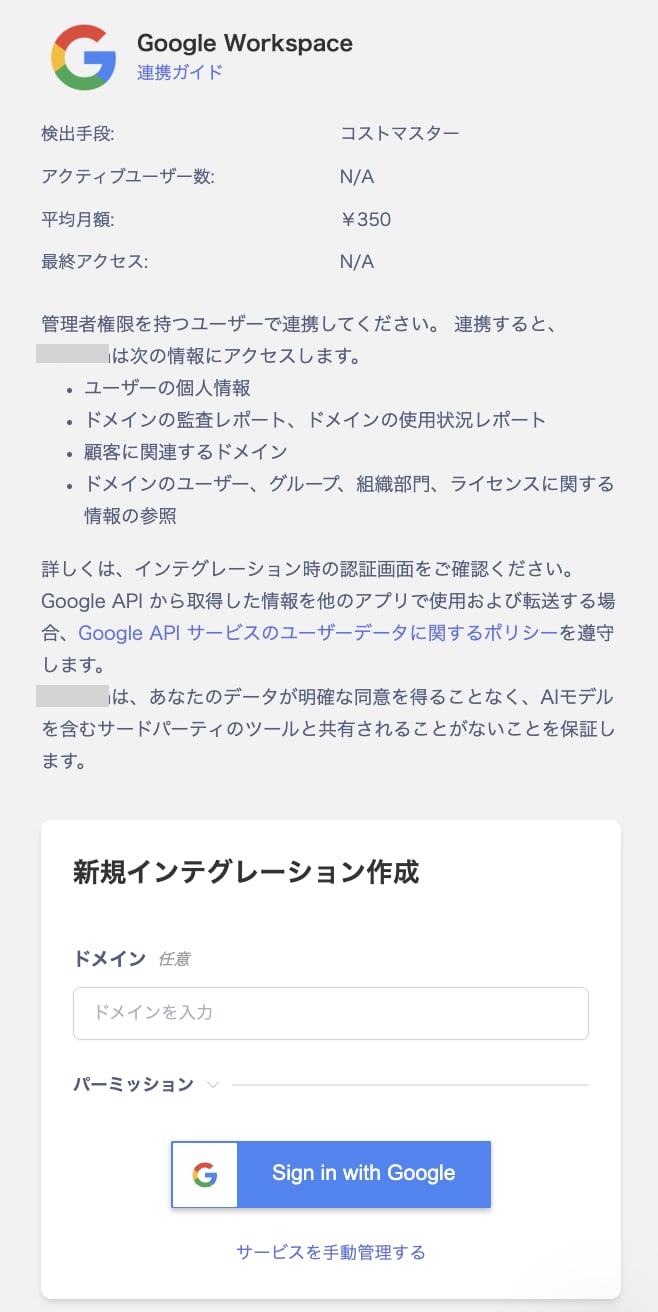
Go to Integrations > Integrations, search for Google Workspace, and select it.
Click Sign in with Google.
You can enter a domain (e.g., i.moneyforward.com) to limit integration to accounts of that specific domain only. Accounts outside the specified domain will not be retrieved, so use this for temporary purposes such as testing. To integrate all domains, leave the field blank and click Sign in with Google.
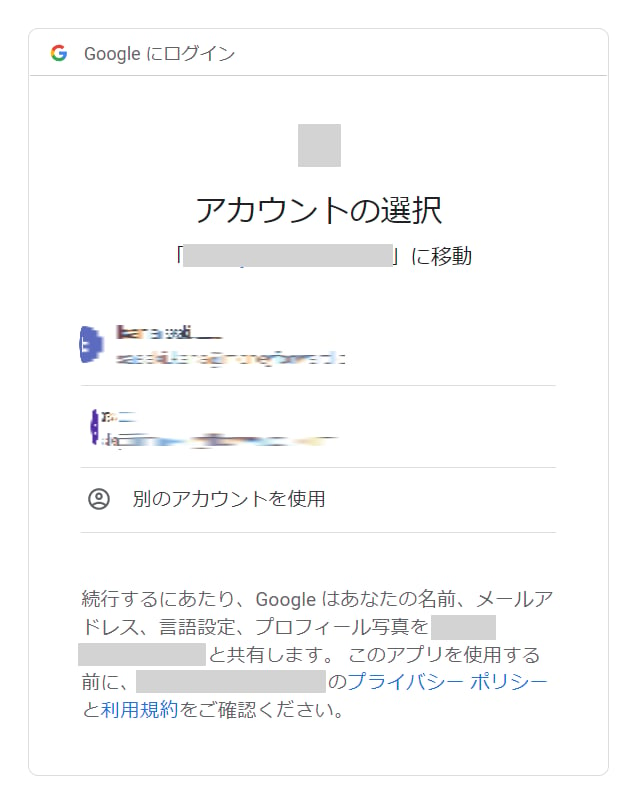
You will be redirected to the Google login page. Log in with your Super Admin account.
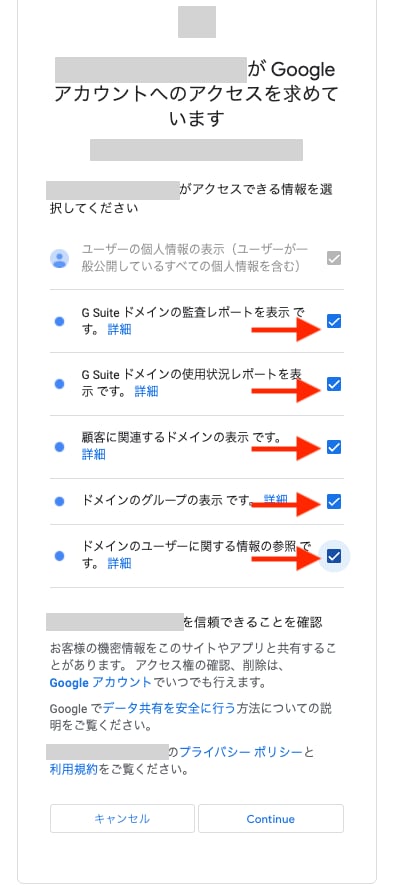
A screen titled “Google is requesting access to your account” will appear. Check all items and click Continue.
When the integration succeeds, registered user information will appear in the account list.
If the process does not complete successfully. Click Edit from the Status tab on the integrations screen and try connecting again.If the issue persists, please contact us via chat.
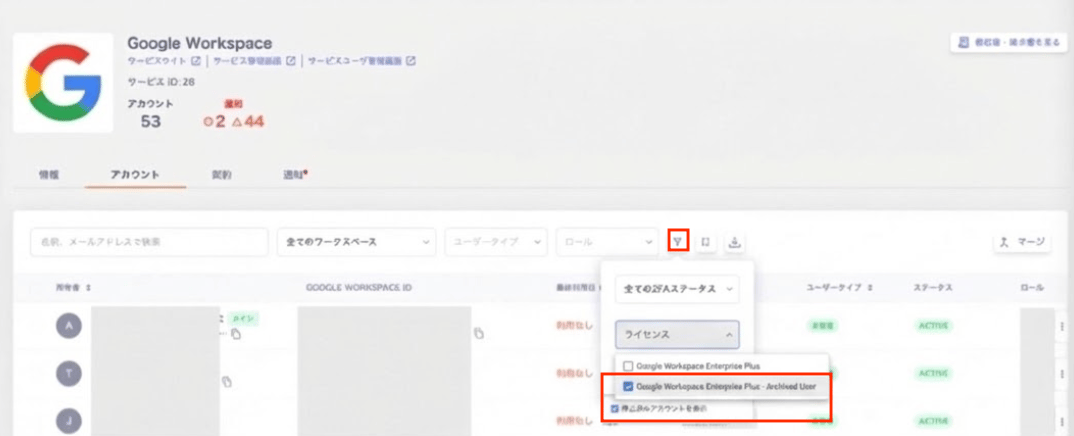
Google Workspace Archived Users can be viewed under Services > Google Workspace.For more information on archived user licenses, refer to Add archived user licenses (external site).Notifications: Archived users are not notified via alerts.Directory: If Google Workspace is set as your employee master, archived users have the status “Resigned”. For details, see Employee status conditions.Accounts: The status shows as ARCHIVED. Filtering by License shows Google Workspace (edition) - Archived User. Select the license and check Show suspended accounts to view the relevant accounts.Licenses: Under Google Workspace > Info > Info > License, filtering by [License] shows the licenses you own.
Q. The number of Google Workspace licenses shown does not match the actual license count.
A. On the Google Workspace side, the total number of licenses held is displayed. After syncing, only the number of licenses associated with active users is shown.
Q. What should I check if the License column under Services > Google Workspace > Info is not visible?
A. If the License column is not displayed, permissions may be insufficient for the Google Workspace integration. To display the License column, try reconnecting with a Super Admin account.
Q. When I select Delete on the “Confirm Account Deletion” screen, I see the message “Failed to delete the Google Workspace account. This account cannot be deleted.”
A. You can’t delete or deactivate group address accounts from Admina. Delete them from the Google Workspace admin console instead.
Q. Are accounts that are “Resigned” or “On Leave” in this service excluded from Google Workspace license billing?
A. Employee statuses are classifications in this service, based on the account state in Google Workspace. Accounts deleted or archived in Google Workspace become “Resigned”, and suspended accounts become “On Leave”. Determining a status does not change any account or license in Google Workspace.Check the Google Workspace Admin console to see whether an account is subject to Google Workspace license billing.