

Integration Specifications
An administrator account is required for the integration.
Prerequisites
How to Log In
Log in at the freee Sales login page by entering your email address and password.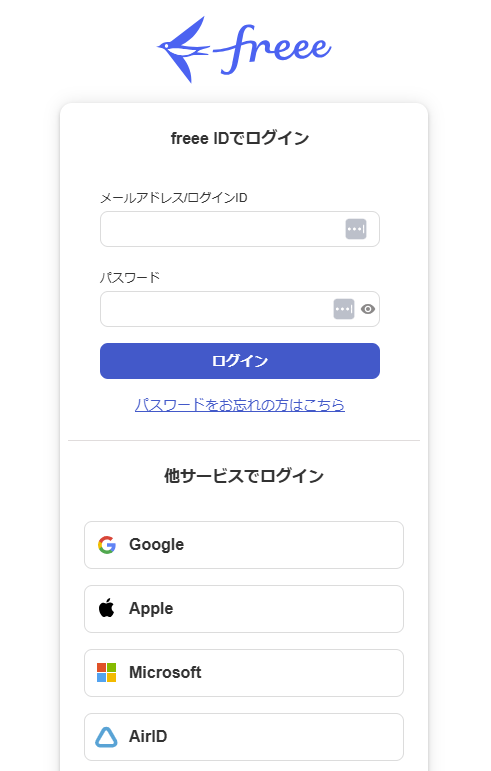
How to Find Your Workspace Key
-
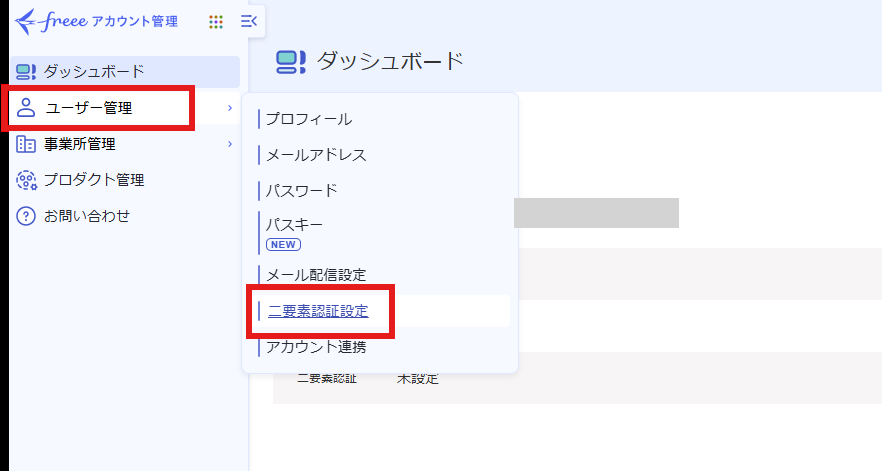
After logging in, click User Management > Two-Factor Authentication Settings.
-
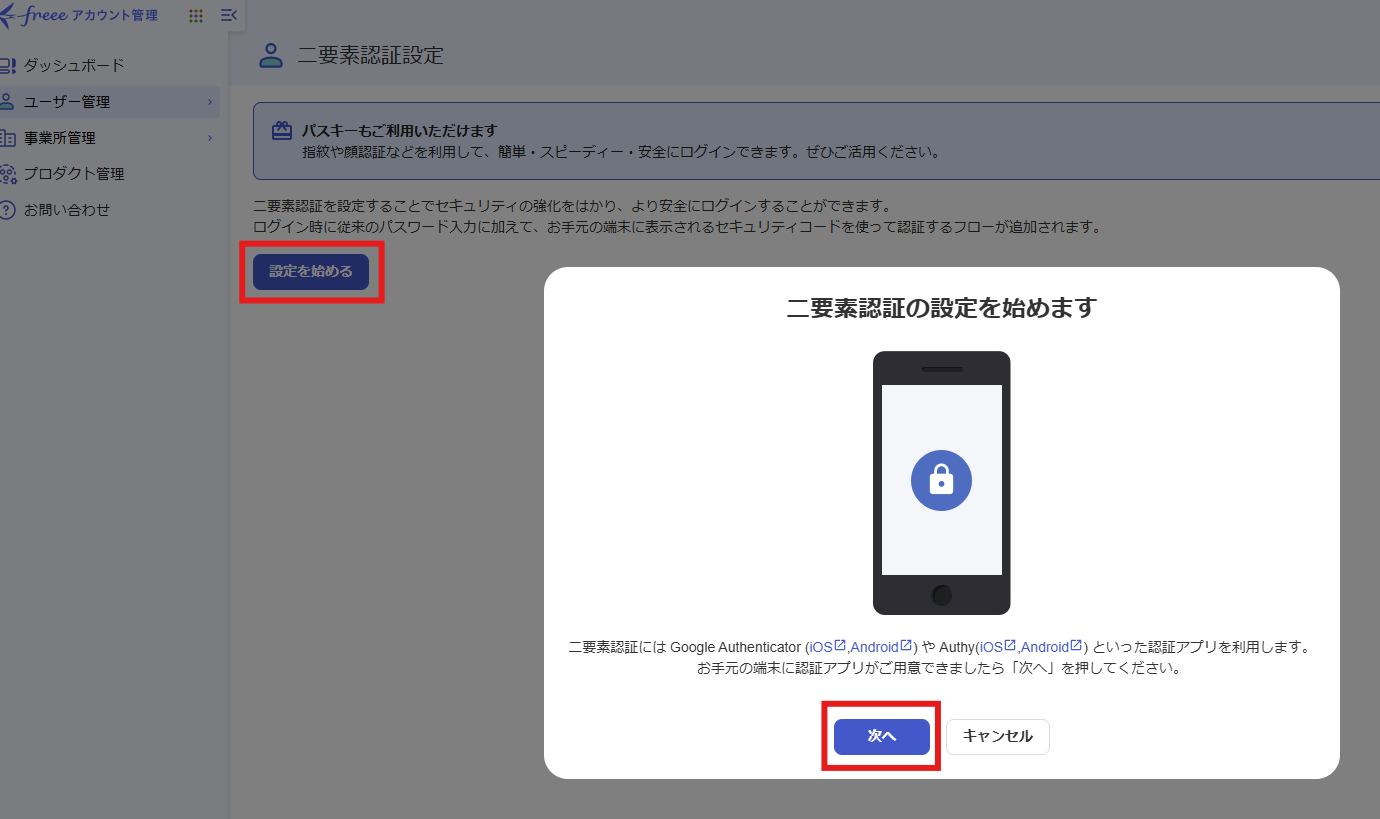
Click Start Setup > Next.
-
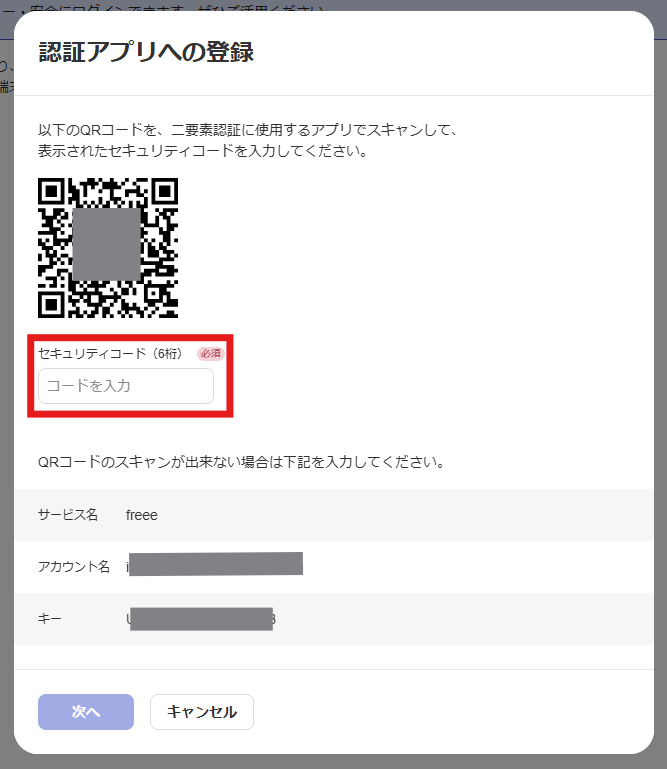
Enter the 6-digit code generated by your authenticator app, then click Next.
-
Copy the workspace key that is displayed.
- The workspace key is only displayed at the time of setup.
- If you have already enabled 2FA and have lost your workspace key, you will need to disable 2FA first.
- Then re-enable it to generate a new workspace key.
- If backup codes are displayed, make sure to store them in a safe place.
Setting Up the Integration
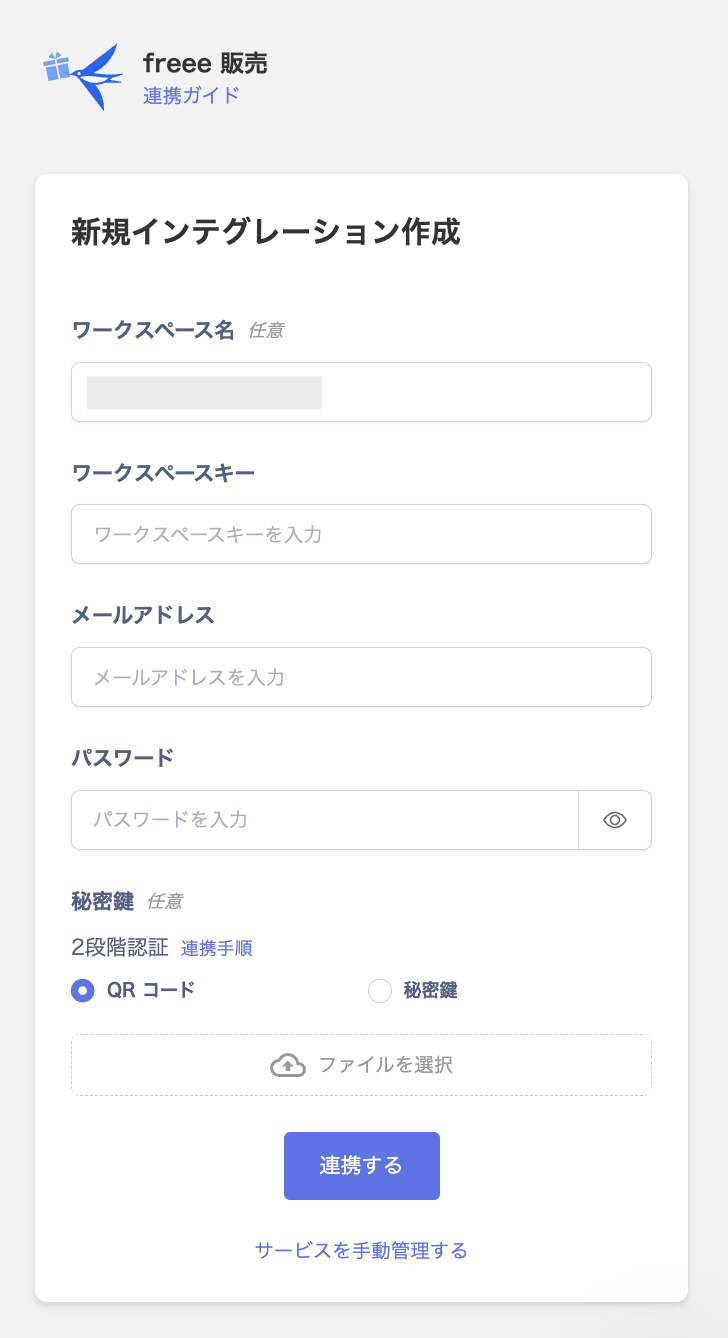
- Search for freee Sales in the integration screen.
- Enter an optional workspace name and the workspace key obtained in the previous step. Also enter your login email address and password.
-
For the private key, see 2FA setup instructions to attach an image file or enter the private key. Then click Connect.
-
Once the integration is successful, the registered user information will appear in the account list.
If the process does not complete successfully, go to the Status tab in the integration screen, click Edit, and try connecting again.If the issue persists, please contact us via chat.