How to integrate Hubstaff with Admina using an API key. Admina retrieves data such as user names, email addresses, and roles and supports account creation and deletion.
Log in to Hubstaff with an administrator account, then check the URL in the browser address bar. The number after https://app.hubstaff.com/dashboard/ is the Organization ID.
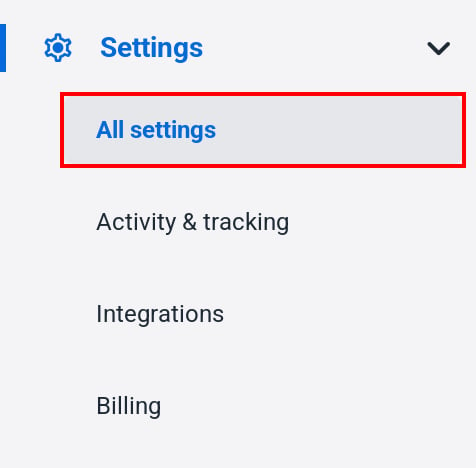
In the Hubstaff left menu, select All settings under Settings.
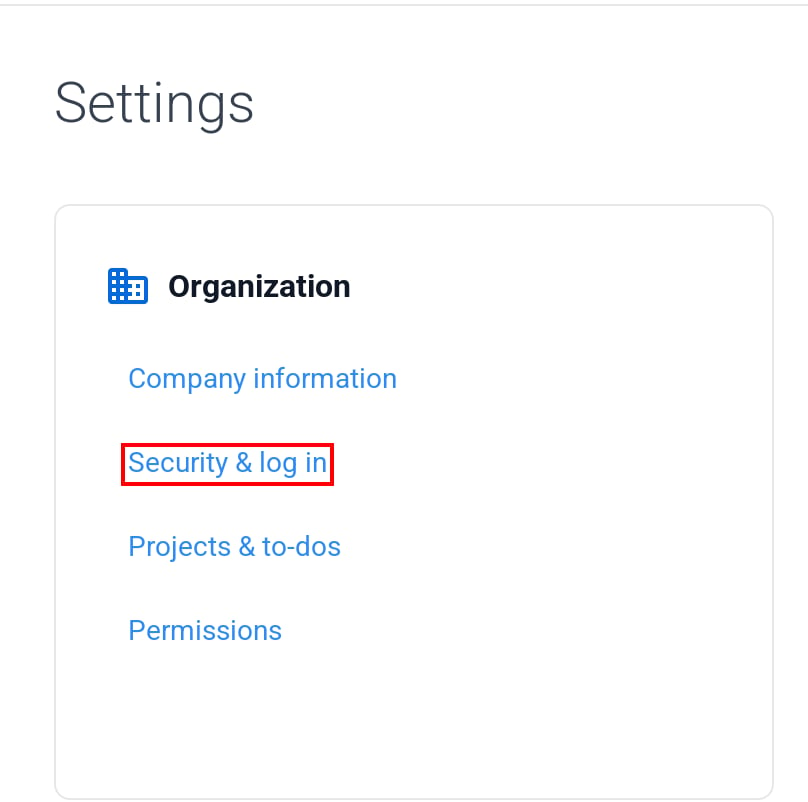
Select Security & log in under Organization.
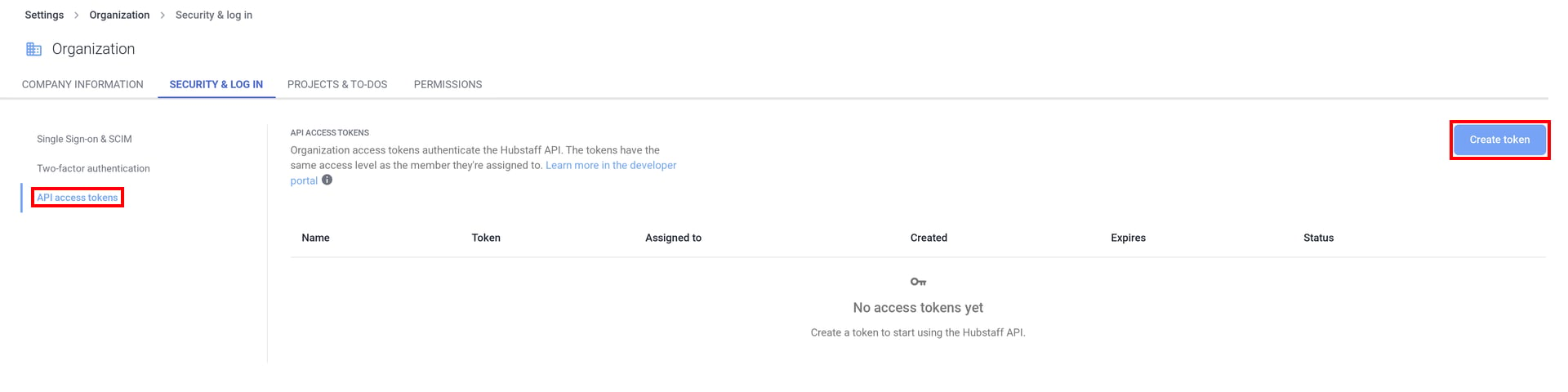
Select API access tokens, then click Create token.
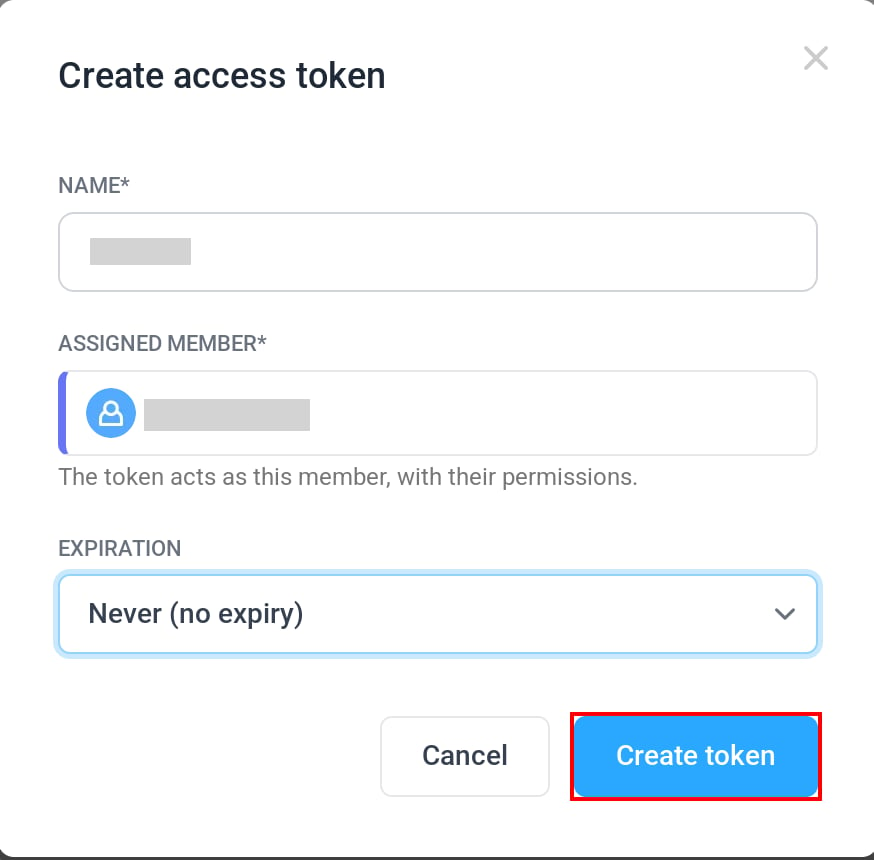
On the Create access token screen, enter any name in NAME. In ASSIGNED MEMBER, select an administrator. The token acts with the permissions of this member. In EXPIRATION, select Never (no expiry), then click Create token.
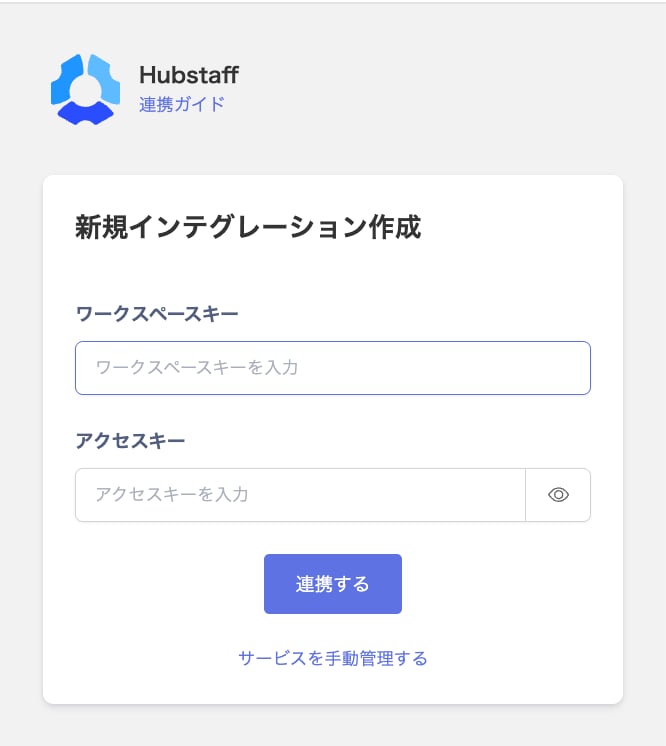
Enter the Organization ID in Workspace key and the API access token in Access Key, then click Integrate.
When the integration with Hubstaff succeeds, registered user information appears in the account list. If it does not complete successfully, first try the steps in Troubleshoot SaaS integration errors. If the issue persists, check Information to provide and contact Support.