

Integration Specifications
Prerequisites
Getting your API key
-
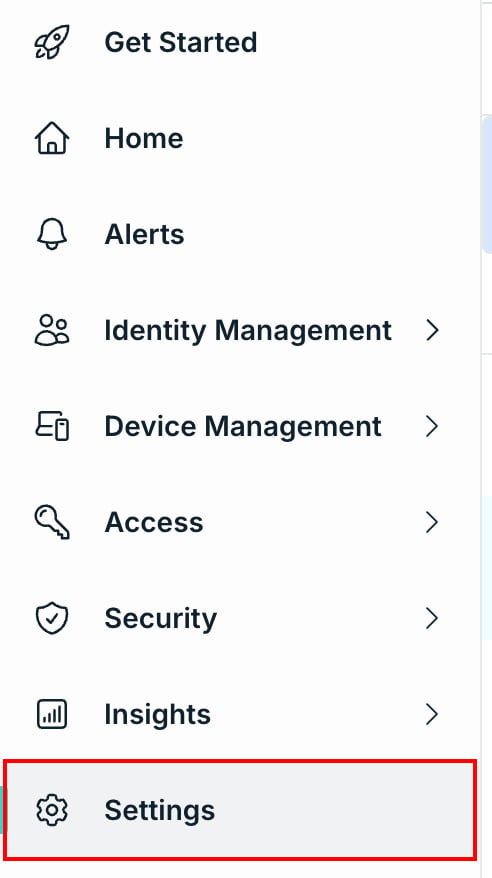
Click Settings in the left navigation menu.
-
On the Settings screen, select the Administrators tab.

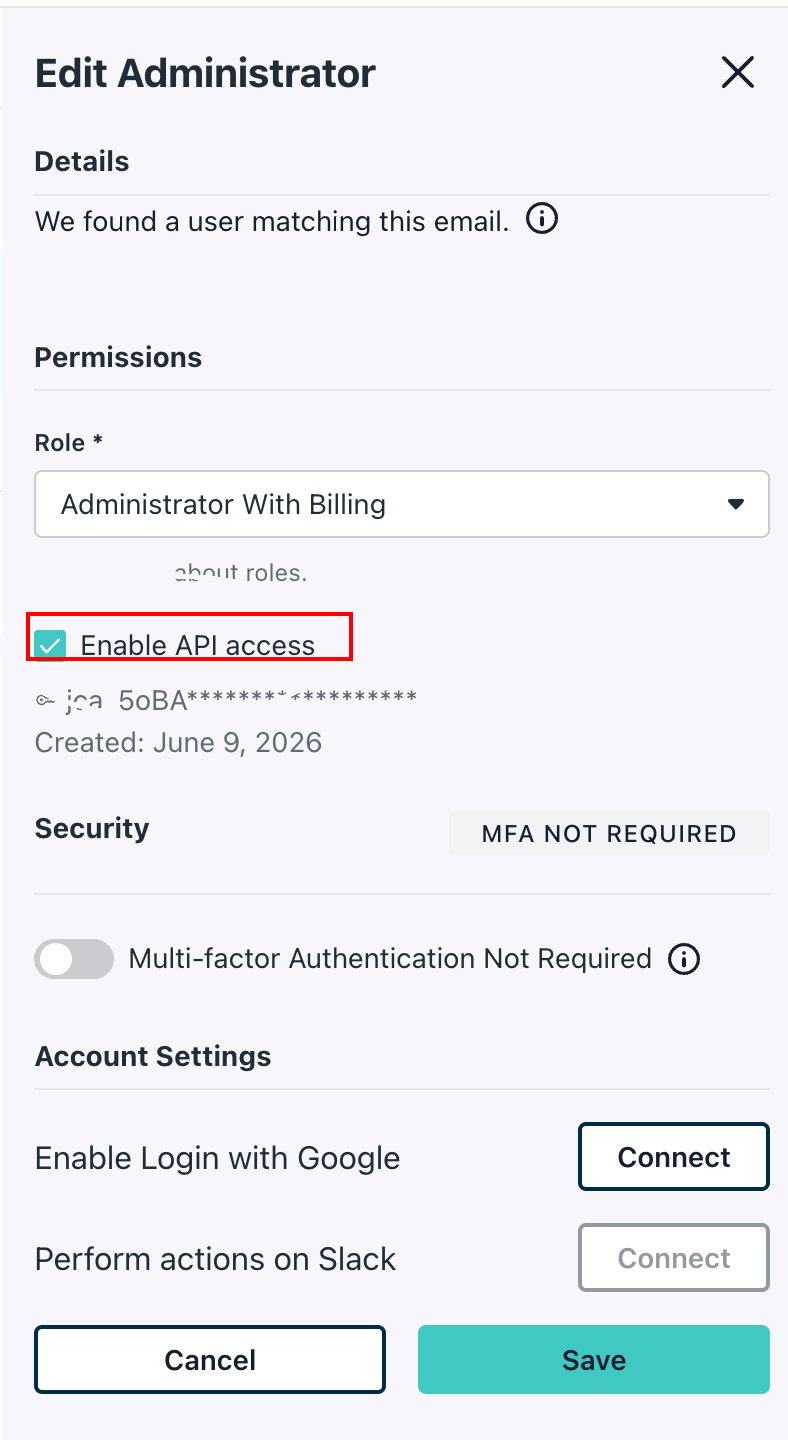
- Click an administrator’s name in the list. A side panel opens for editing that administrator.
-
Under Permissions, check Enable API access, then click Save.
-
At the bottom left of the screen, click your name, then select My API Key from the menu that appears.
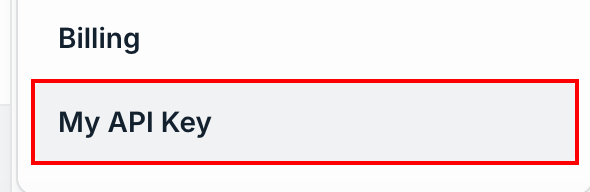
- Click Generate New API Key, then copy and save the API key shown.
Setting up the integration
- On the integration screen, search for JumpCloud.
-
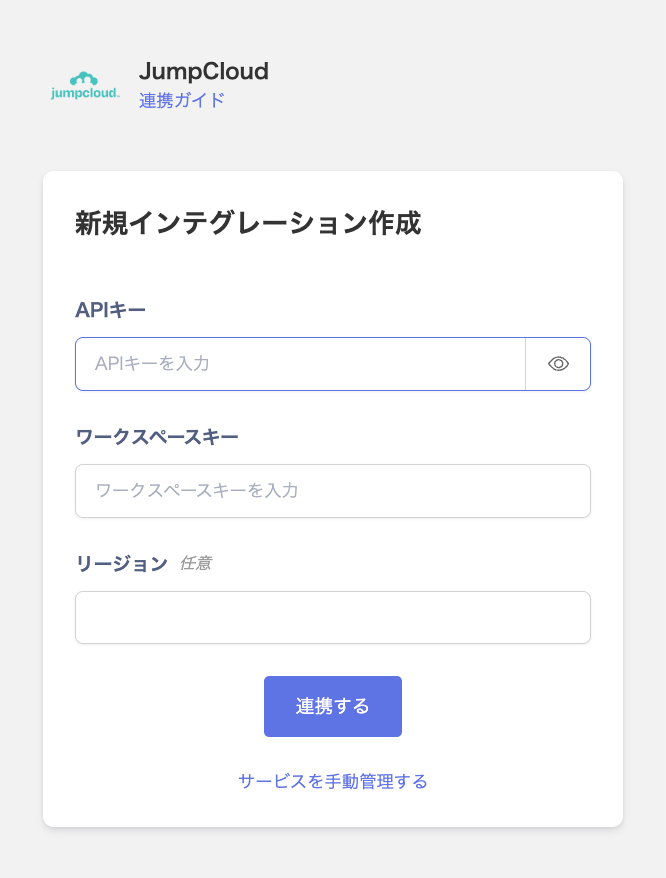
Enter the API key from the previous step and the workspace key shown in your JumpCloud admin console. Specify the region that matches your JumpCloud organization (US, EU, or IN), then click Connect.
- Once the integration with JumpCloud succeeds, registered user information appears in the account list. If it doesn’t complete successfully, first try the steps in Troubleshoot SaaS integration errors. If that doesn’t resolve it, check Information to provide and contact support.
MDM Integration
If you are using the device management feature, you can synchronize devices with JumpCloud. For details, see Sync devices with MDM-compatible SaaS.Serial number, model name, and manufacturer can only be retrieved from devices with JumpCloud’s “System Insights” feature enabled. On devices without it enabled, the serial number is not set, so the device is registered as new instead of being merged with an existing one, and the model name is registered as “Unknown”.Also, JumpCloud is not currently included in the list of services covered by the Managed field. The value is retrieved, but it is not reflected in the Managed field on the Devices screen.The user associated with a device (Email) is not retrieved, so devices are not automatically linked to employees.