Integration Specifications
A shared administrator email address and password are required for the integration.
If You Use 2FA (Two-Factor Authentication)
https://cybozu.dev/ja/common/docs/user-api/overview/authentication/#2fa Users who have enabled two-factor authentication cannot run the REST API with password authentication. Please prepare a dedicated integration user with two-factor authentication disabled.Prerequisites
How to Log In to Garoon
-
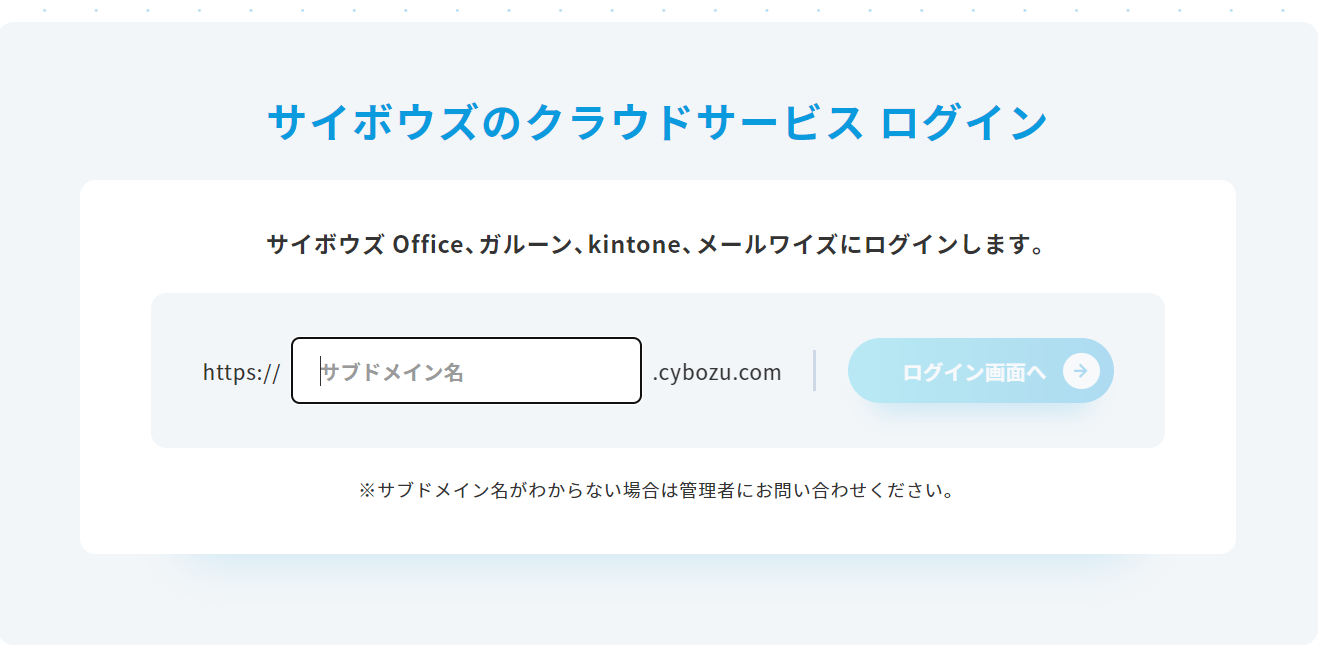
On the Cybozu cloud service login page, enter your subdomain and click Go to Login Screen.
- Enter your email address and password to log in.
How to Obtain the Workspace Key
There are two integration methods: the API tab and the ID/Password tab. If you integrate via the API tab, log in to Garoon, then save part of the URL on the next screen as your workspace key.How to Obtain an API Key
If you integrate via the API tab, see Generate an API Token (external site) and configure it accordingly.Integration Setup
- On the Integrations > Integrations screen, search for Garoon.
-
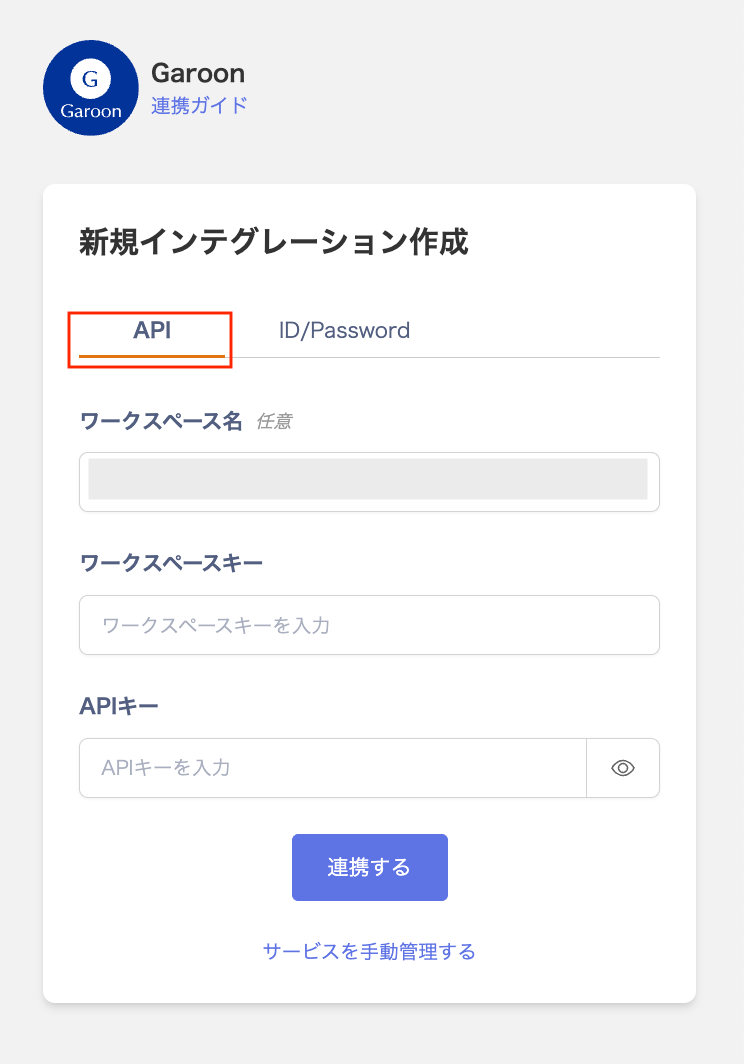
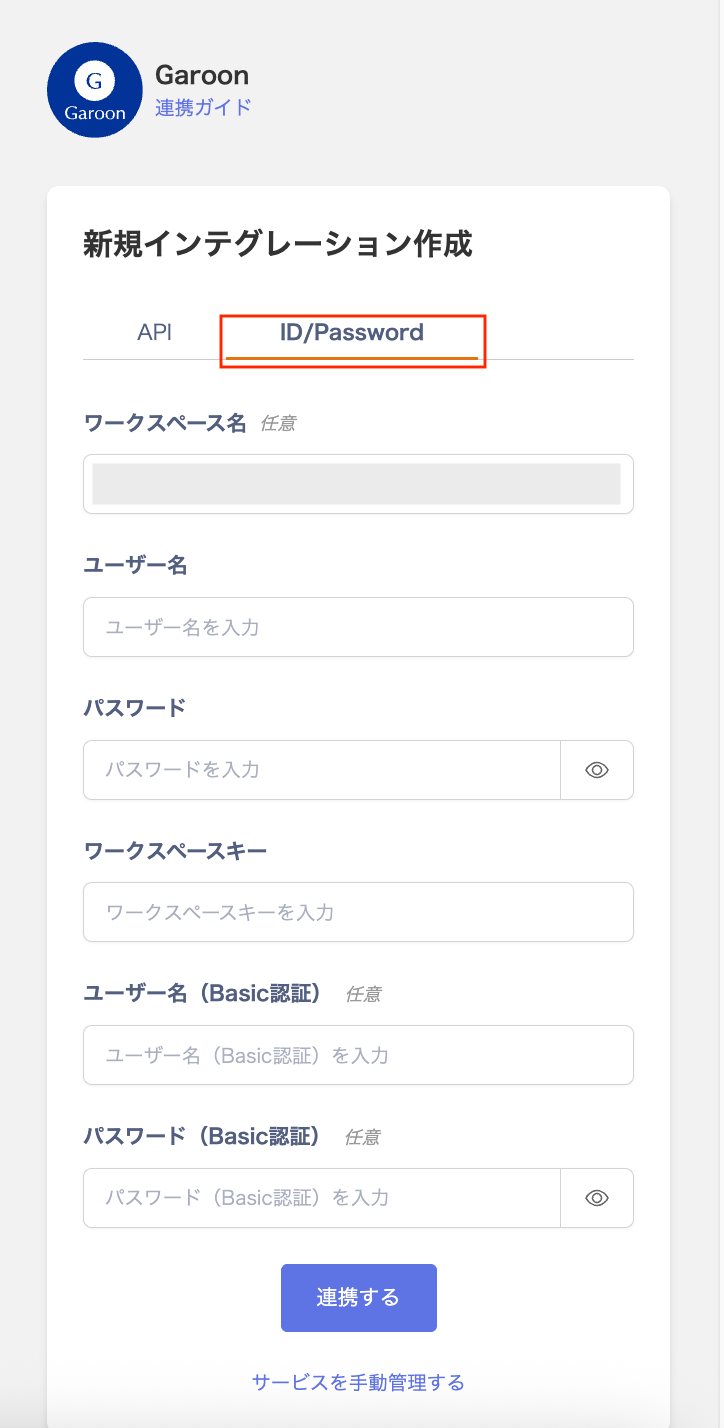
There are two integration methods: the API tab and the ID/Password tab. Follow the steps for the method you want to use.
a. If you integrate via the API tab: enter the following, then click Connect.